
You’ve probably heard that AI can write code now. Maybe you tried GitHub Copilot once, it filled in a line or two, and you thought: okay, neat. But you felt like you were still doing most of the thinking, most of the typing, most of the work.
Claude Code is a completely different thing. It’s not a line-completion tool. It’s more like hiring a junior developer who can read your entire project, run commands in your terminal, search the internet, check results, and fix its own mistakes — all while you watch (or walk away entirely). This guide will show you exactly how it works, what every piece of it does, and how to use it the right way from day one.
What Is Claude Code, Really?
Think of the old AI coding tools , GitHub Copilot, Cursor, Tabnine , like a very smart autocomplete. You type half a line of code, and it guesses the rest. That’s genuinely useful. But you still have to direct every single move.
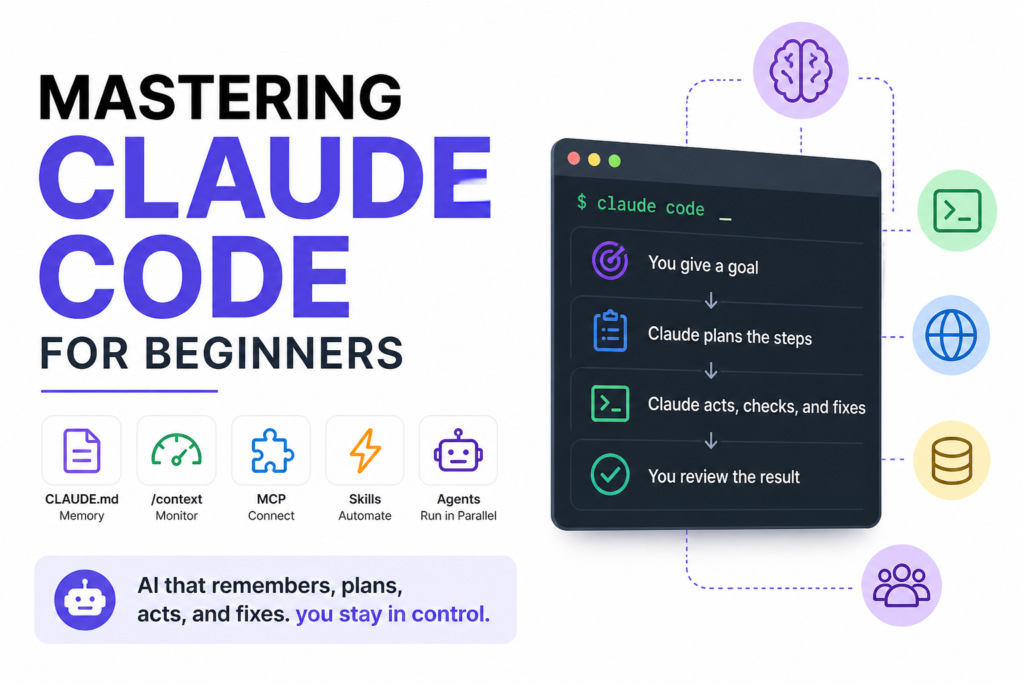
Claude Code works differently. You give it a goal , not a half-sentence, but an actual goal like “write a script that reads this CSV file and emails me a summary every Monday morning.” Then Claude Code figures out the steps, writes the code, runs it, checks if it worked, and fixes it if it didn’t. You’re the manager now, not the typist.
graph LR
    subgraph Old Way - Copilot Era
    A[You type half a line] --> B[AI guesses the rest]
    B --> C[You accept or reject]
    C --> A
    end
    subgraph New Way - Claude Code
    X[You give a goal] --> Y[Claude plans the steps]
    Y --> Z[Claude acts + checks + fixes]
    Z --> W[You verify the result]
    end
Old AI tools needed you to drive every keystroke. Claude Code lets you delegate a goal and step back.
The four big differences between old tools and Claude Code are scope, action, loop, and autonomy:
Scope means how much the AI can see. Old tools saw only the file you had open — maybe a few hundred lines. Claude Code sees your entire project, every file, every folder, plus your computer’s file system.
Action means what the AI can actually do. Old tools could only write text suggestions. Claude Code can run terminal commands, browse the web, connect to databases, open browsers, and call external services.
Loop means the pattern it works in. Old tools worked once and waited for you. Claude Code works in a loop: it makes a plan, takes an action, checks if the action worked, and tries again if it didn’t.
Autonomy means how much you have to babysit it. With old tools, you drove every keystroke. With Claude Code, you can delegate a whole goal and literally go make tea.
Why Does This Tool Exist?
Here’s the real problem this solves. Every time a developer starts a new task, they spend the first ten minutes just re-explaining context. “We use Python 3.11. Never run heavy jobs on the login node. Our experiment logs go in the experiments/ folder. Always write tests.” They type this in every conversation with every AI tool, every single day.
That’s not a workflow problem. That’s an amnesia problem. Every AI session starts with a blank brain.
Claude Code was built to fix that. You write your rules down once. The AI reads them every single session. You never repeat yourself again.
flowchart TD
    A[You write your rules once in CLAUDE.md] --> B[Claude reads CLAUDE.md at session start]
    B --> C[Claude knows your project, your rules, your style]
    C --> D[You give a goal — no re-explaining needed]
    D --> E[Claude acts with full context]
    E --> F[You check the result]
Write your rules once. Claude reads them every time it starts — no more repeating yourself in every session.
What’s Inside Claude Code: The Five Building Blocks
Claude Code has five main pieces. Each one does a specific job. Once you understand what each piece does, you’ll know exactly which one to reach for in any situation.
1. CLAUDE.md — Your Permanent Memory File
CLAUDE.md is a plain text file that sits in your project folder. Claude reads it automatically at the start of every session. Whatever you write in it, Claude knows it , without you having to say it again.
Think of it as the “onboarding document” you’d hand to a new teammate. Except this teammate reads it perfectly, every time, without forgetting any of it.
What goes in CLAUDE.md? Your project’s folder structure, coding rules (“always use type hints in Python”), commands Claude should never run, where your data lives, and how you want your files named. If you’re starting a brand new project and don’t know what to write, type /init and Claude drafts a starter file for you automatically.
2. /context — The Memory Monitor
Here’s something most beginners never think about: AI has a limited working memory. It’s called the context window , think of it like a whiteboard. Every file Claude reads, every message you send, every tool it uses , all of it takes up space on that whiteboard. When the whiteboard gets full, Claude starts forgetting things from the beginning.
The /context command shows you exactly how full the whiteboard is. You’ll see something like “76,000 out of 1,000,000 tokens used (8%).” Tokens are just units of text — roughly 4 characters per token.
When the whiteboard gets too full, you have three options:
/compact— Claude summarizes the conversation to free up space, keeping the important stuff/rewind— steps back to an earlier point, undoing recent actions/clear— wipes everything and starts a completely fresh session
flowchart LR
    A[You send messages + Claude reads files] --> B[Context window fills up]
    B --> C{Is it getting full?}
    C -- No --> A
    C -- Yes --> D[Choose: compact, rewind, or clear]
    D --> E[Claude has space to think clearly again]
The context window is Claude’s working memory. Monitor it and free up space before it overflows.
3. MCP — Connecting Claude to the Outside World
MCP stands for Model Context Protocol. Don’t let the name intimidate you. In plain English: it’s a plug-in system that lets Claude connect to external tools and services.
Without MCP, Claude can only see and act on your local files. With MCP, Claude can query your GitHub issues, search your Slack messages, look up runs in your experiment tracker (called wandb), control a web browser, or talk to a database ,all from a single conversation.
The key insight from the workshop: “wire a service in once, then every agent can use it.” You connect Slack to Claude once. From that point forward, every time you use Claude Code, it can search Slack automatically. You never have to connect it again.
Common things people connect via MCP: GitHub (read and write code issues), filesystem tools (navigate folders), databases (read and write data), web browsers (test websites), and Slack (search team conversations).
To see what’s currently connected, type /mcp and Claude lists all the active connections and what each one can do.
4. Skills — Teaching Claude Custom Tricks
A skill in Claude Code is a plain-English instruction file called SKILL.md. It has a name, a short description, and step-by-step instructions written in normal sentences ,not code.
When Claude sees a task that matches a skill’s description, it reads that skill file and follows its steps. You’ve essentially taught Claude a repeatable trick.
Here’s an example from the workshop. A research lab created a skill called /submit-experiment that, when triggered, automatically names the experiment run, writes a job submission script, submits it to the computing cluster, and records the job in the experiment log. One skill replaced a fifteen-step manual process that every researcher was doing by hand every day.
The best part: you don’t have to write skills yourself. After doing a complex task once, just say to Claude: “Based on what we just did, create a skill for it.” Claude writes the SKILL.md file for you.
5. Agents — Claude Running in Parallel
An agent is Claude working in its own separate session, on one specific task, reporting back only when it’s done.
Here’s the difference between talking to Claude directly versus using an agent. When you talk to Claude directly, it’s helping you in real-time, in your main conversation. The agent runs somewhere else , in a fresh session with its own context , investigates something, then brings you back just the answer.
Why does this matter? Because some tasks are huge. “Read all 10,000 lines of these experiment logs and tell me which run had the best accuracy at step 500” would fill up your context window immediately if done in your main session. An agent handles that search in its own space, burns through its own context, and hands you a clean summary at the end.
You can also run multiple agents at the same time, in parallel, then combine their findings. It’s like having five assistants working simultaneously on different research threads.
The Three Modes: How to Steer Claude
Claude Code has three operating modes. The mode you choose tells Claude how much to act versus how much to ask before acting.
Auto mode is full throttle. Claude runs, acts, writes, executes, and only stops if it genuinely gets stuck. Use this for straightforward tasks you’ve done before and trust Claude to handle.
Plan mode (activated with Shift+Tab) makes Claude stop and write out a plan before doing anything. Claude shows you every step it intends to take. You read it, approve it, suggest changes, and then it executes. Use this for complex or risky tasks where you want to verify the approach first.
Manual mode is back to autocomplete behavior , Claude only does exactly what you ask, one step at a time. Use this when you’re doing something delicate and want tight control.
graph TD
    A[You have a task] --> B{How risky or complex is it?}
    B -- Simple + familiar --> C[Auto Mode: Claude just does it]
    B -- Complex or unfamiliar --> D[Plan Mode: Claude shows the plan first]
    B -- Very delicate + precise --> E[Manual Mode: Claude follows your lead]
    C --> F[Review the result]
    D --> G[You approve the plan] --> F
    E --> F
Pick your mode based on how much you trust Claude with this specific task. Start in Plan mode when unsure.
How to Use Claude Code: Step by Step
Step 1: Open your terminal and navigate to your project folder. The terminal is the black or dark window where you type commands. Claude Code lives there. Navigate to your project with cd your-project-folder.
Step 2: Run /init if you’re starting fresh. This tells Claude to look at your project and automatically draft a CLAUDE.md file , your permanent memory file. Read what it creates and add anything it missed about how you work.
Step 3: Run /powerup to see everything Claude can do. This opens a quick-start menu showing every major feature , how to point at files, how to switch modes, how to undo, how to connect tools. It’s a cheat sheet built into the tool itself.
Step 4: Give Claude a real goal, not a fragment. Bad: “Write a function.” Good: “Write a Python function that reads data/sales.csv, calculates monthly totals per region, and saves the result to output/monthly_report.csv. Add basic error handling in case the file doesn’t exist.”
The more context you give upfront, the better the result. Claude is not a mind reader. Be the clear manager, not the vague one.
Step 5: Switch to Plan mode for anything important. Press Shift+Tab to activate Plan mode. Claude shows you the step-by-step plan before touching a single file. Read it carefully. This is your chance to catch mistakes before they happen.
Step 6: Check the /context display regularly. Don’t let the whiteboard get full. When you’re at 70–80% capacity, run /compact to free up space. A full context means Claude starts losing track of earlier decisions.
Step 7: After any multi-step task, ask Claude to make a skill. Say: “Create a skill for what we just did.” Claude writes the SKILL.md file. Next time you need the same task done, it runs instantly with one command.
What You’ll Actually Be Able to Do After This
Once you’re comfortable with the five building blocks and three modes, here’s what changes in how you work.
You stop explaining your project from scratch every session. CLAUDE.md handles that. You stop babysitting every step of complex tasks. Agents handle that in parallel. You stop manually re-doing multi-step processes. Skills handle that with a single command. You stop wondering if Claude understood correctly. Plan mode shows you the plan before anything runs. You stop losing context mid-way through big tasks. /compact and /rewind keep things manageable.
The mental shift is from “I’m using an autocomplete tool” to “I’m managing a capable assistant who remembers everything I’ve told them, can call in help from specialists, and checks their own work.”
Common Beginner Mistakes (And How to Avoid Them)
You give vague goals and then blame Claude for vague results. Claude is only as good as the instructions it gets. “Fix the bug” is not an instruction — “the function calculate_total() in utils.py returns None instead of a float when the input list is empty, fix that” is an instruction. Specificity is the whole game.
You ignore the context window until it overflows. Most people don’t check /context at all until Claude starts giving weird, forgetful responses midway through a long task. By then, important context is already gone. Make checking the context window a habit , do it at the start and at the halfway point of any long session.
You never write a CLAUDE.md file and re-explain everything every session. This is the single most wasteful habit in Claude Code. Spend 20 minutes writing a good CLAUDE.md once, and you’ll save yourself hours over the next month. Even a rough file , five bullet points about how your project is structured — is infinitely better than nothing.
Where to Go Next
Easy next step: Run /init on your current project right now. Read the draft CLAUDE.md it generates. Add three things it doesn’t know about how you work. You’re now 80% set up for a better workflow.
Medium next step: Connect one MCP service that would actually help you. GitHub is a good first choice — it lets Claude read and comment on your issues directly. Type /mcp to see how to connect it.
Stretch goal: Create your first custom skill. Pick the most repetitive multi-step task you do in your project. Do it once while Claude watches. Then say: “Create a skill for this.” Next time, one command does everything.
The Bigger Shift
Most people will spend 2026 using AI the old way — pasting snippets in, copying code out, repeating context every single session, babysitting every keystroke. That works. It’s just slow and exhausting.
The practitioners who get good at Claude Code aren’t doing more AI magic. They’re doing better management. They write clear goals. They give Claude the context it needs upfront, in CLAUDE.md, so they never repeat themselves. They use Plan mode for anything risky, Auto mode for anything familiar. They build skills out of repeated tasks. They run agents for the heavy work that would otherwise flood their context window.
The tool is genuinely powerful. What separates the people who get that power from the people who don’t is almost entirely about how clearly they communicate and how consistently they maintain their setup.
Start with CLAUDE.md. That’s it. That one file is the difference between a session where you re-explain your whole project and a session where Claude just knows.
Stop typing the same instructions every day. Let Claude Code remember, plan, and do the work , while you stay in control.

2 comments