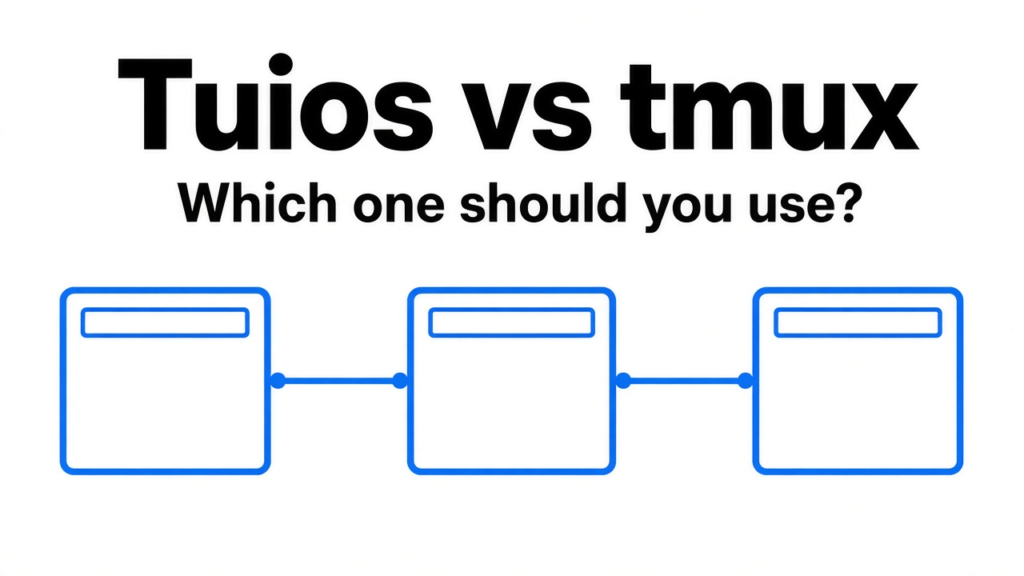
I had one terminal, and the next command was about to cover the log I still needed. A terminal is the text window where you type commands. tmux is the program that splits that window into pieces and, if you only detach, leaves those pieces running. tuios is a newer program for the same split, plus a list of what your coding agents are waiting on. I ran tuios 0.13.2. On tuios vs tmux, stay with tmux when a job must keep running. Use tuios when you want the window layout back after a restart, and you can live with new shells.
That choice is the whole page. The rest is what I typed, what came back, and the one place a tmux habit failed.
what is tuios
tuios is a window manager that lives inside the terminal, so one screen holds several shells and remembers how you arranged them.
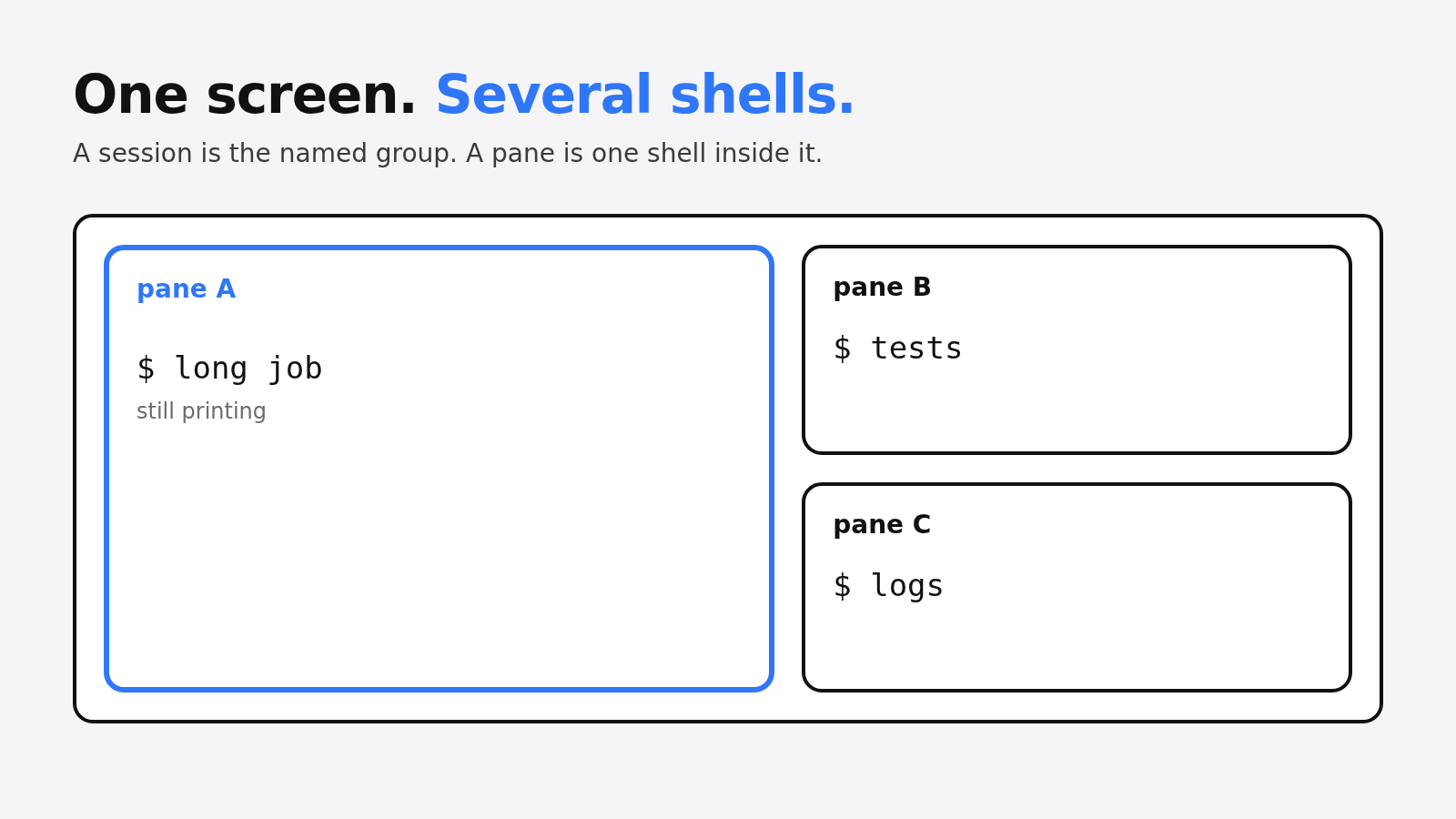
Start from the mess, not the name. You are in a shell. A shell is the program that reads a line, runs it, and prints the result. One shell shows one thing. The moment a test log and a second command both matter, you need more than one of those. A pane is one of those shells, drawn as its own box. A session is the named group of panes. A workspace is a second page of panes, like another desktop, so the log can stay up while you switch away. tuios is the program that draws the boxes, switches the pages, and keeps the names.
The help text called it a terminal window manager. The binary I ran printed tuios version 0.13.2. The file on disk was 47 MB. That size is already a hint: this is not the tiny tool that ships on a fresh server. You install it on purpose.
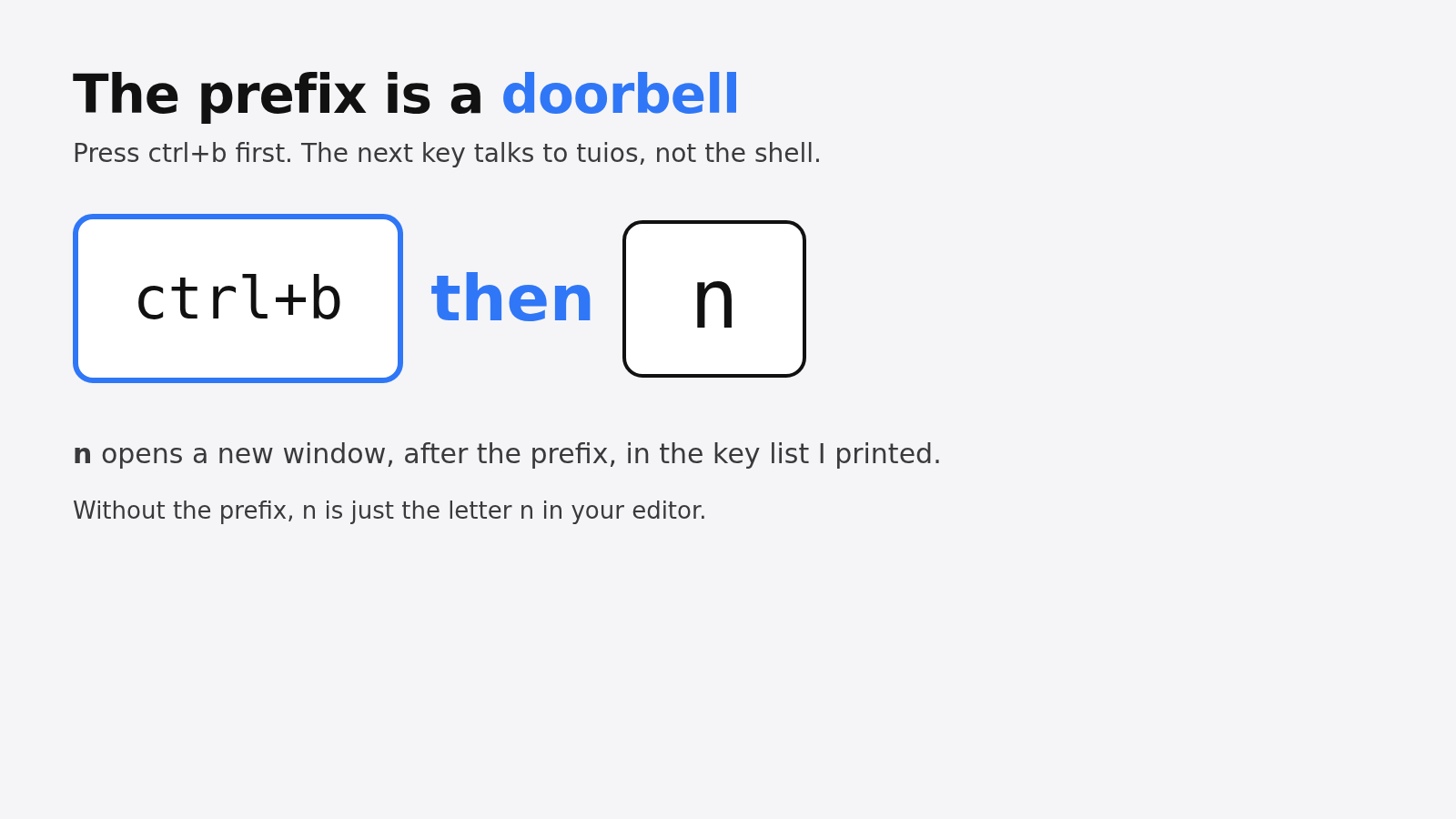
Two keys are worth knowing before anything else. A prefix is the chord you press first so the next key talks to the window manager instead of the program in the pane. The key list printed ctrl+b as that prefix, the same chord tmux uses by default. After it, n is a new window. Without the prefix, n is just the letter n. ctrl+p opens a command palette, a searchable list of the same actions, so you do not have to memorize the chord on day one.
There is also an inbox. That is a list of things waiting on you: a question, an error, a finished turn. I asked for it before any agent was running. The reply was Nothing is waiting for you. A second command, tuios list-agents, said there were no agent panes. The inbox is real as a command. It stays empty until a pane reports that it is an agent. If you only wanted split screens, you can ignore that list.
Coding agents are the reason the inbox exists. An agent here means the program that edits a repo and runs commands, not the chat box. How that loop is built is a separate question, covered in what an agent harness is. tuios does not replace that loop. It is the screen the loop sits in.
tuios vs tmux
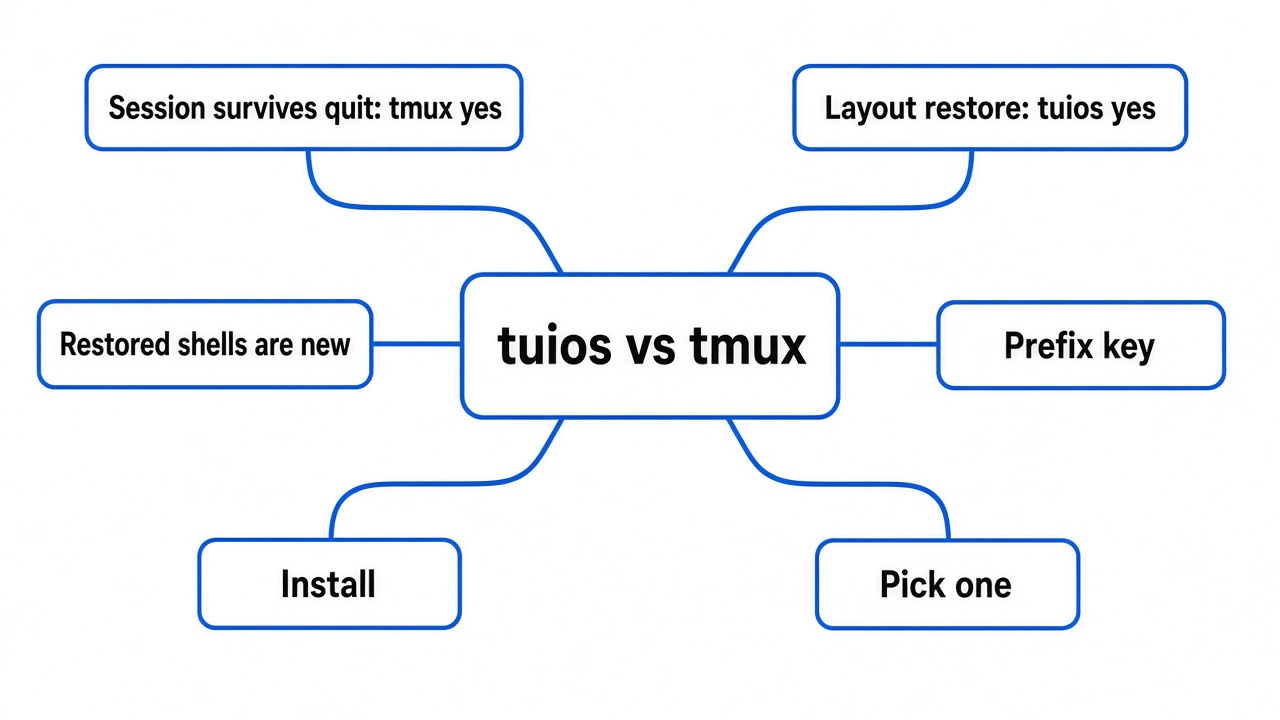
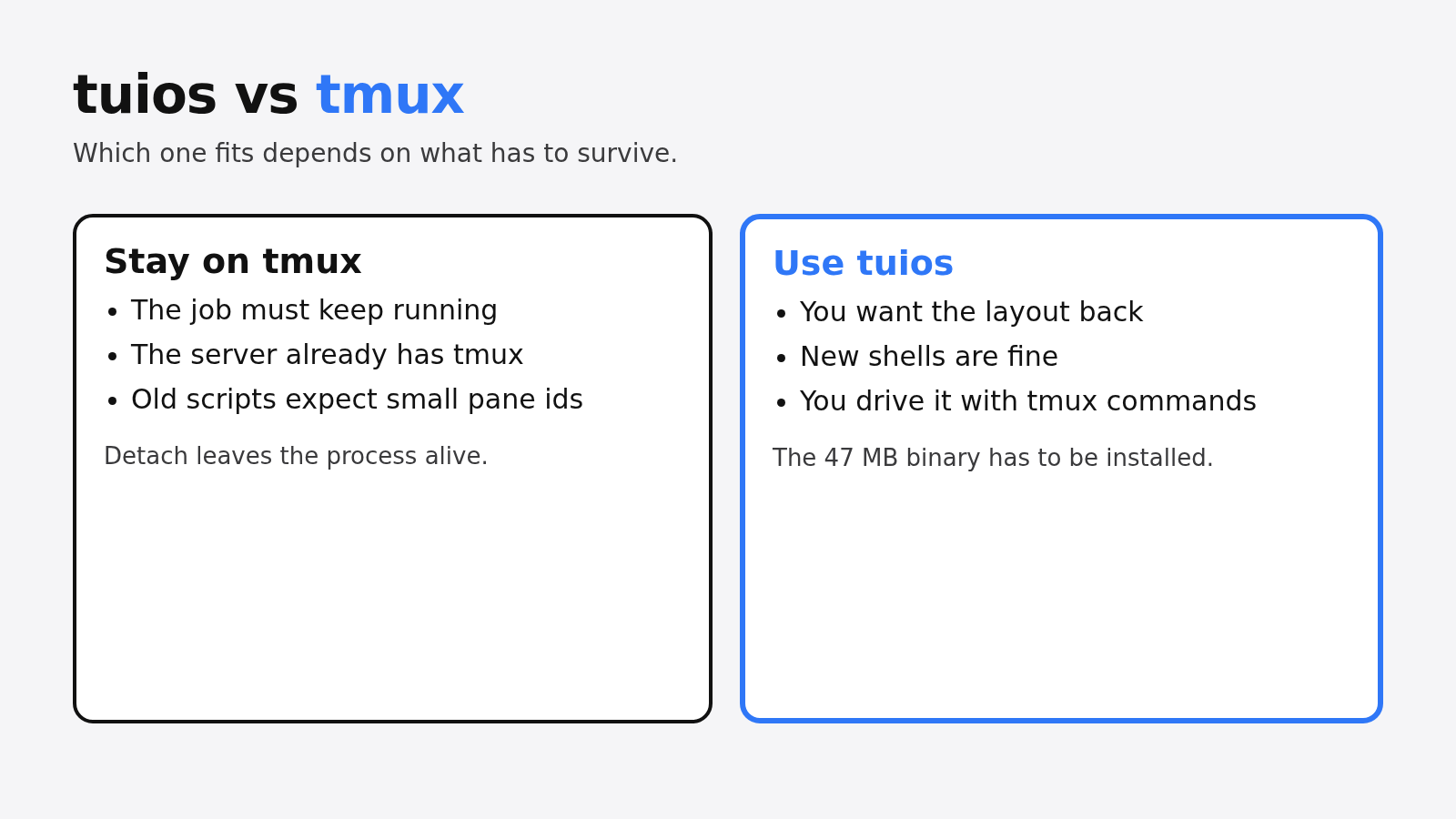
Use tmux when the running program has to survive. Use tuios when the layout has to survive and a fresh shell is acceptable.
I could not put the tmux package on this machine, so I have not timed a second binary. What I did was ask tuios to speak tmux’s command language, then stop tuios and start it again. That is the comparison that changes the decision.
| tmux, as the job it is known for | tuios, as I ran it | |
|---|---|---|
| What you install | Often already on the server | A 47 MB binary I unpacked on purpose |
| Prefix I saw | ctrl+b is the usual default | The key list printed ctrl+b |
| After I stopped its background program | I have not re-tested this here | Layout of session demo came back, 2 windows, and the tool said the shells are new |
| tmux-shaped commands | Native | list-sessions, new-window, send-keys, and capture-pane worked. kill-server was refused |
| Pane id | Scripts often assume a small id such as %1 | %1 failed. The real id was a long number |
| Empty of agents | Not its job | Inbox printed that nothing was waiting |
A multiplexer is the program that owns those panes. tmux is the one most servers already have. tuios is the one I installed. Zellij is the other common newer one. I have not run Zellij. If your only pain is that stock tmux looks old, do not assume tuios is the only way out.
how do i install tuios
Install the release binary, then make a detached session named demo so you can see it without a second screen.
On a Mac or a Linux machine with Homebrew, the documented line is brew install tuios. The install script the project publishes is:
curl -fsSL https://raw.githubusercontent.com/Gaurav-Gosain/tuios/main/install.sh | bashI have not used either of those. I fetched the Linux x86_64 archive for 0.13.2, unpacked it, and ran ./tuios. --version printed tuios version 0.13.2. If you want the same check, any of those install paths should end at that command.
Then this, from the folder you want the shells to start in:
tuios new demo --detach
tuios lsnew creates a session. --detach means create it and do not attach, so no full-screen interface takes over your terminal. Attach means connect your screen to a session that is already running. The reply was Created detached session 'demo'. Then tuios ls drew a one-row table: name demo, 1 window, status detached.
Before any session existed, tuios ls was just as useful. It said the daemon was not running and no sessions were saved, and it told me to run tuios new or tuios start-server. A daemon is the background program that holds the sessions after your first terminal closes. If that sentence is missing, you do not have a session yet. You have a binary.
The help text also lists tuios tutor. That is a guided tour inside the app. I have not run it, because I wanted the scripted commands instead. If you would rather press keys than read a table, start there, or open the in-browser tour at tuios.dev/learn.
does tuios keep my session after i quit
It keeps the layout and the names. It does not keep the programs that were running. The shells come back new.
This is the part I would not trust from a feature list, so here is the sequence.
I added a second window through the tmux-shaped command tuios tmux new-window -d -n extra. list-windows then showed two rows, both 80x24. That size is what you get when no real screen is attached. The second row was named extra.
I then stopped the daemon with tuios kill-server. It printed that it sent a stop signal and that session state was saved. tuios ls still showed demo, now with 2 windows, status saved.
I started the daemon again. tuios ls changed the status to restored and added this line: restored: the layout came back from saved state, and the shells are new.
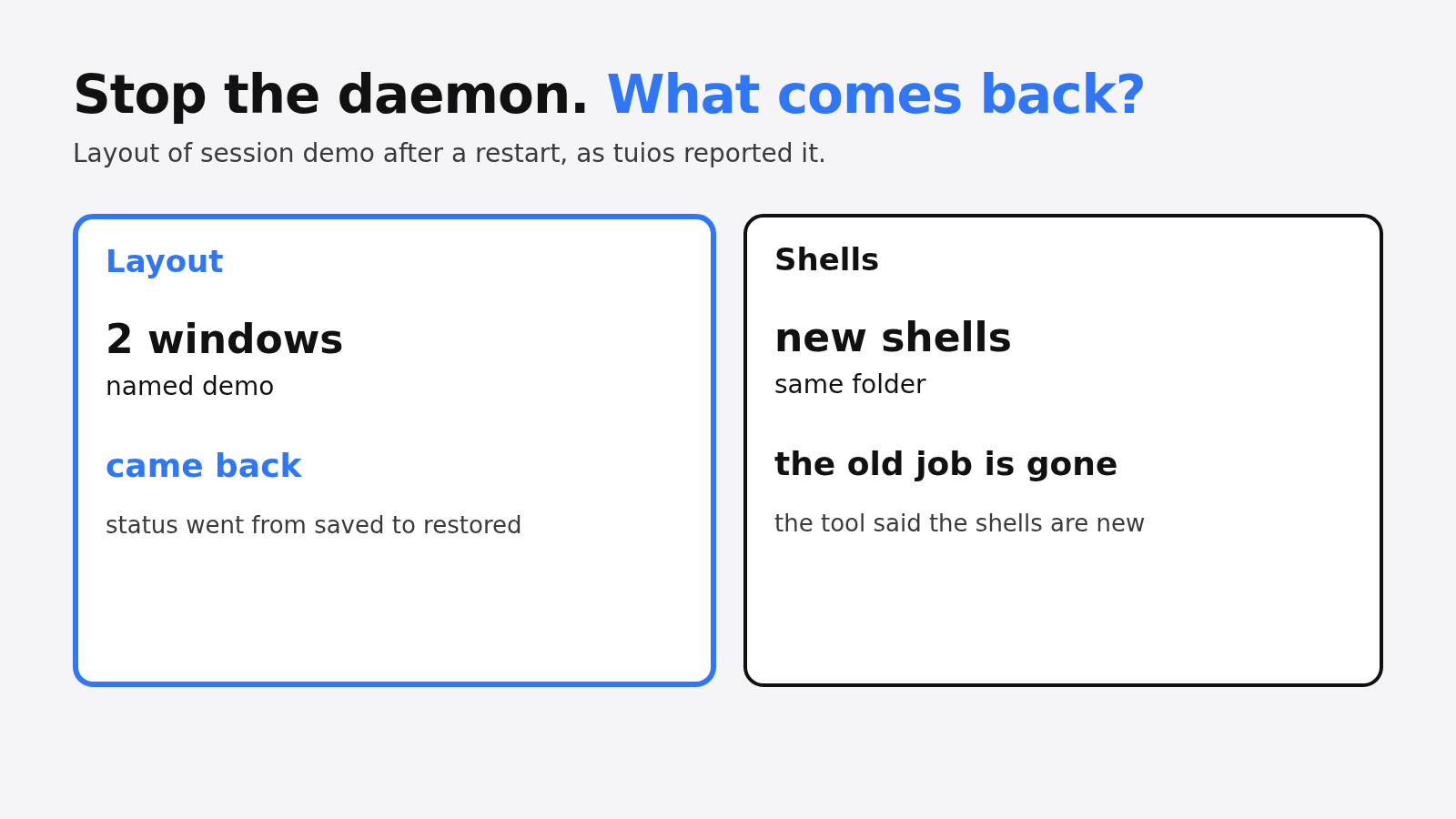
The help for tuios resurrect says the same thing in different words. Each window gets a new shell in the working directory that was saved. The daemon restores saved sessions when it starts. So a reboot of the daemon is not a detach.
Detach, in tmux, means your screen leaves and the program stays. I have not re-run that tmux behavior here. It is the reason tmux is on servers. What I did re-run is the tuios side, and the tool itself said the shells are new. A compile, a download, or a watcher that was mid-line does not get to finish inside the restored pane. The folder is the same. The process is not.
That also explains a trap if you are stacking tools. OpenRig will not even plan a team of agents until tmux is on the machine, because tmux is what holds those seats. Swapping that seat for tuios is a different promise: the arrangement returns, the live process does not. If two agents must keep writing while you close the lid, read Claude Code and Codex in one setup and keep the thing that actually holds the process.
can tuios run tmux commands
Yes for the everyday ones I tried. No for kill-server. And the pane id was not %1.
tuios tmux is a stand-in. You type a tmux command. tuios answers it against its own session. Outside a pane, each tuios session is presented as a tmux session. A tmux window maps to a tuios workspace. A tmux pane maps to a tuios window.
What worked on session demo:
tuios tmux list-sessions
tuios tmux new-window -d -n extra
tuios tmux list-windowslist-sessions printed demo: 1 windows before I added the extra window. After it, list-windows printed two lines, the second named extra.
I then sent a command into the pane and captured the screen:
tuios tmux send-keys -t %268022771 'printf tuios-ran-this' Enter
tuios tmux capture-pane -p -t %268022771The captured text showed the command and showed that the shell ran it. So keystrokes do land. The id %268022771 is the id list-panes printed. I first tried %1, the id a lot of tmux notes use for the first pane. The reply was can't find pane: %1.
That is the practical break. A script that hard-codes %1 did not work on this detached session. Ask for the id:
tuios tmux list-panes -F '#{pane_id} #{pane_title}'Then use the number it prints.
Two more results, because they are easy to misread. tuios tmux set-option -g status off returned without an error and without printing anything. The help text says set-option succeeds and does nothing. A quiet success is not a changed status bar. tuios tmux kill-server did print a refusal: kill-server: refused, the tuios tmux shim does not start, attach or end sessions. The stand-in will not tear the session down. Use tuios kill-server when you mean it, and expect the shells-are-new result from the previous section.
If you also rely on desktop pings when a coding agent finishes, check that path separately. tmux can swallow those pings, which is the subject of a Claude Code session that tells you when it is done. A new multiplexer does not, by itself, fix a notification.
should i use tuios instead of tmux
No, if something is still running and must stay running. Yes, if you want this layout back on a machine you control, and a fresh shell is enough.
Stay on tmux when any of these are true:
- The server already has tmux, and you are not allowed to install a 47 MB program.
- A job is in the middle of its work. Closing the screen must not kill it.
- A script you did not write assumes pane ids like
%1. - Another tool, such as OpenRig, already calls tmux by name.
Use tuios when these are true instead:
- You can install it on your own machine.
- You want named windows, workspaces, and
ctrl+bchords that match the tmux ones in the key list. - You can accept that a daemon restart restores the arrangement and starts new shells in the saved folder.
- You like driving it from scripts.
tuios tmuxcovered list, new-window, send-keys, and capture on the session I made.
I would not switch for the inbox alone. Mine was empty, and it should be empty until an agent pane exists. The inbox is a reason to try tuios after you already have agents in panes. It is not a reason to move a production server off tmux.
If you only wanted to watch a repo change inside a terminal, that is a different tool and a different job: gitlogue versus gource. tuios will not draw your commit history. It will hold the shell you use to look at it.
The project is Gaurav-Gosain/tuios. Its own table of neighbors is at tuios.dev/docs/comparison. Read that for Zellij and the rest. Trust the restore test above for the one fact that decides tuios vs tmux: the windows came back, and the shells were new.
Common questions about tuios
why did pane %1 fail
Because that pane’s id was not %1. list-panes printed a long id, and send-keys to %1 answered can't find pane: %1.
Copy the id from tuios tmux list-panes -F '#{pane_id}' on the session you just created. Do not reuse an id from a blog post, including the long one above. That number belonged to my session. Yours will differ.
does tuios use the same prefix as tmux
Yes in the build I ran. The key list labeled the prefix ctrl+b, then n for a new window and ctrl+p for the command palette with no prefix.
I read that from tuios keybinds list. I have not rebound it. If your tmux uses ctrl+a, your fingers will still be wrong until you change one of them. The default match is only with tmux’s own default.
is the tuios inbox useful if i do not run an agent
No. tuios list-attention printed Nothing is waiting for you. tuios list-agents said there were no agent panes.
The commands work. They had nothing to show, because I never started an agent. Split screens and the restore behavior do not need the inbox. Open it when a pane is actually an agent and you want one list instead of clicking through windows.
can i try tuios without a long setup
Yes. tuios new demo --detach then tuios ls is enough to see a session, and tuios tutor is the guided tour the help text offers.
If you do not want a binary yet, the project also hosts a tour in the browser at tuios.dev/learn. The detach test on this page is the one that answers tuios vs tmux. The tour is the one that teaches the keys.