The show is fine, then the person on the television starts reading a script for a mattress, a VPN (a paid tunnel that hides your traffic), or a drink. That stretch is not the same thing as the commercial YouTube inserts before the video. It is part of the video file itself. This article is iSponsorBlockTV vs SmartTube. Use iSponsorBlockTV (a small program on a computer that remote-controls the official YouTube app on the television) when you must keep that official app. Use SmartTube (a different YouTube app you install on an Android television) when the television lets you replace the app. I ran iSponsorBlockTV 2.11.0 on this computer on 13 November 2026. SmartTube was not tested first-hand.
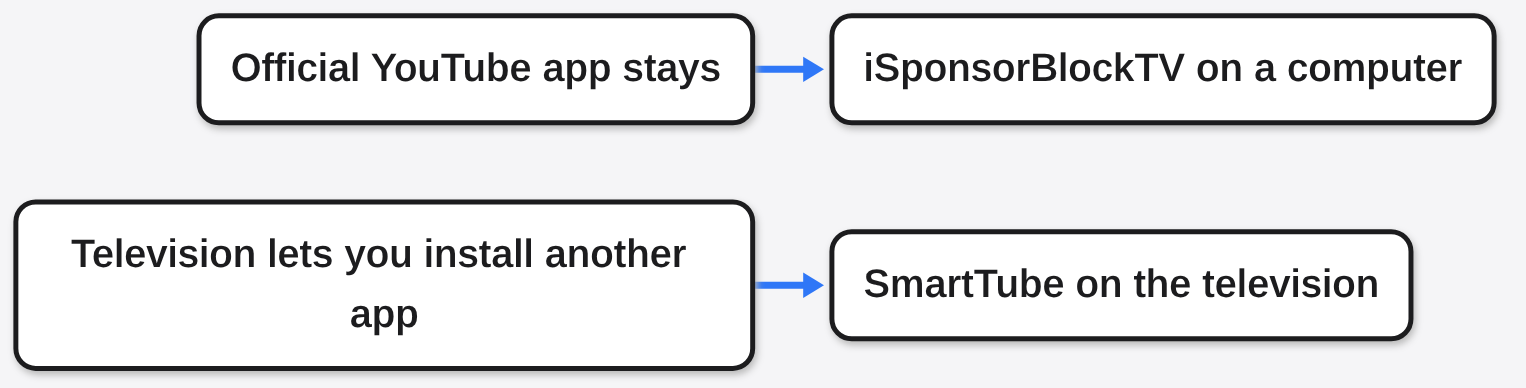
YouTube on a phone is one app. YouTube on a television is often a different app, locked in by the television maker. A sponsor (a paid message the creator recorded into the video) lives inside that video. A YouTube ad (a commercial YouTube pastes in front of the video, or in the middle) is a separate clip. Skipping one does not skip the other. Home-screen banners on the television are a third thing again, and the steps for those banners are in how to remove ads and bloatware from an Android TV.

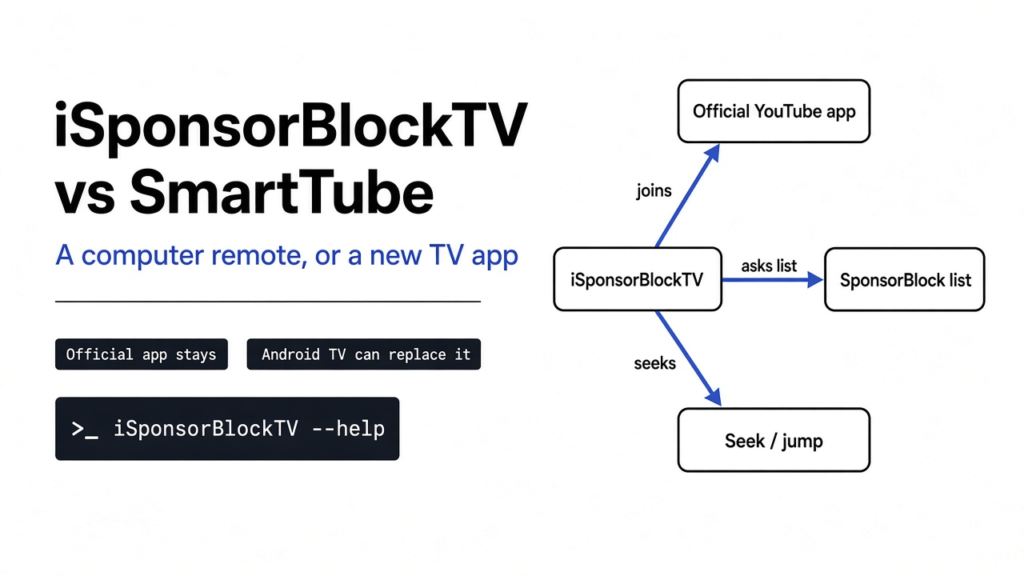
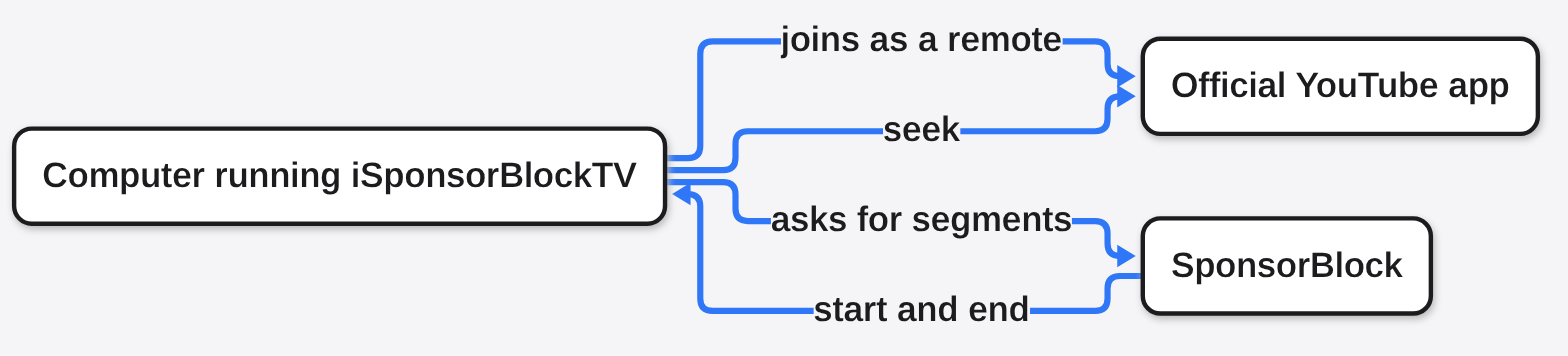
A video is a clock that starts at zero seconds. People can mark a stretch of that clock. That stretch is a segment (a start time and an end time). The public list of those stretches is SponsorBlock (a shared list, filled in by viewers, of segments they want skipped). iSponsorBlockTV does not invent the times. It asks that list, then tells the television to jump.
What is iSponsorBlockTV
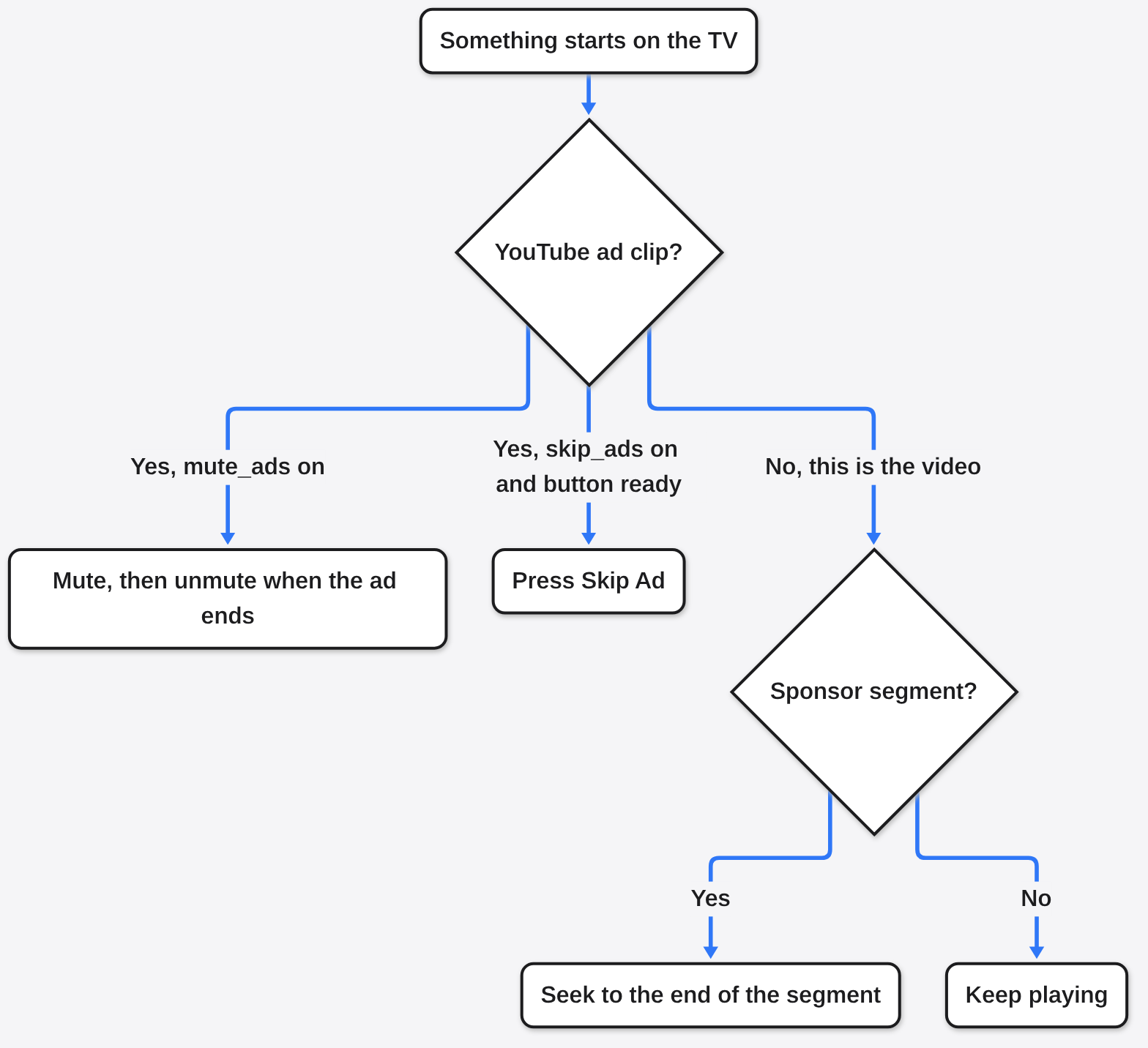
iSponsorBlockTV is a program you leave running on a computer, not an app you open on the television. The television keeps the official YouTube app. The computer joins that app the way a phone joins as a remote. The join uses a screen id (the long id of that television session). When the video reaches a segment, the computer asks the app to seek (jump the playhead to a new time).
The program is written in Python (a programming language) and is licensed GPL-3.0 (a license that lets you use, change, and share it, if you share your changes the same way). You can run it from a container (a boxed copy of the program, started by Docker, so you do not install the language yourself) or from a normal install. I ran the installed command iSponsorBlockTV --help on version 2.11.0. It offers three commands: setup, setup-cli, and start.
iSponsorBlockTV vs SmartTube
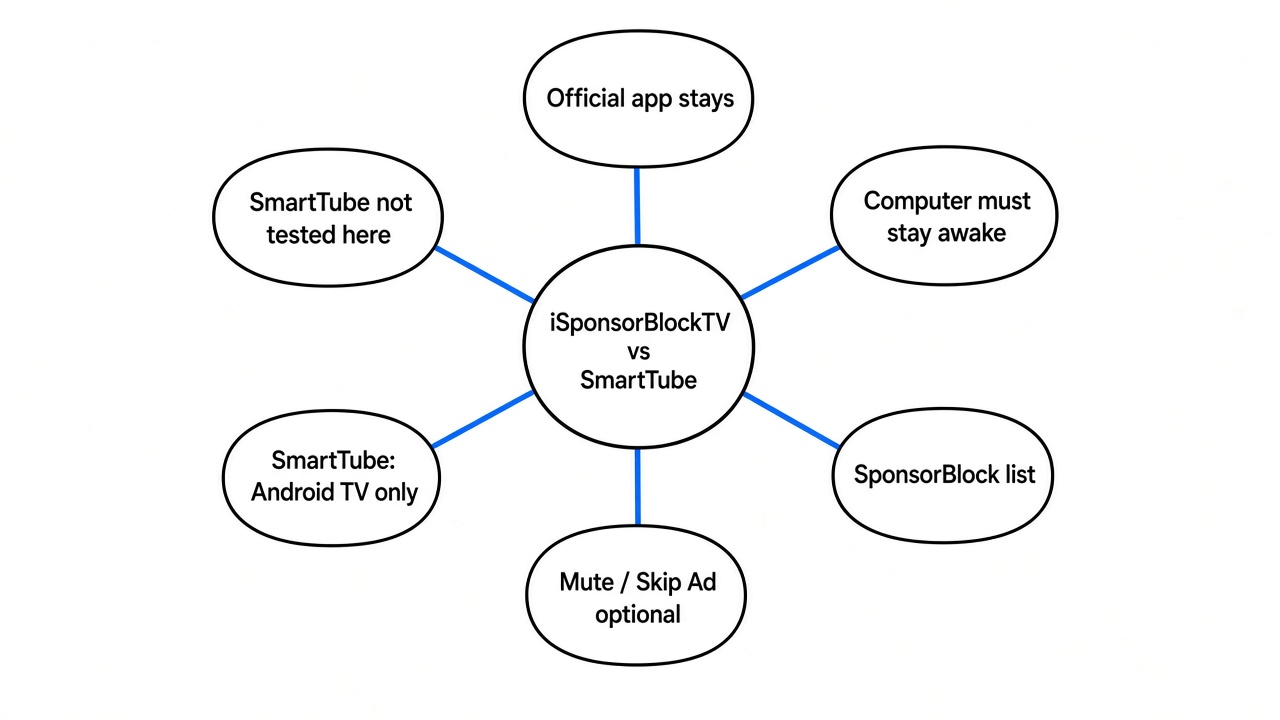
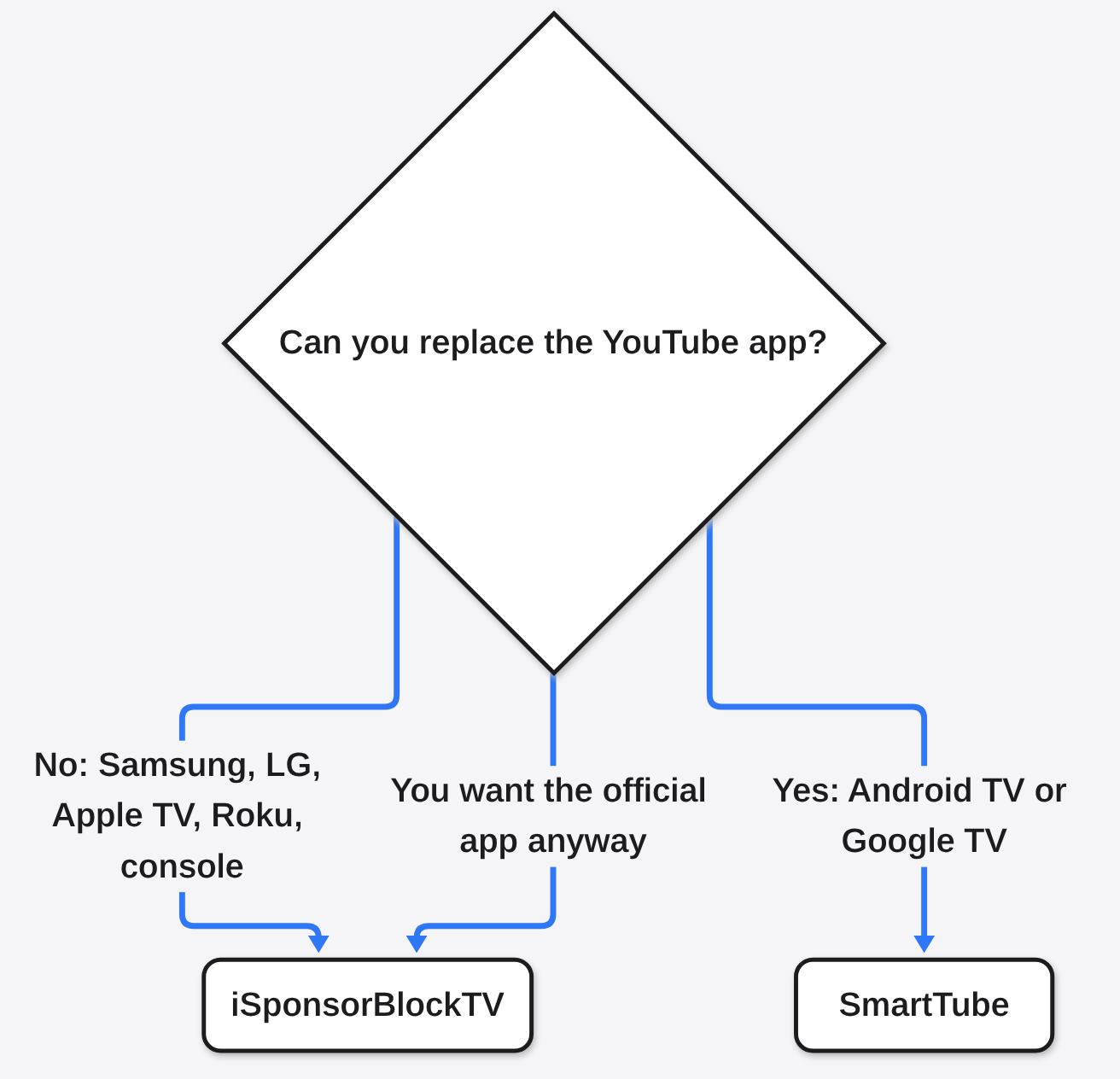
Use iSponsorBlockTV when the official YouTube app is the only one the television will run. Use SmartTube when you have an Android television, a Google TV device, or an older Fire TV that still runs Android, and you are willing to replace the official app. The SmartTube rows in the table, and the sentences after it, come from the project’s own page, not from a first-hand test.
| iSponsorBlockTV | SmartTube | |
|---|---|---|
| What you open on the television | The official YouTube app | SmartTube |
| Extra machine | A computer or a small always-on box must stay running | None |
| Sponsor segments | Yes, from the categories you turn on. If you set none, it uses sponsor only | Yes, SponsorBlock is built in, according to the project page |
| YouTube ads | Can mute, and can press Skip Ad only after you turn that switch on and YouTube says the button is ready | This was not tested first-hand. The project describes itself as a different client, not the official app |
| Samsung, LG, Apple TV, Roku, Switch, Xbox, PlayStation | Pairing is listed as working | Not supported. These are not Android |
| Phones | This is for the television app | Not supported, according to the project page |
| Same Wi-Fi | Only while auto-find is looking. A link code works from another network | The app is already on the television |
SmartTube’s own page says it is a free open-source client for Android televisions and television boxes, with SponsorBlock built in, and that it does not need Google services. It also says phones are not supported, and that Amazon devices which no longer run Android (they run VegaOS instead) will not run it. The same page says a past build machine was infected, some builds may have been affected, later files are scanned, and the app uses one-time connection codes. Those codes cannot change your password. You can still remove the connection from your Google account under third-party apps. That incident was not verified here. Do not install SmartTube from a random app store or a blog. Use the project’s own release files, or the F-Droid package app.smarttube.fdroid.
How do I skip YouTube sponsors on my TV
You skip them by keeping a second program next to the official app, or by replacing the app. If the television is Samsung, LG, Apple TV, Roku, a game console, or any other box that will not sideload (install an app from a file, not from the store), iSponsorBlockTV is the path that leaves the official app in place. If the television is Android TV or Google TV, and you are willing to replace the official app, SmartTube is the path that does not need a second computer. I only ran the first path’s commands. SmartTube was not sideloaded here.
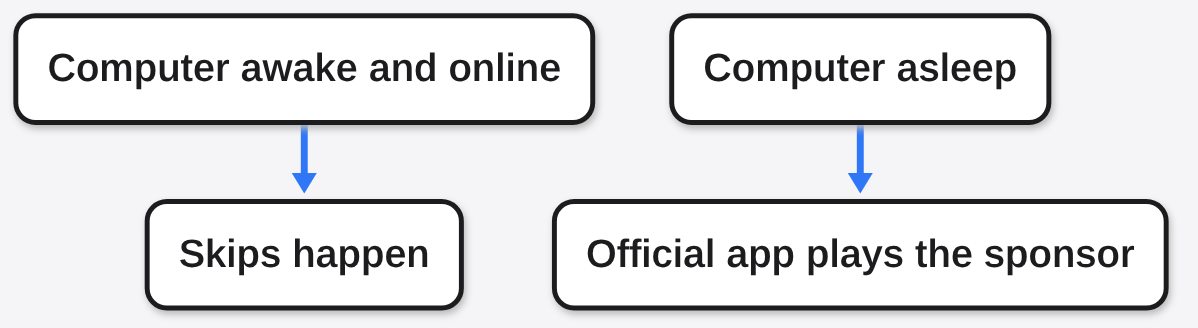
The second computer does not have to be powerful. It has to stay awake, and it has to reach youtube.com. A laptop lid that sleeps will stop the skips. A television that is on, with the computer asleep, is the usual reason a setup “worked once.”
How do I set up iSponsorBlockTV
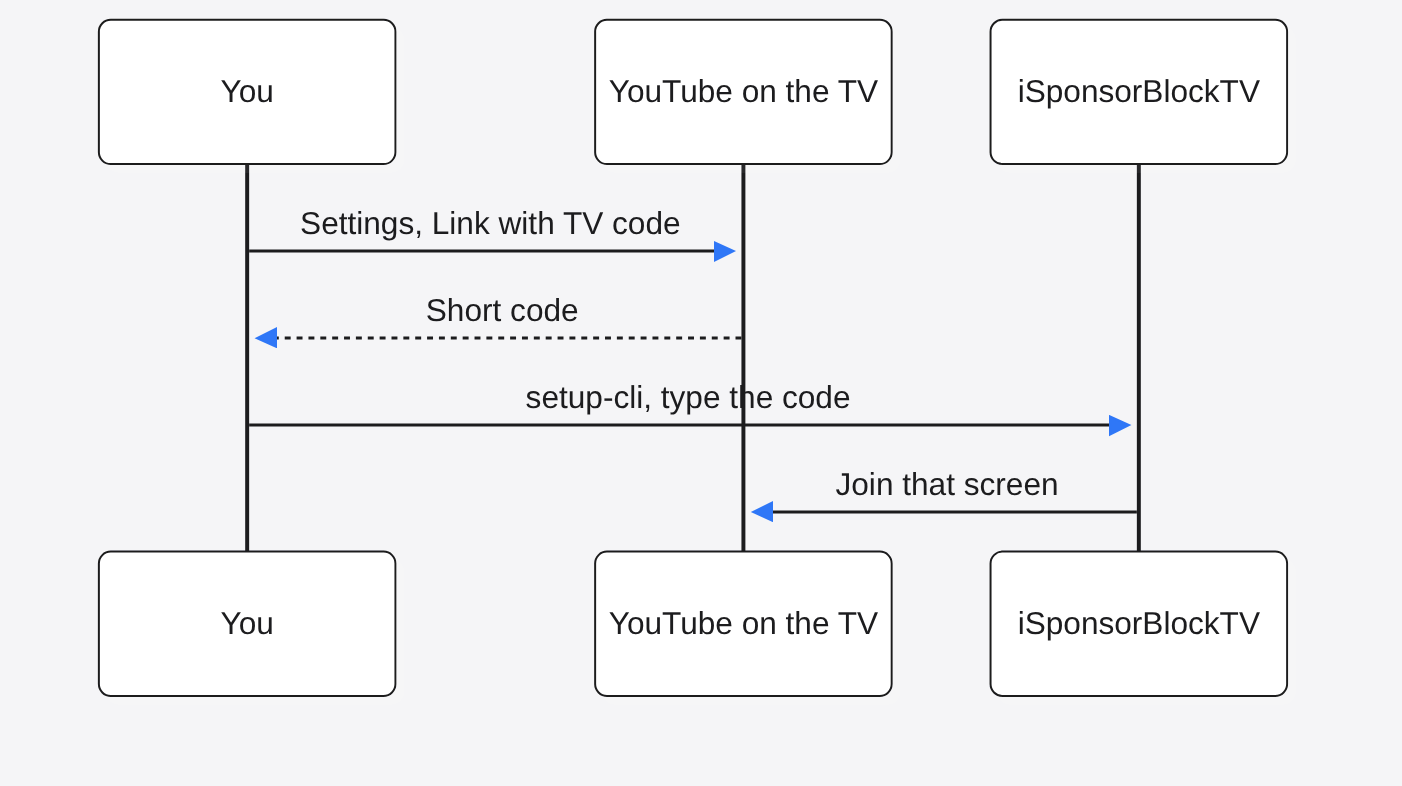
Setup is two steps: write a config file (a small text file of your choices), then start the program so it keeps running. On the television, open the YouTube app, open settings, and find the TV code (the short code under Link with TV code). The command-line setup asks for that code. Auto-find, which looks for the television by itself, only works on the same home network, and on Linux it needs the container to use the host network.
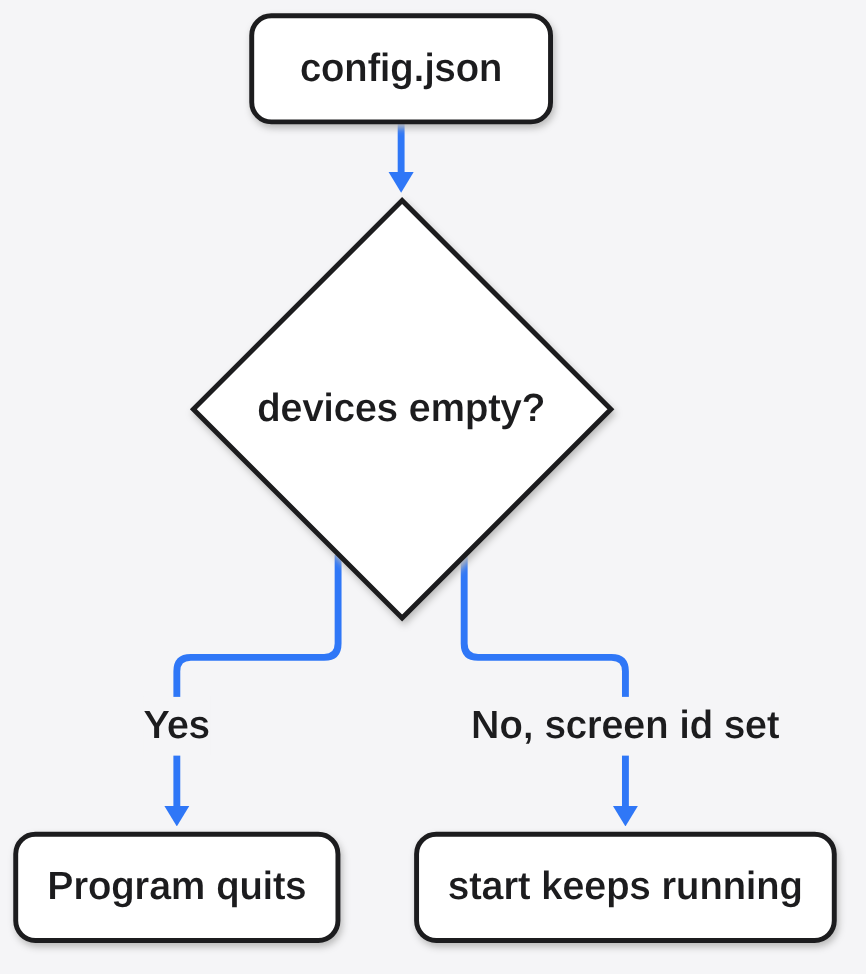
I started the program with a data folder and a config that listed no devices. It printed No devices found, please add at least one device, waited ten seconds, and quit. An empty file is not a running skipper. You need one device entry with a real screen id before start has anything to join.
The Docker image is ghcr.io/dmunozv04/isponsorblocktv. The container reads files from /app/data inside the box, so you mount (attach a folder on your computer to a folder inside the box) your data folder there. One way to write the config:
docker run --rm -it \
  -v /PATH_TO_YOUR_DATA_DIR:/app/data \
  ghcr.io/dmunozv04/isponsorblocktv \
--setup-cliOn Linux, add --net=host only for the setup run if you want auto-find. After the file exists, the everyday start does not need the host network, because the program talks to YouTube over the internet, not to a private address on the television:
docker run -d \
  --name iSponsorBlockTV \
  --restart=unless-stopped \
  -v /PATH_TO_YOUR_DATA_DIR:/app/data \
ghcr.io/dmunozv04/isponsorblocktvIf you would rather not use Docker, uv tool install isponsorblocktv or pipx install isponsorblocktv installs the same program. The command that printed help here was iSponsorBlockTV --help. Then iSponsorBlockTV setup-cli asks the questions. Leave it running under a service (a start-on-boot job) or the skips die when you close the window.
If the category list is missing, the program fills in sponsor only. An empty list means it fetches nothing. Other names you can add in 2.11.0 are selfpromo (the creator talking about their own thing), intro, outro, music_offtopic, interaction (a like or comment prompt), exclusive_access, preview, filler, and hook (a greeting at the start). Segments closer than one second are merged. A segment that is one second or shorter, the default minimum, is dropped.
Which TVs does iSponsorBlockTV support
It supports the official YouTube app on Apple TV, Samsung Tizen, LG webOS, Android TV, Chromecast, Google TV, Roku, Fire TV, Chromecast with Google TV, Nintendo Switch, Xbox, and PlayStation 4 and 5. That list is the app on the television, not a new app you install. It is the compatibility table in the 2.11.0 project README, which marks those devices as working. This computer had no paired television, so I am not adding a device of my own to that list.
Two limits sit on that list. Ad mute does not work on Apple TV when AirPlay (Apple’s way of sending the sound to another speaker) is sending the audio elsewhere. Shorts (the tall, short clips) are not fully supported. A single short can still be opened from the warning’s Disconnect choice, or by a long press on the thumbnail and then Play. The YouTube Kids client is refused: the program drops the session if the client name is TVHTML5_FOR_KIDS.
A screen id that is 26 characters long is the old format. YouTube is revoking those ids. If skips suddenly stop, pair again and get the new id. Do not keep guessing at the old one.
Does iSponsorBlockTV skip YouTube ads
It does not delete YouTube ads. It can mute while an ad state is playing, and it can press Skip Ad only when skip_ads is on and the app reports that the skip button is available. Both switches default off unless your saved config turns them on. Sponsor segments are the other path, and they do not need those switches.
The times below are what the program’s own segment math keeps. A paired television is still what performs the jump, and this machine did not have one. I ran process_segments with a minimum length of 1 second against the public SponsorBlock list on 13 November 2026. For the video $456,000 Squid Game In Real Life! (video id 0e3GPea1Tyg) the sponsor category came back as six stretches, all kept:
| Start (seconds) | End (seconds) | Length |
|---|---|---|
| 861.10 | 869.76 | 8.66 |
| 873.43 | 880.71 | 7.28 |
| 885.88 | 893.84 | 7.96 |
| 902.98 | 911.93 | 8.95 |
| 918.69 | 945.54 | 26.84 |
| 947.16 | 949.84 | 2.68 |
That is 62.37 seconds of sponsor time on one video. The gaps between them are all longer than one second, so the program does not glue them into one jump. It waits, seeks, waits, seeks. A music video, id e-ORhEE9VVg, returned no sponsor stretch and one selfpromo stretch from 235.18 to 260.65 seconds. With the default category, that self-plug would play. Add selfpromo only if you want those gone too.

The lookup hashes the video id (it runs the id through SHA-256, a fingerprint function, and keeps the first four characters). Many videos share a four-character bucket. The program then keeps only the row whose full video id matches. That is why a raw answer can list other people’s videos, and why a match still has to be checked. For these two ids, the prefixes were 46cb and 037d.
When should I not use iSponsorBlockTV
Do not use it if you will not leave a computer awake. The official app will not skip anything by itself. Do not use it if you wanted the home-screen ads gone: those are a launcher problem, not a segment problem, and the fix for that is in how to remove ads and bloatware from an Android TV. Do not use it for YouTube Kids. Do not expect Shorts to behave like a normal video.
If the television is Android or Google TV and you are willing to replace the official app, SmartTube is the smaller habit on paper: one install, no second machine, SponsorBlock inside the player, according to its own page. That habit was not tested first-hand. iSponsorBlockTV is the one you pick when replacing the app is impossible, or when you want the official app’s login, library, and remote to stay exactly as they are. The price of that choice is a machine that stays on.
A channel whitelist (a list of channels that should never be skipped) needs a YouTube API key (a key YouTube gives to a program, not your account password, stored as apikey). Plain sponsor skipping does not need that key. If the whitelist is filled in and the key is empty, the program refuses to start. Leave the whitelist empty unless you truly need a channel to play every sponsor.
Does iSponsorBlockTV need the same Wi-Fi
No, not after setup. The running program needs a path to youtube.com. It does not need to sit on the television’s Wi-Fi. Auto-find is the exception: that search only works on the same network, and the Docker setup for it wants host networking on Linux. Typing the TV code works from anywhere the computer can reach YouTube.
What if the skip is early or late
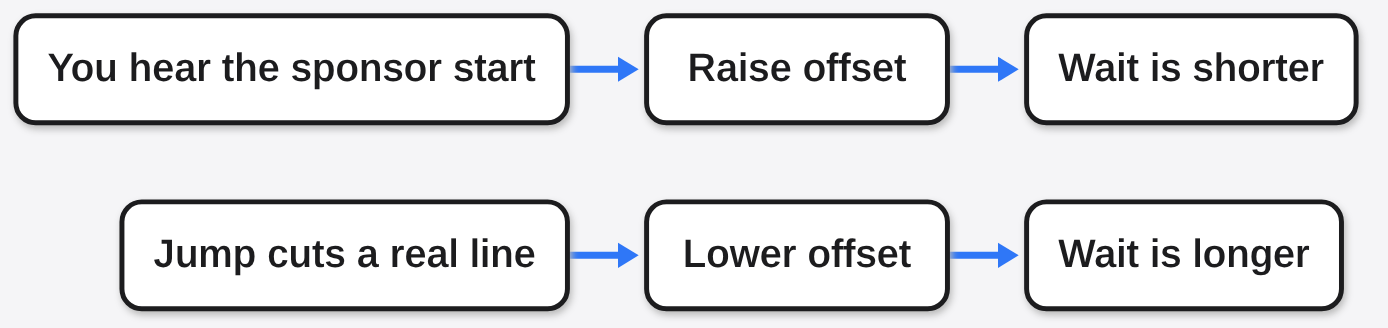
Change the device offset (a time nudge, stored in milliseconds, one thousandth of a second). The program divides that number by 1000 and subtracts it from the wait before the seek. A larger offset makes the jump happen sooner. If you still hear the sponsor start, raise the offset. If the video jumps too early and you miss a real line, lower it. Start at 0. Change it by a few hundred milliseconds, then watch one known sponsor.
Common questions about iSponsorBlockTV and SmartTube
Does iSponsorBlockTV skip YouTube ads?
It does not delete YouTube ads. It can mute while an ad is playing, and it can press Skip Ad only when skip_ads is on and the app says the button is ready. Sponsor segments are a different path and do not need those switches.
Can I use iSponsorBlockTV if the computer will sleep?
No. Skips happen only while the computer stays awake and can reach YouTube. If it sleeps, the official app plays the sponsor.
Was SmartTube tested for this article?
No. SmartTube was not tested first-hand. The SmartTube lines come from the project’s own page.
Do I need a YouTube API key?
Not for ordinary sponsor skipping. A channel whitelist needs a key, and the program will not start if the whitelist is filled and the key is empty.
The projects, if you want the files themselves: iSponsorBlockTV, the install notes, SmartTube, and the segment list.