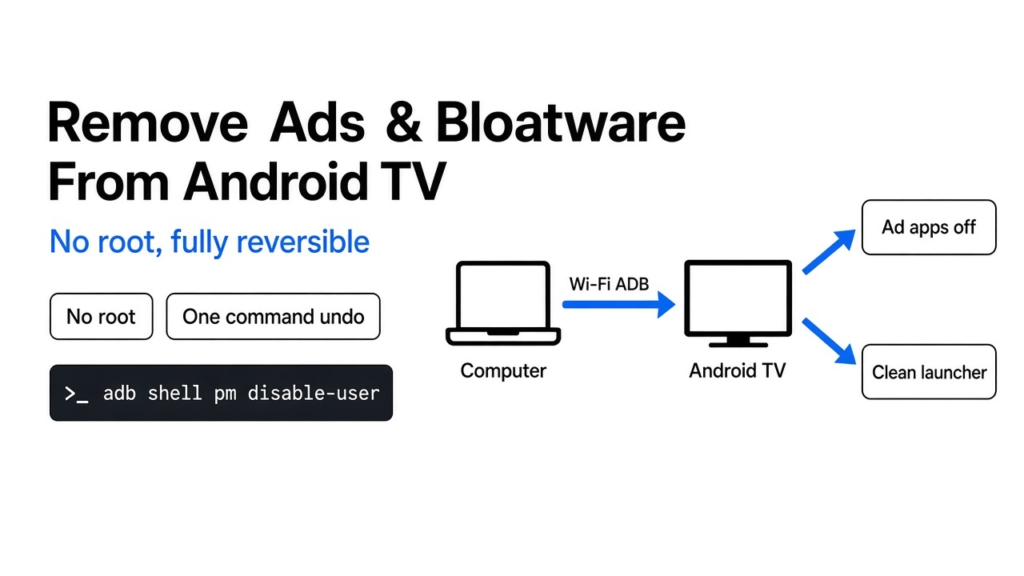
Short answer: to remove bloatware from Android TV, connect a computer to the TV over Wi-Fi with ADB, switch off the ad, tracking and preloaded apps with pm disable-user, then swap the home screen for a clean launcher. No root is needed. Nothing gets deleted, and one command per app brings everything back.
You press Home to watch Netflix, and the first thing you see is a sponsored banner. Not a show you like. An ad. Then a row of things to buy, then a row of apps you never installed.
It feels like your TV belongs to someone else. And in a quiet way, the screen does: the home screen is a paid ad slot, and the TV runs dozens of small programs in the background that report what you watch.
Here is the one idea this post is built on. Your TV is an Android phone in a bigger box, so you can switch its apps off the same way. Once that clicks, every step below is obvious, and every step is reversible.
Why does my Android TV show ads at all?
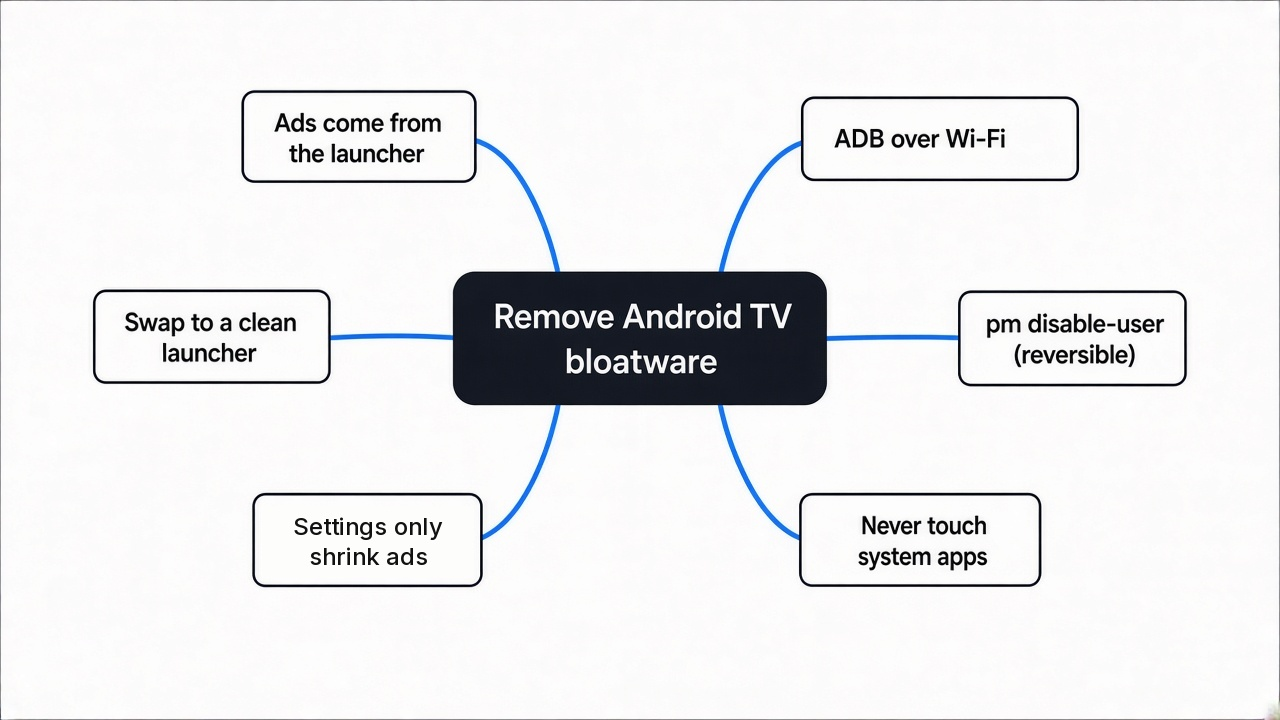
The home screen is a product, and the ads pay for it.
Android TV and Google TV are versions of Android (the same system that runs most phones) made for big screens. The TV maker adds its own apps on top. Those apps fill the home screen with recommendations and sponsored rows, because every eye on that screen is worth money.
So the ads do not come from Netflix or YouTube. They come from the launcher (the app that draws your home screen, the one you see when you press Home) and from helper apps that feed it.
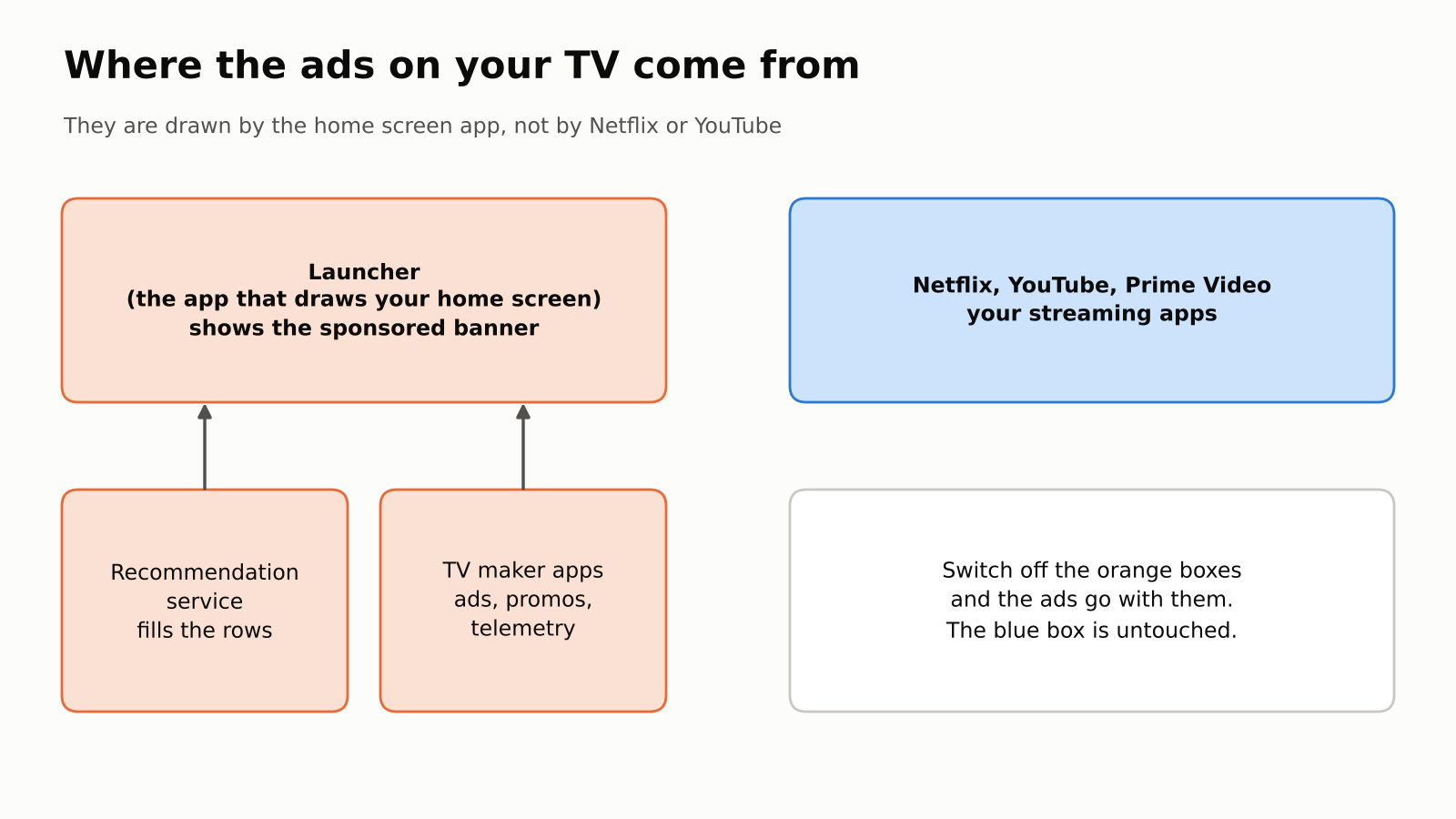
That is good news. If the ads live in apps, and apps can be switched off, the ads can be switched off too.
Can’t I just turn the ads off in Settings?
No. Google’s own settings shrink the ads but never remove them.
Google TV has an “Apps only mode” (Settings, Accounts & Sign In, your profile). It hides personal recommendations. But Google’s help page says plainly that you will still find “sponsored content and teasers for popular movies and shows”. It also turns off Search and the Google Assistant.
The ad settings are the same story. Under Privacy, then Ads, you can reset or delete your advertising ID (a tracking number apps use to target ads at you). TCL’s help page for Google TV says it plainly: “You can’t turn off ads.”
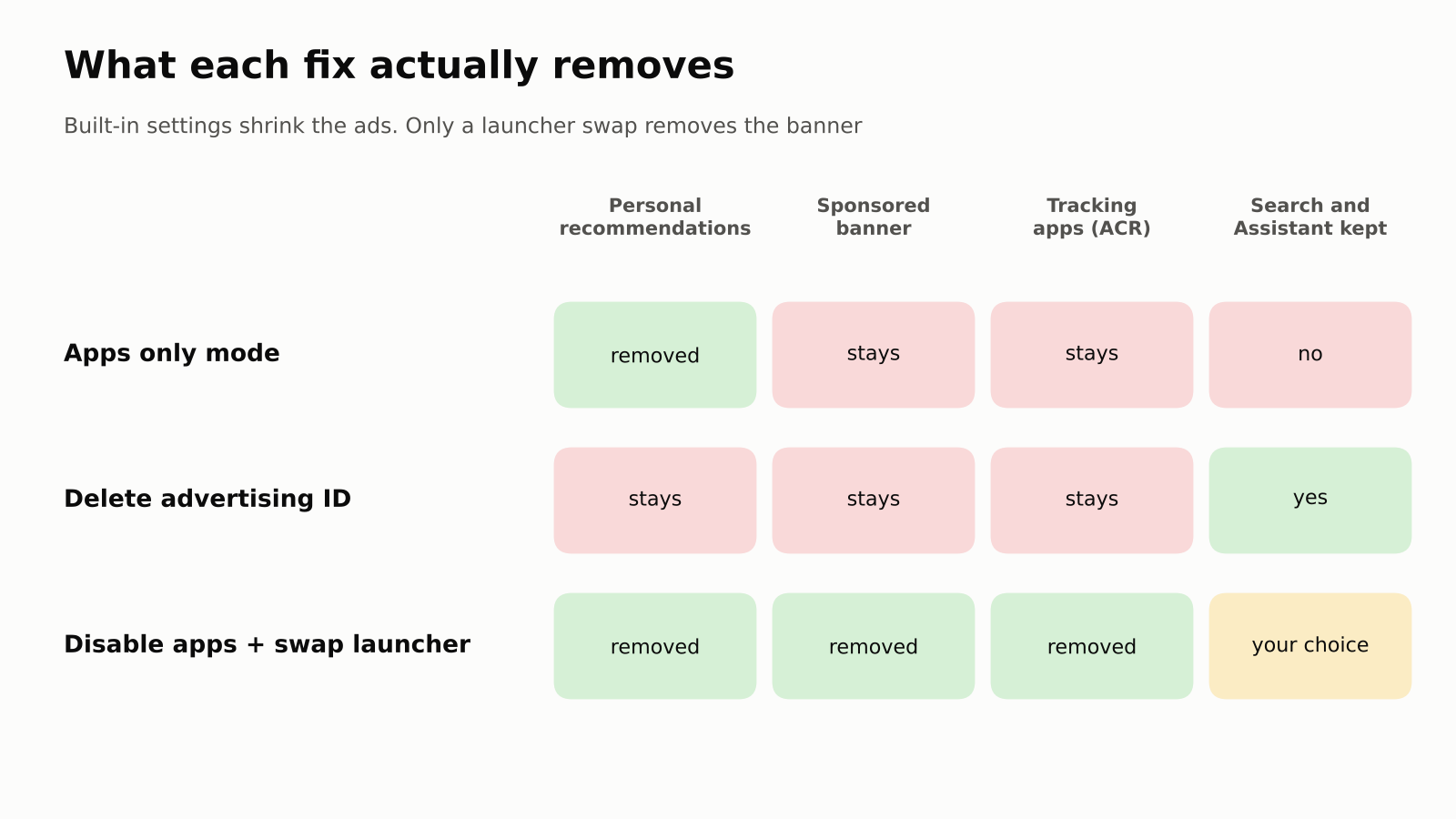
So the built-in switches are worth a minute, but they do not touch the banner. For that you need to go one level down, to the apps themselves.
What is ADB, and why is it safe?
ADB is a cable-free remote control for the TV’s insides, built by Google for app developers.
So start with what you know. On a phone, an app is a package (a bundle with a unique name like com.netflix.ninja). The phone has a package manager (the part of Android that installs, removes and switches apps on and off).
ADB (Android Debug Bridge, a free Google tool for sending commands to an Android device) lets your computer talk to that package manager. Your TV has it too, hidden in a developer menu. It works over your home Wi-Fi.
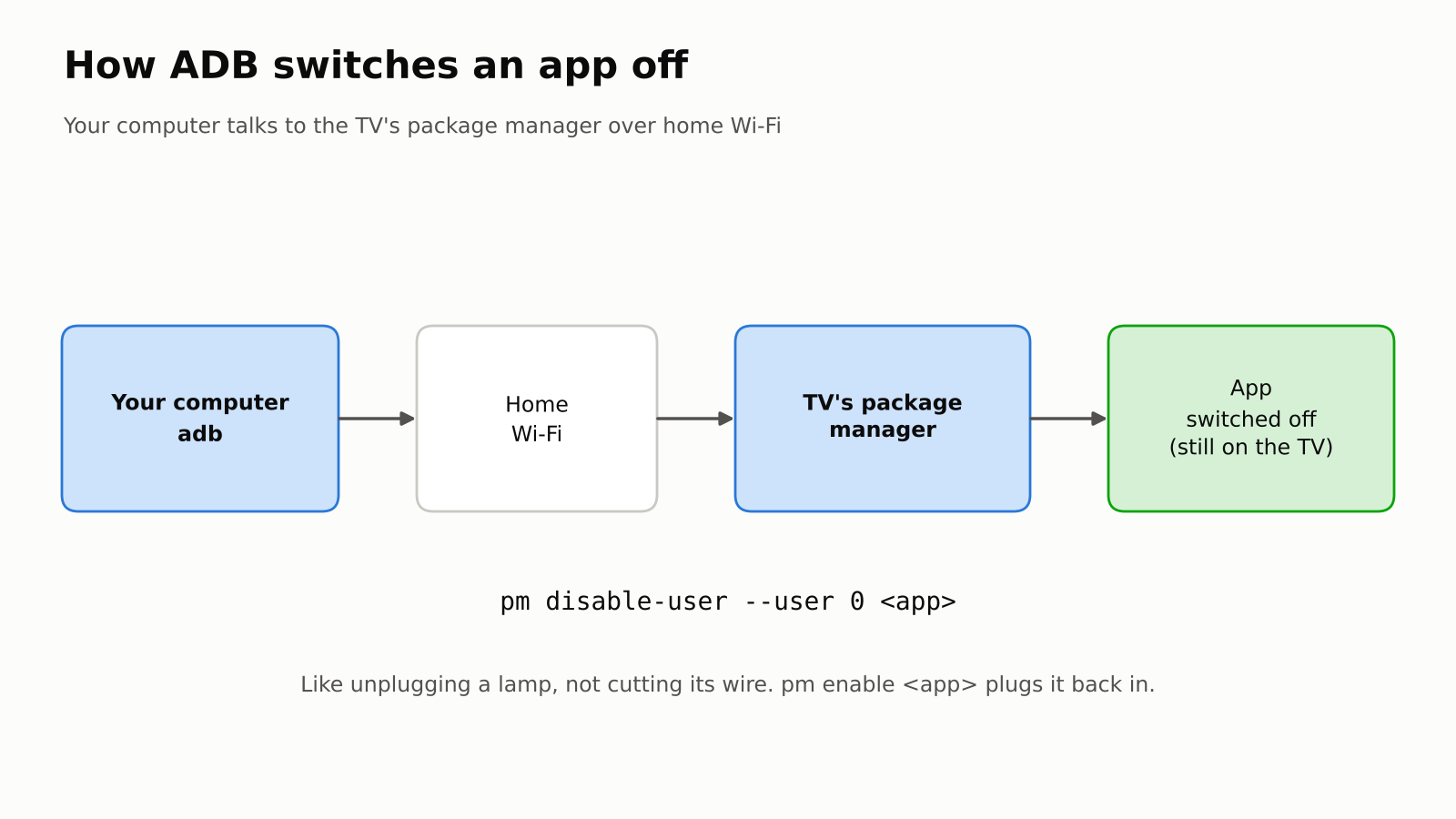
Now the important part. The package manager has three very different ways to get rid of an app:
| Action | What happens | Can you undo it? |
|---|---|---|
pm disable-user --user 0 | App stays on the TV, switched off and invisible | Yes, one command or the TV’s Settings |
pm uninstall --user 0 | App hidden from your profile, files stay in the system | Usually, but harder |
| Root the TV | You replace parts of the system | Often no, and it can break the TV |
For this job we only use the first one. Think of it as unplugging a lamp instead of cutting its wire. The lamp is still there. It just has no power.
That single choice is why this method cannot brick (permanently break) your TV. Nothing is flashed, nothing is deleted, and the TV’s own Settings, Apps page can switch any of it back on even without a computer. It is the same switch-off-not-delete idea on a Mac.
What do people actually switch off?
I read 54 real TV debloat lists from 23 brands, and the same handful of apps shows up again and again.
Before touching anything, it helps to know what other owners have already switched off and lived with. An open-source project called CleanYourTV collects tested lists, one per TV model, from Xiaomi, TCL, Sony, Hisense, Philips, Nvidia Shield, Chromecast and more. I wrote a short Python script that counted every entry across all 54 lists.
Here is what came out:
- 1,267 entries in total, covering 560 different apps.
- A typical TV list switches off 21 apps. The smallest has 2, the biggest has 100 (a Fire TV set).
- About 1 in 4 entries is a Google app, not a TV maker app.
- Nearly every list switches off ad or recommendation services, and nearly every list switches off telemetry (apps that send usage data back to the maker).
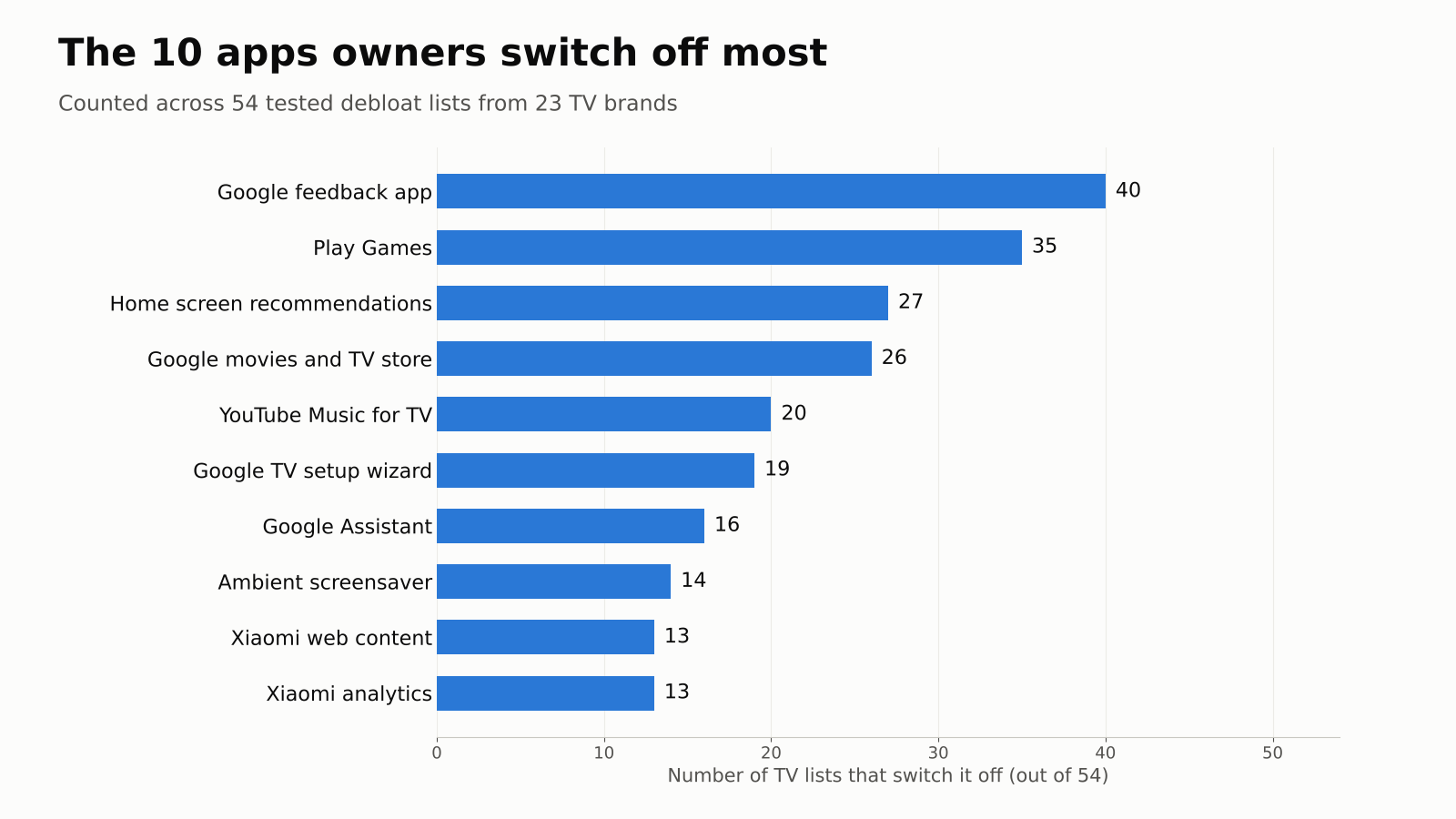
That top of the list is boring in a good way. The most common entry is Google’s feedback app, switched off on 40 of the 54 TVs. Next come Play Games (35), the service that fills the home screen rows (27), Google’s movies and TV store app (26) and YouTube Music (20). None of them is needed to watch TV.
But the surprise is further down. 18 of the 54 lists switch off an ACR tracker. ACR (automatic content recognition) takes a fingerprint of whatever is on your screen. It matches that fingerprint against a database, so the TV knows what you watch and the data can be sold for ads. On every Sony list in the set, it is a Samba TV app that does this.
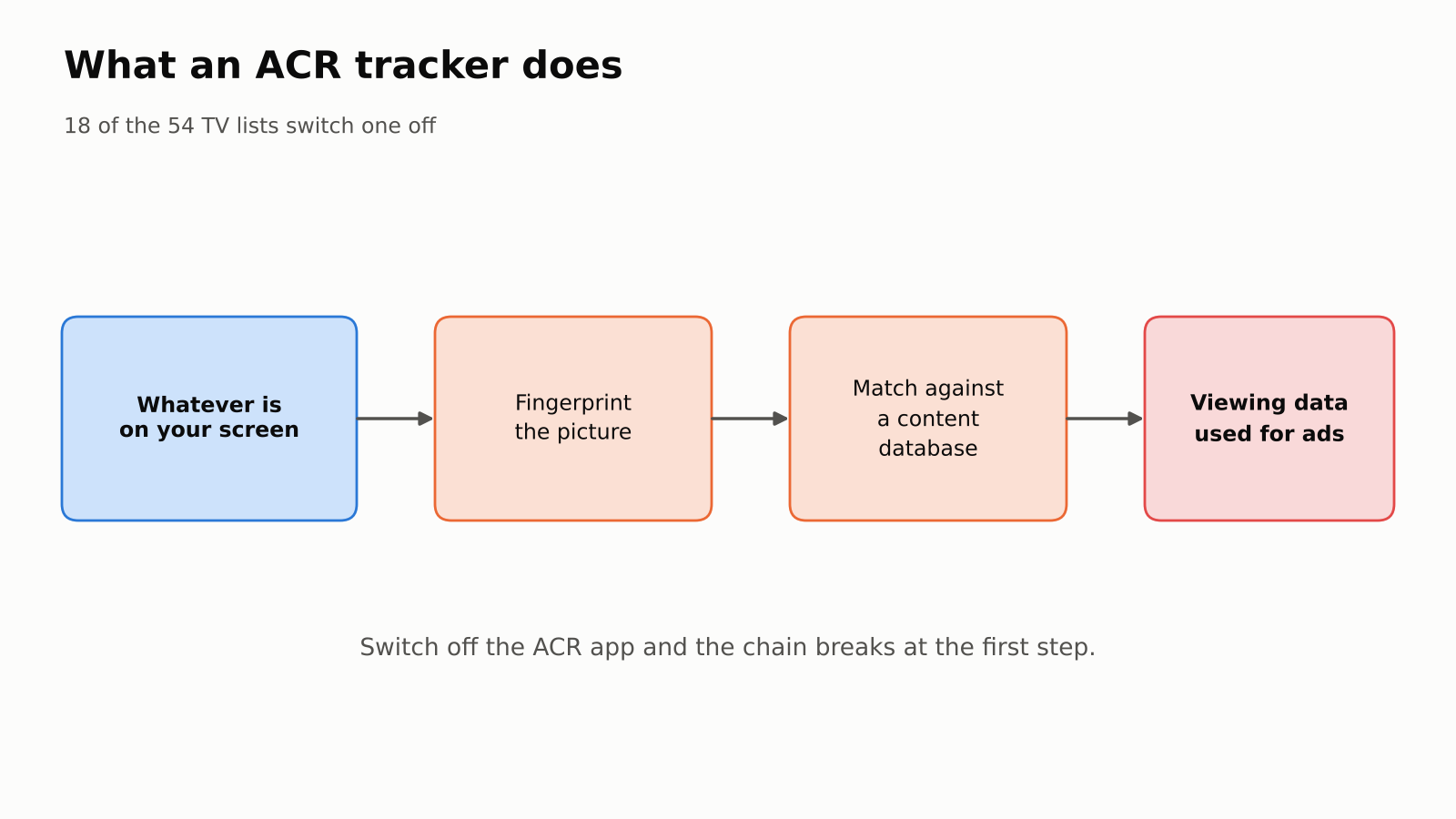
That is the real reason to do this. The banner is annoying. The thing watching the screen is worse.
Which apps should I never switch off?
Leave anything that plays HDMI, takes remote or keyboard input, or runs the Play Store.
This is the step that separates a clean TV from a broken one. TV makers give their apps names that do not say what they do, so a package that looks like junk can be the thing that shows your HDMI ports.
Here is a real one. On TCL sets, the Live TV app (com.tcl.tv) also plays your HDMI inputs. Switch it off because you have no antenna, and your game console disappears with it. One Hisense list warns against three “smartsense” and “aiot” packages that look like extras but are tied to the system.
So the safe rule fits on a sticky note:
- Keep: Play Store and Play Services, the keyboard, Bluetooth and remote pairing, the TV input and HDMI apps, Settings, and anything from the chip maker (names with
mediatekortvinputin them). - Ask yourself: the voice assistant, Chromecast, the update service and streaming apps. Only switch these off if you never use them.
- Safe to switch off: feedback and bug-report apps, demo and store-mode apps, games you never open, recommendation rows, telemetry and ACR.
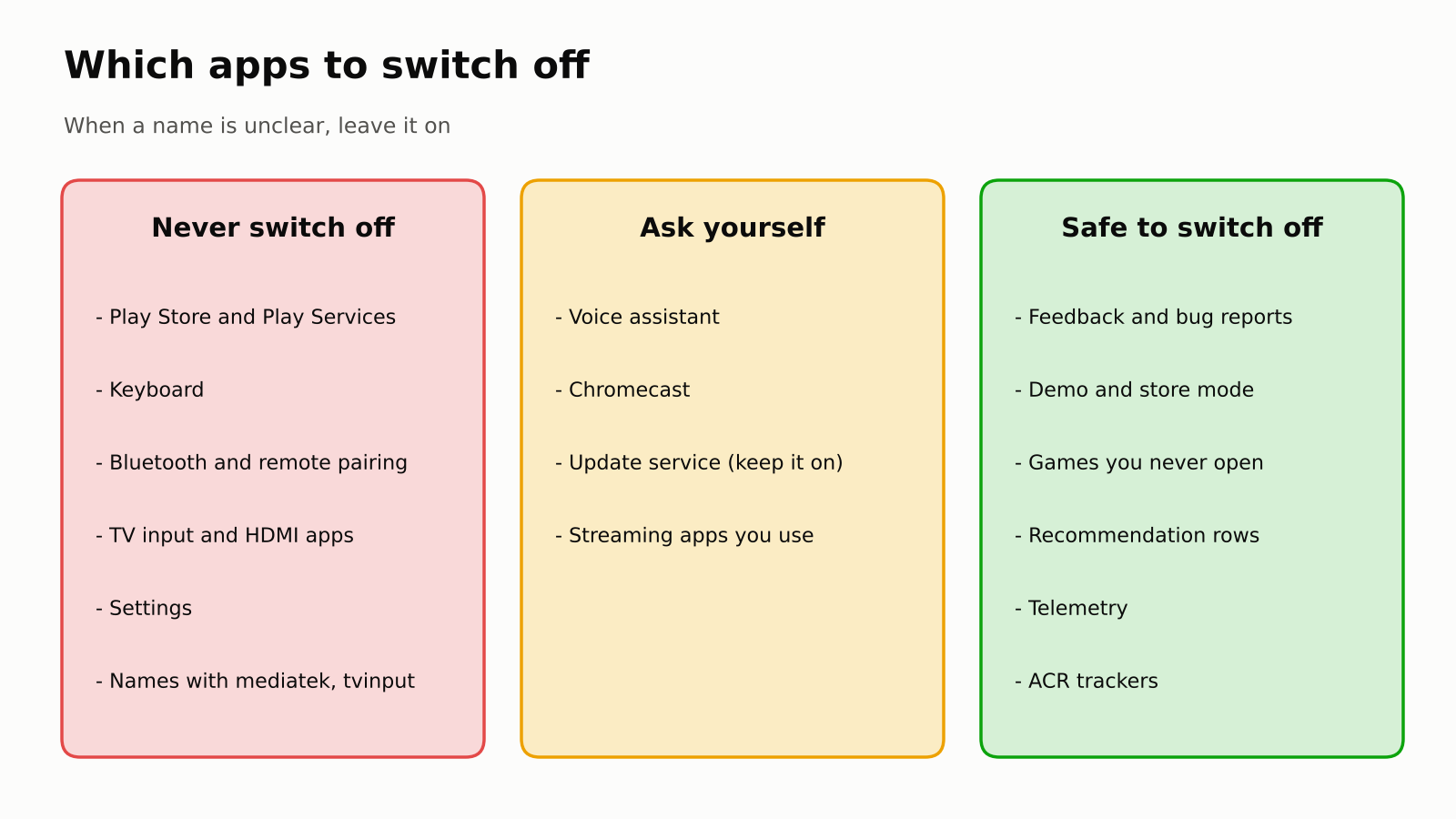
That middle row needs one extra word on updates. 23 of the 54 lists switch off the firmware update service, so the TV stops nagging. I would keep it on. Updates carry security fixes, and a TV on your home Wi-Fi is a computer on your network like any other.
How do I check my own TV before switching anything off?
Ask the TV for its app list, then compare it against what 54 other owners did.
First, you need two things on your computer: Google’s free SDK Platform-Tools (it contains adb) and Python 3.9 or newer. Then, on the TV:
- Open Settings, then About (under Device Preferences on Android TV, under System on Google TV).
- Press OK on the Build line seven times. A message says you are now a developer.
- Open the Developer options menu that appears and turn on USB debugging. If there is a Network or Wireless debugging switch, turn that on too.
- Find the TV’s IP address (the number your router gave it) in its network settings.
Now connect from your computer and save the app list:
adb connect 192.168.1.50:5555          # use your TV's IP address
adb shell pm list packages > packages.txtThen the TV shows an “Allow USB debugging?” box the first time. Accept it with the remote. On newer TVs with a Wireless debugging screen, run adb pair with the IP, port and code that screen shows, then connect.
Then grab the 54 lists (git clone https://github.com/Gathin23/cleanyourtv) and run this script. It needs only Python, no installs.
# check_tv.py: which packages on YOUR TV did other owners switch off?
# Usage: python3 check_tv.py packages.txt cleanyourtv/examples
import os, re, sys, collections

mine = {l.strip().removeprefix("package:") for l in open(sys.argv[1]) if l.strip()}
seen = collections.Counter()
lists = 0
for d in os.listdir(sys.argv[2]):
    p = os.path.join(sys.argv[2], d, "debloat.txt")
    if not os.path.isfile(p):
        continue
    lists += 1
    names = {re.sub(r"\s+#.*", "", l).strip() for l in open(p, encoding="utf-8")}
    seen.update(n for n in names if n and not n.startswith("#"))

# Words that usually mean "the TV needs this to work". Never switch these off.
KEEP = ("vending", "gms", "inputmethod", "keyboard", "bluetooth", "tvinput",
        "hdmi", "tvsettings", "settings", "remote", "systemui", "mediatek")

print(f"Checked against {lists} TV lists\n")
for pkg in sorted(mine, key=lambda p: -seen[p]):
    if seen[pkg] == 0:
        continue
    flag = "  <- CHECK FIRST" if any(k in pkg for k in KEEP) else ""
print(f"{seen[pkg]:3d} TVs {pkg}{flag}")I tested it on a sample app list built from a Sony Google TV set plus the core Google apps every Google TV has. The top of the output looked like this:
Checked against 54 TV lists

 40 TVs  com.google.android.feedback
 35 TVs  com.google.android.play.games
 26 TVs  com.google.android.videos
 19 TVs  com.google.android.tungsten.setupwraith
  8 TVs  tv.samba.ssm
  ...
1 TVs com.sony.dtv.tvinput.atsc3tuner <- CHECK FIRSTThat last line is the point of the script. Even a real, tested list contained a TV tuner input. Maybe that owner had no antenna. You might. The flag makes you stop and decide instead of copying someone else’s TV.
How to remove bloatware from Android TV, one app at a time
One command per app, a few at a time, and keep a list of everything you touched.
Put the packages you chose into a plain text file, one per line. Then switch them off in small batches of three or four, and press around the TV after each batch:
adb shell pm disable-user --user 0 com.google.android.feedback
adb shell pm disable-user --user 0 tv.samba.ssm
adb shell pm list packages -d # shows everything now switched offWhy small batches? Because if something stops working, you know which three apps to look at instead of forty.
And to undo any of it:
adb shell pm enable com.google.android.feedback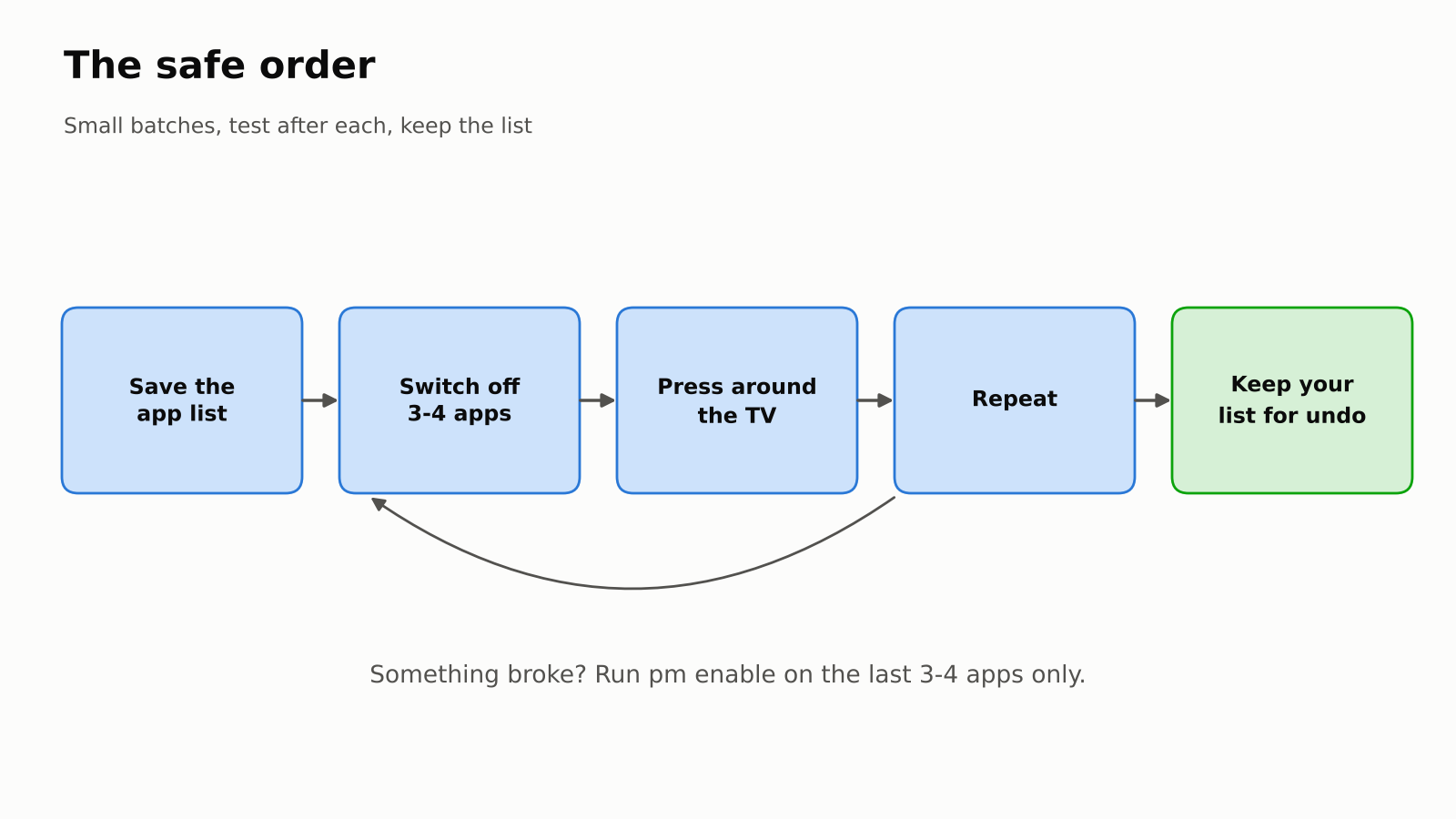
If typing commands is not your thing, the CleanYourTV project wraps this in two scripts. One switches a whole list off, and one switches it all back on.
It can also hand the job to an AI coding assistant like Claude Code, which finds the TV, sorts the apps and asks you before each risky step. That is handy. Just read each step before you approve it, the same way you would with any AI tool that can delete files.
How do I get rid of the sponsored banner for good?
Replace the launcher. The banner lives in the launcher, so a new launcher has no banner.
Switching off apps cleans the background, but not the front. The big sponsored banner on top is drawn by the stock launcher itself, so it stays until another app takes over the Home button.
So you have two routes:
- Ready-made: install an open-source launcher such as FLauncher and set it as the home app.
- Build your own: CleanYourTV builds a tiny launcher (about 280 KB) that looks like the Apple TV home screen, with a dock for your four favourite apps. You build it yourself with one script. There is no download to trust.
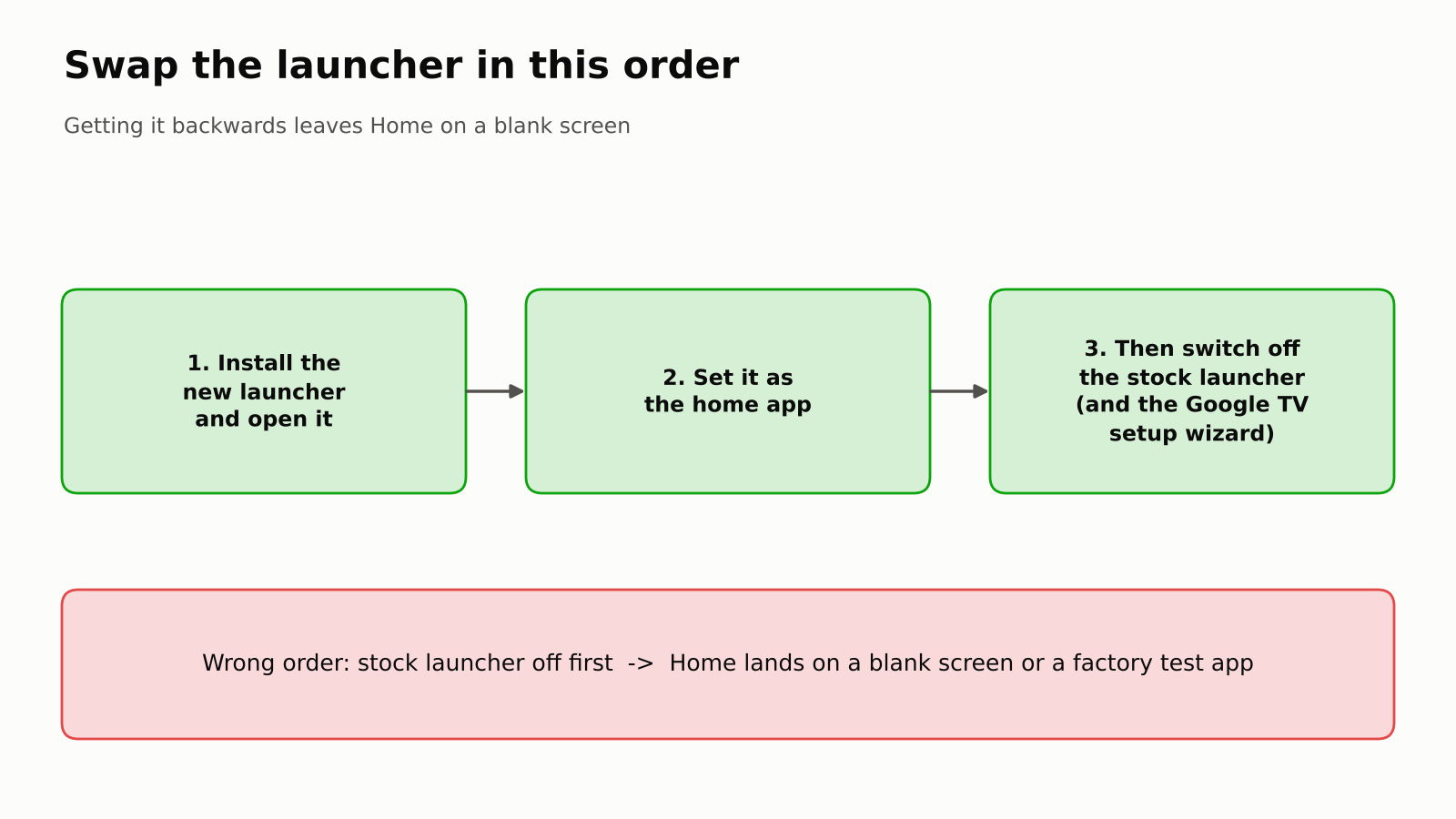
Either way, the order matters more than the choice. Install and open the new launcher first, then switch off the stock one. Do it the other way round and Home lands on a blank screen or a factory test app.
And Google TV adds one trap. Its setup wizard (com.google.android.tungsten.setupwraith) can grab the Home button after the stock launcher is off and crash-loop the TV. That is why 19 of the 54 lists switch it off too. Add it to your list, so your undo command brings it back.
Does this work on every smart TV?
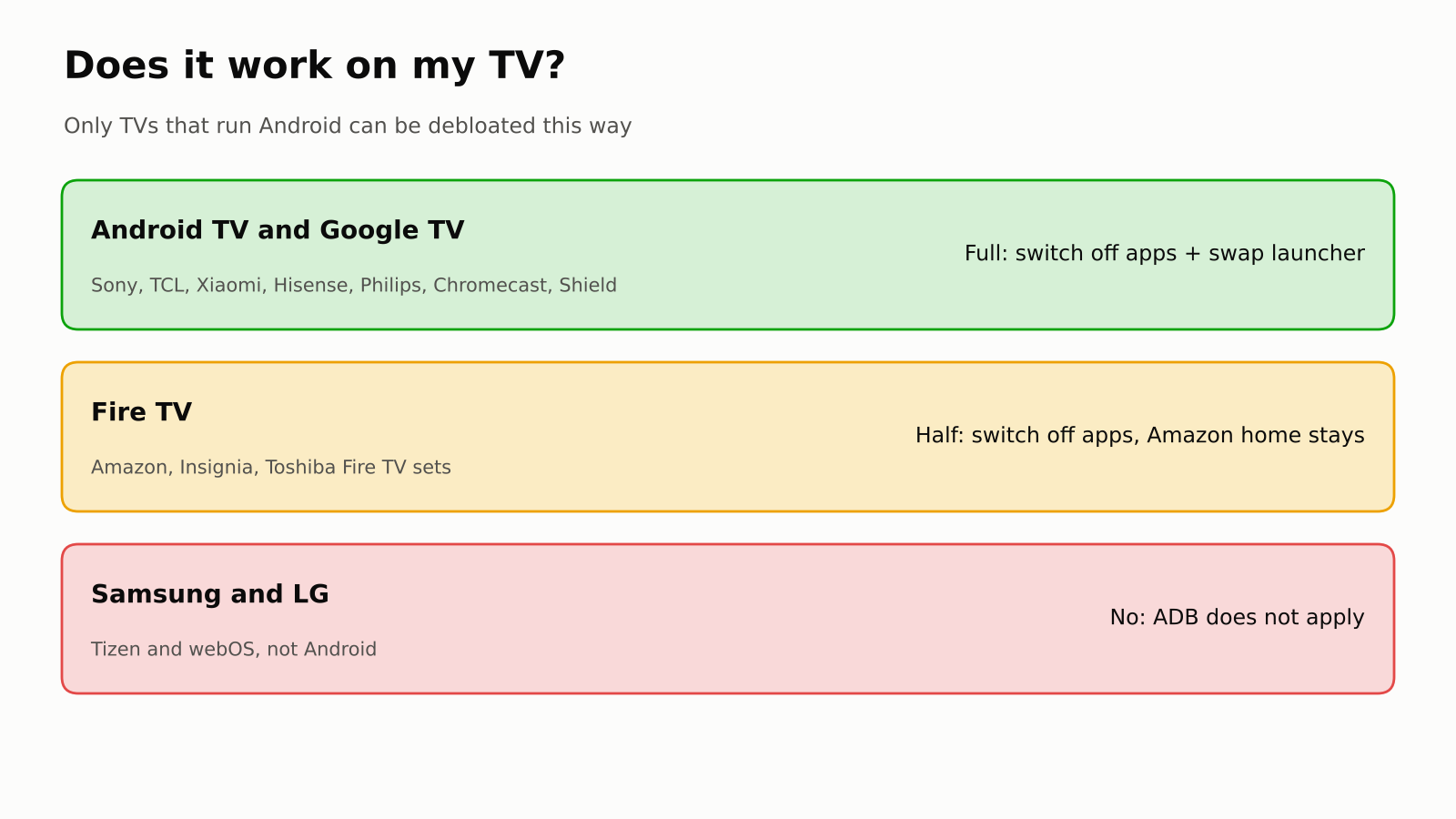
It works on Android TV and Google TV. Fire TV gets half of it. Samsung and LG get none of it.
- Android TV and Google TV (Sony, TCL, Xiaomi, Hisense, Philips, Chromecast, Nvidia Shield and many more): everything above works.
- Fire TV: you can switch apps off, but Fire OS keeps Amazon’s own home screen, so the banner stays.
- Samsung (Tizen) and LG (webOS): these are not Android, so ADB and these commands do not apply.
Still, there is a fair case for leaving all this alone. If the ads do not bother you, a stock TV gets every update and every feature with zero effort. But if a sponsored banner greets you before your own shows, an hour with ADB fixes it, and the undo is one command per app.
So treat it like what it always was: an Android phone in a bigger box. Switch off what you did not ask for, and keep the list.
Common questions about removing bloatware from Android TV
Can disabling apps break my TV?
It cannot brick it, because nothing is rooted, flashed or deleted. The real risk is switching off something the TV leans on, like the HDMI input app, which you fix by enabling it again.
Can I block ads inside apps too?
Partly. DNS is the internet’s phone book that turns names like youtube.com into addresses. On Android 9 and newer, Private DNS lets you pick an encrypted phone book, and setting it to dns.adguard-dns.com blocks many ad and tracker names for every app. It does not block YouTube ads, because they come from the same servers as the videos.
What if my TV stops working after I disable something?
Run adb shell pm enable <package> for the apps in your last batch, or re-enable them in the TV’s Settings, Apps page. That is why you work in small batches and keep a list.
Do I need to keep USB debugging on?
No. Turn it off when you are done. Disabled apps stay disabled and the new launcher keeps working. Some boxes even cut power to their USB port while debugging is on.