
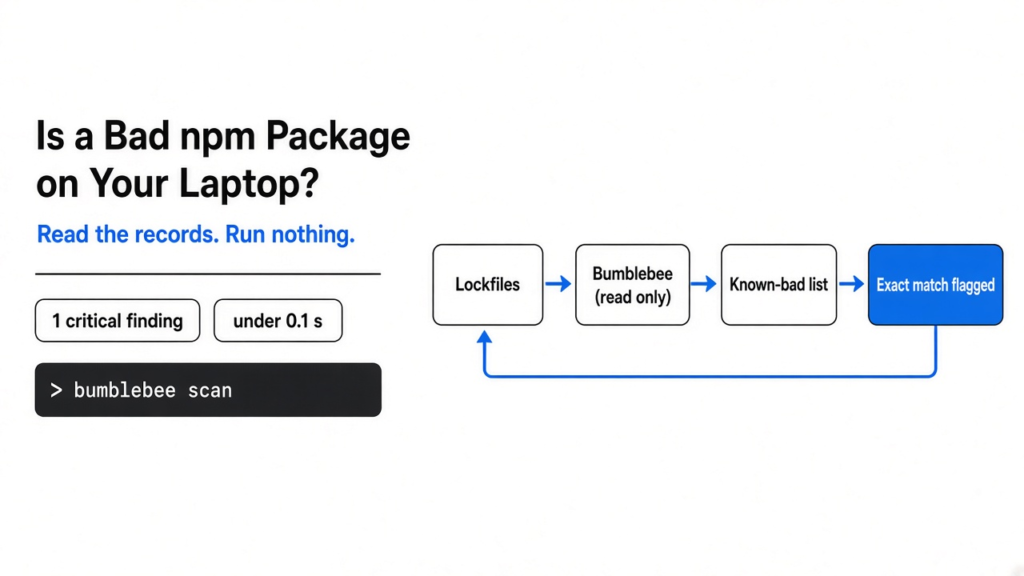
Short answer: to check if a compromised npm package is installed, compare the exact package names and versions on your machine against a published list of known-bad releases, without running npm or pip to do it. A free, open source scanner called Bumblebee does this in under a second. It reads lockfiles and install records, then flags exact matches.
It starts with an alert you read over coffee. “Popular npm package hijacked. Malicious version published overnight.” Your stomach drops, because you ran npm install yesterday.
The next question is simple. Is that version on my laptop? The honest answer, for most developers, is “I have no idea”, because packages hide in dozens of projects, global folders, Python environments and editor add-ons.
This post gives you a way to answer it in a few minutes. The one idea to hold on to: checking must only read files, never run anything. Everything below follows from that.
What is a supply chain attack on npm?
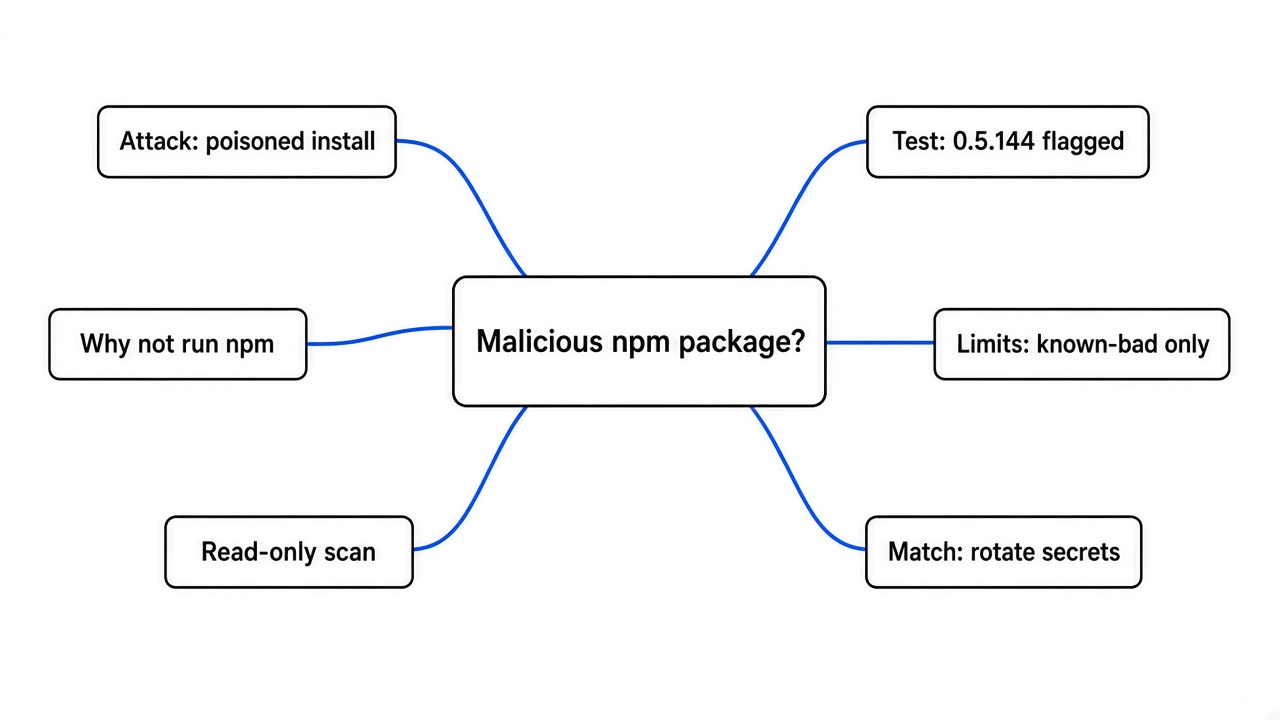
An attacker poisons a package you already trust, so your own install command runs their code.
That trust is the weak spot. Almost no project is written from scratch. Your app pulls in packages, those packages pull in more packages, and so on. That tree of other people’s code is your software supply chain (all the outside code your project depends on, directly or indirectly).
Now build one step up. Every package lives on a registry (a public store, like npmjs.com for JavaScript or PyPI for Python). If an attacker steals a maintainer’s login, they can publish a new version that looks normal but carries hidden code.
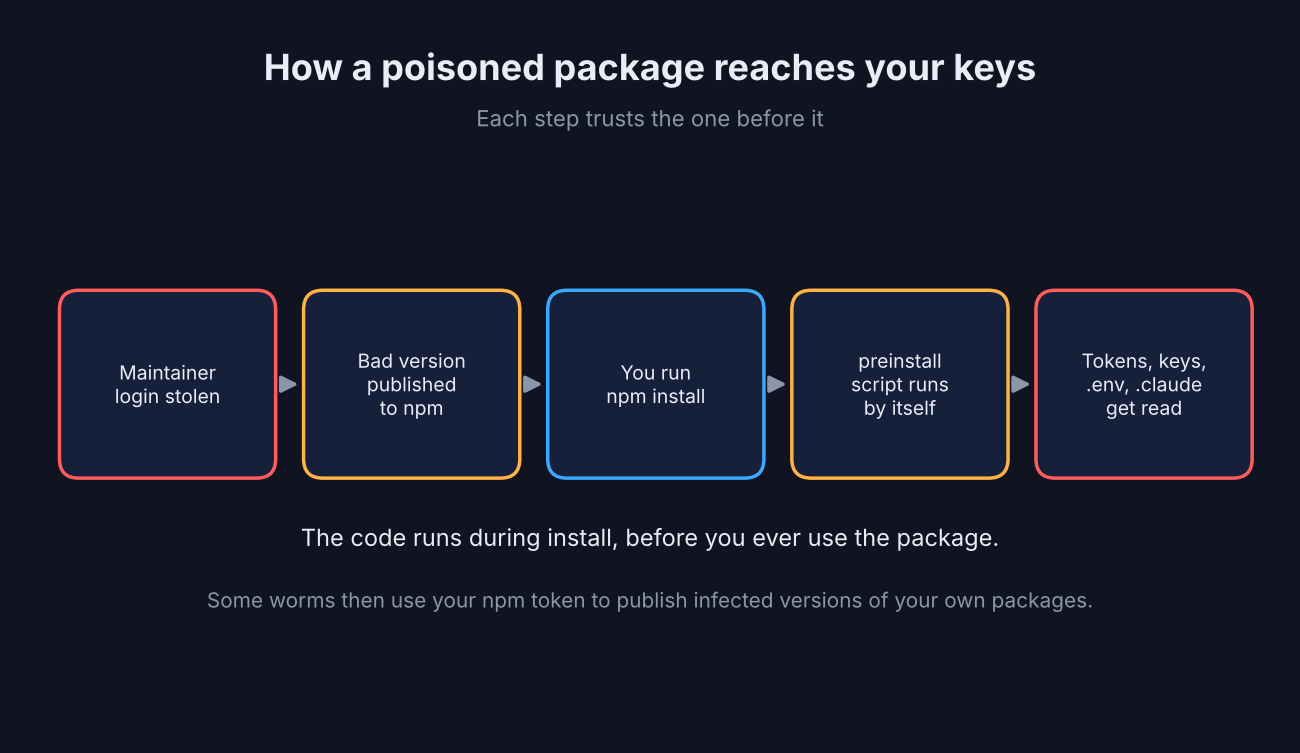
Here is the part that makes it dangerous. npm can run a package’s lifecycle scripts (small commands like preinstall and postinstall that run automatically during install). So the hidden code does not wait for you to use the package. It runs while it installs.
What does it do then? Worms of this kind go straight for secrets: npm and GitHub tokens, cloud keys, SSH keys, .env files, and even AI tool folders like .claude and .cursor. Some then use your npm token to publish infected versions of your packages, which is how they spread.
So the real question after an alert is not “is the package bad?” The advisory already told you that. It is “which of my machines has that exact version?”
Why can’t I just run npm to check?
Because the tools that install packages are the same tools that can trigger the bad code.
The natural move is to reinstall, rebuild, or run some package-manager command and look at what comes out. That is like testing a gas leak with a lit match. Anything that might execute install scripts can set off the very payload you are hunting for.
And there is a second problem. npm audit and similar commands look at one project at a time. They skip your other forty folders and your Python packages. They also skip your editor extensions, browser extensions and the MCP servers (plug-ins that give AI apps like Claude access to tools and files) in your AI tool configs.
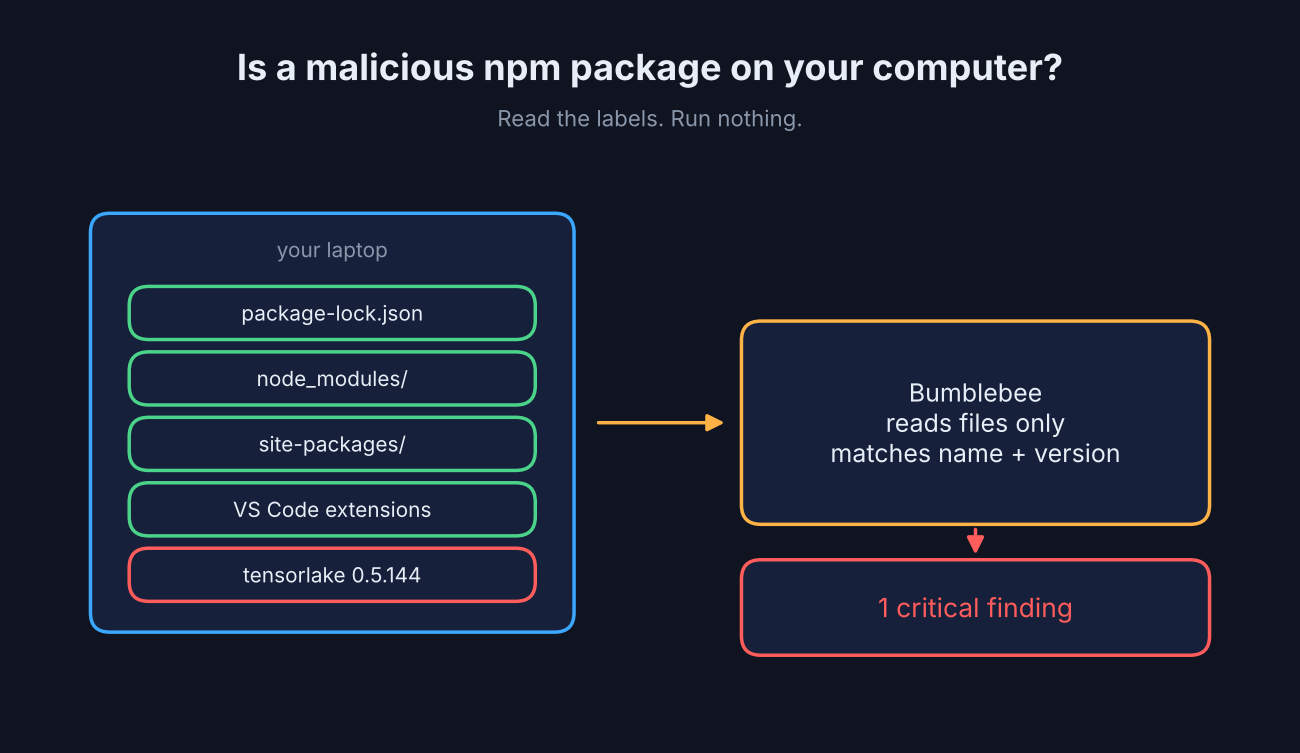
A lockfile (the file like package-lock.json that records the exact version of every package a project installed) already holds the answer. So does install metadata (small record files a package manager leaves behind, like node_modules/<pkg>/package.json or Python’s dist-info folders). Reading those is safe. Nothing executes.
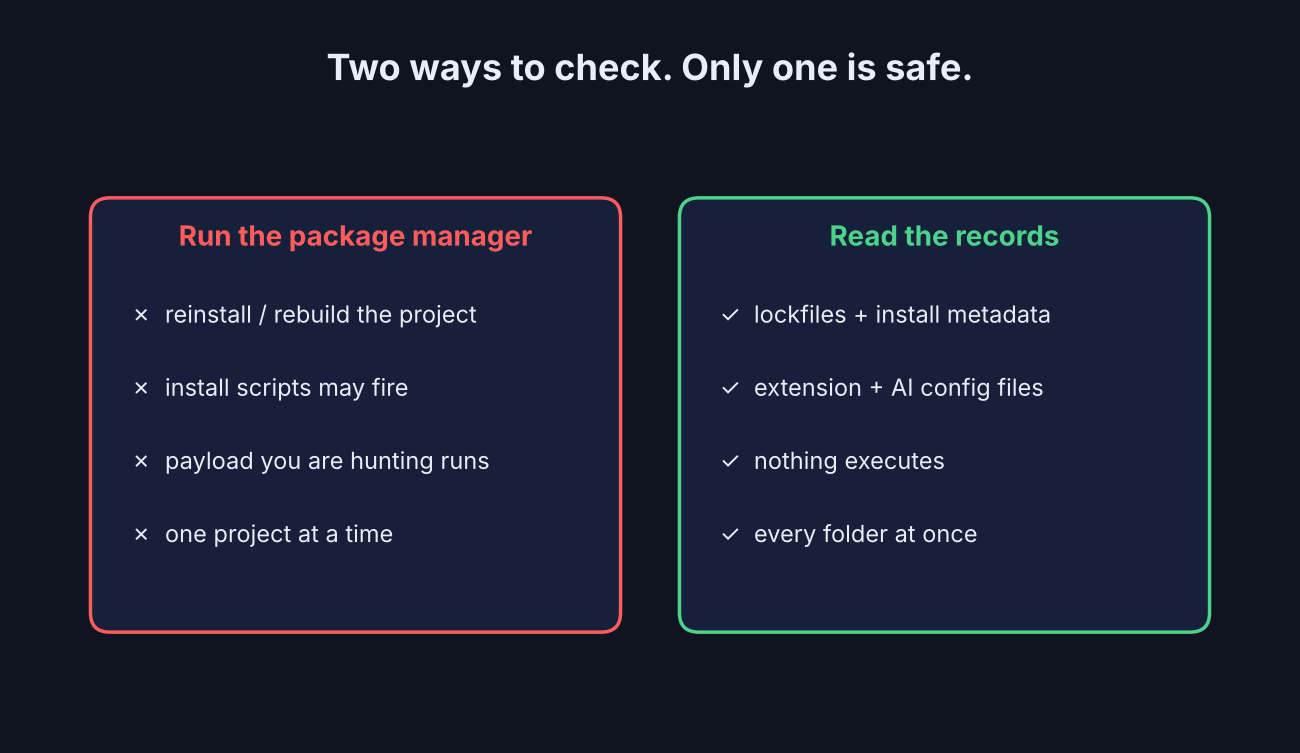
That gives us the rule for a safe check: read the records, match the versions, run nothing.
What does Bumblebee do?
Bumblebee is a free, read-only scanner from Perplexity that lists every package, extension and AI tool config on a Mac or Linux machine, then flags exact matches against a list of known-bad versions.
It follows the read-only rule strictly. It never runs npm, pnpm, bun or pip. It never runs install scripts. It never reads your source code. It only reads metadata files: lockfiles, install records, extension manifests and AI tool config files.
Those records are only half the job. The other half is an exposure catalog (a JSON list of package names and exact versions that an advisory says are malicious). Bumblebee compares every record it finds against that list. A match on name and version becomes a “finding”. No match, no finding.
Think of it like checking your fridge against a food recall notice. You do not taste anything. You read the labels and compare the batch numbers.
It covers a wide spread of places bad code hides:
| What it reads | Examples |
|---|---|
| JavaScript packages | npm, pnpm, Yarn, Bun lockfiles and node_modules |
| Other languages | Python (PyPI), Go modules, Ruby gems, PHP Composer |
| Editor extensions | VS Code, Cursor, Windsurf, VSCodium |
| Browser extensions | Chrome-family browsers and Firefox |
| AI tool configs | MCP servers in Claude Code, Claude Desktop, Cursor, Gemini CLI configs |
| Other | Homebrew formulas and casks, agent skills installed with a lock file |
The repo also ships ready-made catalogs for real past campaigns, including the Shai-Hulud npm worm waves, the GlassWorm editor-extension worm and the node-ipc credential stealer. More than a thousand known-bad package entries come in the box.
How do I scan my computer for compromised packages?
Install it with Go, run the self-test, then point it at your home folder with a catalog.
To build it you need Go (Google’s programming language, which compiles Bumblebee into one standalone program). Bumblebee needs version 1.25 or newer. Then:
Step 1: get the code and build it.
git clone https://github.com/perplexityai/bumblebee
cd bumblebee
go build -o bumblebee ./cmd/bumblebeeStep 2: check that it can detect things, using fake built-in examples that make no network calls.
./bumblebee selftestStep 3: scan your home folder against every catalog that ships with it, and print only the hits.
./bumblebee scan --profile deep \
  --root "$HOME" \
  --exposure-catalog ./threat_intel \
  --findings-only \
--max-duration 10mThat build took about 15 seconds on my machine. The output is NDJSON (one JSON record per line, easy to read with tools like jq). Every run ends with a summary record, so an empty result still tells you the scan finished.
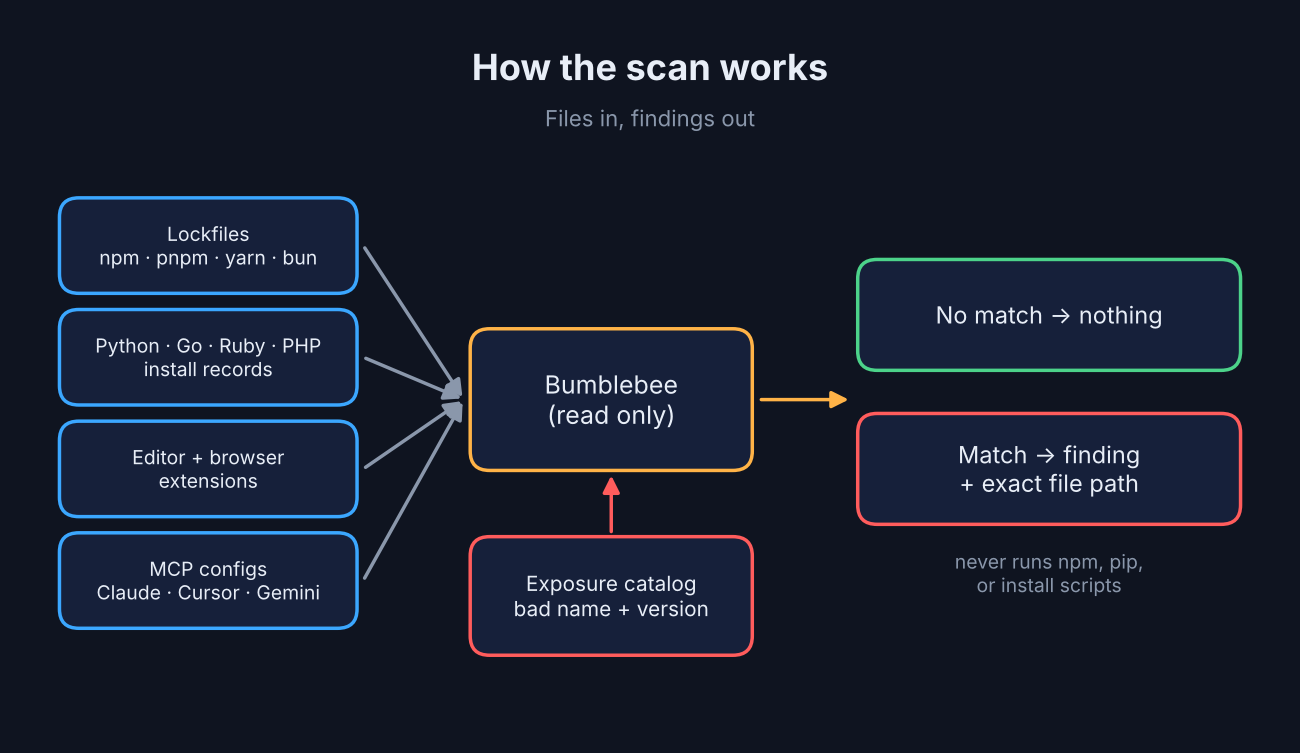
That deep setting is one of three profiles. baseline is a quick look at global package folders, extensions and AI configs. project scans your code folders. deep is for incidents: it walks any folder you give it, including your whole home directory.
Does it actually catch a bad version?
Yes. In my test it flagged the one poisoned version and ignored the safe version right next to it.
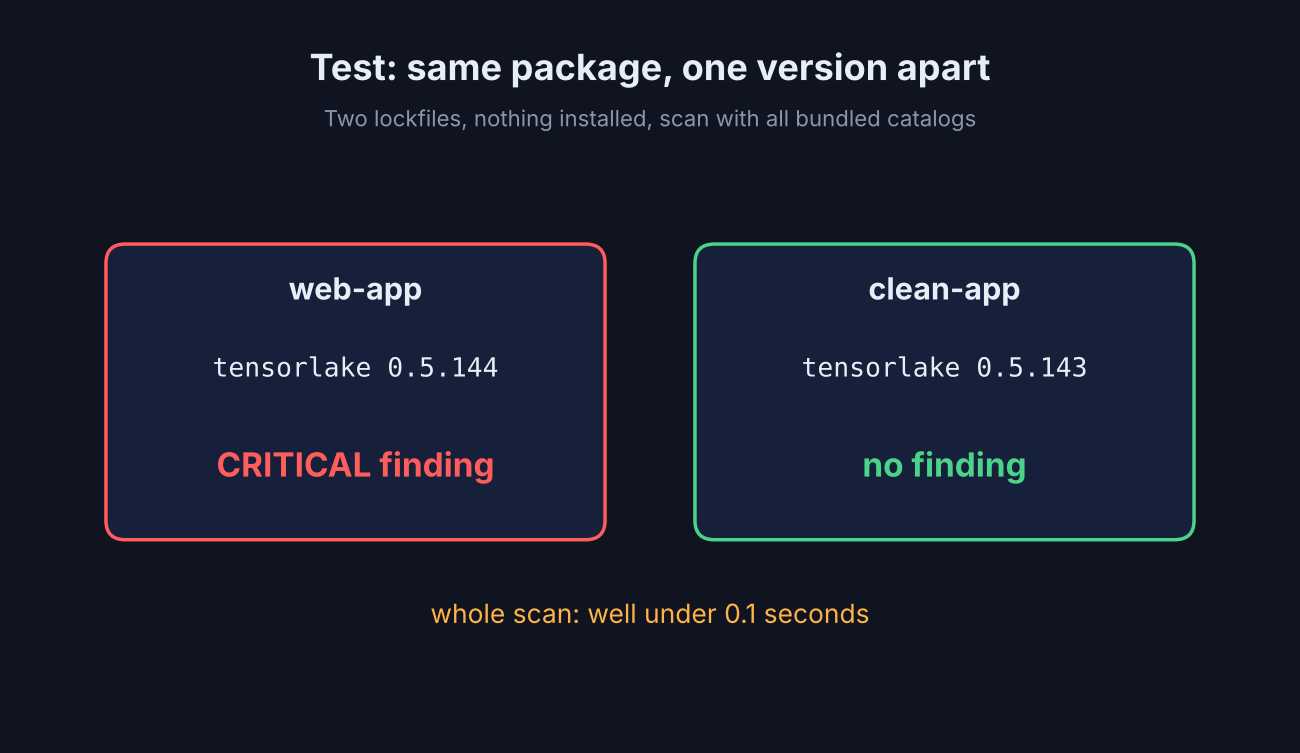
So I tested the one question that matters: does it tell a malicious release apart from the clean release one number earlier? I built two tiny projects with nothing but a lockfile in each. One recorded tensorlake at version 0.5.144, a release that public malware advisories list as malicious. The other recorded 0.5.143, the version just before it.
No package was downloaded and nothing was installed. The scan read only the two lockfiles.
- web-app (0.5.144): one critical finding, “exact name+version match”.
- clean-app (0.5.143): no finding.
- Time: the whole scan finished in well under a tenth of a second.
Here is the finding it printed, trimmed to the useful lines:
{
  "record_type": "finding",
  "severity": "critical",
  "ecosystem": "npm",
  "package_name": "tensorlake",
  "version": "0.5.144",
  "source_type": "npm-lockfile",
  "source_file": ".../demo/web-app/package-lock.json",
  "confidence": "high",
  "evidence": "exact name+version match (version=0.5.144)"
}That source_file line is the useful part. It points at the exact lockfile, so you know which project to clean, not just that “something somewhere” is bad.
I also ran a baseline scan on a plain Linux dev box. It read about 44,000 files and listed 654 package records across npm, Python, Go and MCP configs in about a quarter of a second. That is the inventory you never knew you had.
The catch: this was a lab test with a fake project. It proves the matching works. It does not prove every catalog is complete.
What does Bumblebee not do?
It finds known-bad versions. It does not tell you whether the bad code ran, and it cannot find attacks nobody has listed yet.
That limit is by design. Bumblebee is not antivirus and not an EDR (endpoint detection and response, security software that watches what programs actually do on a machine). It answers “is this version present?” and nothing else. For the code your AI agent writes, a different tool fits, like a Claude Code security audit skill.
So before you trust a clean result, know these edges:
- macOS and Linux only. There is no Windows build.
- Exact matching only. If the catalog lacks the version, you get no finding. Always load the catalog for the advisory you are reacting to.
- Some formats are skipped. Bun’s older binary
bun.lockbfile, Codex’sconfig.tomland loose skill folders without a lock file are not parsed.
Still, there is a fair case for a full security tool instead. If your company already runs one that watches processes and network traffic, it can tell you what ran, which Bumblebee cannot. For a single developer without that, a fast, free, read-only answer to “do I have it?” is the step you can take right now.
What should I do if it finds a match?
Treat that machine as compromised, and rotate your secrets from a different, clean computer.
That means deleting the package is not enough. Public malware advisories for these worms say any computer that installed the bad version should be considered fully compromised, and that removing the package may not remove what it left behind.
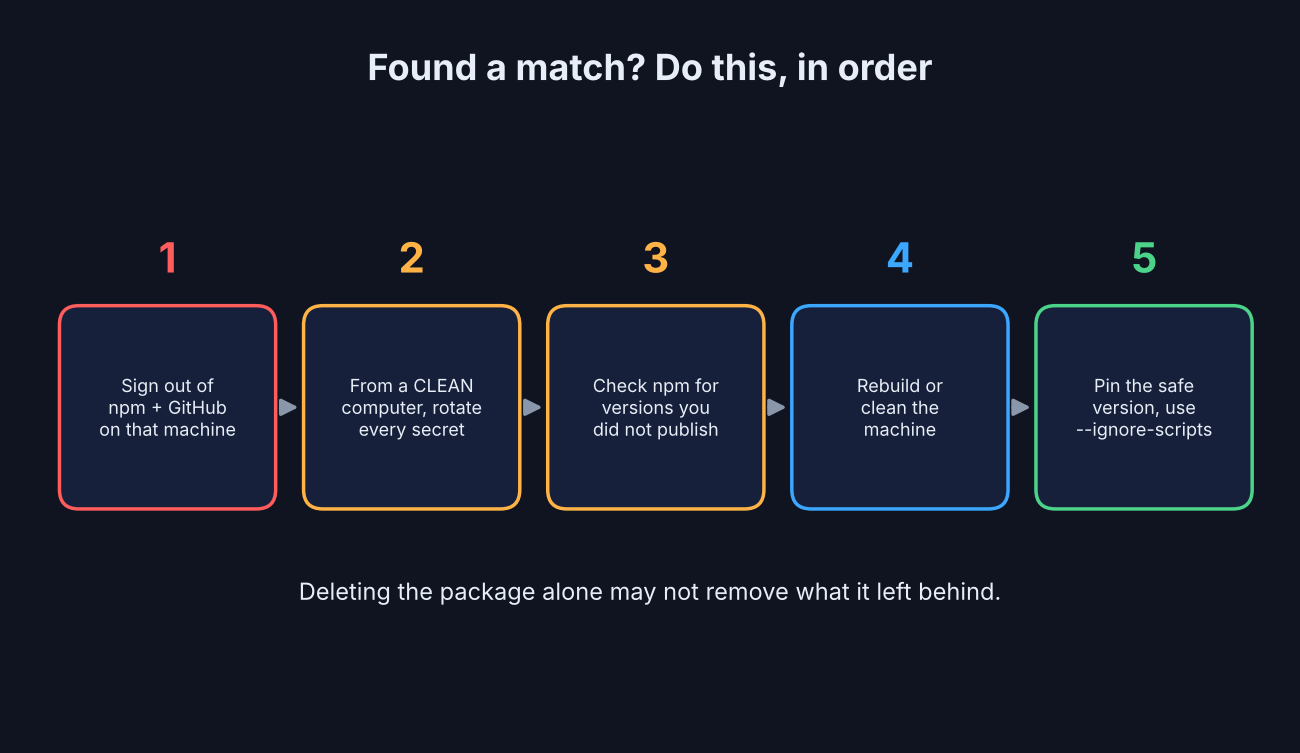
So, in order:
- Disconnect the machine from your accounts: sign out of npm and GitHub on it.
- From another computer, rotate every secret it could see: npm tokens, GitHub tokens, cloud keys, SSH keys, API keys in
.envfiles and AI tool keys. Stolen AI keys get used fast, as the stolen meter breakdown shows. - Check your npm account for versions you did not publish.
- Rebuild the machine, or follow your security team’s cleanup steps.
- Pin the safe version in the lockfile before you install again.
If you want to cut the odds next time, install with npm install --ignore-scripts for projects that do not need install scripts, so a poisoned package cannot run code the moment it lands.
The fridge idea still holds. Read the label before you eat. Run the scan before you run anything else.
Common questions about checking for a malicious npm package
Does npm audit detect malicious packages?
It checks one project at a time against the registry’s advisory list. It does not look at your other projects, Python packages, editor or browser extensions, or AI tool configs.
Is it safe to scan for malware with the same machine that might be infected?
Reading files is safe, which is why Bumblebee only reads metadata and never runs package managers. If it finds a match, do the cleanup and secret rotation from a different machine.
Does Bumblebee work on Windows?
No. It supports macOS and Linux developer machines.
Can Bumblebee find an attack nobody has reported yet?
Only after someone adds it to a catalog. It matches exact names and versions, so it cannot spot an attack nobody has listed yet.
3 comments