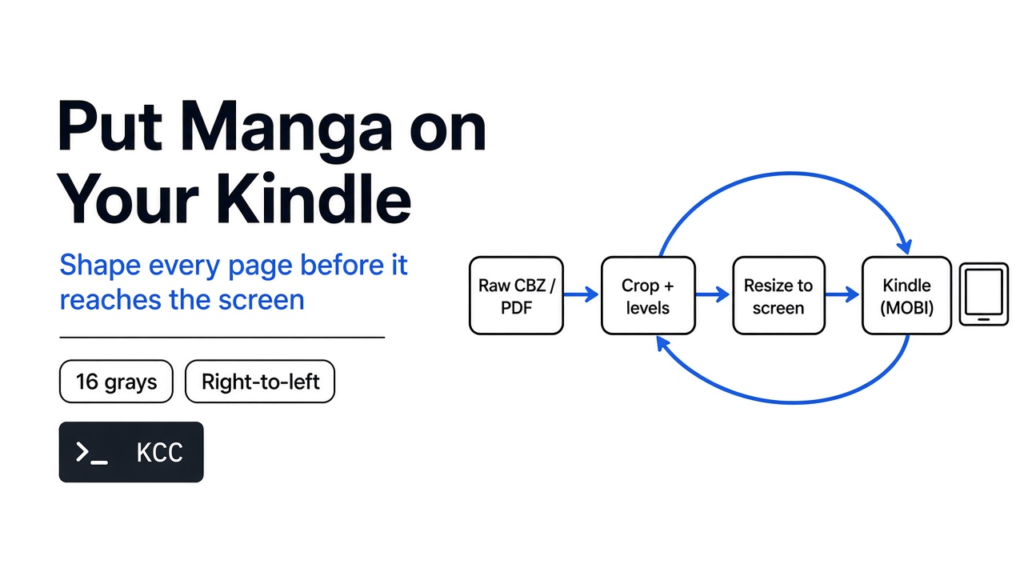
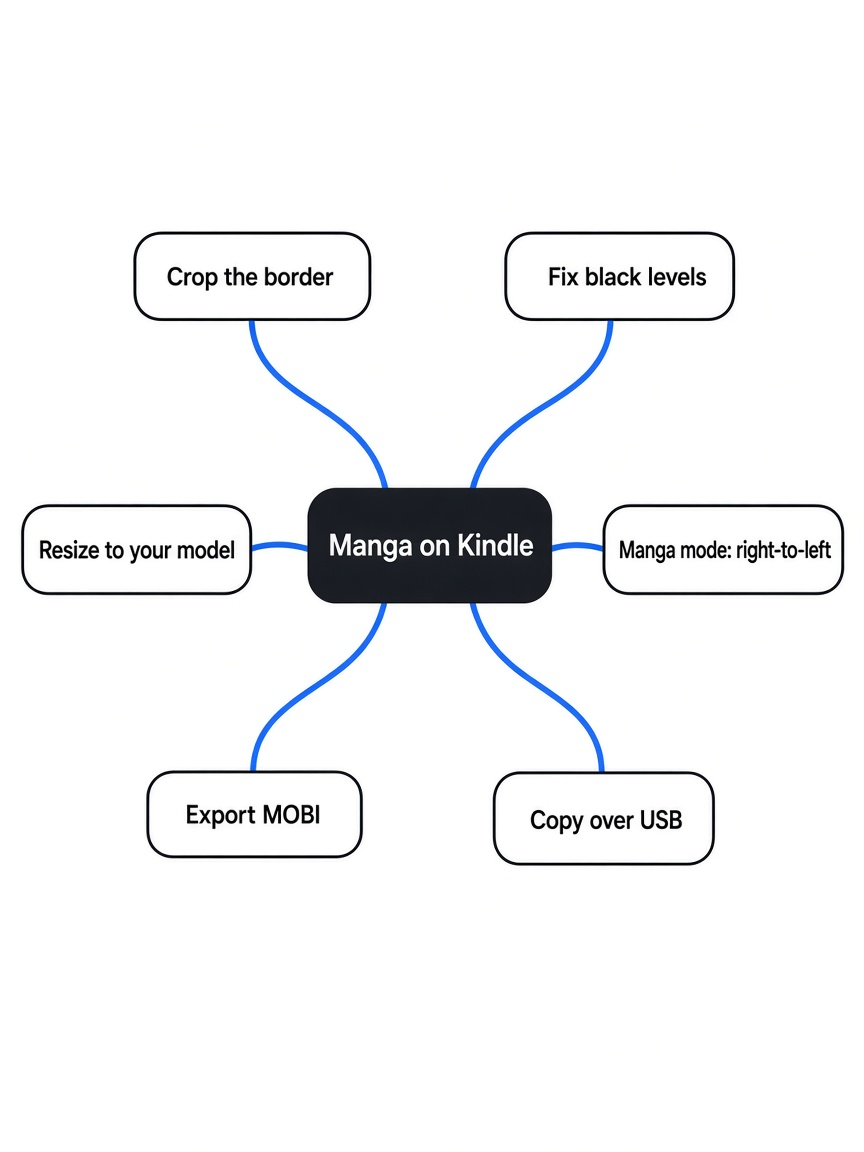
Quick answer: Here is how to put manga on Kindle so it actually looks right. Don’t copy the raw PDF or CBZ (a comic packed as a zip of images) straight onto your Kindle. Run it through Kindle Comic Converter (KCC), a free open source app. Pick your Kindle model, turn on manga mode for right-to-left books, export MOBI, and drag the file into the Kindle’s documents folder over USB.
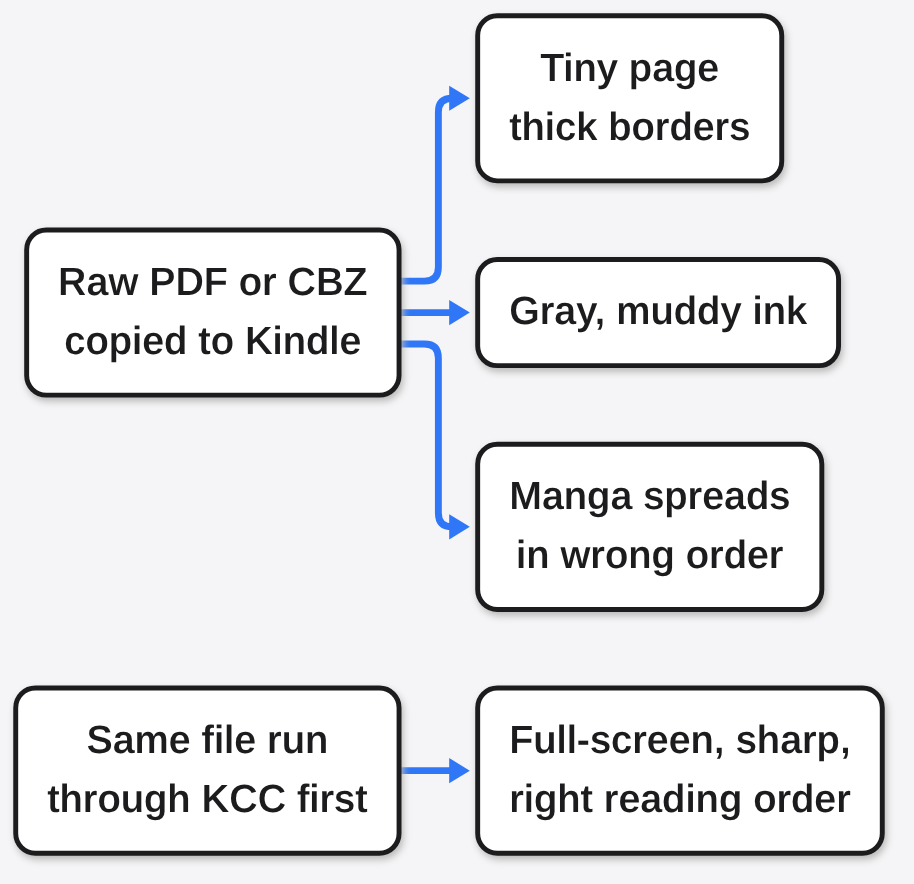
You copy a comic onto your Kindle, open it, and it looks wrong. The page is tiny, wrapped in thick borders, and the black ink looks dull gray. A manga double-page spread shows up in the wrong order.
Nothing is broken. The file was simply made for a different screen.
So here is the one idea this guide hangs on. The Kindle screen is the boss: shape every page to fit it before the file reaches the device. Below is why raw comics look bad, what a converter fixes, the exact steps with KCC, and the traps that undo all the work.
Why Do Comics Look Bad on a Kindle?
A comic page and a Kindle screen are different shapes, sizes and color systems, and the Kindle does not fix that for you.
A screen is a grid of tiny dots called pixels. A Kindle Paperwhite 5 (the 2021 6.8-inch model and its Signature Edition) has a grid 1,236 dots wide and 1,648 tall. Any picture you show on it gets squeezed to fit that grid, and other Kindle models use different grids.
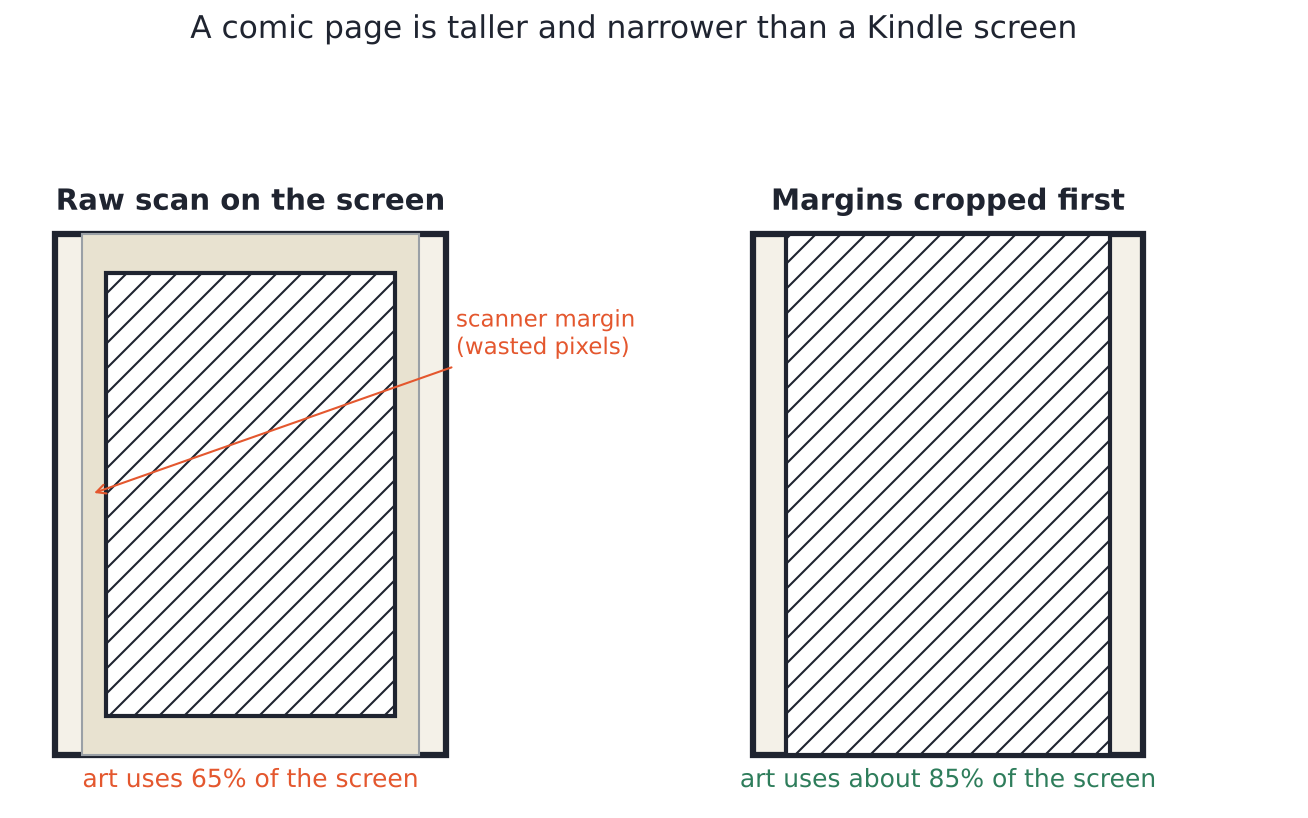
A printed US comic page is taller and narrower than that screen. So when the page is shrunk to fit, empty bars appear on the sides. On top of that, most scans keep the white paper border the scanner caught, and that border eats more screen space.
Then there is the ink. A Kindle uses e-ink (tiny black and white particles moved by electricity, like a magnetic drawing board). Amazon rates the Paperwhite screen at 16-level gray scale, so it can only show 16 shades of gray. A scan of yellowed paper has thousands of tones, and its “black” ink is often a faded dark gray. Squeeze those thousands of tones into 16 and the page looks flat and muddy.
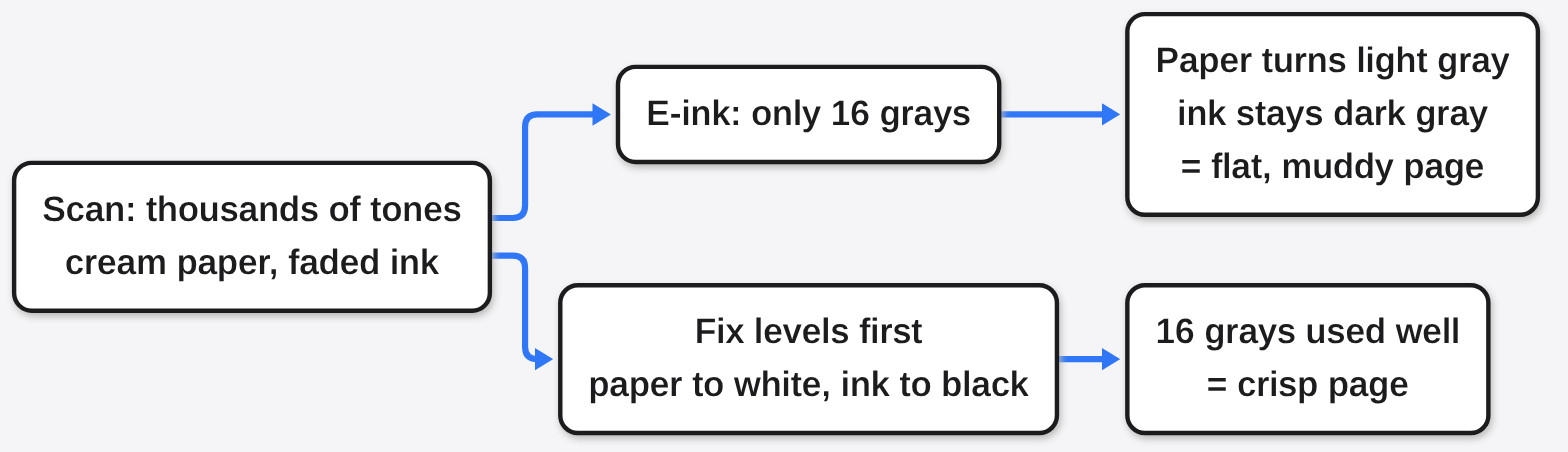
So you get three problems stacked: wasted space, wrong shape, and weak contrast. Each one is fixable, but only before the file lands on the device.
What Does a Comic Converter Actually Do?
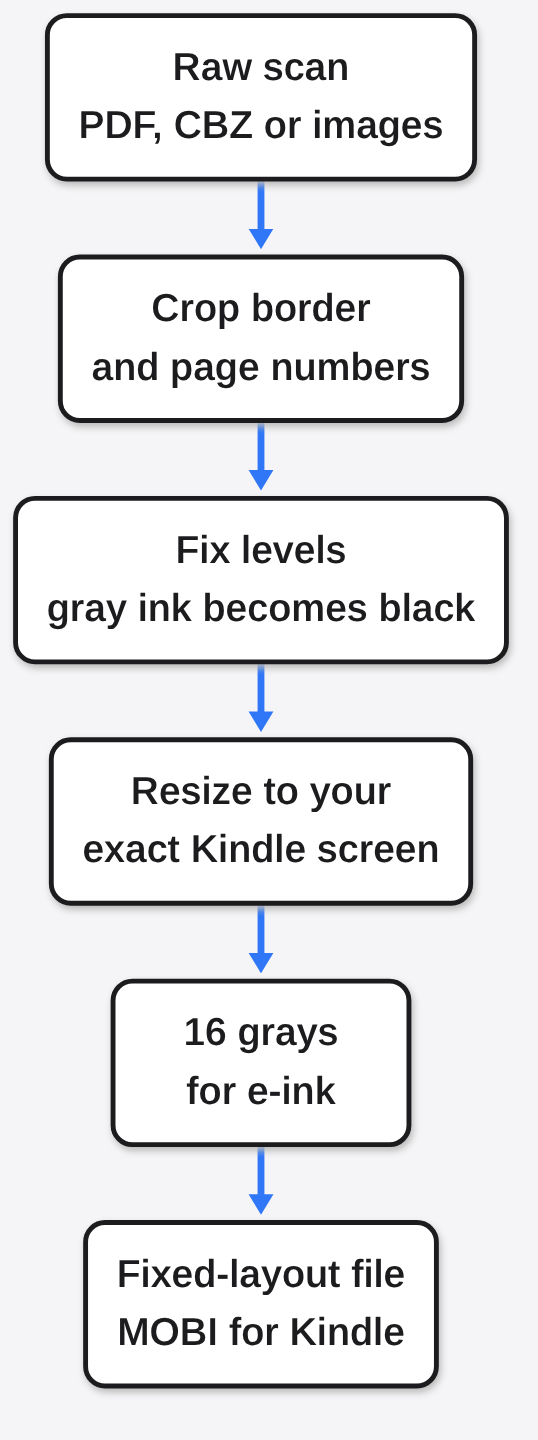
It does four jobs in order: crop the empty border, fix the black and white levels, shrink the page to your exact screen, and pack the pages into a fixed-layout book.
Fixed layout means every page is stored as one picture that fills the screen, like a photo album. Normal Kindle books are reflowable instead: the text rearranges itself when you change font size. Comics must be fixed layout, or the reader tries to “reflow” a picture and adds margins.
I wanted to see how much each step matters, so I ran the same steps by hand on one test page.
That page was drawn at 600 dpi (dots per inch, how finely a scanner samples paper) at US comic size, with a cream paper tone, faded ink and a scanner border. Then I cropped it, fixed the levels, resized it to a Paperwhite 5 screen and cut it down to 16 grays.
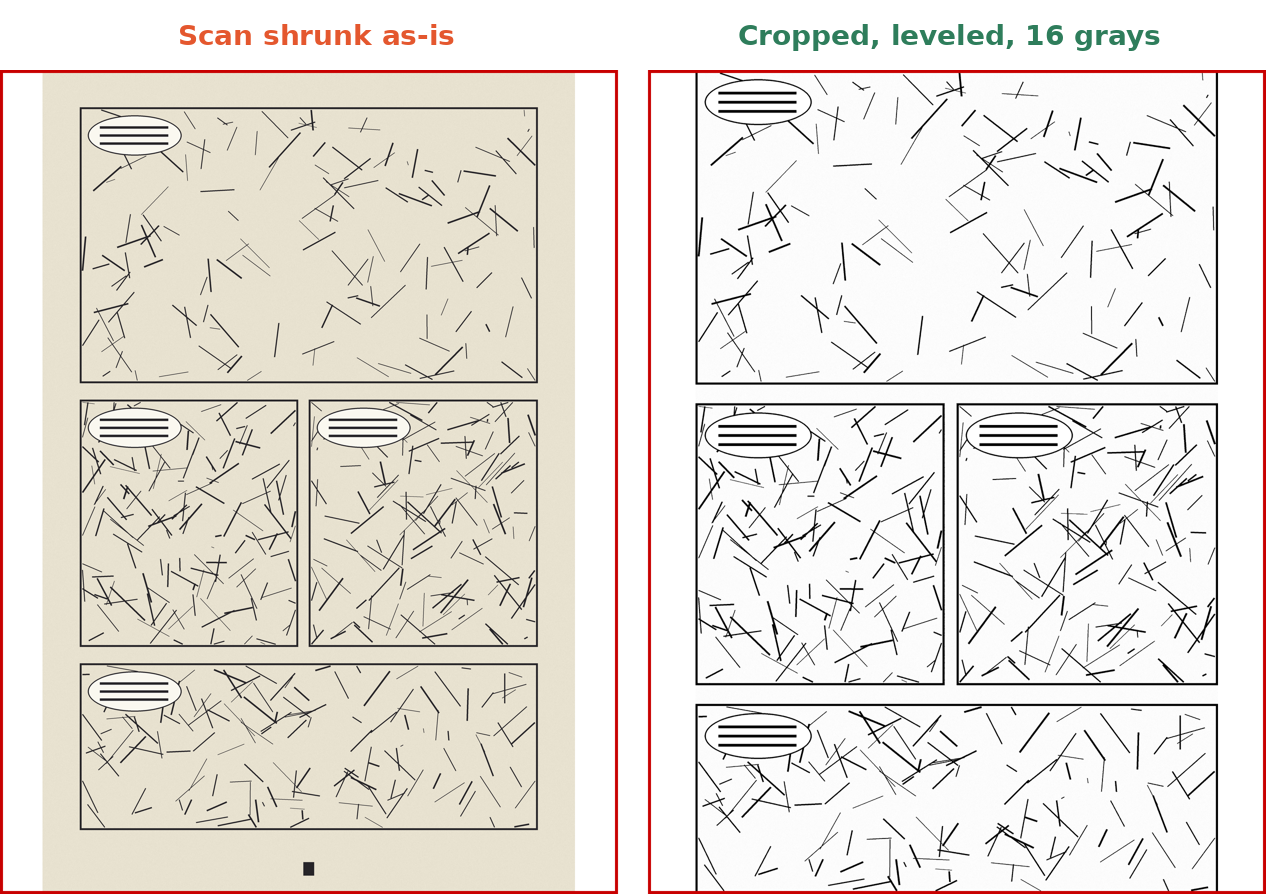
Here is what changed:
- File size: 8.12 MB for the raw page, 0.29 MB after. About 28 times smaller.
- Screen used by the art: 65% for the raw page, 84.5% after cropping.
- Darkest ink: gray level 37 before (0 is pure black), 0 after.
- Paper: cream gray 225 before, near-white 252 after.
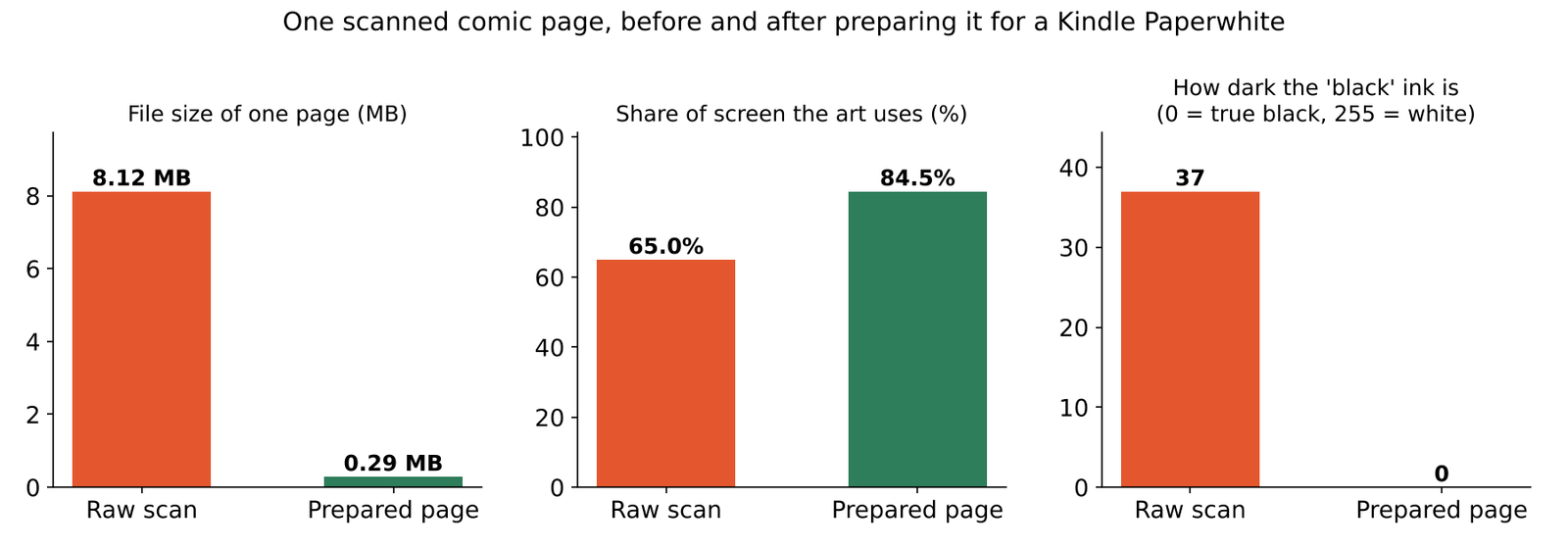
What this means for you: a 200-page volume shrinks from a heavy file to one that copies fast, loads fast and leaves space on the device. The art also gets almost 20 points more of the screen, and the blacks finally look black.
The catch is honest and small. My page was a drawn test page, not a real scan, so a real book will land on different numbers. The direction of each change is the same, because those four steps are exactly what the shape and gray-level math demands.
How to Put Manga on Kindle With KCC
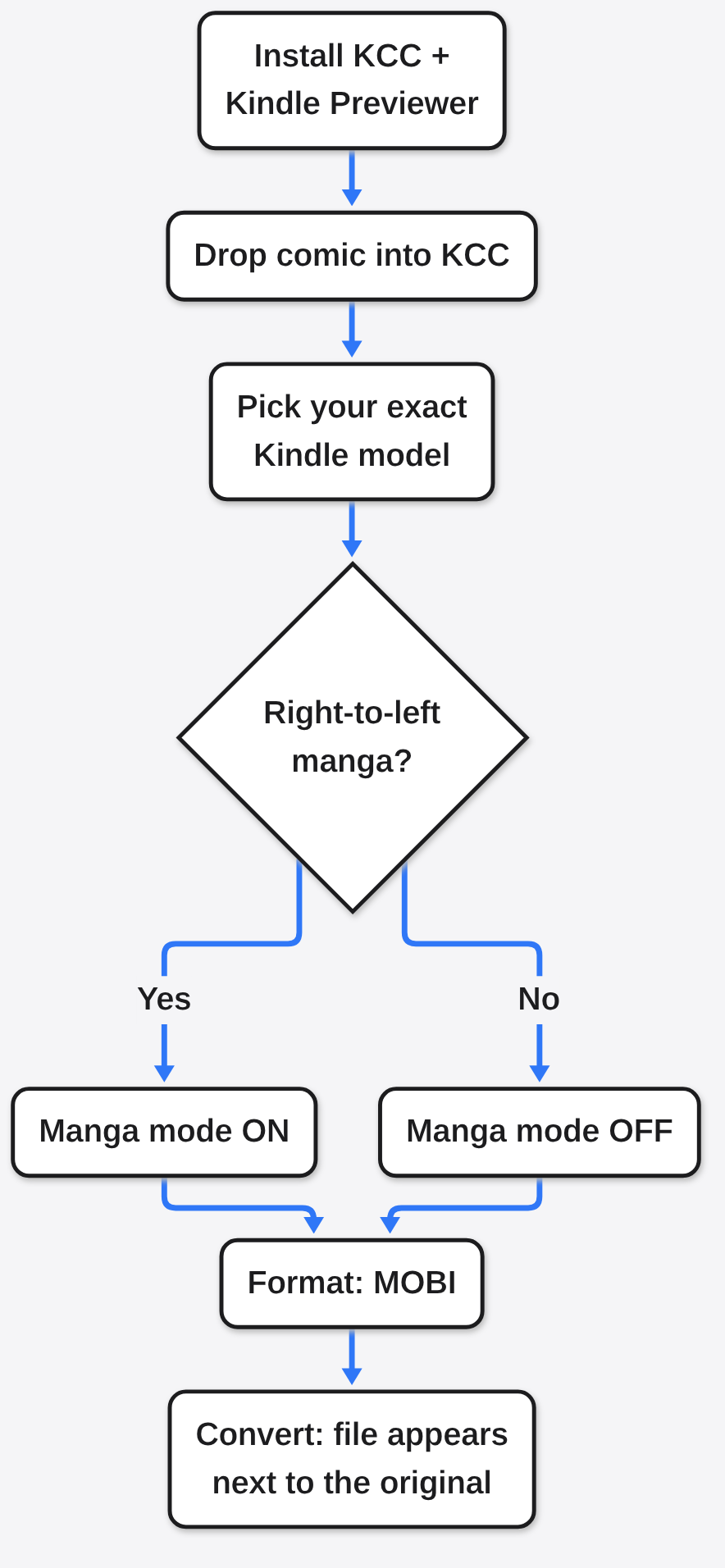
Install KCC and Kindle Previewer, pick your exact Kindle model, set manga mode if the book reads right to left, choose MOBI, and convert.
KCC is short for Kindle Comic Converter. It is free, open source under the ISC license (a short permissive license that lets anyone use and share it), and runs on Windows, macOS and Linux. It does the four jobs above in one click. It is not Amazon’s own “Kindle Comic Creator”, which is a different tool meant for publishers. Before you start, you need three things.
- KCC from its GitHub releases page. Version 12.1.5 is the current release as of November 2026. Windows uses the
.exe; Macs use the.dmgthat matches your chip (Apple Silicon or Intel); Linux uses the AppImage. - Kindle Previewer from Amazon, on Windows or Mac. It contains KindleGen (Amazon’s tool that builds MOBI files), and KCC finds it on its own. Without it, KCC can’t make MOBI. If you install the newer Kindle Previewer 4, you need KCC 11.3.0 or later.
- A DRM-free comic: a PDF, CBZ, CBR (KCC needs 7-Zip installed to open CBR) or a folder of images. DRM (copy lock on bought ebooks) blocks any converter.
The Five Conversion Steps
- Open KCC and drop your comic file into the window.
- Pick your device profile, the exact Kindle model. This sets the target screen size, so a wrong pick gives a blurry or bordered page.
- Turn on Manga mode for Japanese manga.
- Set the output format to MOBI.
- Click convert. The finished file appears next to your original.
Prefer a terminal? KCC also ships a command-line version, kcc-c2e (Windows gets it as a separate tool_cli_c2e download on the same releases page), that takes the same choices as flags: -p for the device profile, -m for manga mode and -f for the output format. For a right-to-left volume on a Paperwhite 5, the whole run is one line:
kcc-c2e -p KPW5 -m -f MOBI my-manga-vol01.cbzDrop -m for Western comics. Always pass -p: without it, KCC falls back to its default Kindle Voyage profile, which is the wrong screen size for most current Kindles.
Linux users get one extra hurdle. Amazon no longer ships KindleGen for Linux. So you supply the program yourself and put it on your PATH (the list of folders your terminal searches for programs), or pick another output format. KCC’s installation wiki points to the archived kindlegen 2.9 build; for the AppImage, copy the extracted kindlegen into /usr/local/bin and make it executable:
sudo cp kindlegen /usr/local/bin/
sudo chmod a+x /usr/local/bin/kindlegenClose and reopen KCC afterwards so it detects the program.
Why Does Manga Mode Matter?
Manga is read right to left, so when KCC splits a wide two-page spread, it must show the right half first.
A spread is one picture covering two pages. A Kindle screen is tall, so KCC can cut it in half or rotate it sideways. In manga mode, the right half becomes the first screen. Without it, you read the second half of the scene before the first.
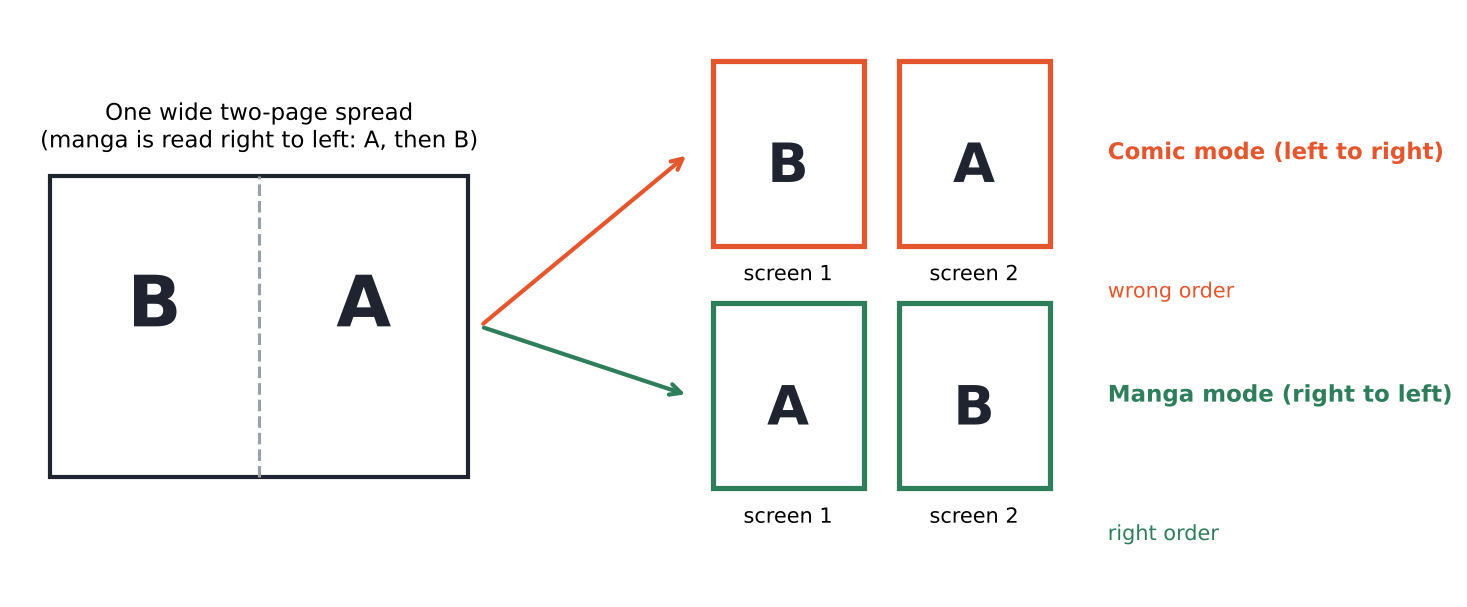
If you prefer to see a whole spread at once, KCC has a splitter setting: split, rotate, or both. “Both” shows the full spread turned sideways and then each half.
How Do I Get the File Onto My Kindle?
Plug the Kindle in with a USB cable and drag the MOBI file into its documents folder, without opening it in any other app first.
On Windows, the Kindle shows up as a drive. On a Mac, recent Kindles and the Kindle Scribe often don’t show up in Finder. They use MTP (a phone-style way of moving files), so install Amazon’s free USB File Transfer app and copy the file with it.
If your comics live on another computer, move them to the one that has KCC first; here is how to share files over WiFi without installing an app.
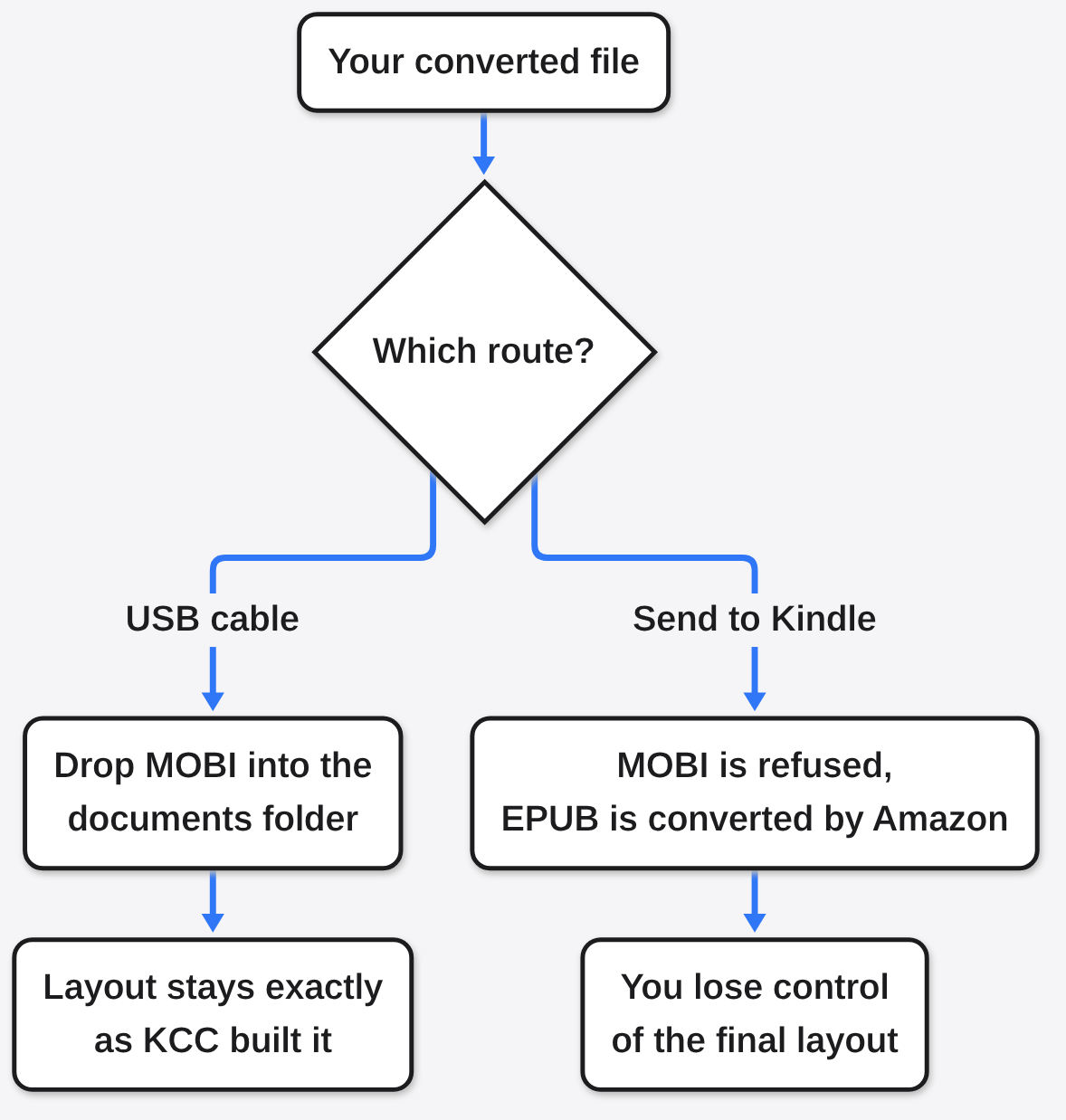
Why not just email it with Send to Kindle? MOBI is not on Amazon’s list of Send to Kindle file types any more, and the EPUB files it does accept get converted again on Amazon’s side. Your carefully shaped pages pass through someone else’s conversion. USB keeps them exactly as built, which is why KCC’s own guide says to drop the file straight in.
Which KCC Settings Should I Change?
Most people only need four settings. Leave the rest on default until a page looks wrong.
| Setting | What to pick | Why it matters |
|---|---|---|
| Device profile | Your exact Kindle model | Sets the screen size every page is shrunk to |
| Manga mode | On for manga, off for Western comics | Puts split spreads in the right reading order |
| Output format | MOBI for modern Kindles, CBZ for KOReader, PDF for the 2025 Kindle Scribe (KCC warns its MOBI support is limited) | The Kindle reads each format differently |
| Cropping | Default (margins and page numbers) | Gives the art more of the screen |
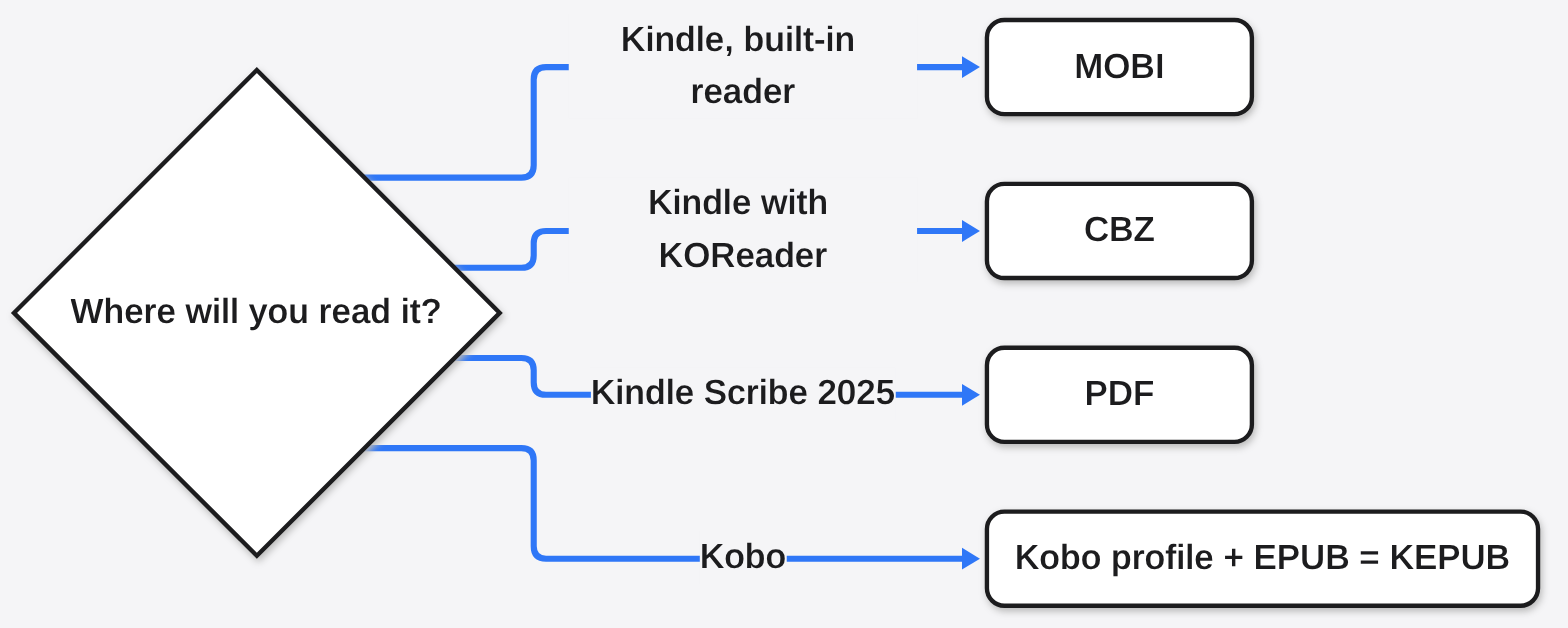
The MOBI file KCC makes is two formats in one: it works as both MOBI and AZW3 (Amazon’s newer book format). You don’t need a separate AZW3 option.
What Is the Catch?
KCC is free and does the job well, but a few outside steps can quietly undo its work.
- Calibre breaks it. Calibre is a popular ebook library app, but it doesn’t handle fixed-layout books properly. Even editing just the title in Calibre can break the layout and the page numbers. Keep KCC files out of it.
- Some models show blank pages. A Kindle Scribe can show blank pages when KCC uses PNG images, and a Kindle Colorsoft can with any format. On a Scribe, switch to JPG images; PDF output is the other fix to try, and it is KCC’s recommended format for the 2025 Kindle Scribe.
- It only works on files you own without DRM. Comics bought in the Kindle store are copy-locked, so KCC can’t open them. It is for DRM-free PDFs, CBZ files and your own scans.
- Dark mode inverts the art. If colors look flipped, turn off Kindle dark mode.
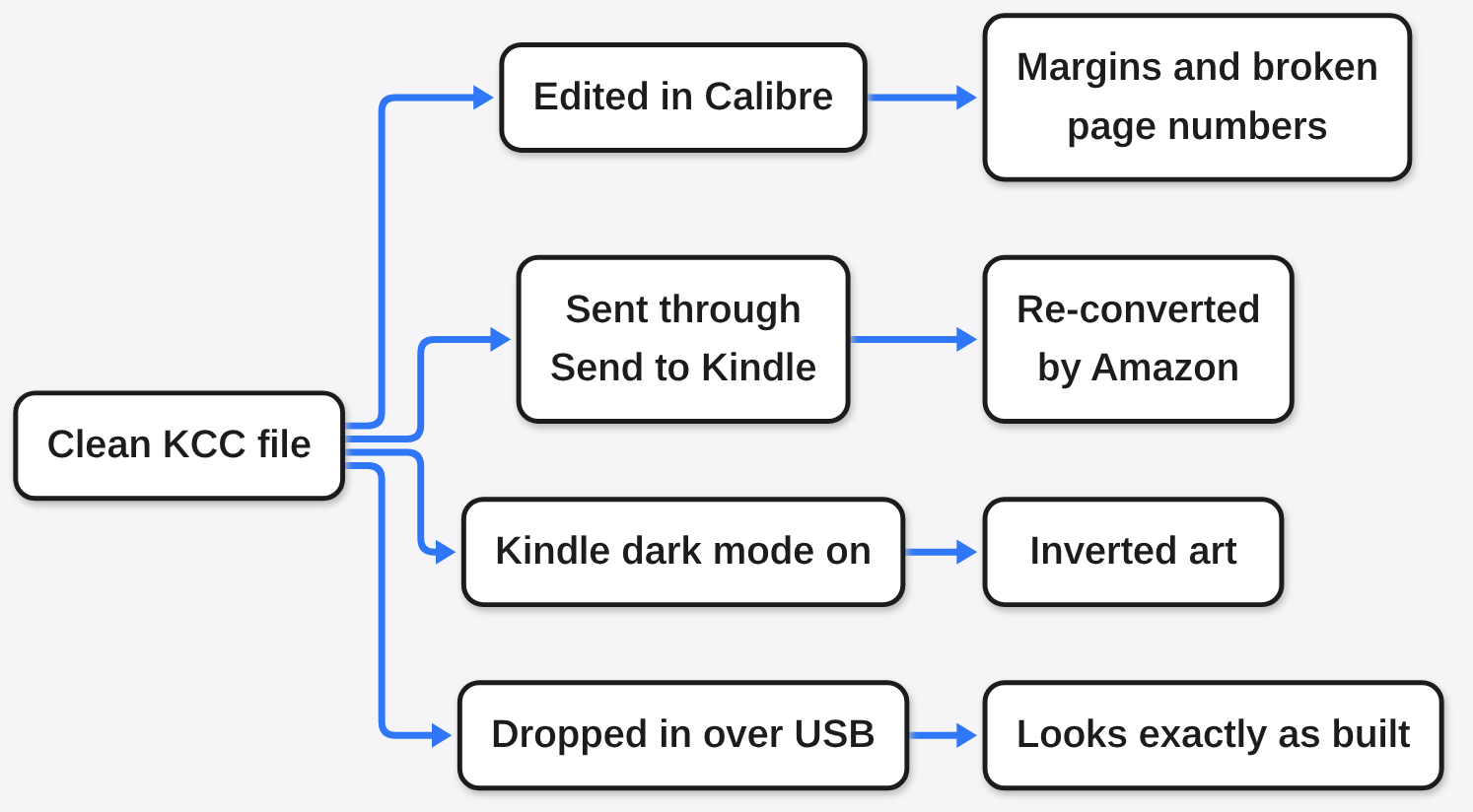
There is a fair case for skipping all this. If you only read a few pages now and then, a raw PDF on a big Kindle Scribe is readable enough. For a whole series on a 6- or 7-inch Paperwhite, the borders and gray ink wear on you by page ten.
If your comic arrives in an odd format first, you can change it locally too; see how to convert a file without uploading it, or the Filee vs CloudConvert comparison of local and cloud converters.
So start with the screen, not the file. Pick your Kindle model in KCC first, and every page after that falls into place.
Common questions about Manga on Kindle
Can I put CBZ files directly on a Kindle?
Modern Kindles don’t open CBZ files in the built-in reader. Convert the CBZ to MOBI with KCC first, then copy it over USB.
Why is my manga in the wrong page order on Kindle?
The converter split two-page spreads left to right. Turn on manga mode in KCC so the right half shows first.
Is Kindle Comic Converter free and safe?
Yes. KCC is free, open source under the ISC license, and runs on your own computer, so your files are never uploaded anywhere.
Why does KCC say it can’t find KindleGen?
KindleGen comes inside Amazon’s Kindle Previewer. Install Kindle Previewer on Windows or Mac and reopen KCC so it can detect it.