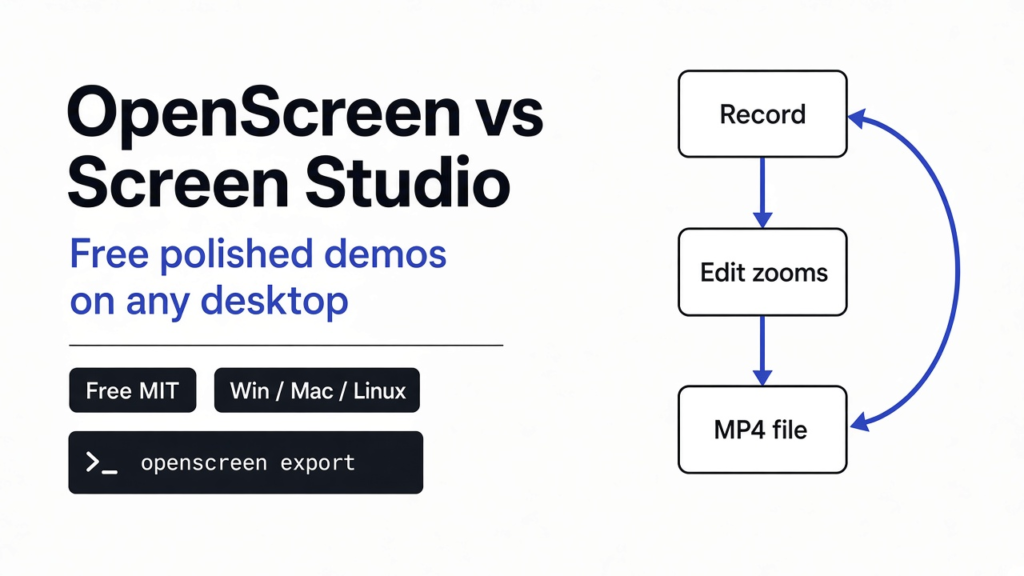
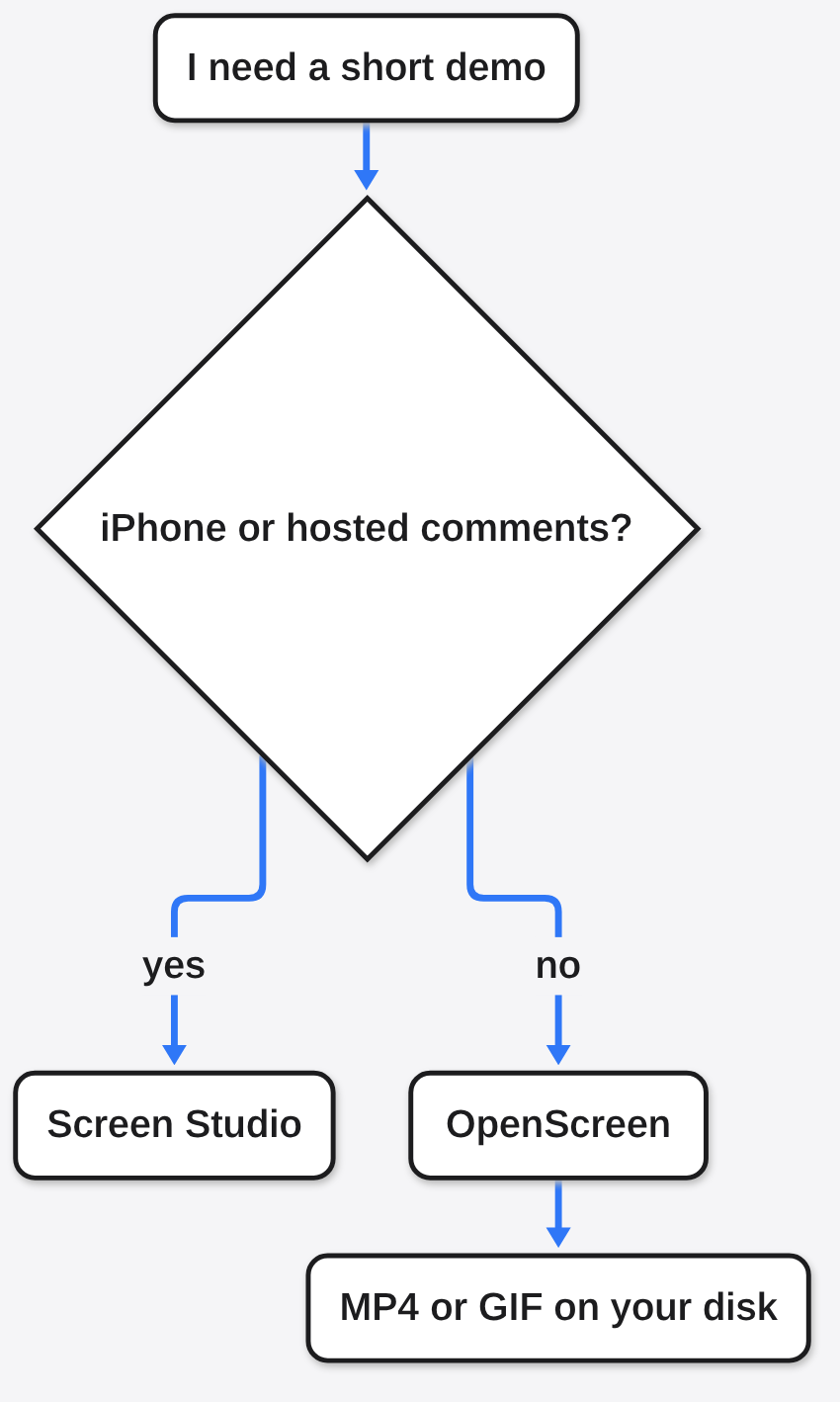
I needed a one minute demo of a small change, and the OpenScreen vs Screen Studio choice started with a recording that looked like a raw screen grab. The clicks were tiny. The mouse jumped. I would have spent the evening cutting it by hand. OpenScreen is a free screen recorder that does that polish on the recording itself. Screen Studio is the paid Mac app people put next to it. Use OpenScreen when you want the finished file on Windows, Mac, or Linux, with no subscription. Pay for Screen Studio when you must record an iPhone, or when reviewers leave comments on a hosted link.
Checked against the OpenScreen README and docs on GitHub in November 2026. The Linux AppImage was the build under test here; Screen Studio on a Mac stayed off this machine.
OpenScreen vs Screen Studio
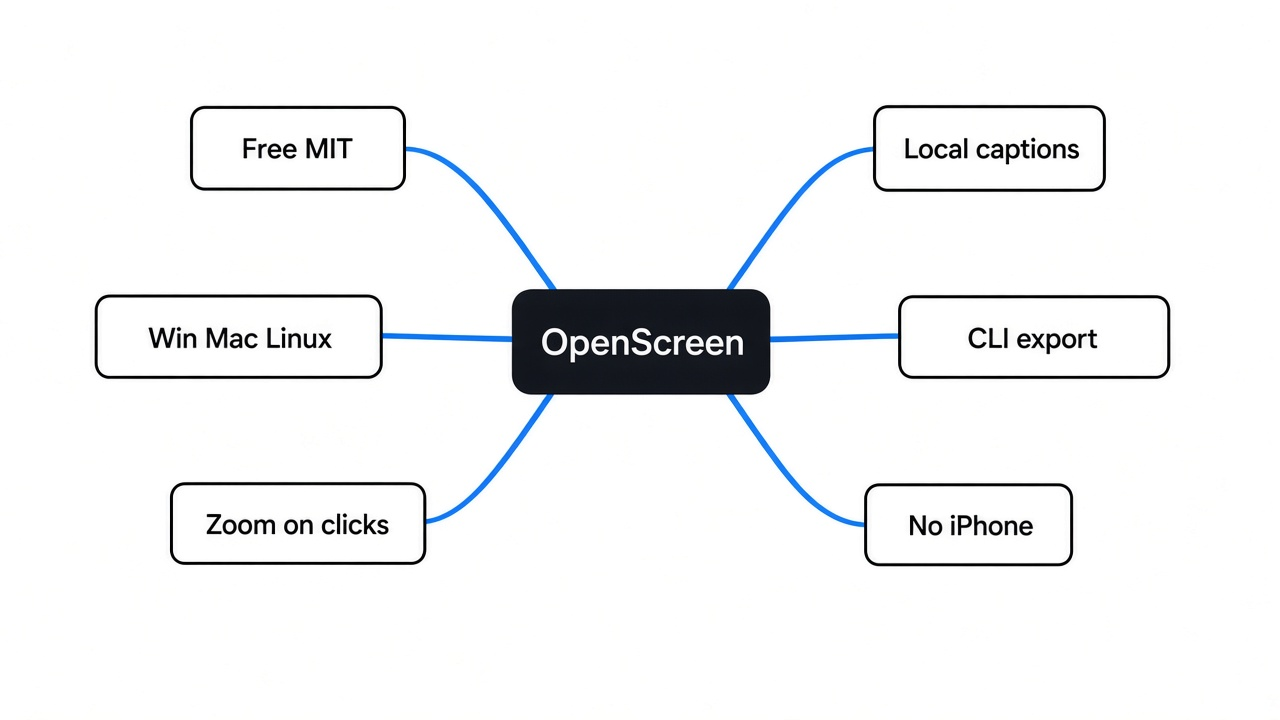
OpenScreen is the one to install unless the recording is an iPhone or the review happens on a hosted link. Both apps start from the same job. You record a screen, the app zooms where you clicked, you restyle the pointer after the take, and you export a video that looks like a product demo instead of a meeting recording. The split is price, which computers it runs on, and two jobs Screen Studio still owns.
A screen recorder is just a program that saves what is on your display. A demo editor is the next step: it keeps the pointer as data, so you can smooth a shaky path and drop a zoom on a click without re-recording. That second step is the whole reason these two exist. A general editor can do it too. It just takes the evening.
| Question | OpenScreen | Screen Studio |
|---|---|---|
| Price | Free, including work you sell | Listed as $29 a month or $108 a year. Export stays locked until you pay. No free trial on that page |
| Computers | Windows, Mac, Linux | Mac only |
| Record an iPhone or iPad | No | Yes, over a cable, with a device frame |
| Share a link people can comment on | No. You get a file | Yes. A hosted link, with comments tied to a moment |
| Captions | Made on your computer, then burned into the picture | Made on your computer, and the transcript can be saved as its own file |
| Zoom on clicks | Yes | Yes |
| Command line | Yes | Not in its guide |
| Source you can read | Yes, MIT license | No |
Screen Studio on a Mac stayed off this machine. The rows above come from OpenScreen’s own comparison page, which is the vendor talking about a rival, so treat the two Screen Studio gaps as claims to recheck if they are the reason you would switch. The price row is the same kind of claim. The Linux build is the one that ran here, and that test is later on this page.

What Is OpenScreen?
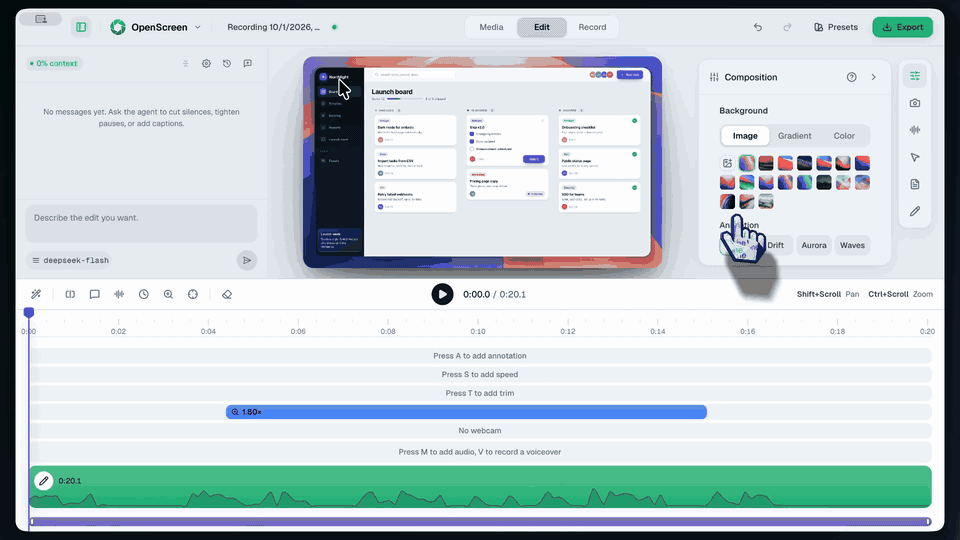
OpenScreen is a desktop app that records one window or a whole screen, then opens that take in an editor on the same machine. The project file ends in .openscreen. Export is an MP4, which is a normal video file, or a GIF, which is a short silent loop — the same kind of short clip you might later convert from a longer video without killing the quality. Nothing in that path asks you to make an account.
The pointer is not baked into the pixels on the way in. The app stores the path, so after you stop you can change the size, smooth the jumps, and add a small bounce on the click. Zooms can be automatic, placed on the clicks it already recorded, or moved by hand. Backgrounds, padding, shadow, and rounded corners are the “this looks like a launch video” layer. You can also blur a region if a password or an email was on screen.
Captions use Whisper (speech-to-text that runs on your computer, not on a website). The first caption run downloads a speech model of about 264 MB. After that it works with the network off. The words are burned into the video. There is no separate subtitle file, so if you need the text for a blog post you will be copying it out of the editor, or using Screen Studio for that one job.
An older project with the same name, under a personal account, is archived. Do not install that one. The app this page means is getopenscreen/openscreen.
How Do I Install OpenScreen?
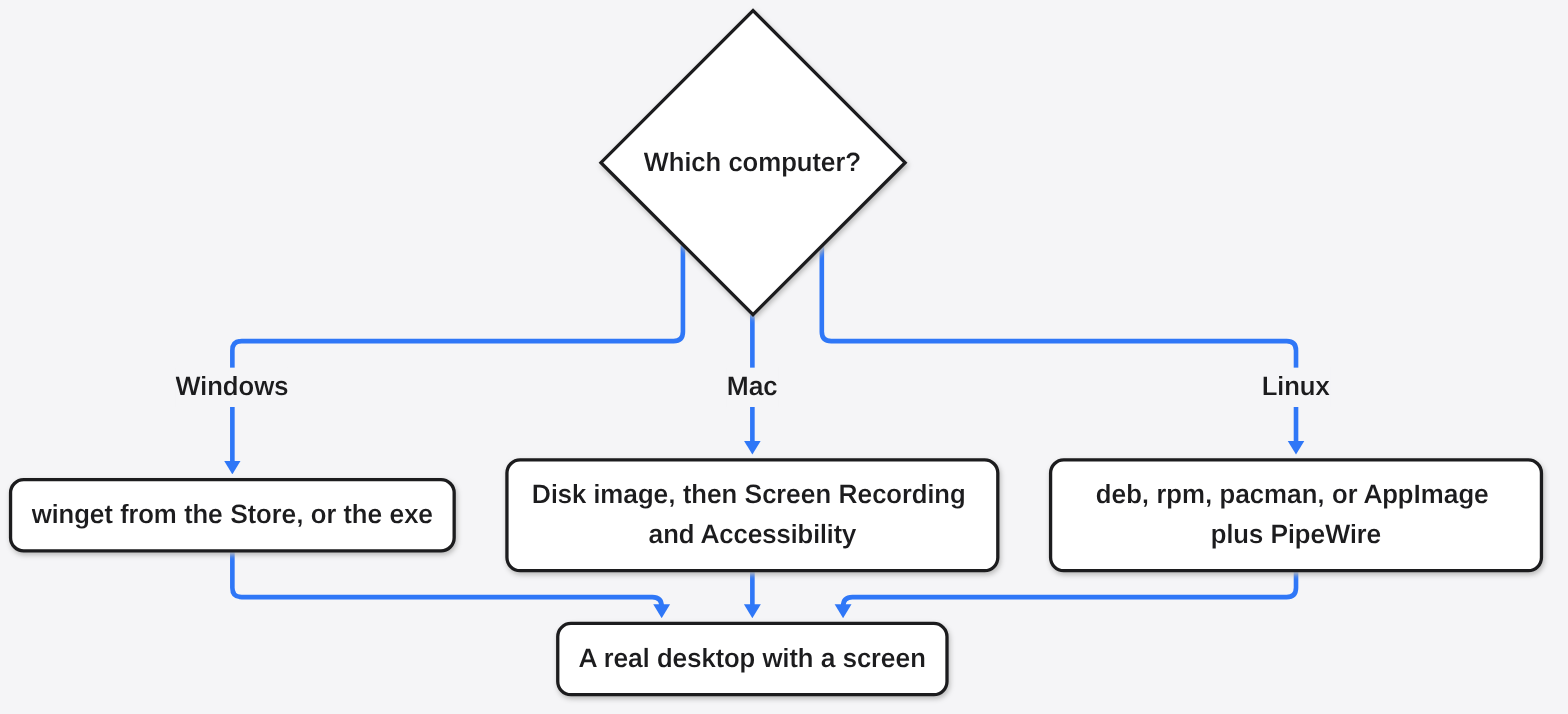
Install the build for the computer you will actually record on. A server with no screen cannot finish this job, which is the limit I hit below.
On Windows, the short path is the Store build:
winget install --source msstore OpenScreen
If that store entry is missing, take the .exe from the project’s releases. The installer is unsigned, so Windows will ask you to confirm it.
On a Mac you need macOS 13 or newer, because the capture path is ScreenCaptureKit (Apple’s own screen capture, not a workaround). Download the disk image, move the app to Applications, then allow Screen Recording and Accessibility the first time it asks. Both switches live in System Settings, under Privacy and Security. Skip either one and you get a black picture or a pointer the editor cannot restyle.
On Linux the packages are a .deb, a .rpm, a .pacman, or an AppImage (one file you can start without a package installer). Native capture also wants a desktop portal. Sound from other apps needs PipeWire (the Linux system that can record that sound). Without those, the app falls back to capturing through a browser, which is a worse picture. System audio on an old PulseAudio-only setup is the usual miss.
sudo apt install ./Openscreen-Linux-*.deb
Or, for the single file:
chmod +x Openscreen-Linux-*.AppImage
./Openscreen-Linux-*.AppImage
If the file complains about a sandbox, start it again with --no-sandbox. That flag is a packaging escape, not a recording mode.
How Do I Make a Demo Video With Claude Code?
You can make the demo with no coding agent at all. The command line is enough, and it is the path I would trust first:
openscreen record --duration 20 --project demo.openscreen --json
openscreen export demo.openscreen -o demo.mp4 --auto-zoom --json
openscreen captions demo.openscreen
record writes the project. --duration 20 stops it after 20 seconds so a test does not run forever. --window "My App" records one window instead of the whole display. export writes the MP4, and --auto-zoom drops a zoom on the clicks it stored. captions burns the words in. Add --json when a script needs a machine-readable log. Exit code 0 means it worked. Exit code 2 means the arguments were wrong.
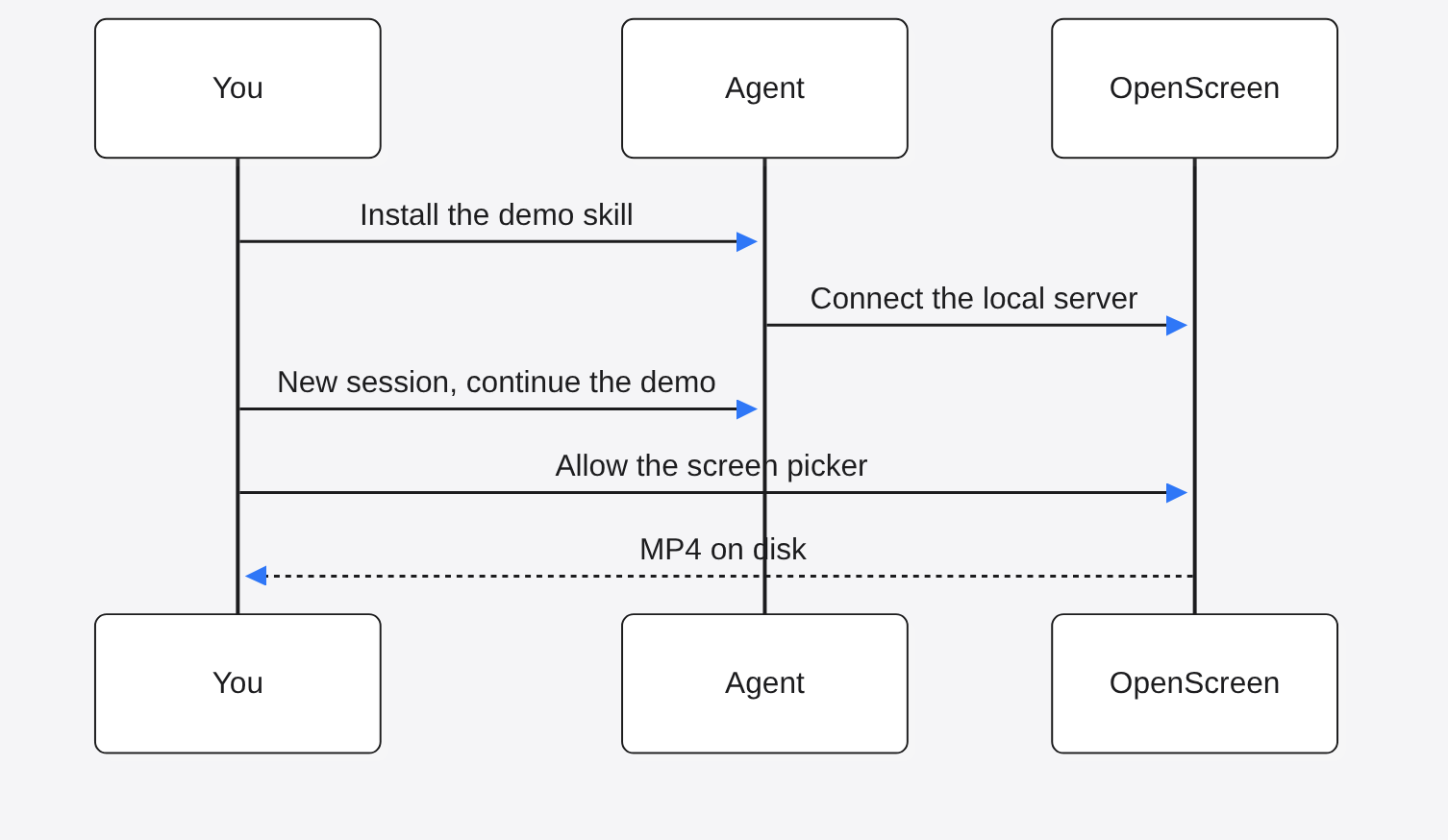
The agent path is for the day you want the recording attached to the change. Paste this into Claude Code, Codex, or Cursor:
Install the OpenScreen demo skill with `npx skills add getopenscreen/openscreen --skill openscreen-demo -y`, then follow it to add a video of this change to the PR.
A skill here is just instructions the agent loads before it acts. The install also connects MCP (a small local server the agent is allowed to start) so the agent can call the app instead of guessing at pixels. By hand, the same two steps are:
claude mcp add openscreen -- "<executable>" mcp
npx skills add getopenscreen/openscreen --skill openscreen-demo
Replace <executable> with the real path of the OpenScreen program on your machine.
Then you have to open a new session yourself and say “continue the OpenScreen demo”. The agent cannot open that new session. New tools show up only after a restart. On Linux there is a second human step: the portal picker (the popup that asks which screen you are willing to share) will not click itself. An agent on a headless box can plan the storyboard and still have no picture.
If the change is easier to see as boxes and arrows than as a mouse path, do not record it. A diagram page is the better artifact, and the steps for that live in how to make Claude Code draw real diagrams. A moving machine, rather than a flow, is the job in is the anatomy skill worth it.
OpenScreen vs OBS
Use OpenScreen when the output is a short demo file. Use OBS when the output is a live stream or a scene built from many sources. OBS is the other free recorder people already have. It is good at mixing a display, a camera, a capture card, and a stream in one layout, and it sends that layout out live. It does not edit the take. The zoom-on-click look is a community script there, not the default, and you still open a second app to cut the dead air.
OpenScreen records one display or one window, plus a mic, system audio, and a webcam if you ask. The editor is the product: trims, speed changes, zooms, captions, and a cursor you can restyle after the fact. It does not stream. If you already have a streaming layout, keep OBS. If you are posting a one minute walkthrough of a pull request, OpenScreen is the shorter path. Two coding agents writing the same repo is a different problem, and the folder split for that is in OpenRig vs git worktrees.
| Job | OpenScreen | OBS |
|---|---|---|
| Polished demo file | Yes, in the same app | Record here, edit somewhere else |
| Live stream | No | Yes |
| Many sources in one scene | Webcam layouts, not a full mixer | Yes |
| Zoom follows clicks by default | Yes | Only with an extra script |
| License | MIT, including commercial use | Free, GPL |
When Should I Still Pay for Screen Studio?
Pay when one of three jobs is the actual job. You record an iPhone or iPad over a cable and want it inside a device frame. Reviewers comment on a hosted link instead of a file in a chat. Or you need the transcript as a file, not words painted onto the frames. Those three are the honest reasons to keep the subscription. A Mac-only team that already likes the area select, recording a rectangle instead of a whole window, has a fourth, softer reason. OpenScreen crops after the take.
Do not pay just to get zooms, a smoothed pointer, or a GIF. Those are in the free app. Do not pay because a page called OpenScreen a clone. It is not one. Screen Studio’s comparison, written by OpenScreen, still lists annotations as paused on the Mac app’s roadmap and multi-clip as planned, while OpenScreen says it already has both. I would recheck that pair before I switched for either feature. Vendor pages drift.
If the demo is only there to hide a messy diff, fix the diff first. A cleaner change needs less video, which is the same pressure as stopping Claude Code from overengineering.
I Tried to Run OpenScreen and It Did Not Open
I expected a window. What I got was a missing library. The Linux AppImage from the project’s releases is 259 MB. Starting it stopped immediately:
error while loading shared libraries: libgtk-3.so.0: cannot open shared object file: No such file or directory
openscreen sources failed the same way. libgtk-3 is the desktop toolkit the window is drawn with. A normal Ubuntu desktop already has it. A bare server does not. So the AppImage is not a “copy one file to a box and record” tool. You need the desktop libraries, and you need a screen.
Even after that library is present, Linux recording is not unattended. The command line docs say the portal picker has to be answered by a person, and there is no recording on a machine with no display. Captions are a separate download, about 264 MB, the first time you ask for them. The words are burned in. Export is H.264 only, which is the widely supported video encoding inside an MP4, with no knob for a different codec.
That is the limit I would plan around. OpenScreen is the free demo file, on a computer you can see. Screen Studio is the paid Mac path for a phone or a commentable link. OBS is the stream. I would not ask an agent to record from a server and then wonder why the pull request has no video.
Common questions about OpenScreen
Is OpenScreen free for commercial use?
Yes. The license is MIT, and the project says there is no paid tier, no watermark, and no account. You can use the export in a product you sell. The speech model and the desktop libraries are still yours to download. Free does not mean it runs on a machine with no screen.
Does OpenScreen work on Windows and Linux?
Yes. Windows 10 (1903 or later) and Windows 11, on 64-bit Intel and ARM. Linux is 64-bit, with a desktop portal and PipeWire if you want native capture and system audio. Mac is macOS 13 or later, Apple silicon or Intel. The recording still has to happen on that desktop. My Linux test never reached a window, because libgtk-3 was missing.
Can OpenScreen record my iPhone?
No. It records a Windows, Mac, or Linux screen. Screen Studio is the one that records an iPhone or iPad over USB and puts the picture in a device frame. If that is the video, this free app will not get you there.
Do the captions leave my computer?
The transcription runs on the machine, after a one-time download of the speech model, about 264 MB. The app does not need an account, and the caption step does not upload the video. The words are burned into the frames, so the file you export contains them. A connected AI key, which is off until you add one, is a separate choice for chat edits and for translation. Leave that key out and the caption path stays local.