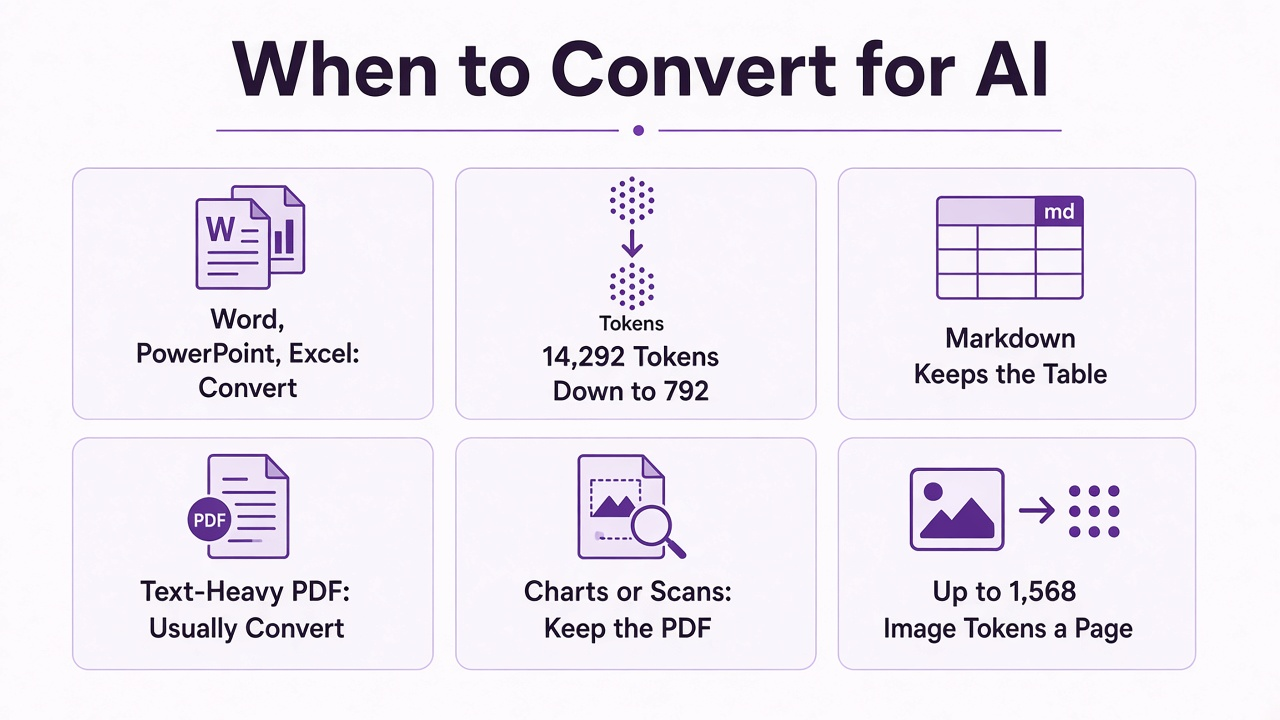
In a real test, one Word report shrank from 14,292 tokens of raw file code to 792 tokens of Markdown. That is about 18 times smaller, and the table survived. Convert Word, PowerPoint and Excel files. Usually convert a text-heavy PDF. Keep the PDF when the charts matter, or when the page is a scan.
You drop a 20-page Word report into an AI chat or an AI coding agent and ask one simple question. The answer comes back slow. It misses a table. Or you hit the usage limit early.
The file was the problem. Not the question. This post shows what is really inside your documents, what converting them to Markdown changes, and the exact cases where converting makes things worse.
What an AI Actually Reads From a File
An AI does not see your document the way you do. It reads tokens, and every token costs space and money.
A token (a small chunk of text, often part of a word) is the unit an AI model reads and charges for. “Report” might be one token; a long code tag can be ten.
Every model has a context window (the maximum number of tokens it can hold at once, like its short-term memory). Anything that wastes tokens pushes your real content out of that memory and raises the bill on paid APIs (the paid way programs talk to an AI model).
So the real question is simple. How many tokens does your file turn into? And how many of those are words you care about?
Why Word Files Are So Heavy
A .docx file is a zip folder full of XML code, and most of that code is styling, not your words.
XML (a text format that wraps every piece of content in labeled tags, like <w:t>) is how Word stores bold text, fonts, spacing and page layout. You never see it, because Word turns it into a nice page.
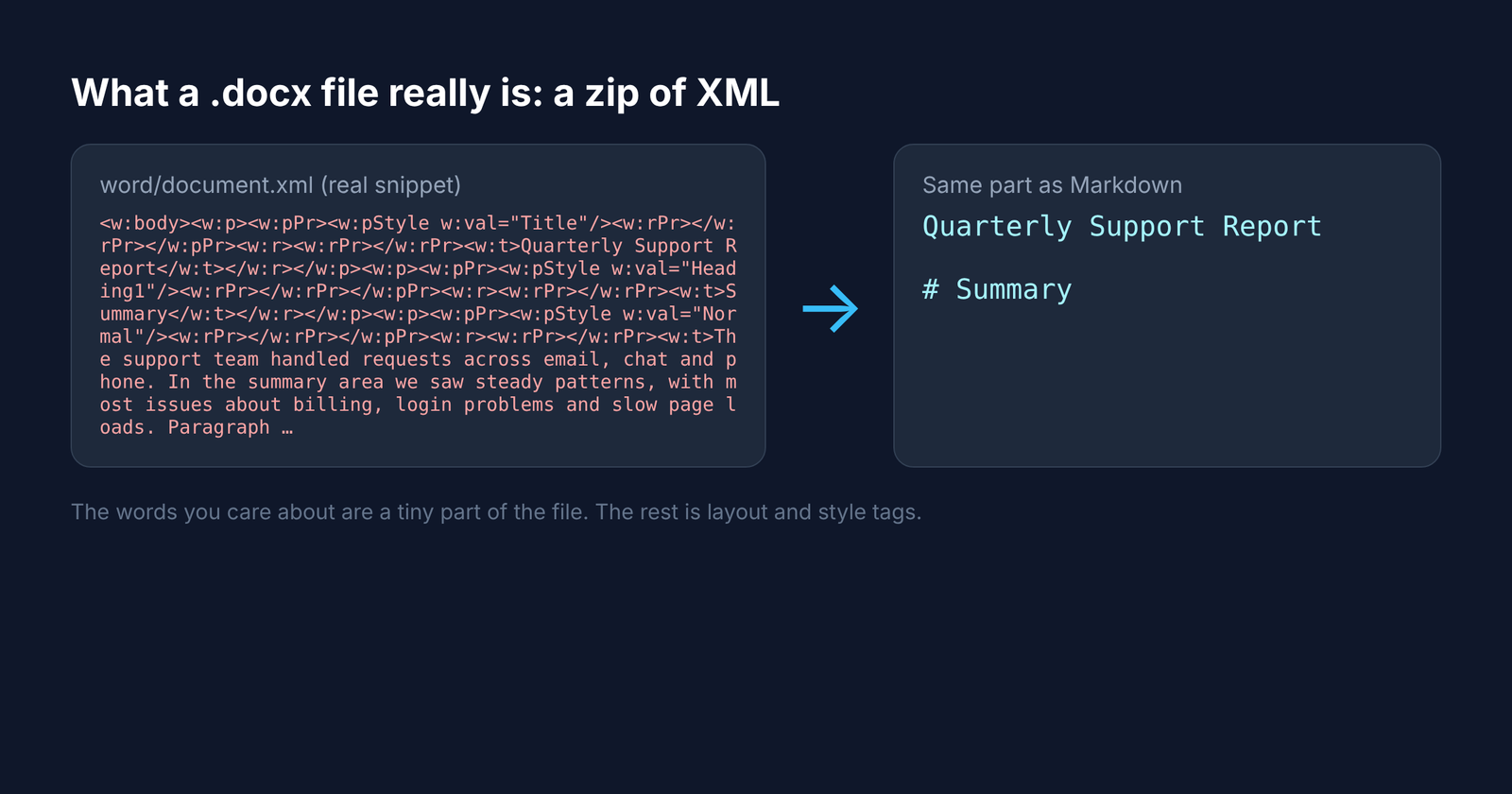
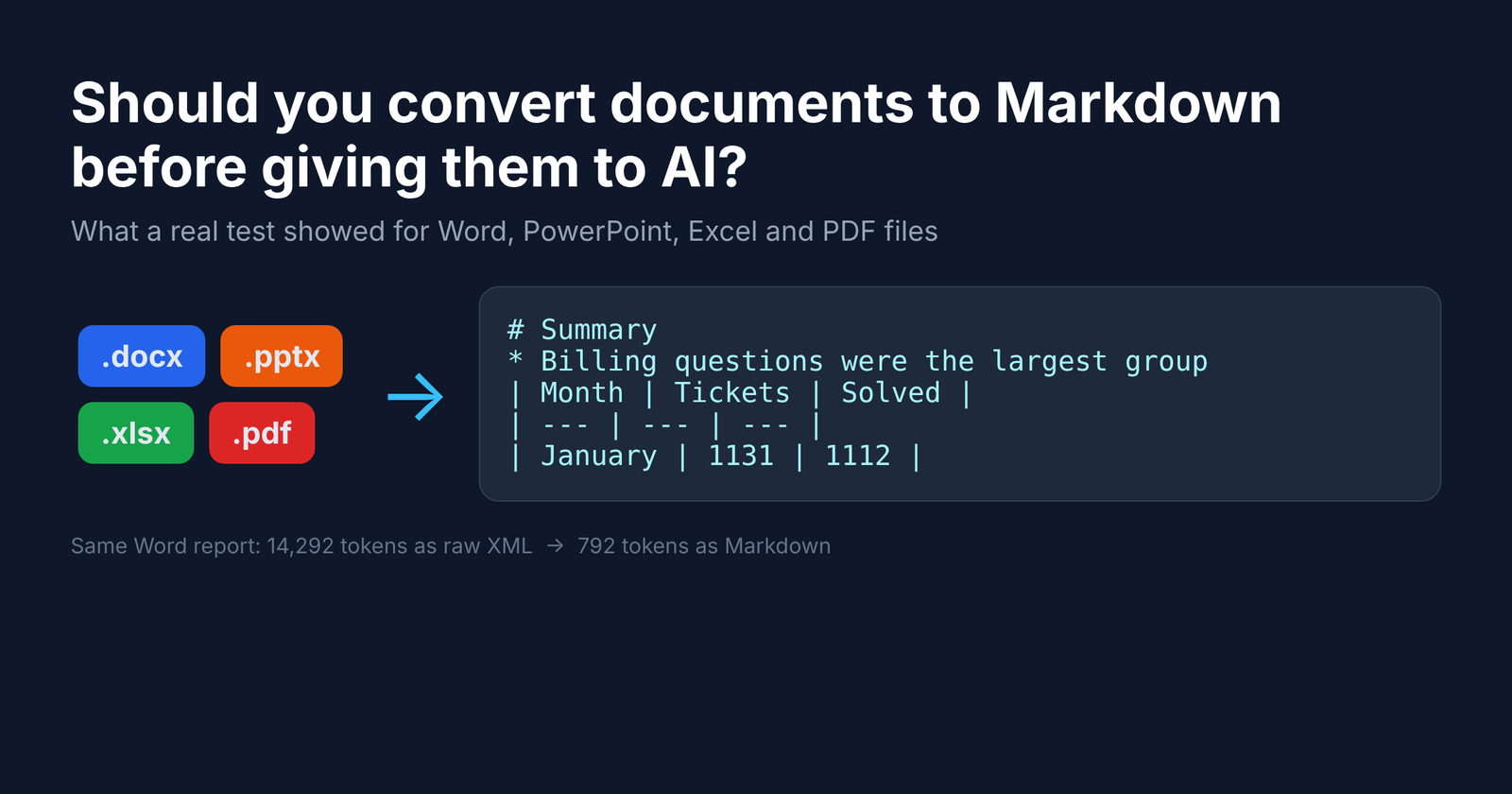
An AI agent (an AI that can open files and run commands on its own) does not have Word. If it unzips the file and reads it directly, it reads all those tags too. Look at the left side above: the words “Quarterly Support Report” are buried inside layers of tags.
Markdown (a plain-text format where # means heading, * means bullet and | draws a table) keeps the structure and drops the decoration. That is why it suits AI. The meaning stays. The noise goes.
How Much Converting Actually Saves
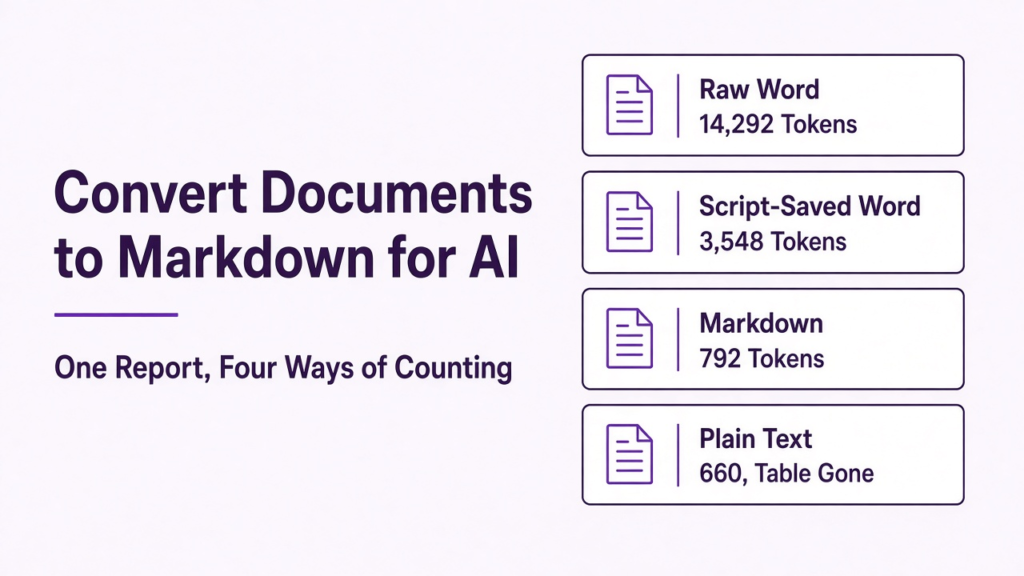
In my test, the same 2-page report went from 14,292 tokens as raw XML to 792 tokens as Markdown, about 18 times smaller.
Here is the test. I made a 2-page support report with headings, bullets and a 6-row table. Then I counted its tokens four ways. The counter was OpenAI’s cl100k tokenizer (the tool that splits text into tokens the way GPT-4 does).
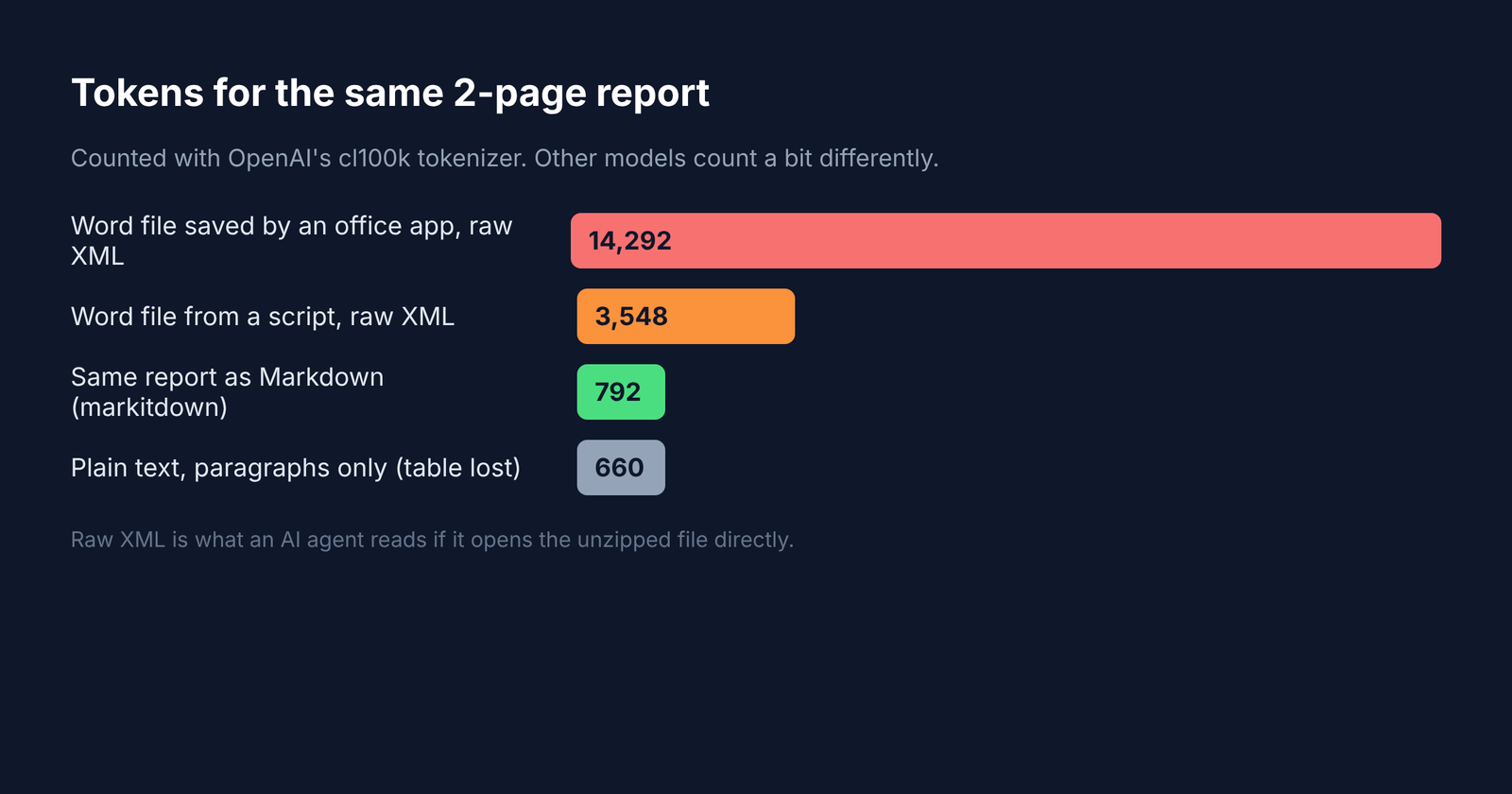
- Word file saved by an office app, raw XML: 14,292 tokens
- Same content saved by a small script, raw XML: 3,548 tokens
- Converted to Markdown: 792 tokens
- Plain text only, paragraphs pulled out: 660 tokens, but the whole table was gone
That last line matters. Plain text was the smallest, but it silently dropped the table, which held the actual numbers. Markdown cost 132 more tokens and kept every row. Cheap and complete beats cheapest and broken. Every time.
The catch: how bloated a Word file is depends on the app that saved it. The script-made file was much leaner than the office-app one, so your own savings will land somewhere in that range, not on one magic number.
How to Convert a Document to Markdown
MarkItDown is a free, open-source command-line tool from Microsoft that turns Word, PowerPoint, Excel, PDF, HTML and more into Markdown in one command.
Open source means the code is public and free to use; MarkItDown uses the MIT license (a permissive license that lets you use it at work too). It runs on Python (a programming language you install once), and it needs Python 3.10 or newer.
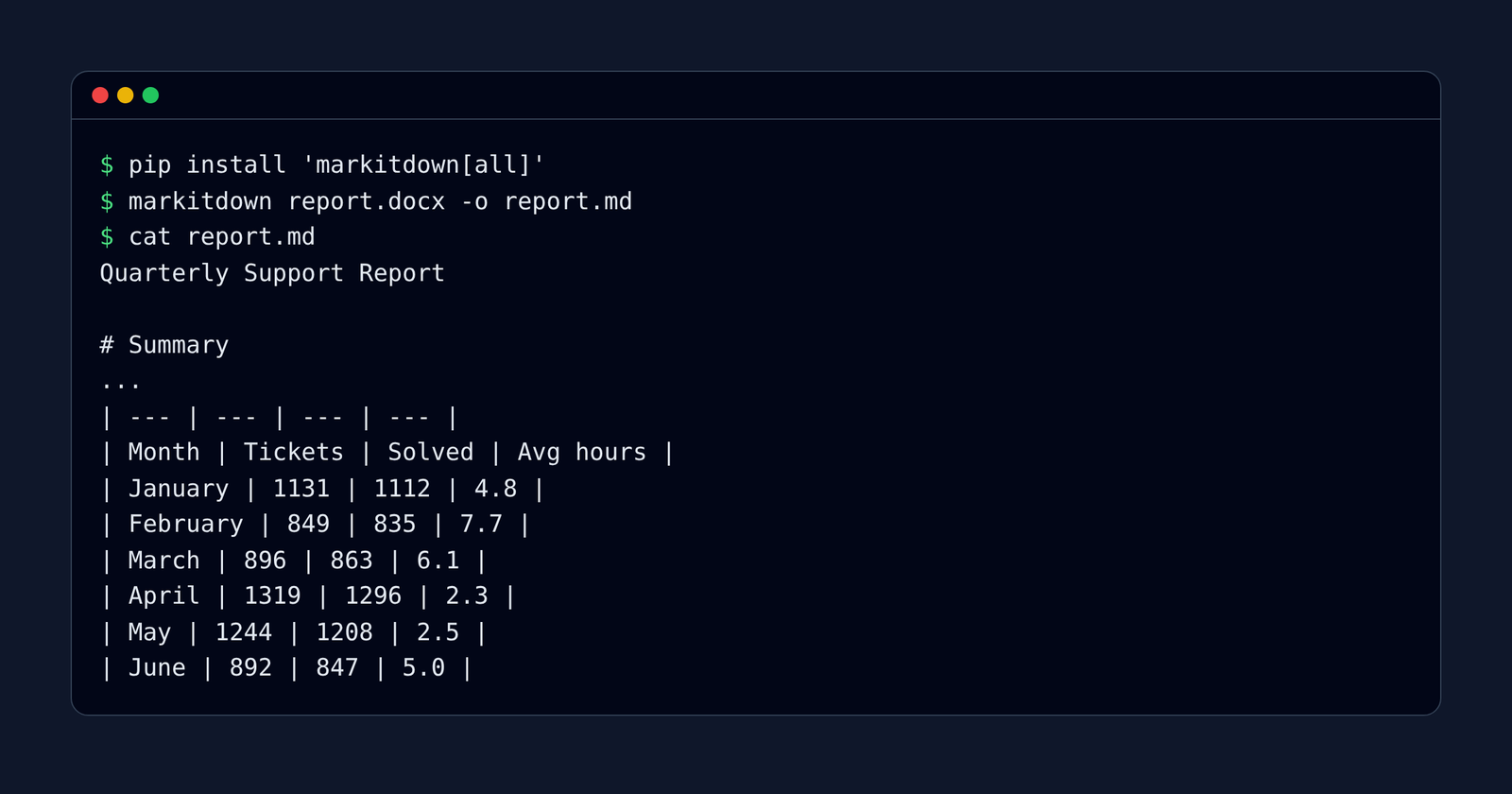
Install it, convert a file, then give the Markdown to the model:
pip install 'markitdown[all]'
markitdown report.docx -o report.md
Paste or attach report.md in your AI chat, or point your agent at it. (pip is Python’s installer; [all] adds support for every file type.)
Each conversion in my test finished in under a second, fully offline, so nothing left the computer. If you want file conversion without installing Python, the Filee vs CloudConvert guide covers converting files without uploading them.
What Gets Lost When You Convert
Word, PowerPoint and Excel came out clean. PDFs lost their headings, and a scanned PDF came out completely empty.
This is the part most guides skip. I ran all five file types through MarkItDown in offline mode (no AI plugin) and checked the output line by line.
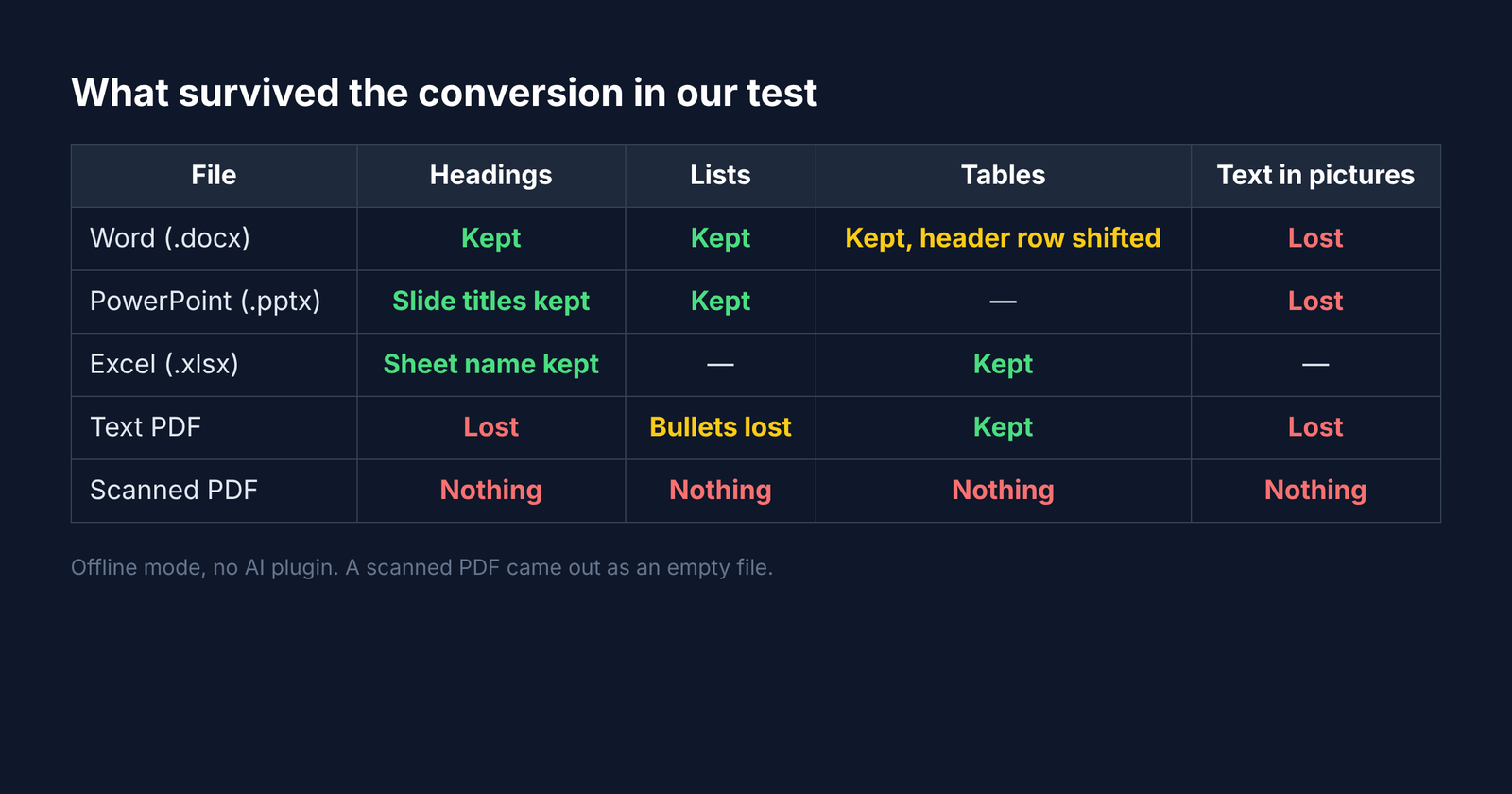
- Word: headings, bullets and the table all survived. One quirk: the table got an empty header row, with the real column names pushed down into the first data row.
- PowerPoint: every slide title became a heading, with a small slide-number comment above it.
- Excel: each sheet became a heading plus a clean Markdown table.
- Text PDF: the words and the table came through, but headings turned into plain lines and bullet symbols disappeared.
- Scanned PDF: zero characters. A scanned page is a photo of text, and reading a photo needs OCR (optical character recognition, software that reads letters from images).
MarkItDown has an OCR add-on, but it works by sending images to an AI vision model you configure. Without it, scanned pages come out empty, just like in my test. So always open the Markdown file. Look before you trust it.
Should You Convert a PDF Before Sending It to Claude?
For text-heavy PDFs, Markdown is cheaper. For PDFs where charts or layout matter, send the PDF itself.
Claude’s API (the paid developer route, not the chat app) reads a PDF in two layers. It turns each page into an image and also pulls out that page’s text, then reads both together.
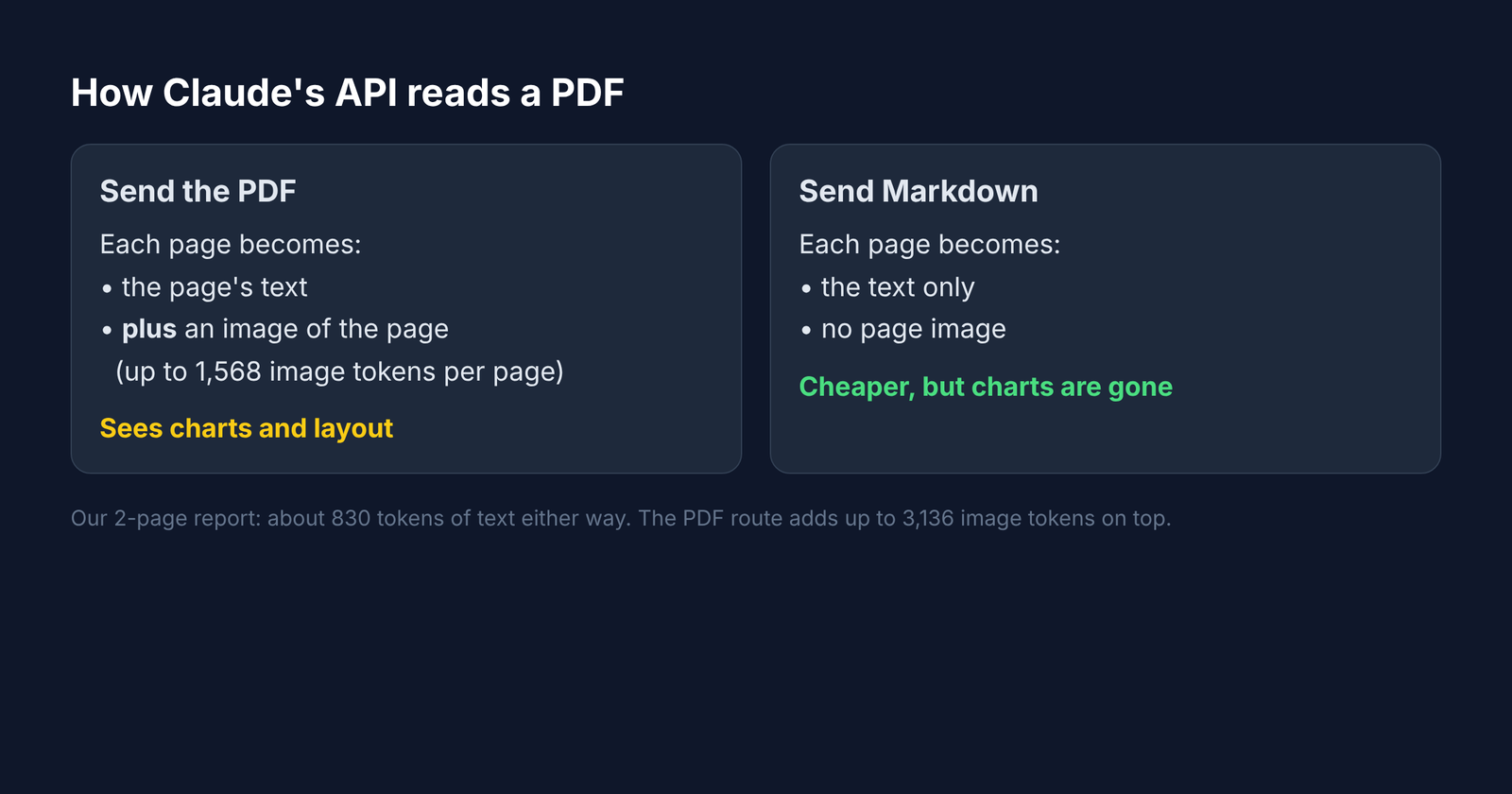
That image layer is the hidden cost. It adds up fast. Each page image uses up to 1,568 image tokens on top of the text. For my 2-page report, that is about 830 tokens of text either way (by my count), plus up to 3,136 extra tokens for the page images if you send the PDF.
But the image layer is also why Claude can describe a chart in a PDF. Convert that PDF to Markdown and the chart is simply gone. So the rule is simple. Words only? Convert. Pictures matter? Keep the PDF.
Which Way to Send Your File
Match the method to the file: convert office files, check PDFs, and never trust a converter with scanned pages.
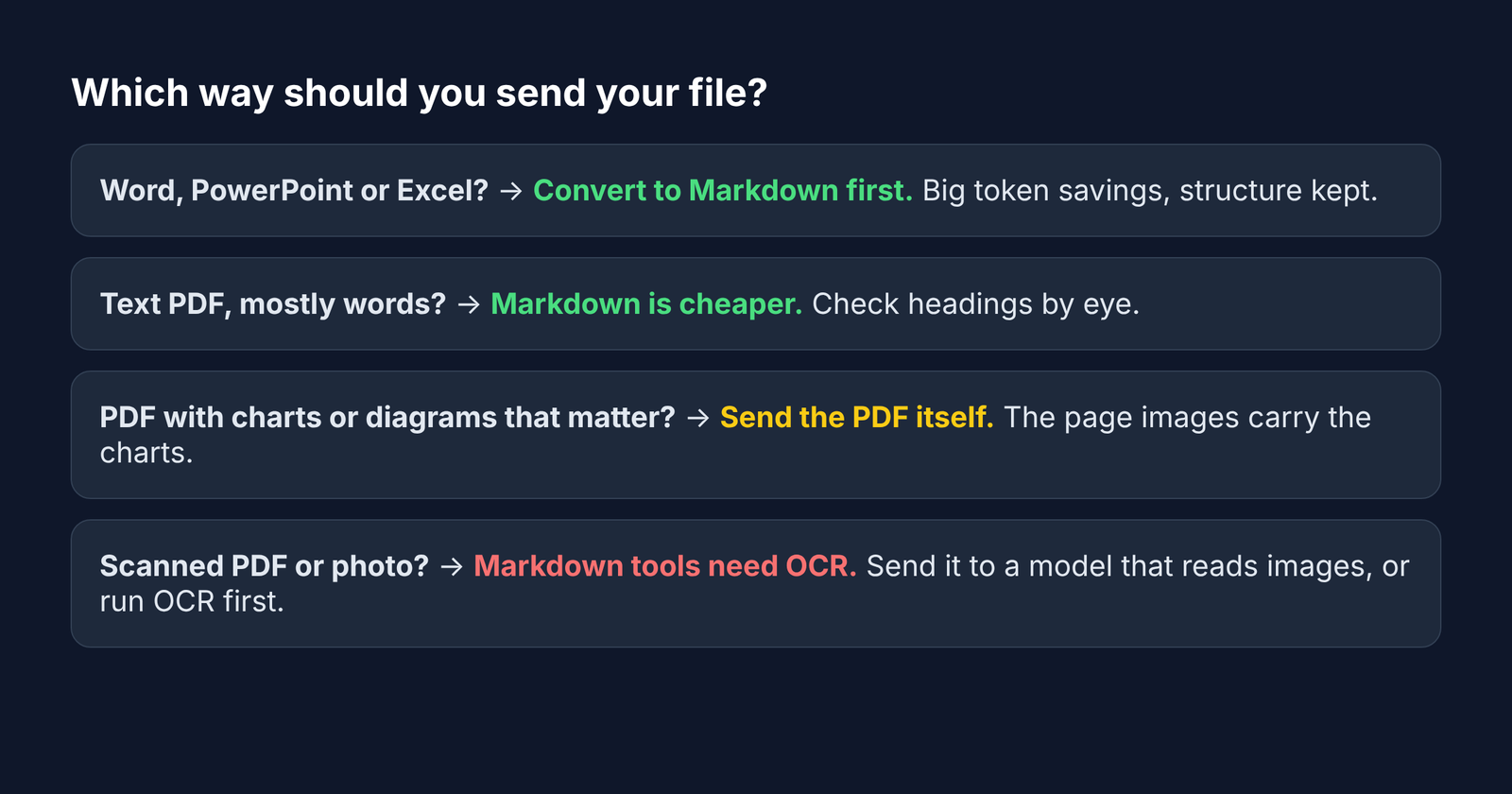
- Word, PowerPoint or Excel: convert to Markdown first. Big savings, structure kept.
- Text PDF, mostly words: convert, then glance at the headings.
- PDF with charts or diagrams that matter: send the PDF as it is.
- Scanned PDF or photo: send it to a model that reads images, or run OCR first.
If you work with PDFs a lot, a self-hosted PDF toolbox helps with the prep steps; see Is There a Self Hosted Alternative to iLovePDF?.
If you want a local file converter rather than a Markdown-for-AI path, see Filee vs CloudConvert. For PDFs you would rather edit than convert, Claude Code can edit PDF files on your computer. A self-hosted iLovePDF stand-in is in the iLovePDF alternative post.