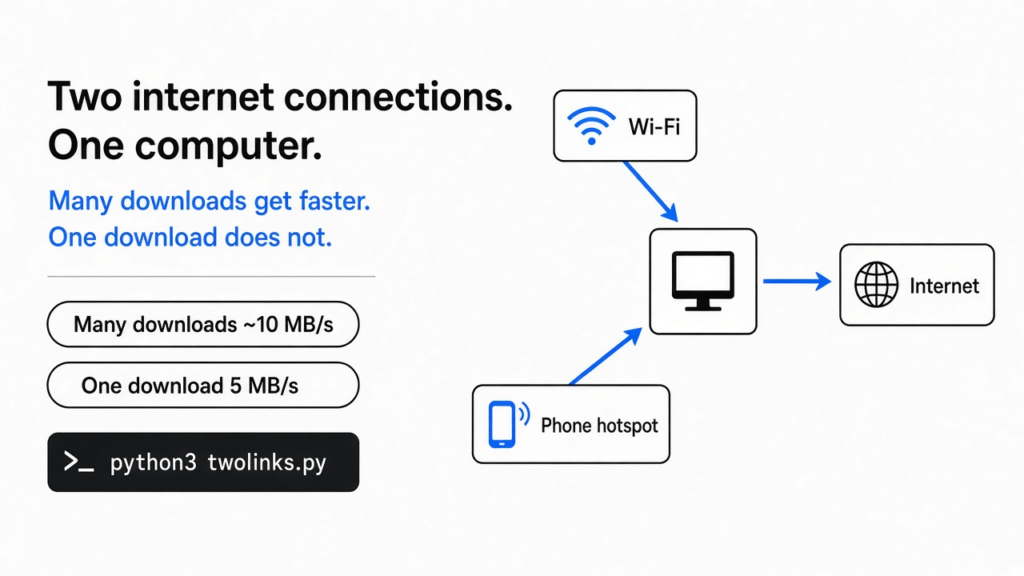
Yes, but only for many downloads at once. Two connections add up when your computer is moving lots of separate pieces of data, like a Steam update or a download manager. One single download stays at the speed of one connection unless a server in the middle glues both links together. Here is how to combine two internet connections for free, and a two-minute test that proves when it works.
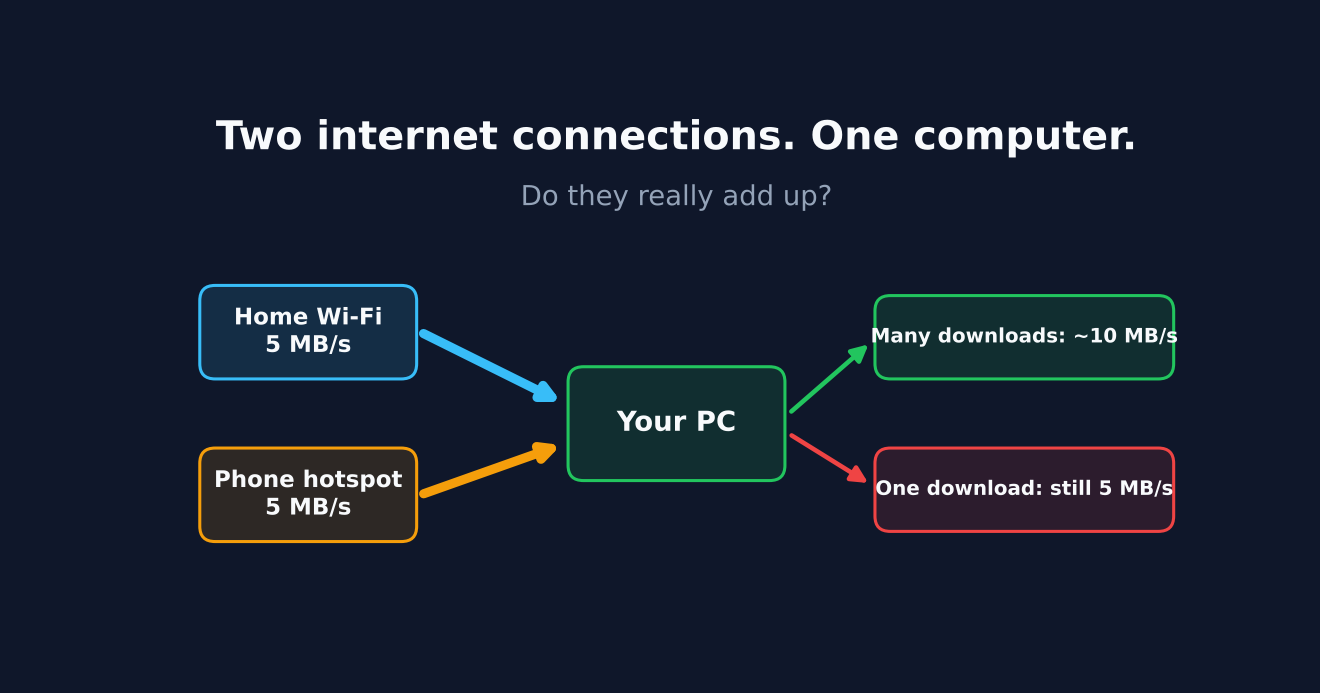
Your home Wi-Fi is slow tonight. Your phone has a decent signal sitting right next to you. So the obvious thought hits: plug both in and get double the speed.
It sounds like adding two water pipes into one tank. More pipes, more water. That picture is half right, and the half that is wrong is why most people try this once, see no change, and give up.
Here is the one idea this post is built on. Your traffic travels in separate “connections”, and each one can only use one link at a time.
Once that clicks, you will know exactly when combining helps, when it does nothing, and which free tool to use.
What is actually inside “an internet connection”?
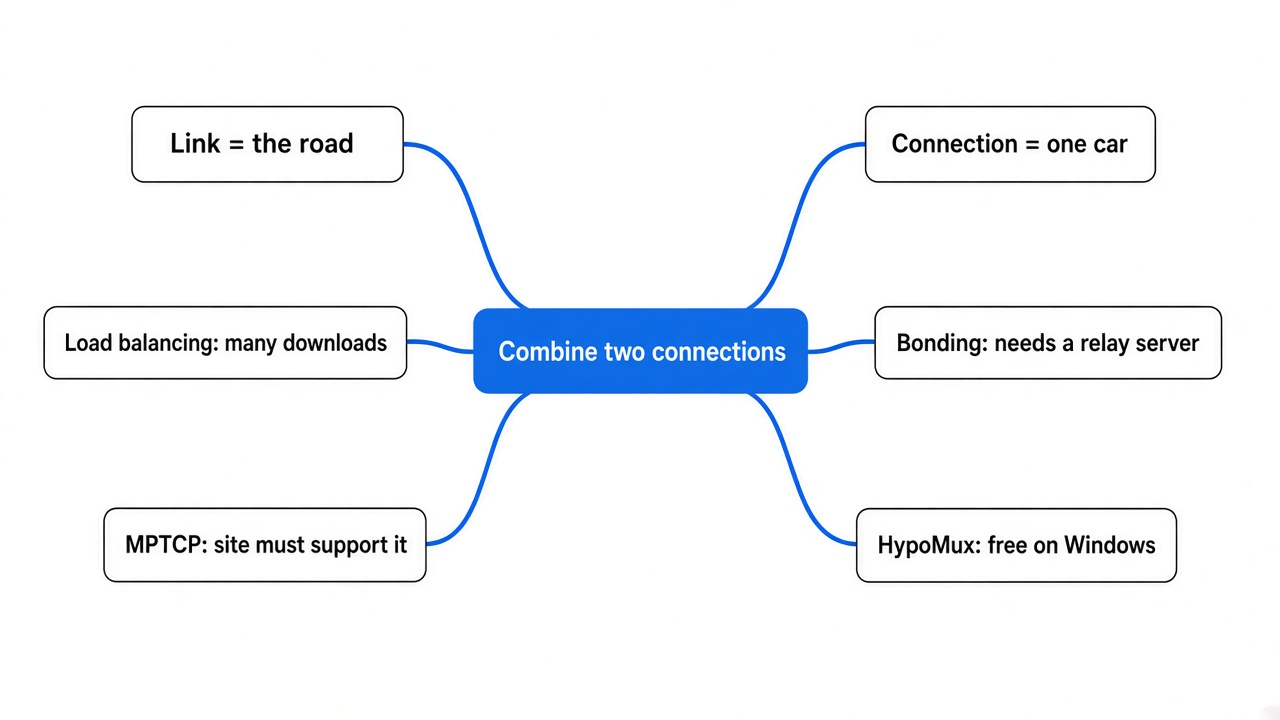
There are two different things hiding behind that one phrase, and mixing them up causes all the confusion.
The first is a link. A link is a physical way out of your computer: an Ethernet cable, a Wi-Fi network, or a phone hotspot (your phone sharing its mobile data with your computer). Each link has its own top speed, called bandwidth (how much data the link can carry per second).
The second is a connection in the networking sense. When your browser downloads a file, it opens a TCP connection (a two-way conversation between your computer and one website, where every piece of data is numbered so nothing gets lost). Data moves inside it in small chunks called packets (small envelopes of data, each a tiny slice of the file).
So a link is the road. A connection is one car driving on it.
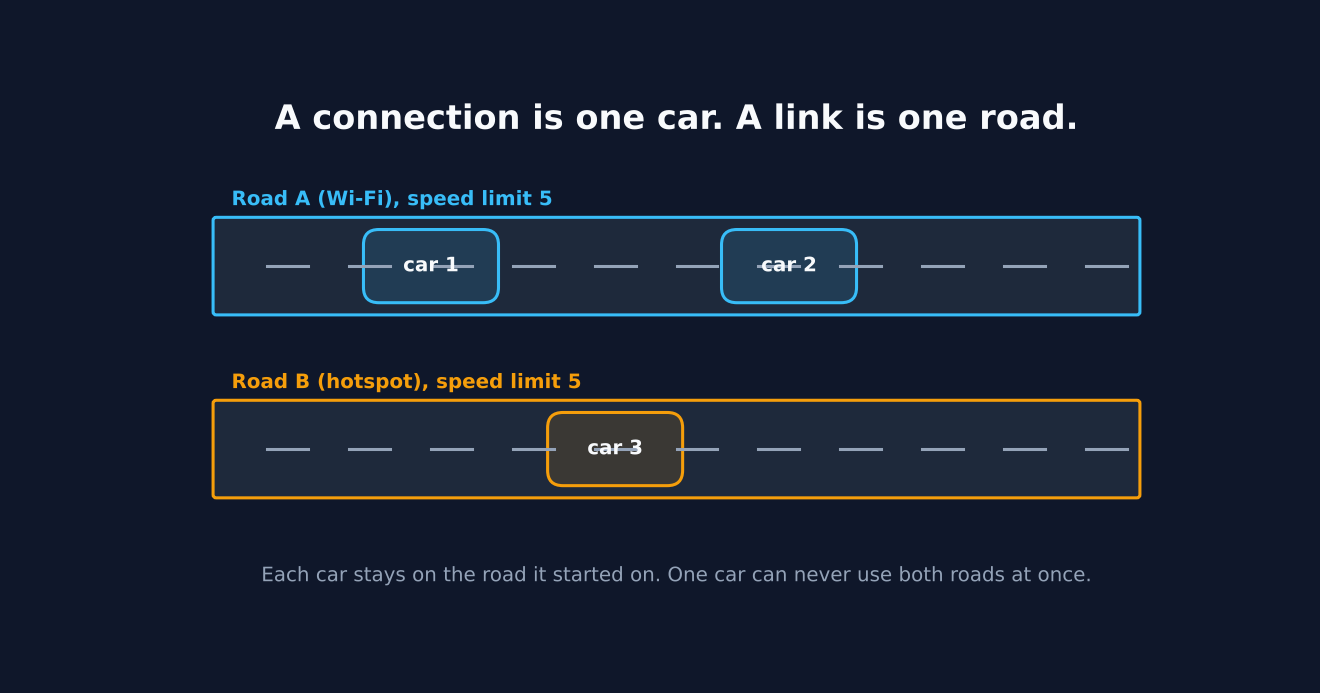
That car picks its road the moment it starts. Your computer stamps every packet with a return address that belongs to one specific link (the IP address, the “home address” that link gives your computer). If a packet suddenly left through the other link, it would carry a different return address, and the website would not recognize it as part of the same conversation.
That is the whole rule. One connection, one link, start to finish.
Why doesn’t Windows just use both links by itself?
Windows treats a second link as a backup, not as extra speed.
When Ethernet and Wi-Fi are both connected, Windows gives each a priority number called a metric (a ranking that says “prefer this route”). It usually ranks the faster link best and pushes your internet traffic through it, keeping the other one waiting in case the first one drops.
So plugging in your phone does not make anything faster on its own. You need a tool that hands out connections across both links on purpose. There are two very different ways to do that.
Load balancing vs bonding: what is the difference?
Load balancing spreads whole connections across your links. Bonding splits one connection across them. Only bonding speeds up a single download, and it needs a server.
Think of a supermarket with two open checkouts. Load balancing is a staff member sending each arriving shopper to the shorter line. Every shopper still goes through one checkout, but twice as many shoppers get through per minute.
Bonding is different. It is like tearing one shopper’s trolley in half, pushing each half through a different checkout, and rebuilding the trolley on the other side. That rebuild has to happen somewhere, so bonding services send your traffic through their own relay server (a computer in the middle that receives both halves and stitches them back into one stream).
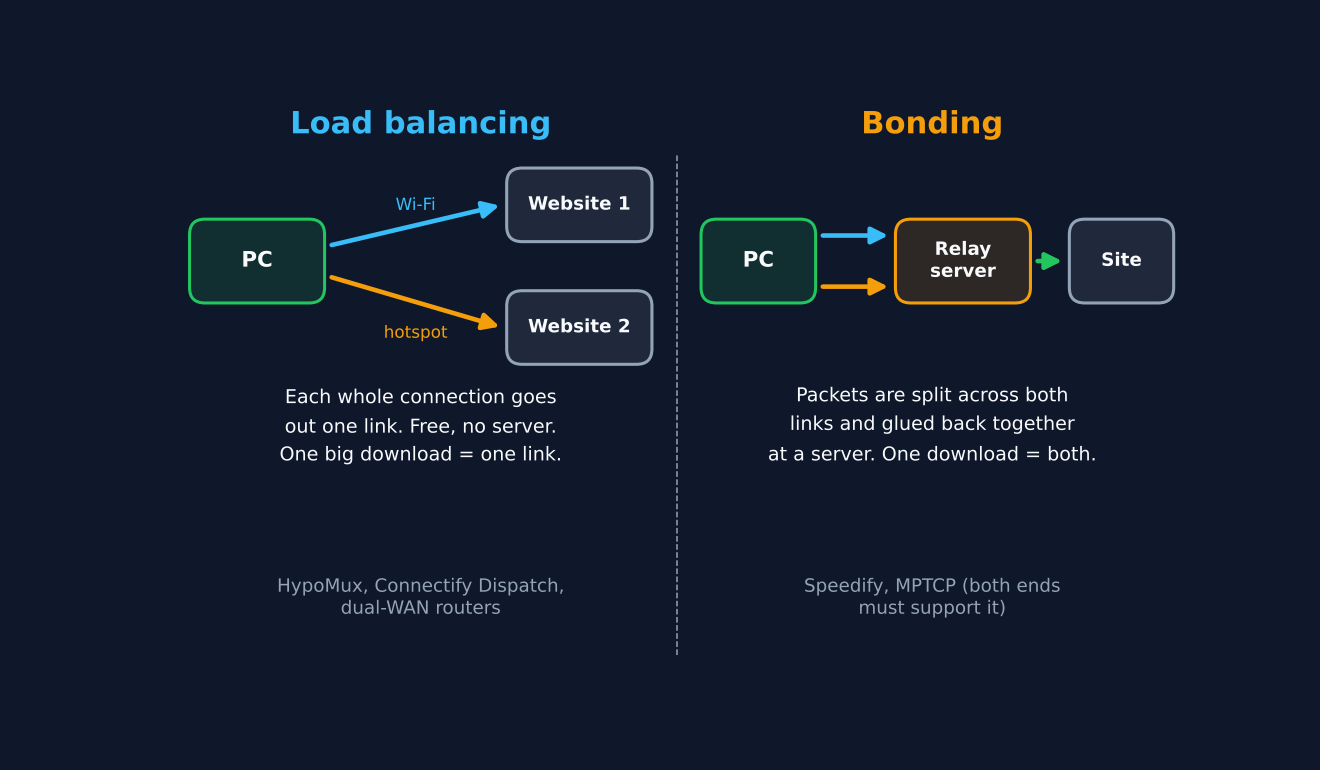
Here is how the common options line up:
| Method | What it splits | Speeds up one download? | Needs a middle server? | Example |
|---|---|---|---|---|
| Load balancing app | Whole connections | No | No | HypoMux, Connectify Dispatch |
| Dual-WAN router | Whole connections | No | No | Router with two internet ports |
| Bonding service | Packets of one connection | Yes | Yes, the service’s own | Speedify |
| MPTCP | Packets of one connection | Yes | No, but the website must support it | Linux kernel, iPhone |
MPTCP (Multipath TCP, a version of TCP that can use several links for one conversation) is the clean, server-free answer in theory. The catch is that both ends must speak it. Most websites you download from do not, so in practice it falls back to normal TCP.
I tested the “two connections, two links” rule
On two pretend links capped at 5 MB/s each, one download took 8 seconds no matter what, and splitting it across both links cut it to 4.
I wanted to see the rule with real numbers instead of trusting a diagram. So I built two fake links on one computer. Each one is a tiny local web server with a hard cap of 5 MB per second, shared by everything that uses it, like a real home line. Then I fetched the same 40 MB file three ways.
- One connection on link A: 8.0 seconds, 5 MB/s.
- Two connections, both on link A: 8.0 seconds, still 5 MB/s.
- Two connections, one on each link: 4.0 seconds, 10 MB/s.
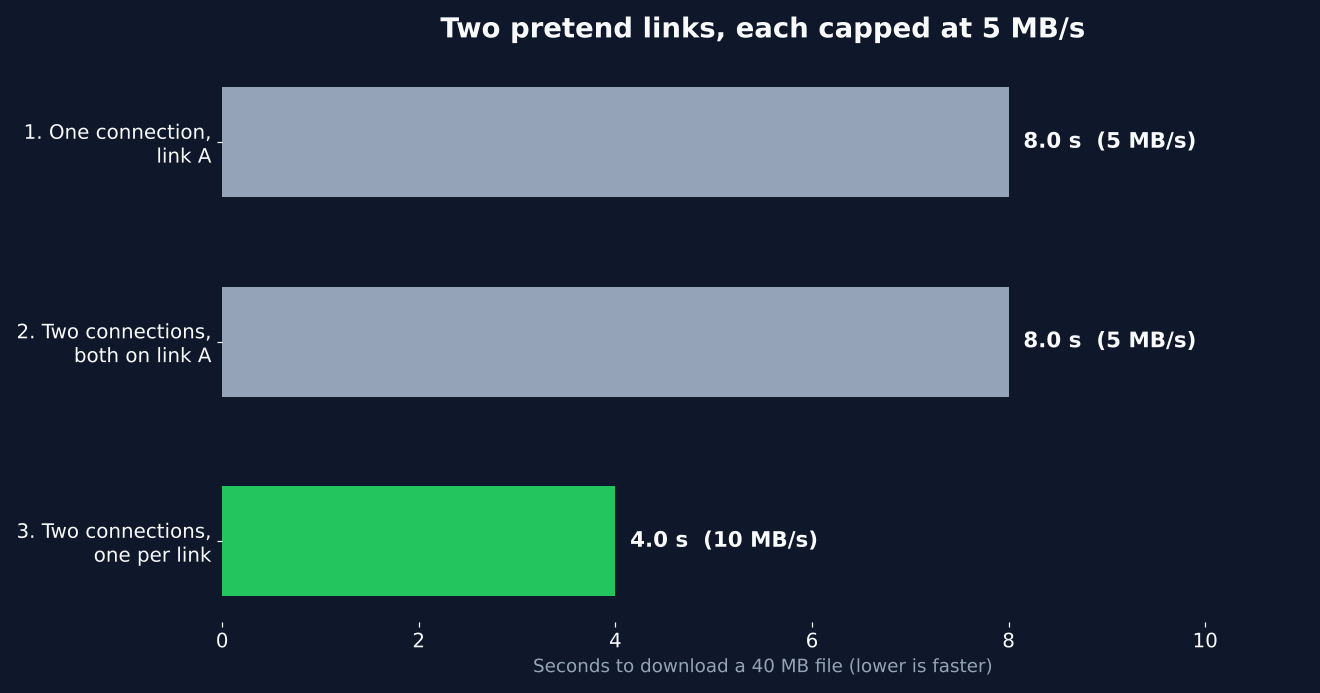
The second line is the one most people miss. More connections on the same link change nothing, because they all share that link’s speed limit. The speed only doubled when the connections were spread across different links.
The catch: this is a clean lab. Real links wobble, a phone hotspot slows down when the signal dips, and the slowest link sets the pace for its share of the work. Expect “noticeably faster on big multi-part downloads”, not a perfect 2x.
You can run the same test yourself in about two minutes. Save this as twolinks.py and run python3 twolinks.py. It needs only Python, no installs.
import http.server, threading, time, urllib.request, socketserver

SIZE = 40 * 1024 * 1024          # 40 MB test file
LINK_SPEED = 5 * 1024 * 1024     # each pretend link: 5 MB per second
CHUNK = 64 * 1024
DATA = b"x" * SIZE

class Bucket:  # one shared speed limit per link
    def __init__(self, rate):
        self.rate, self.tokens, self.t, self.lock = rate, 0.0, time.time(), threading.Lock()
    def take(self, n):
        while True:
            with self.lock:
                now = time.time()
                self.tokens = min(self.rate * 0.1, self.tokens + (now - self.t) * self.rate)
                self.t = now
                if self.tokens >= n:
                    self.tokens -= n
                    return
            time.sleep(0.005)

def make_link(port):
    bucket = Bucket(LINK_SPEED)
    class H(http.server.BaseHTTPRequestHandler):
        def log_message(self, *a): pass
        def do_GET(self):
            start, end = 0, SIZE - 1
            rng = self.headers.get("Range")
            if rng:
                a, b = rng.split("=")[1].split("-"); start, end = int(a), int(b)
                self.send_response(206)
            else:
                self.send_response(200)
            self.send_header("Content-Length", str(end - start + 1)); self.end_headers()
            pos = start
            while pos <= end:
                n = min(CHUNK, end - pos + 1); bucket.take(n)
                self.wfile.write(DATA[pos:pos + n]); pos += n
    class S(socketserver.ThreadingMixIn, http.server.HTTPServer):
        daemon_threads = True
    srv = S(("127.0.0.1", port), H)
    threading.Thread(target=srv.serve_forever, daemon=True).start()

def fetch(port, start=None, end=None):
    req = urllib.request.Request(f"http://127.0.0.1:{port}/file")
    if start is not None:
        req.add_header("Range", f"bytes={start}-{end}")
    return len(urllib.request.urlopen(req).read())

def run(label, jobs):
    t = time.time()
    ts = [threading.Thread(target=fetch, args=j) for j in jobs]
    [x.start() for x in ts]; [x.join() for x in ts]
    secs = time.time() - t
    print(f"{label:<52} {secs:5.1f} s   {SIZE / secs / 1048576:4.1f} MB/s")

make_link(8001)  # link A, think "home Wi-Fi"
make_link(8002)  # link B, think "phone hotspot"
half = SIZE // 2
run("1. One connection, link A only", [(8001,)])
run("2. Two connections, both on link A", [(8001, 0, half - 1), (8001, half, SIZE - 1)])
run("3. Two connections, one per link (load balancing)", [(8001, 0, half - 1), (8002, half, SIZE - 1)])
My output, identical on two runs:
1. One connection, link A only                         8.0 s    5.0 MB/s
2. Two connections, both on link A                     8.0 s    5.0 MB/s
3. Two connections, one per link (load balancing)      4.0 s   10.0 MB/s
When does combining two connections actually help?
It helps whenever the app you are using opens many connections at once.
That turns out to be a lot of the heavy stuff people care about:
- Steam and other game launchers, which pull many file chunks in parallel.
- Download managers that split one file into parts, each on its own connection. The free IDM alternative tests show how that splitting works.
- A browser with several big downloads running together.
- A house where several people are streaming and downloading at the same time.
And it does not help, without bonding, for one plain browser download, one video stream, or a single video call. Those are one car on one road.
How do I combine two connections for free on Windows?
HypoMux is a free, open source load balancer for Windows 10 and 11 that spreads your connections across every link you have.
It works exactly like the supermarket staff member. Each time an app opens a connection, HypoMux picks which link it leaves through, and it shows live speed per link so you can see both being used. Its own documentation says it plainly: it balances separate connections and does not split one connection, so a single-connection download stays limited by that one link. That honesty matches the test above.
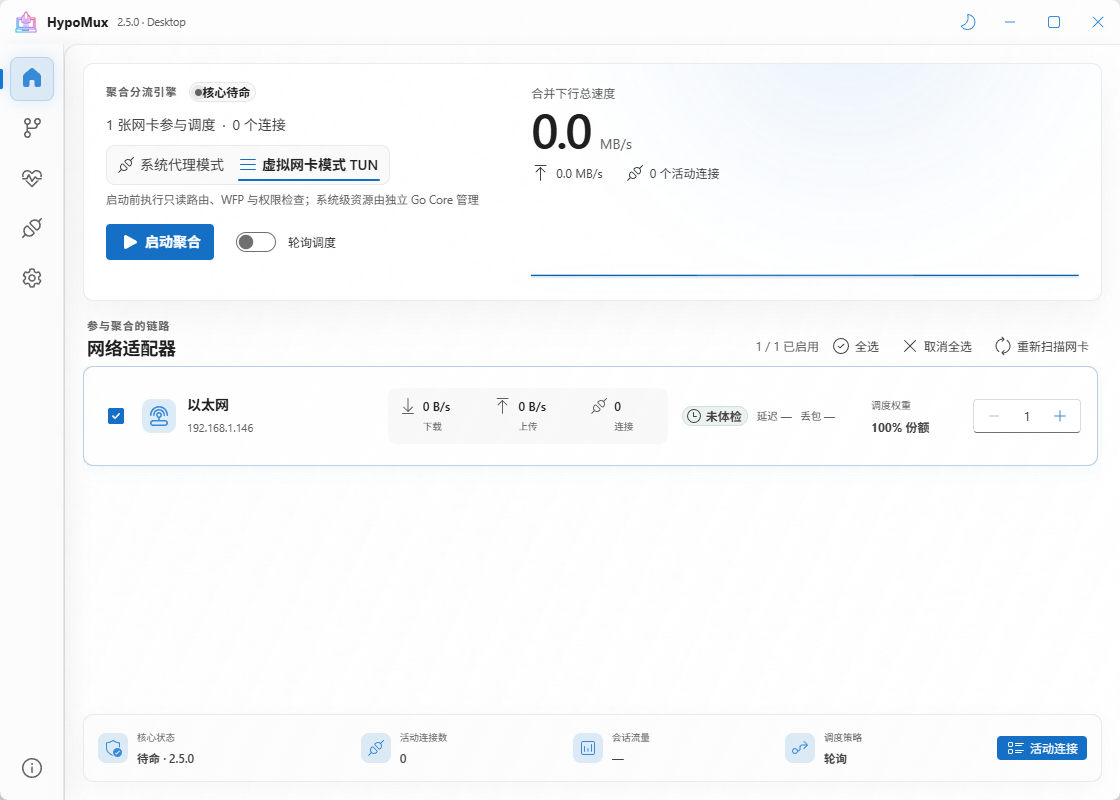
Setup, in short:
- Connect the PC to two working networks, for example Ethernet plus a phone hotspot over USB.
- Install HypoMux from its GitHub releases page and open it.
- Tick the links you want in the pool, then run its Network Health check so every link shows a working address.
- Pick a mode (see below), turn aggregation on, and start your download.
- Turn it off when you are done. It puts your network settings back.
The two modes matter. System Proxy mode runs a local proxy (a middleman program on your own PC that apps send traffic through). It works with apps that respect the Windows proxy setting, like browsers, Steam and download managers. Virtual NIC mode creates a virtual network adapter (a fake network card that catches traffic from apps that ignore proxies), which covers more programs but needs more system access.
The catch, said once. It is Windows only. It changes system network settings while running, so add games and video calls to its “direct” list when low lag matters more than raw speed. And it is licensed AGPL-3.0 (a copyleft license: free to use, but anyone who ships a changed version must share their code).
Which method should I pick?
Match the method to the shape of your traffic, not to the speed number on the box.
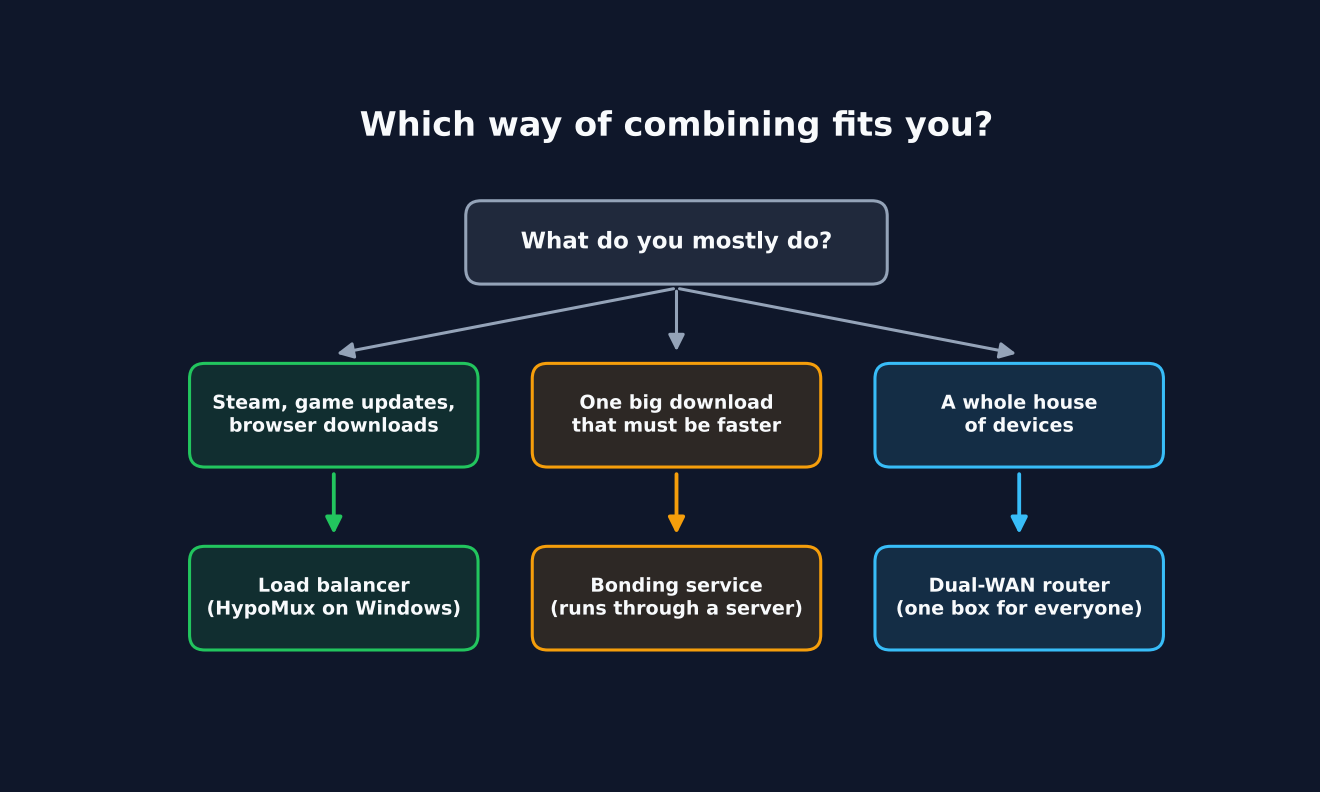
If most of your heavy use is game updates and big multi-part downloads on one Windows PC, a free load balancer like HypoMux is the right first try.
If you need one single stream or upload to go faster, only bonding does that, and you accept routing your traffic through someone else’s server. If the whole family needs it, a dual-WAN router does load balancing for every device in one box.
There is a fair argument for going straight to bonding: it is the only method that makes everything faster. But it costs a middle server, and for the downloads most people actually wait on, splitting connections across links already gets you most of the gain for free.
So go back to the two pipes. They do add up. They just add up for many small streams of water, not for one.
Common questions about combining two internet connections
Will using Wi-Fi and Ethernet at the same time make my internet faster?
Not by itself. Windows uses one as the main route and keeps the other as backup until a tool spreads connections across both.
Can I combine two internet connections into one for a single download?
Only with bonding, which splits packets across links and rebuilds them at a relay server, or with MPTCP when the website supports it. Load balancers cannot speed up one connection.
Is a phone hotspot good enough as the second connection?
Yes, for extra download capacity. Watch your mobile data allowance, because the tool will happily push gigabytes through it.
Does combining internet connections lower ping in games?
No. Ping depends on the single path a game uses, so keep games on your best link and leave them out of the combined pool.