
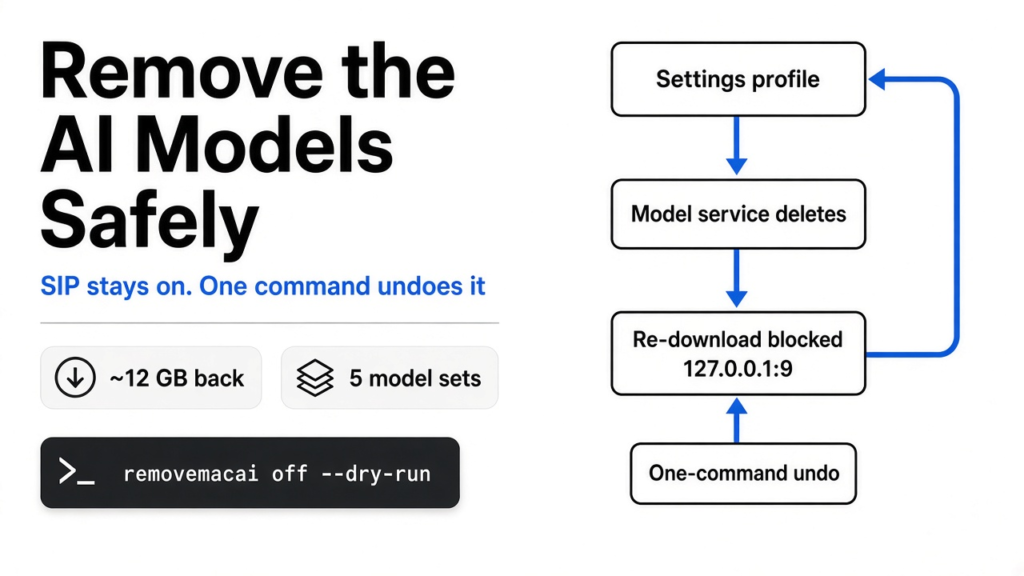
Short answer: mostly yes, if you use the right method to remove Apple Intelligence from your Mac. RemoveMacAI, a free open source tool, does not touch protected system files. It uses an Apple-approved settings file and Apple’s own model service, and one command undoes it. Here is what its source code changes, what breaks, and the one choice that decides how much space you get back.
You update to macOS 27 and your free space drops by 20 GB. You go to switch Apple Intelligence off. The single switch is gone.
Turning off each feature by hand does not help much either. The AI models stay on your disk. So people are pasting a one-line Terminal command from a stranger’s GitHub page into their Macs.
That should make you nervous. This post answers the question you should ask first: what exactly does that command do to your Mac? One idea runs through all of it: the tool is only as safe as the Apple doors it walks through.
Why is Apple Intelligence using so much space?
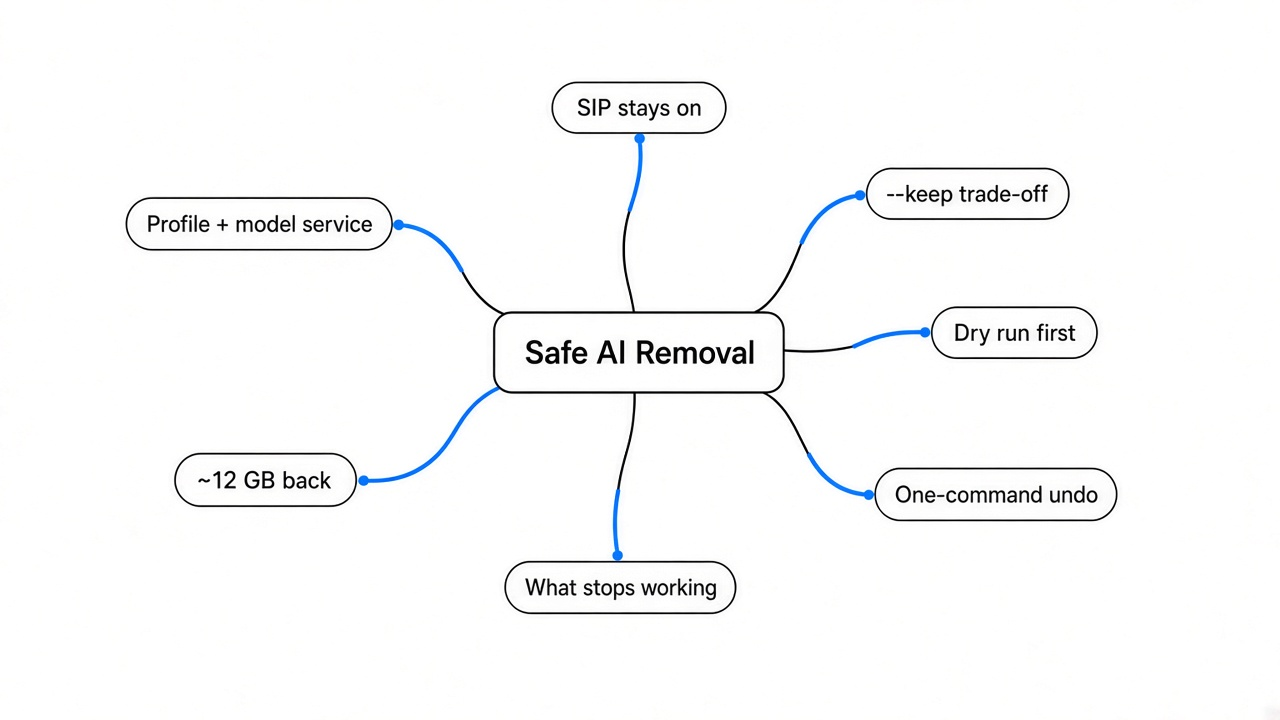
Apple’s models live on your Mac, not in the cloud, and real Macs store far more of them than Apple says.
Here is the base fact. An AI model is a big file of numbers that the computer uses to answer, write or edit. Bigger skills need bigger files.
So Apple runs most Apple Intelligence features on-device (on your Mac’s own chip, not on a remote server). That is good for privacy. The cost is that every model has to be stored on your drive.
Apple says Apple Intelligence needs up to 14 GB on Macs with an M3 chip or later and at least 12 GB of memory, and up to 8 GB on other supported Macs. Real measurements on macOS 27 are much higher.
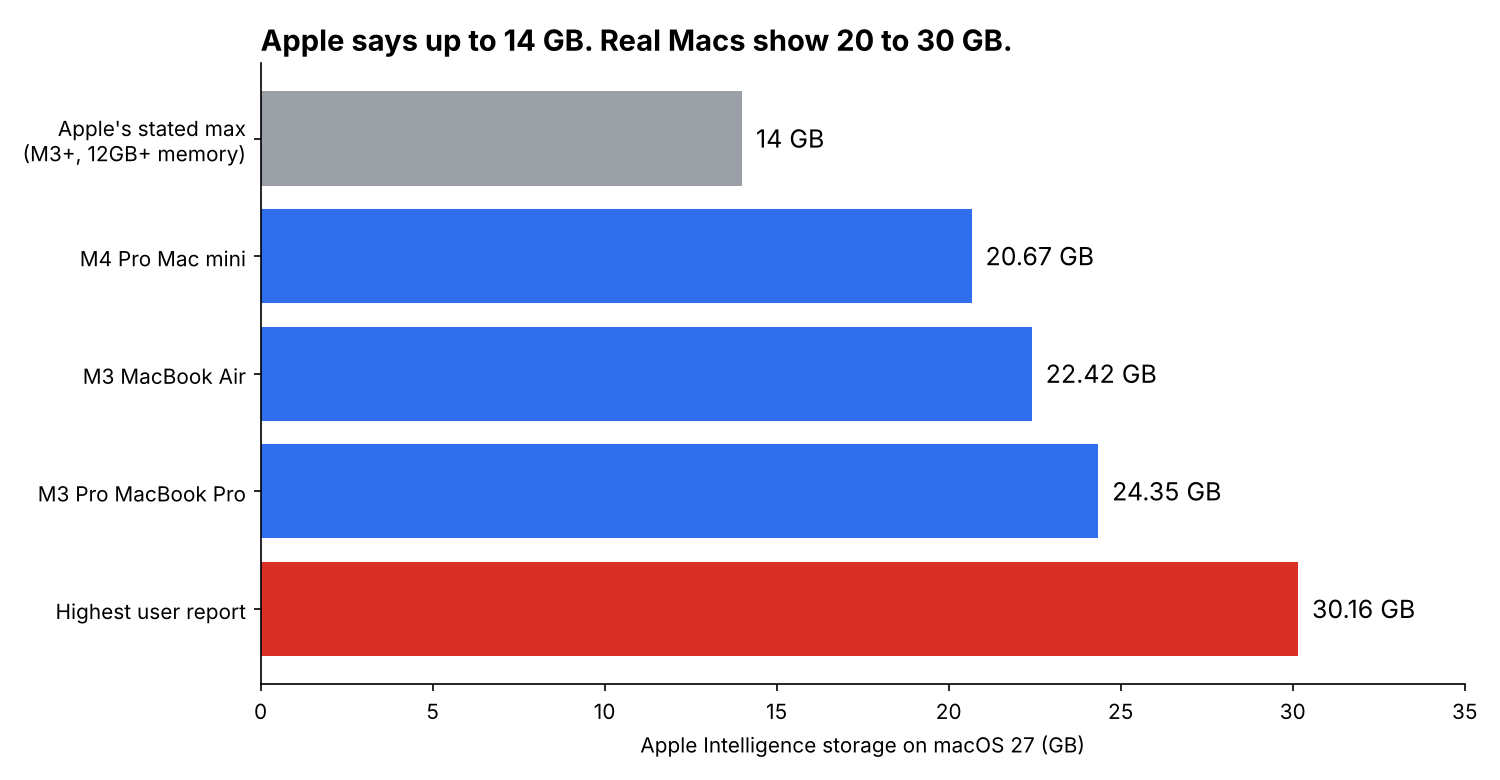
A Mac mini measured 20.67 GB. An M3 MacBook Air measured 22.42 GB. One user reported 30.16 GB. On a 256 GB Mac, the worst case eats more than a tenth of the drive for features you may never use.
Why can’t you just switch it off in Settings?
macOS 27 has no single off switch any more, and switching features off one by one leaves the models on disk.
Older macOS versions had one Apple Intelligence toggle. In macOS 27 it is gone. You can still turn off Writing Tools, summaries and the rest one at a time.
But a switched-off feature is like an app you never open. It still sits on your drive. Apple keeps the models in case you turn a feature back on.

And deleting the files yourself is a bad idea. They sit in a protected system folder, and forcing them out means turning off security protections (explained next). That gap is exactly what RemoveMacAI fills.
What does RemoveMacAI actually do to your Mac?
It does three things: installs a settings profile, asks Apple’s own service to delete the models, and blocks them from downloading again.
Before the steps make sense, you need three small ideas.
A configuration profile (a settings file that a Mac admin uses to lock settings on company Macs) can switch features off and keep them off. Schools and companies use these every day. macOS makes you approve each one by hand in System Settings.
The asset service (the part of macOS that downloads, tracks and removes Apple’s model files) is the only polite way to remove system models.
SIP, short for System Integrity Protection (a macOS lock that stops anything, even you, from changing core system files), stays on the whole time. That matters. Tools that ask you to turn SIP off open a much bigger door. With those three ideas, the steps are easy.
- Profile. It writes a profile that sets Apple’s own restriction keys (the official “this feature is not allowed” settings) for Siri, Writing Tools, Genmoji, Image Playground, Mail and Safari summaries and the ChatGPT extension. For features with no restriction key, it forces the setting off.
- Delete. It asks the asset service to reset (remove) five model sets: the foundation models, image and Genmoji, Spatial Photos, Photos Clean Up, and Xcode code completion.
- Block. The same profile points each model’s download address at
127.0.0.1port 9.
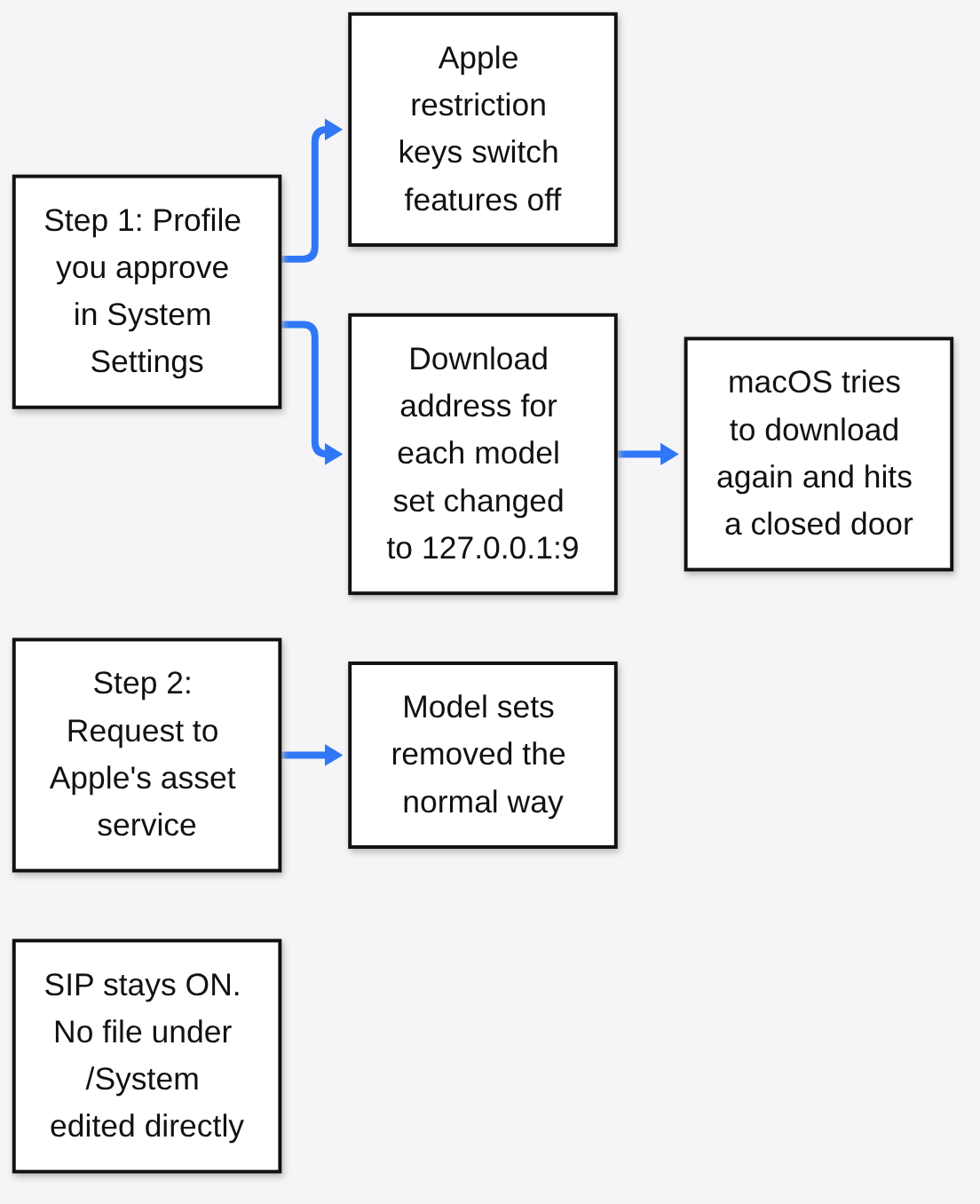
That last trick is clever, so here is the plain version. 127.0.0.1 is localhost (your own Mac talking to itself). Port 9 is a “discard” port (a numbered door that nothing listens on). So when macOS tries to re-download a model, it knocks on a locked door inside your own Mac and gives up. Nothing leaves your computer.
Is RemoveMacAI safe? What the code shows
The code has no network calls, no hidden steps, and no edits to protected files. The real risks are Apple changing things and how you install it.
Here is what the source code does, question by question.
| Question | What the code does | Verdict |
|---|---|---|
| Does it send data anywhere? | No networking code at all. The only web address in it is the blocked localhost one. | Safe |
| Does it edit system files? | No. It removes models through Apple’s asset service. It only reads the system folder to check if files are still there. | Safe |
| Does it turn off SIP? | No. | Safe |
| Can it delete the wrong thing? | It refuses any model set not on its fixed list of five, and skips a set if Apple renamed it. | Safe |
| Does it act without asking? | It shows a summary and asks “Turn Apple Intelligence off?” first. The profile needs your click in System Settings. | Safe |
| Can Apple break it? | Yes. It calls private Apple code, and some restriction keys are deprecated. | Watch |
Still, two honest flags remain.
First, it uses a private framework (Apple’s internal code that apps are not meant to call). Apple can rename or remove it in any update. The tool checks for that and stops instead of guessing, which is the right failure.
Second, some restriction keys it relies on are deprecated (marked by Apple as old and due to go away). They still work on macOS 27. A future version could ignore them, and some features could quietly turn back on.
Is the one-line curl command safe to run?
It is safer than most, because it checks the download, but you should read it or use Homebrew instead.
That install line pipes a script from the internet straight into bash (the program that runs Terminal commands). That pattern means you run code before you have seen it. Always treat it with care.
This script is short and does four things. It checks you are on an Apple silicon Mac and downloads the latest release. Then it compares the SHA-256 checksum (a fingerprint that changes if even one byte changes) and runs the file from a temporary folder that gets deleted after.
A checksum catches a broken or swapped download. It does not protect you if the project itself turns bad. For extra proof, each release carries a build attestation (a signed record that the file was built from this exact source code by GitHub).
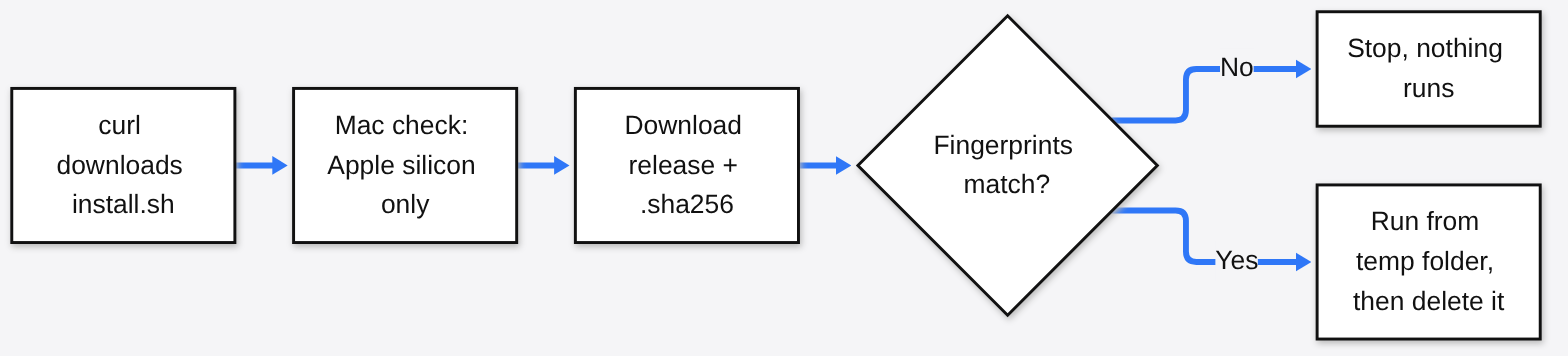
The safer path takes ten extra seconds. Get RemoveMacAI from its GitHub repo or install it with Homebrew, then run the dry run first:
brew install omlahore/tap/removemacai
removemacai off --dry-runA dry run (a rehearsal that shows every change without making it) lists the exact profile and model sets before anything happens.
What stops working after you remove it?
Every Apple Intelligence feature, plus Siri, plus any app that uses Apple’s on-device models.
So be sure you can live without these before you run it:
- Siri, including “Hey Siri” and the menu bar icon
- Writing Tools, Genmoji and Image Playground
- Summaries in Mail, Messages, Safari, Notes and notifications, plus Mail smart replies
- Inline text predictions and Xcode predictive code completion
- Spatial Photos and Photos Clean Up
- Visual Intelligence, natural-language editing in Calendar, and apps or Shortcuts that use Apple’s on-device models
Dictation still works. It is a separate setting and its speech models stay.
One more surprise: System Settings may still show the space as used for a while. The models are released at once, but macOS deletes the actual files on its own schedule.
Can you keep some features and still save space?
Yes, but keeping any text feature keeps the core shared model set, so you save much less.
This is the part nobody explains, and it decides how much space you get back. You can keep features with --keep. The tool only deletes a model set when every feature that uses it is off.
Apply the tool’s own rules to each choice and the pattern is clear. The foundation models (the core language model behind Siri AI, Writing Tools and all the summaries) are shared by nine features. Keep any one of them, and that whole set stays on disk.
| If you keep | Model sets still deleted | Foundation models |
|---|---|---|
| Nothing (default) | All 5 | Deleted |
| Siri or Writing Tools | 4 of 5 | Stay |
| Genmoji | 3 of 5 (image models stay too) | Stay |
| Photos Clean Up | 4 of 5 | Deleted |
| Spatial Photos + Photos Clean Up | 3 of 5 | Deleted |
| ChatGPT extension | All 5 | Deleted |
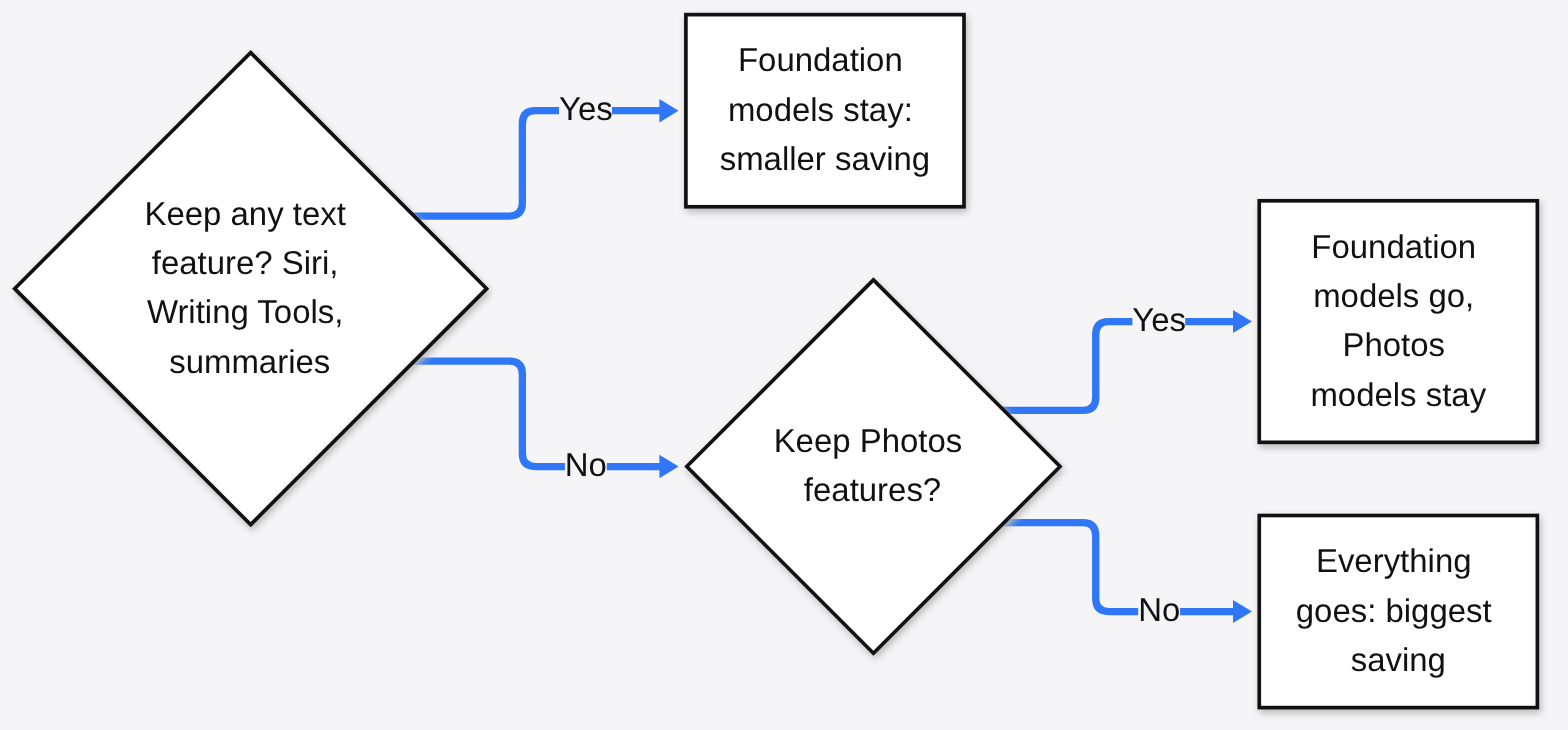
So the smart split is simple. If you only love Photos Clean Up, keep it with --keep photos-clean-up. If you want Writing Tools, the foundation models have to stay, so most of the space stays used too.
How do you undo it?
Remove the profile. Your old settings come back and macOS downloads the models again when a feature needs them.
Run removemacai revert, or the same curl line with -s revert. It opens System Settings, where you select RemoveMacAI and click Remove.
From Terminal you can also remove the profile directly. That works even if the tool is gone:
sudo profiles remove -identifier io.github.omlahore.removemacaiBecause everything lives in one profile, there is no leftover to hunt down.
Should you run it?
Yes if you need the space and don’t use Siri or Writing Tools. No if you rely on any text feature.
There are good reasons to wait. If you have a 1 TB drive, 12 GB barely matters. If you use Writing Tools every day, keeping it means the foundation models stay anyway.
For a small-drive Mac where Apple Intelligence sits unused, the method is sound. It works through Apple’s own profile system and model service, keeps SIP on, and undoes cleanly. It runs only on Apple silicon Macs with macOS 27.
So run the dry run first. Read the list. Then decide.
More open source tools on TechWave Arena: Strata vs Ollama, a free IDM for Mac, and dbx.
That is the whole story. The tool walks through Apple’s front doors. That is why it is safe, and why an update could close them.
Common questions about removing Apple Intelligence from a Mac
Is it safe to remove Apple Intelligence from my Mac?
With RemoveMacAI, yes for most people. It keeps System Integrity Protection on, removes models through Apple’s own service, and one command reverts it.
How much space does removing Apple Intelligence free up?
Roughly 12 GB, depending on which models your Mac has downloaded. System Settings may take a while to show the freed space.
Does removing Apple Intelligence break dictation?
No. Dictation is a separate setting and its speech models are not removed.
Will a macOS update bring Apple Intelligence back?
The profile, including the download block, stays in place across updates. A future macOS could stop honoring some of its keys, so check removemacai status after big updates.

1 comment