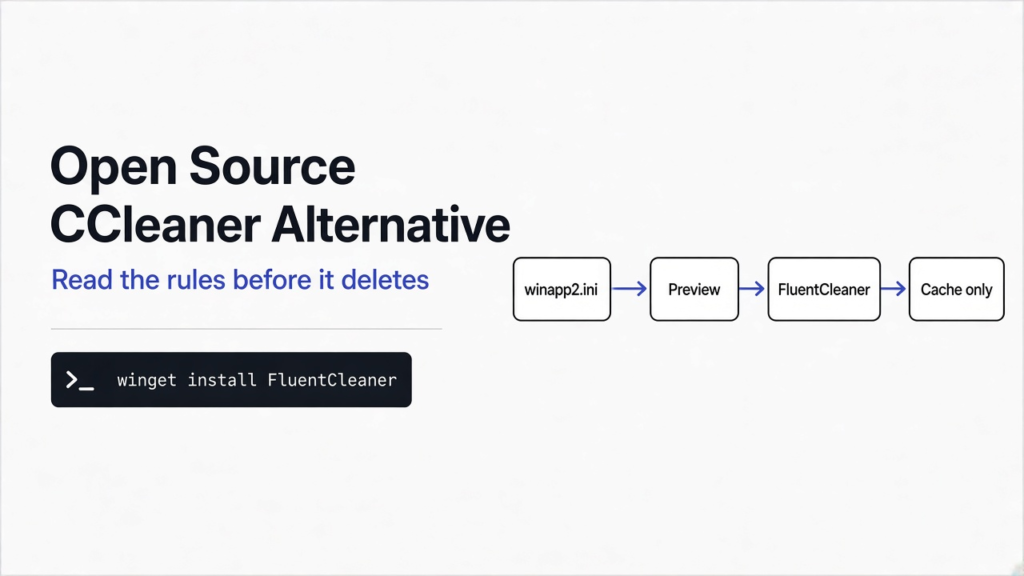
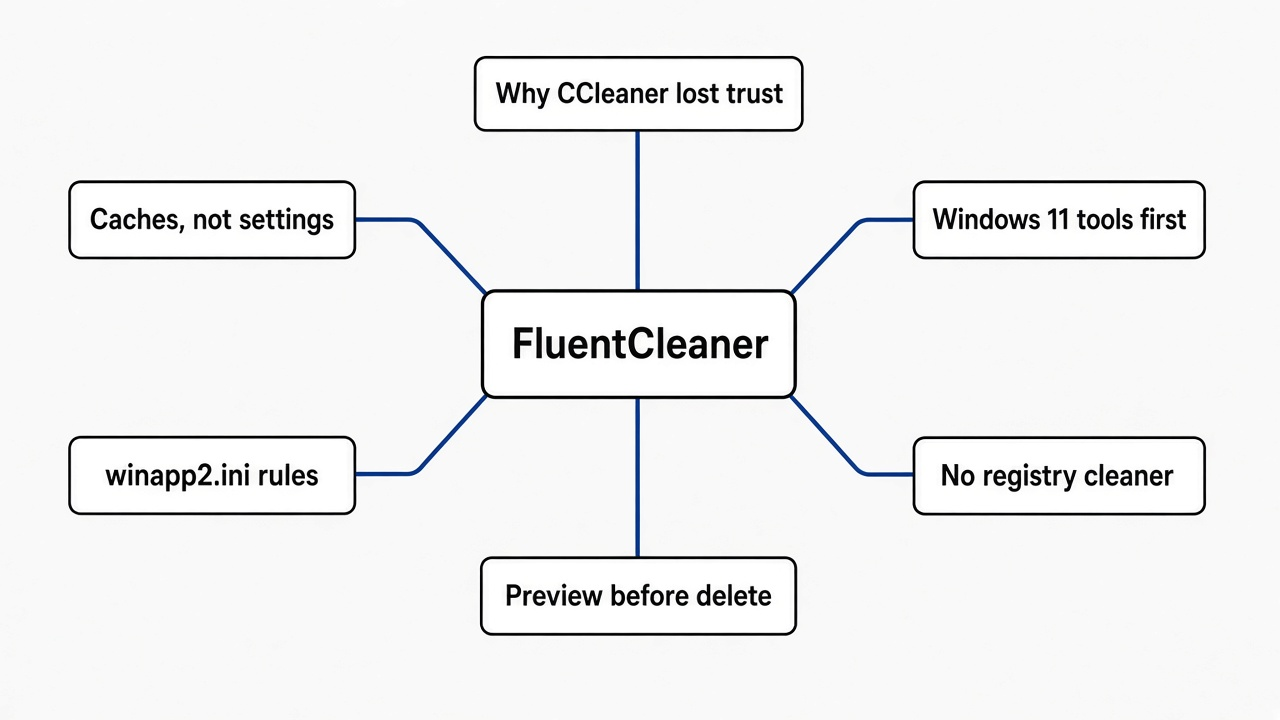
Short answer: Yes. FluentCleaner is a free, open source (anyone can read and check the code) Windows cleaner built on winapp2.ini, a public list of exactly which junk files each app leaves behind. It has no registry cleaner, no upsell pop-ups and no background service. You can even preview what a rule would delete before you run it.
[IMAGE 1]
Why do people stop trusting CCleaner?
The tool you clean with has to be cleaner than the junk it removes.
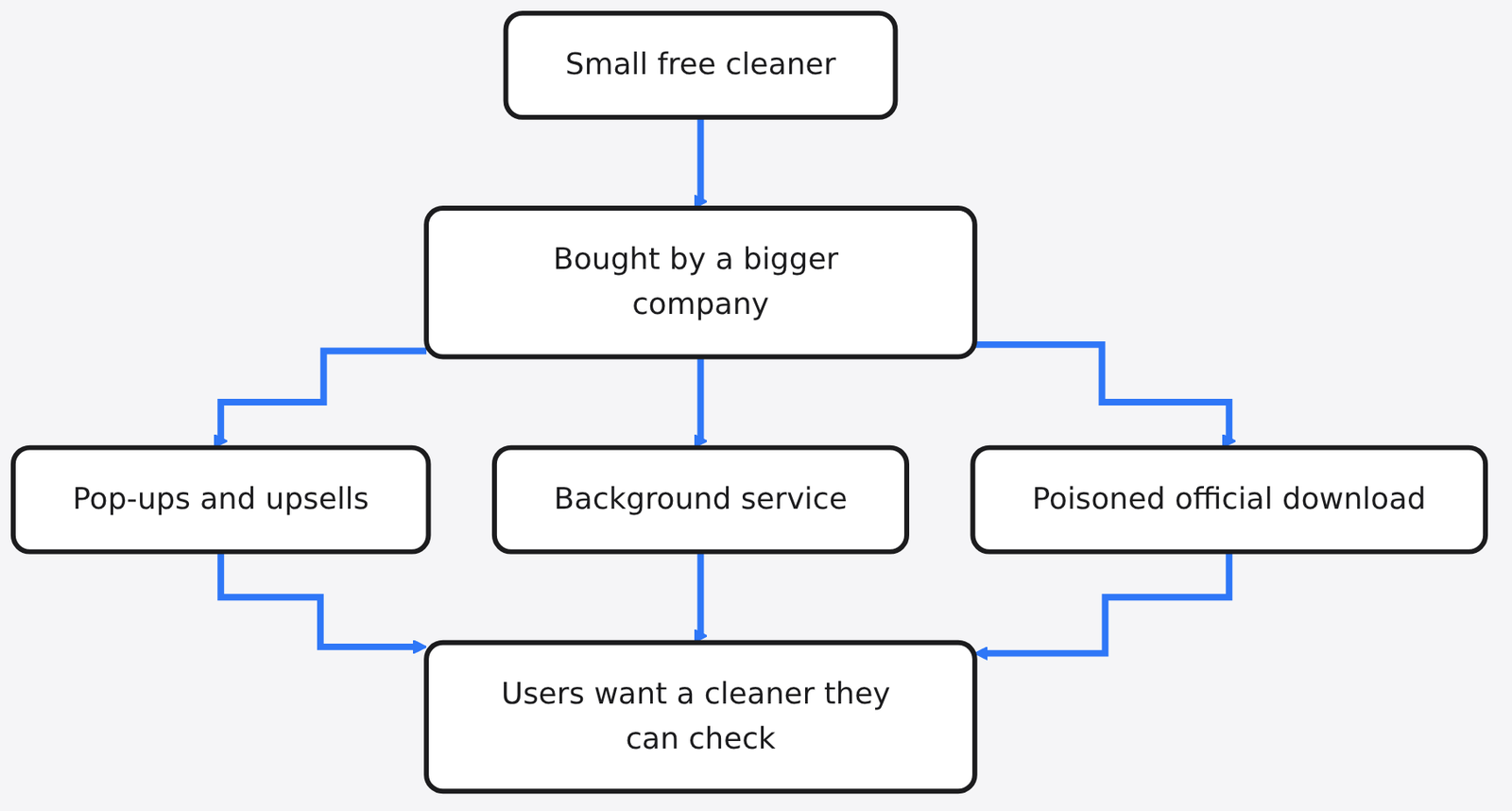
For years CCleaner was the default answer to “my PC is full of junk”. It was small, free and did one job. Then it grew pop-ups, bundled offers, a paid tier pushed at every turn, and a background monitor (a program that keeps running after you close the window).
The worst moment was a supply chain attack (hackers poison a real app’s official download, the reason we check every download tool before trusting it). For a few weeks the official CCleaner 5.33 installer carried hidden malware. Its owner estimated about 2.27 million people installed that copy. Nobody did anything wrong except trust the download button.
That is the real problem. A cleaner needs deep access to your files, so you are trusting it more than almost any other app. If you cannot see what it does, you are trusting a promise.
[IMAGE 2]
What does a PC cleaner actually delete?
A good cleaner only removes files that apps will happily rebuild.
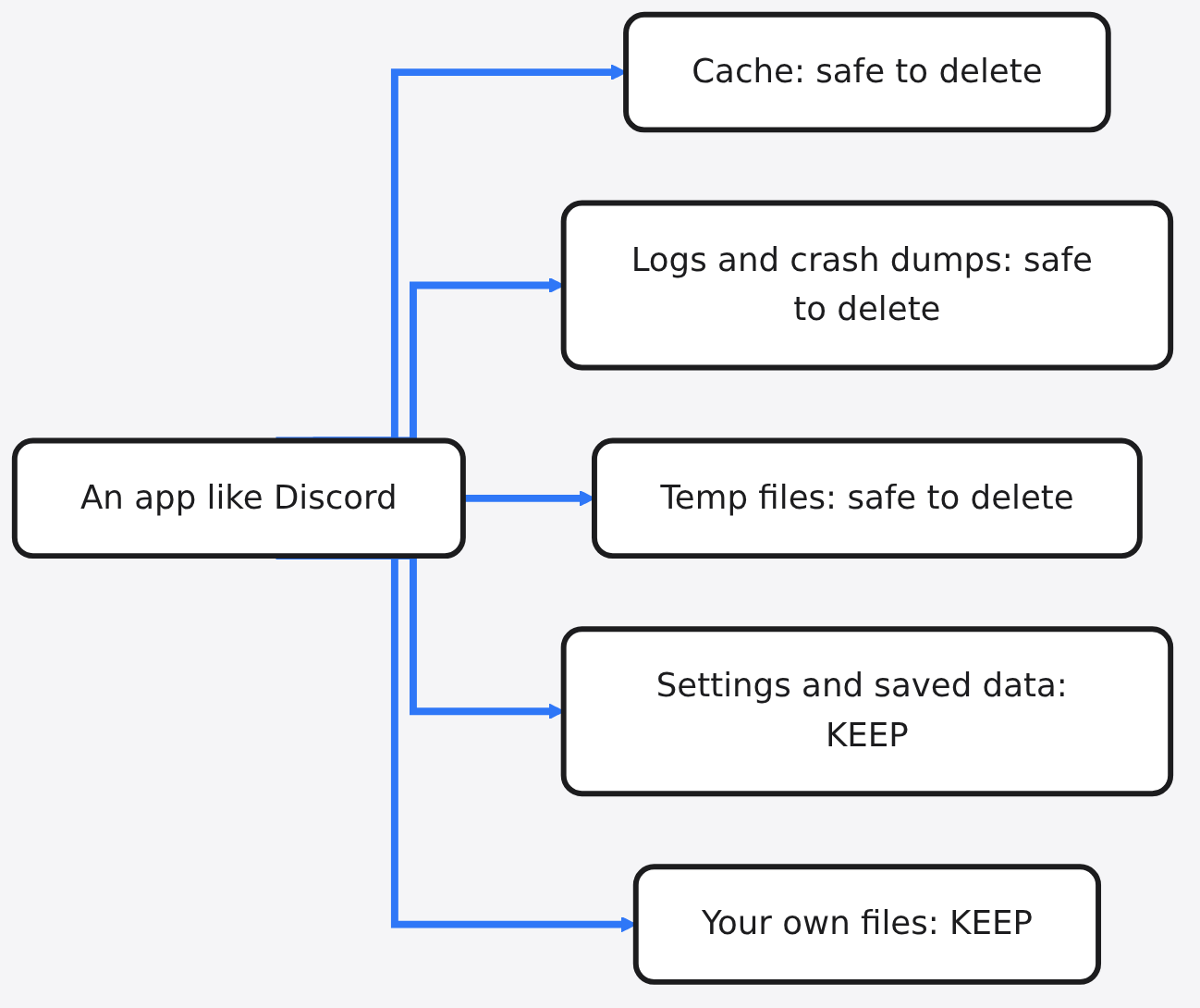
Every app on Windows saves helper files while it runs. A cache (a stash of copies kept so things load faster) holds images, scripts and video bits. Temp files (scratch notes an app forgets to throw away) pile up after installs. Logs (diary files an app writes about what it did) and crash dumps (snapshots saved when an app dies) grow forever.
None of these are your work. Delete them and the app just makes fresh ones. That is why cleaning is safe when it is precise, and dangerous when it is a broad “delete everything in this folder”.
Think of it like clearing out a kitchen. Throwing away old receipts is fine. Throwing away the drawer they sat in is not.
What is FluentCleaner?
It is a plain Windows cleaner that reads public rules instead of hiding its own.
FluentCleaner is a free Windows app released under the MIT license (a short license that lets anyone use, copy and change the code). One developer builds it, there is no company behind it, and it runs only when you open it.
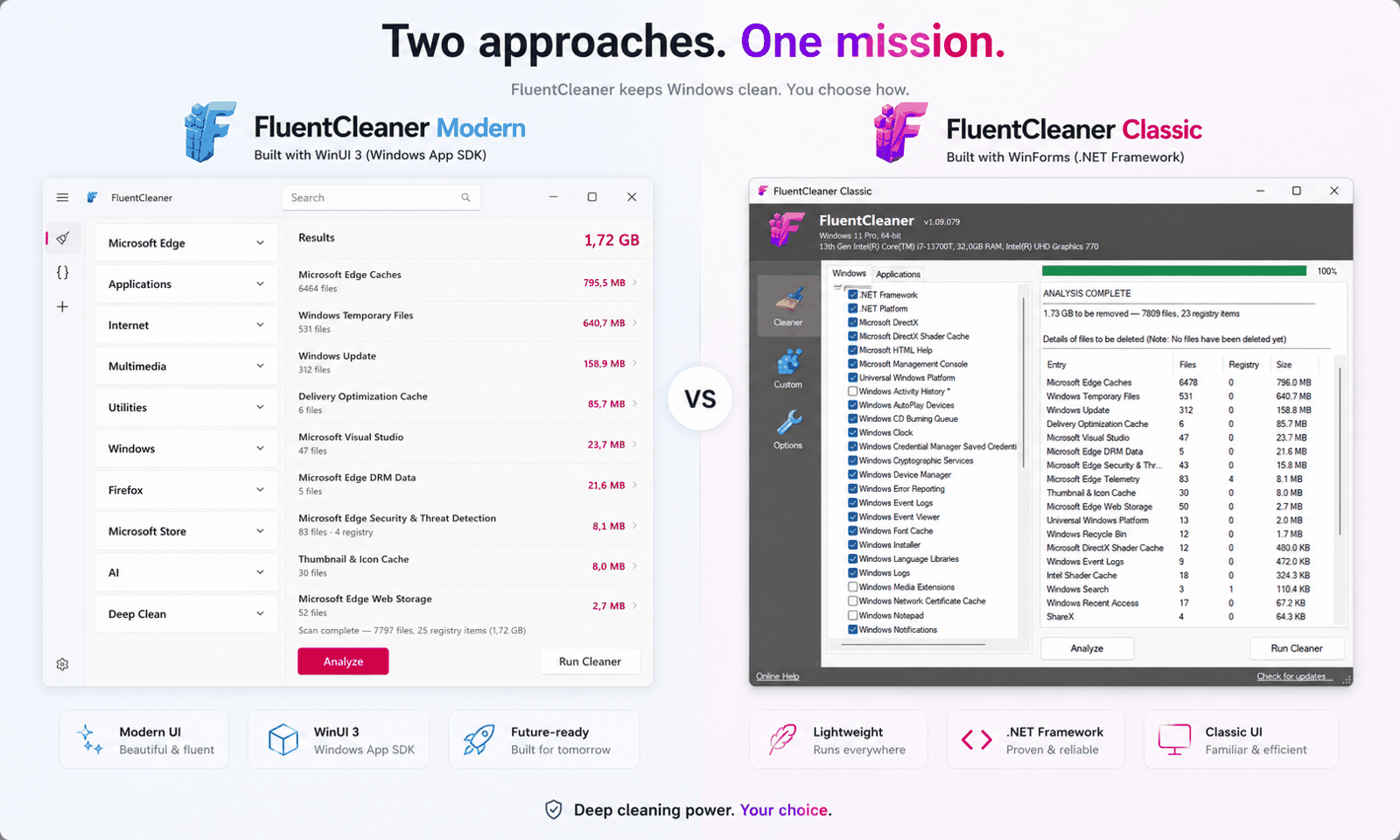
It comes in two versions. The modern one uses WinUI 3 (Microsoft’s toolkit for apps that look like Windows 11). The Classic one is a tiny portable app (runs from a folder, nothing to install) for older or locked-down PCs.
Two features are missing on purpose. There is no registry cleaner and no secure wipe. Its author’s view is blunt: a feature that exists “to look good rather than do good” would be dishonest. More on why that is right in a moment.
[IMAGE 3]
How do winapp2.ini rules decide what gets deleted?
Every rule names one app, the folders it uses, and the exact files to remove.
winapp2.ini is a plain text file kept by a volunteer community. An .ini file (a simple settings file with labeled sections) is easy for humans to read. Each section is one app. Inside it, Detect lines check whether the app is installed, and FileKey lines say which files to delete.
I downloaded the current file and counted it with a short script. It holds 4,068 app entries and 14,121 individual file rules. Only 616 entries touch the registry at all, and just 5 carry a warning line because they also wipe app settings.
Here is the real Discord entry, trimmed:
[Discord *]
Detect1=HKCU\Software\Microsoft\Windows\CurrentVersion\Uninstall\Discord
FileKey3=%AppData%\Discord*|*-journal;*.old;*.tmp;LOG;modules.log|RECURSE
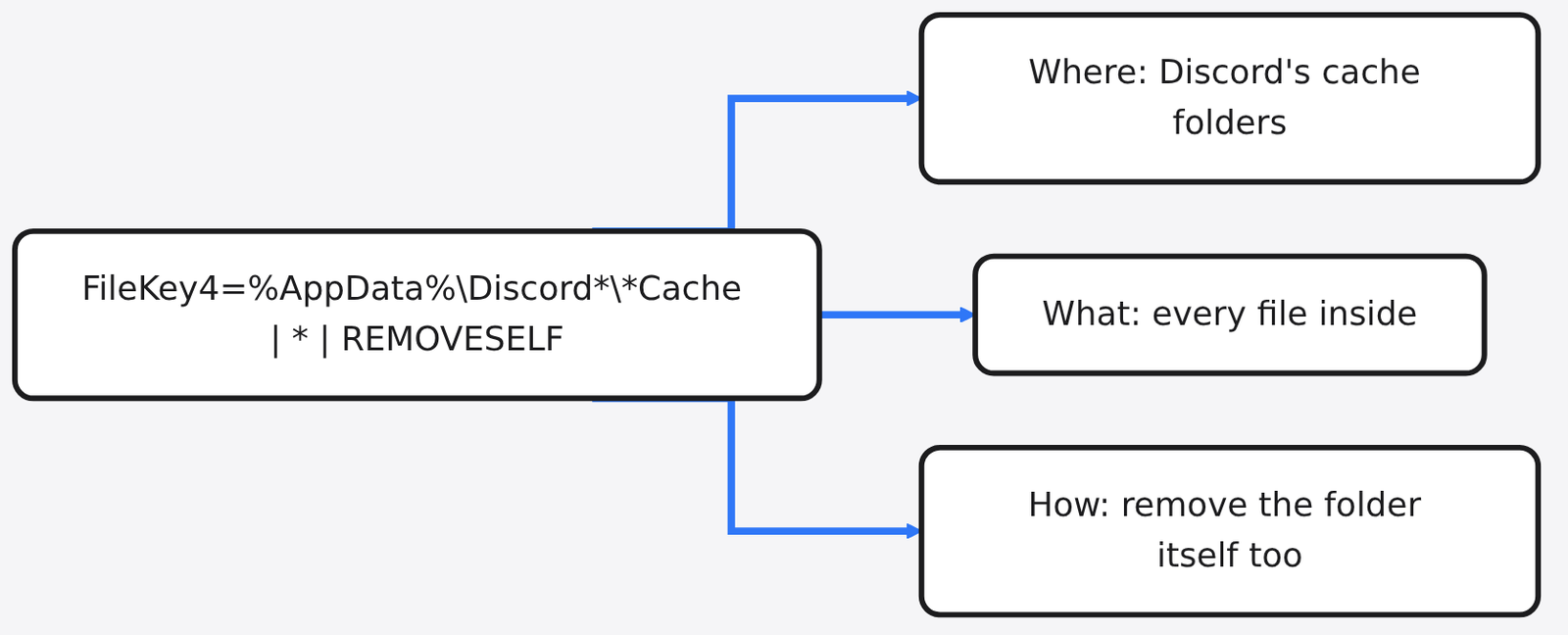
FileKey4=%AppData%\Discord*\*Cache|*|REMOVESELF
FileKey6=%AppData%\Discord*\Crashpad\reports|*
FileKey7=%AppData%\Discord*\Logs|*
Read one line left to right. %AppData% is a shortcut to your user’s app folder. After the first | comes which files, like *.tmp. The last part says how deep to go: RECURSE (also look inside subfolders) or REMOVESELF (delete the folder too). That is the whole language.
Can I see what it will delete before I run it?
Yes, and you should, because a rule you can read is a rule you can check.
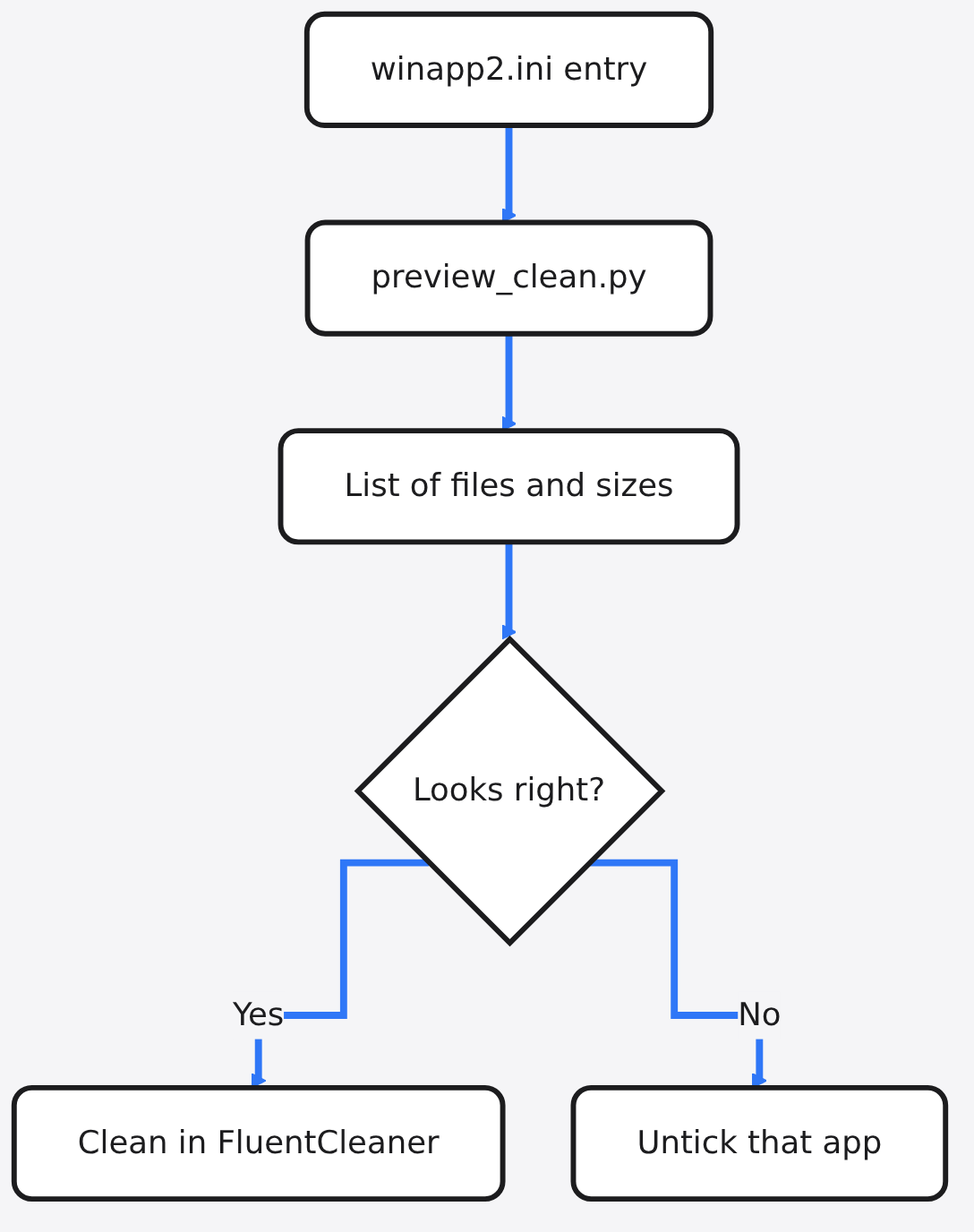
FluentCleaner shows what it found before you clean. But since the rules are plain text, you can check any of them yourself. I wrote a 30-line Python script that reads one winapp2.ini entry and lists every file it would hit. It deletes nothing. It is a dry run (a practice pass that only reports).
# preview_clean.py - show what a winapp2.ini entry WOULD delete. Deletes nothing.
import glob, os, re, sys

ini, name = sys.argv[1], sys.argv[2]           # e.g. Winapp2.ini "Discord *"
text = open(ini, encoding="utf-8", errors="ignore").read()
start = text.find(f"[{name}]")
if start < 0:
    sys.exit(f"No entry called [{name}]")
block = text[start:].split("\n\n")[0]

def expand(path):                               # %AppData% -> real folder
    return re.sub(r"%(\w+)%", lambda m: os.environ.get(m.group(1), m.group(0)), path)

total, count = 0, 0
for line in block.splitlines():
    if not line.startswith("FileKey"):
        continue
    parts = line.split("=", 1)[1].split("|")
    folder, patterns = expand(parts[0]), parts[1].split(";")
    deep = len(parts) > 2 and parts[2] in ("RECURSE", "REMOVESELF")
    for base in glob.glob(folder.replace("\\", os.sep)):
        for pat in patterns:
            hits = glob.glob(os.path.join(base, "**", pat) if deep else os.path.join(base, pat), recursive=deep)
            for f in hits:
                if os.path.isfile(f):
                    size = os.path.getsize(f)
                    total += size; count += 1
                    print(f"{size/1024:8.1f} KB  {f}")
print(f"\n{count} files, {total/1024/1024:.1f} MB would be removed. Nothing was deleted.")
Save the winapp2.ini file next to it and run python preview_clean.py Winapp2.ini "Discord *". I tested it on a mock Discord profile with cache files, a log, a crash dump, a settings file and a local storage folder. The output:
  3906.2 KB  Roaming/Discord/Cache/data_1
  2441.4 KB  Roaming/Discord/Cache/data_2
   878.9 KB  Roaming/Discord/Crashpad/reports/crash.dmp
    29.3 KB  Roaming/Discord/Logs/renderer.log
    11.7 KB  Local/Discord/SquirrelSetup.log

5 files, 7.1 MB would be removed. Nothing was deleted.
The settings file and the local storage folder were not on the list. That is exactly the behavior you want: junk out, your login and preferences left alone.
[IMAGE 4]
Why is there no registry cleaner?
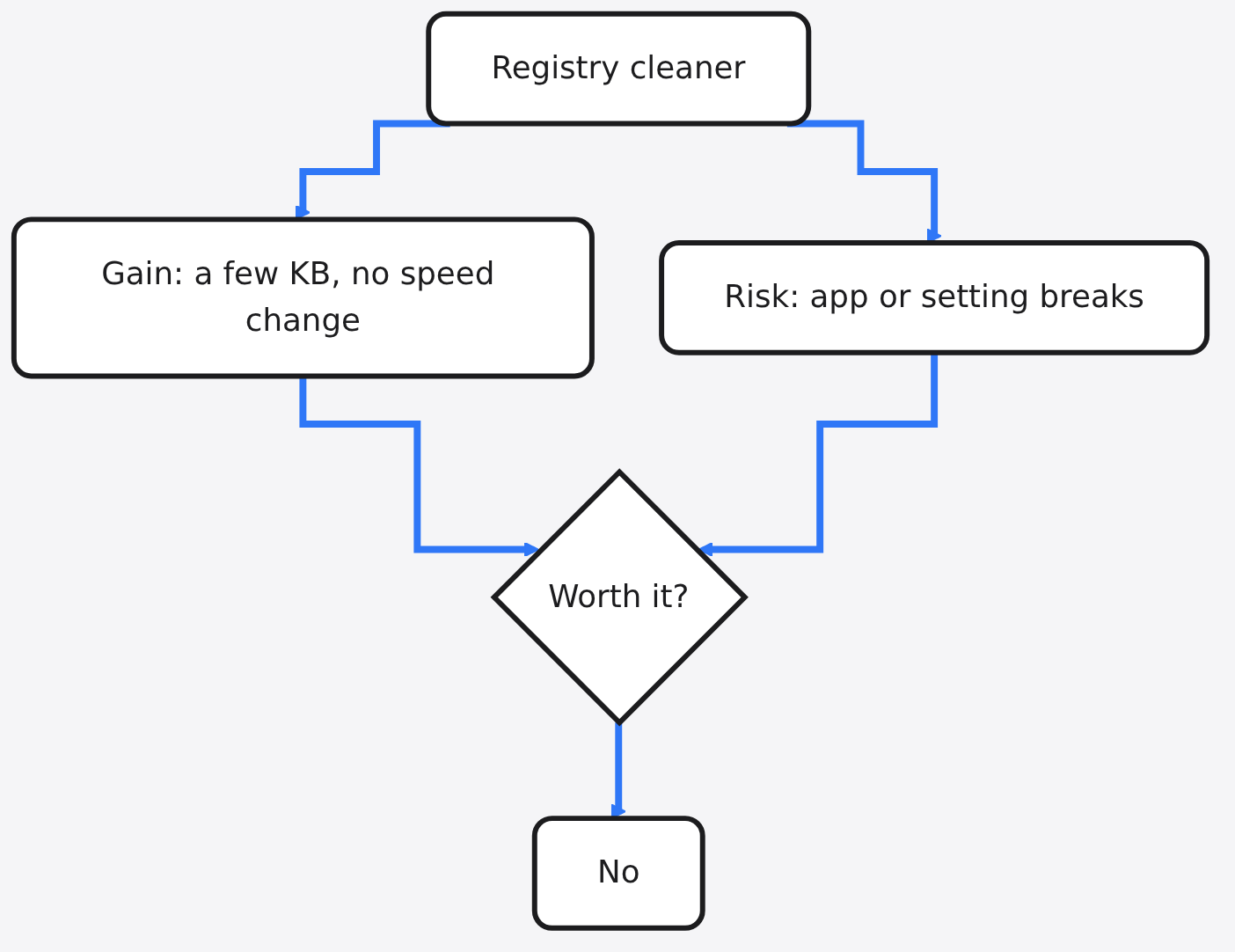
Cleaning the registry saves almost nothing and can break apps.
The registry (Windows’ giant settings database) holds a huge number of small entries. A leftover entry from an uninstalled app takes a few bytes and does not slow anything down. Windows only reads the entries it needs.
So a registry cleaner deletes things that cost nothing, with a real chance of deleting something an app still needs. The reward is tiny and the risk is real. Leaving it out is the honest choice.
Secure wipe is the same story. On modern SSDs (solid state drives, the fast chips most PCs now use), the drive moves data around on its own, so overwriting a file in place does not guarantee the old copy is gone. Normal deletion is the right tool for junk files.
How do you install and use it safely?
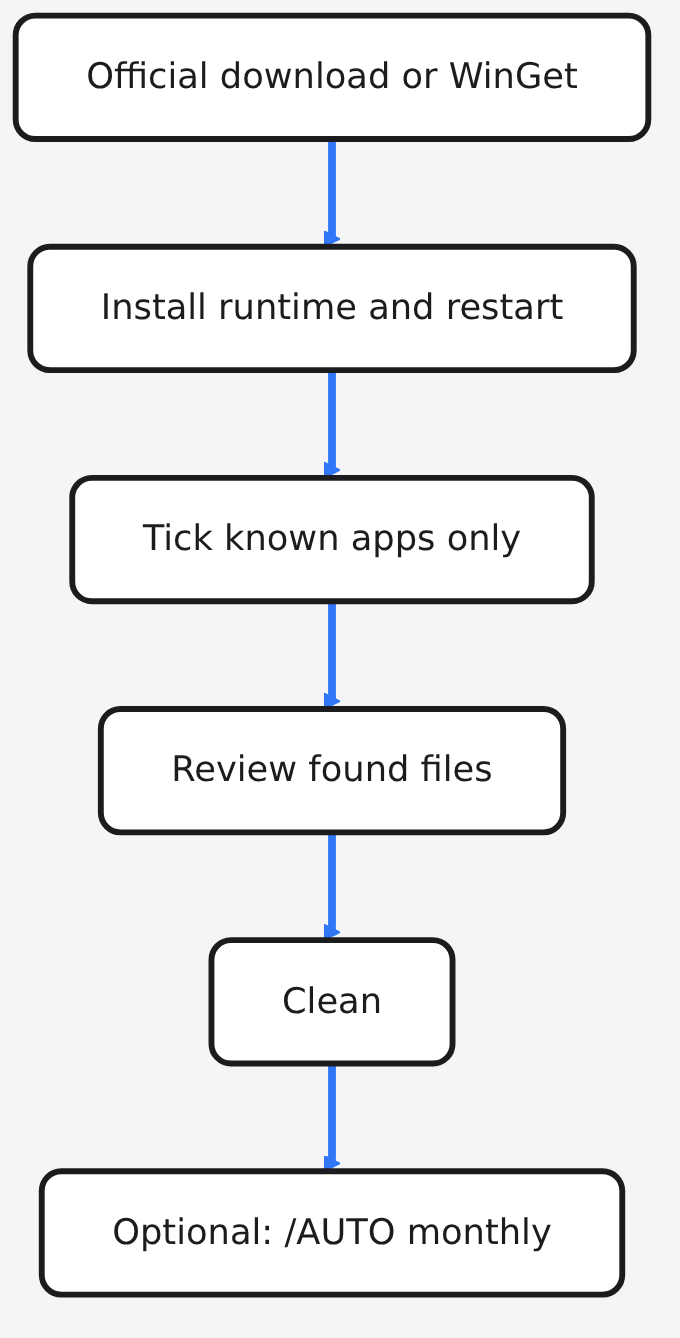
Get it only from the official page, preview first, then clean.
- Download it from the official GitHub releases only. A look-alike site using the app’s name is not run by the developer.
- Or install it with WinGet (Windows’ built-in app installer you type into):
winget install --id Builtbybel.FluentCleaner --exact - The modern version needs the Windows App SDK 2.0.1 runtime (a support package the app runs on). Install that exact one, then restart. Other versions will not work. Classic needs nothing extra.
- Open it, tick only the apps you recognize, and look at the list of found files.
- Close the apps you are cleaning, then press clean.
Once you trust your picks, /AUTO runs a silent clean with your saved selection and exits. Point Task Scheduler (Windows’ built-in timer for running apps) at it for a monthly clean, and check the log in %AppData%\FluentCleaner\auto.log.
[IMAGE 5]
Do you even need a cleaner on Windows 11?
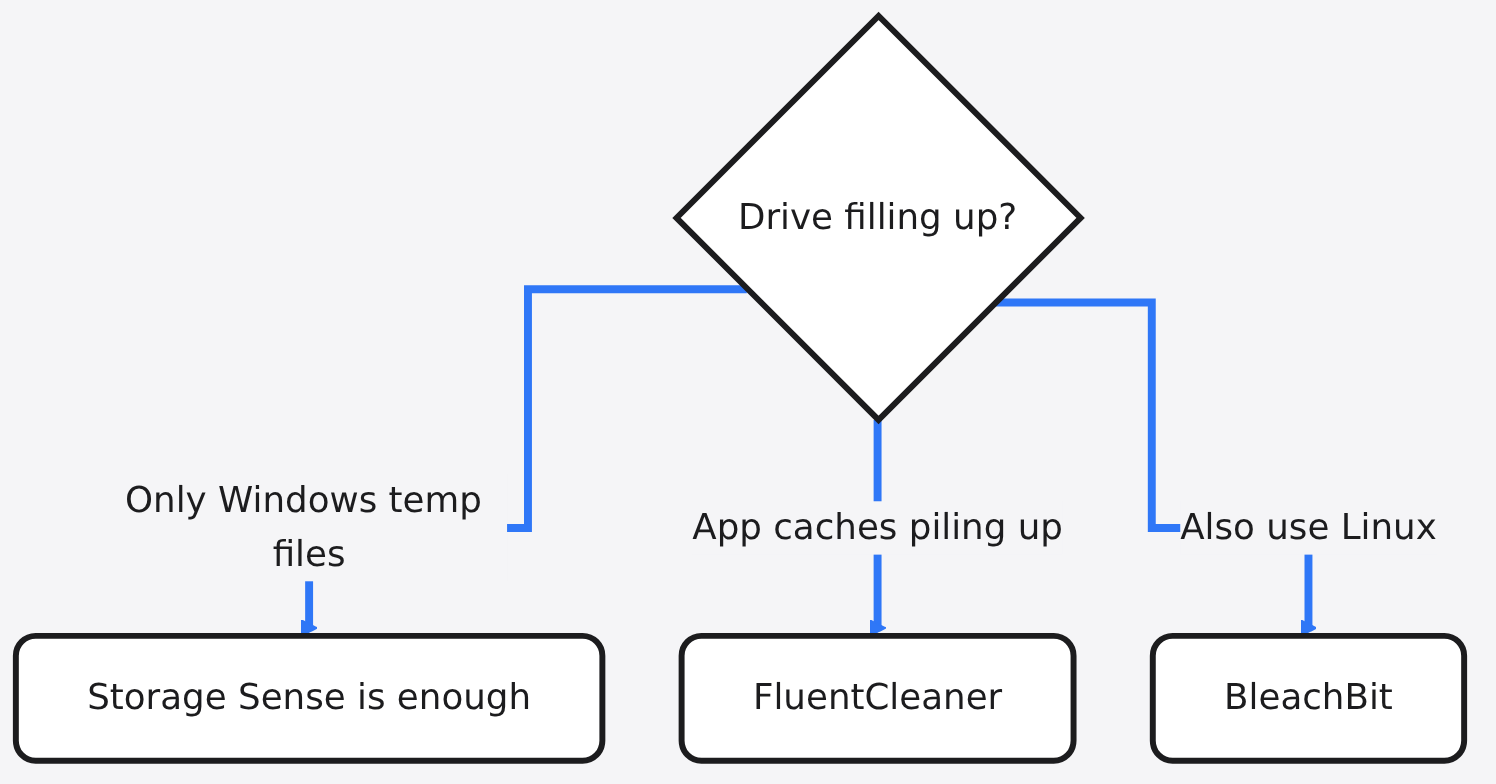
For basic temp files, Windows already does it, so a cleaner is for the app junk Windows skips.
Windows has Storage Sense. Turn it on in Settings > System > Storage. It removes temporary files when space runs low and empties the Recycle Bin after a while. It leaves your Downloads folder alone unless you tell it otherwise.
What Storage Sense does not do is know where Discord, Spotify, Chrome and thousands of other apps hide their caches. That is the gap winapp2.ini fills. If you want a second open source option, BleachBit also imports winapp2.ini on Windows.
| Need | Storage Sense | FluentCleaner | BleachBit |
|---|---|---|---|
| Windows temp files | Yes | Yes | Yes |
| Per-app caches and logs | No | Yes, via winapp2.ini | Yes, imports winapp2.ini |
| Open source | No | Yes, MIT | Yes |
| Runs on Linux too | No | No | Yes |
So which cleaner should you trust?
Trust the one whose rules you can read.
If you liked old CCleaner, FluentCleaner gives you the same idea without the parts that broke trust: public rules, no hidden registry magic, no background service, and a preview you can check line by line. Turn on Storage Sense for the basics and use FluentCleaner monthly for app junk.
The thread from the start still holds. A cleaner gets deep access to your files, so the safest one is the one that shows its work. With winapp2.ini, you can read every line before anything is deleted.
Common questions about FluentCleaner
Is FluentCleaner safe to use?
It only deletes what the rules you tick point to, and those rules are public. It still deletes files, so back up anything important first.
Is FluentCleaner free?
Yes. It is free and open source under the MIT license, with optional donations.
Does cleaning junk files make Windows faster?
On a PC with plenty of free space, you will rarely notice a speed change. When the drive is nearly full, freeing space helps Windows run and update properly.
Is BleachBit or FluentCleaner better on Windows?
Both read winapp2.ini rules. FluentCleaner looks and feels like a Windows 11 app, while BleachBit also runs on Linux and adds file shredding.