
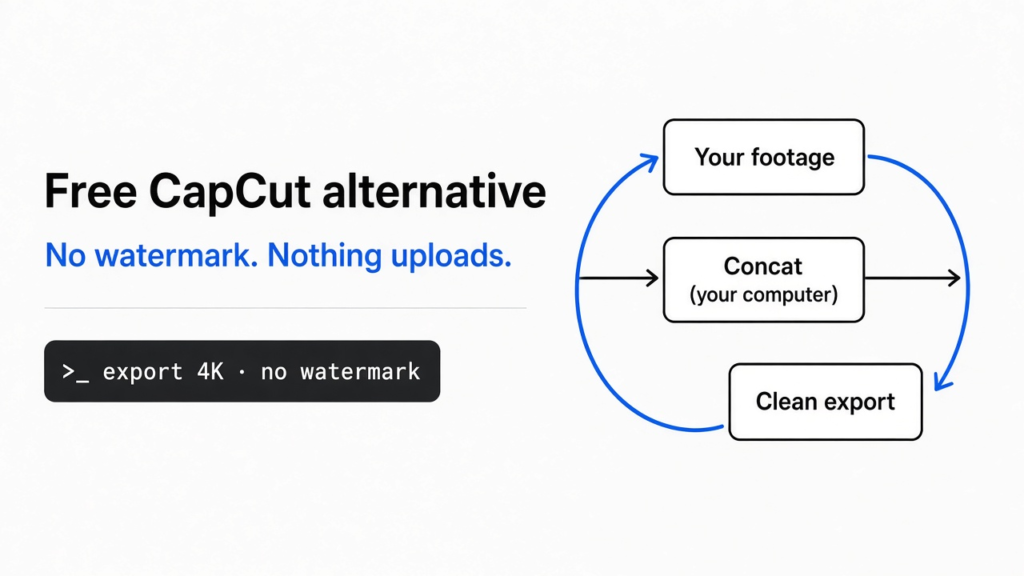
Yes. Concat is a free, open source video editor that does the CapCut jobs most people care about, auto-captions, voices, background removal, 4K export, and stamps no watermark on the result. It runs on your own computer, nothing uploads, and it costs nothing. The catch: it is still in beta, so expect rough edges.
You edit a clip, export it, and there it is in the corner. A watermark. Or a message asking you to pay to remove it. CapCut does this, and so do most free editors. The watermark is the whole business model.
This post looks at one tool that skips it: what it can do, and where it will trip you up. One thread to hold onto: free here means the software is free, not that the work is done for you.
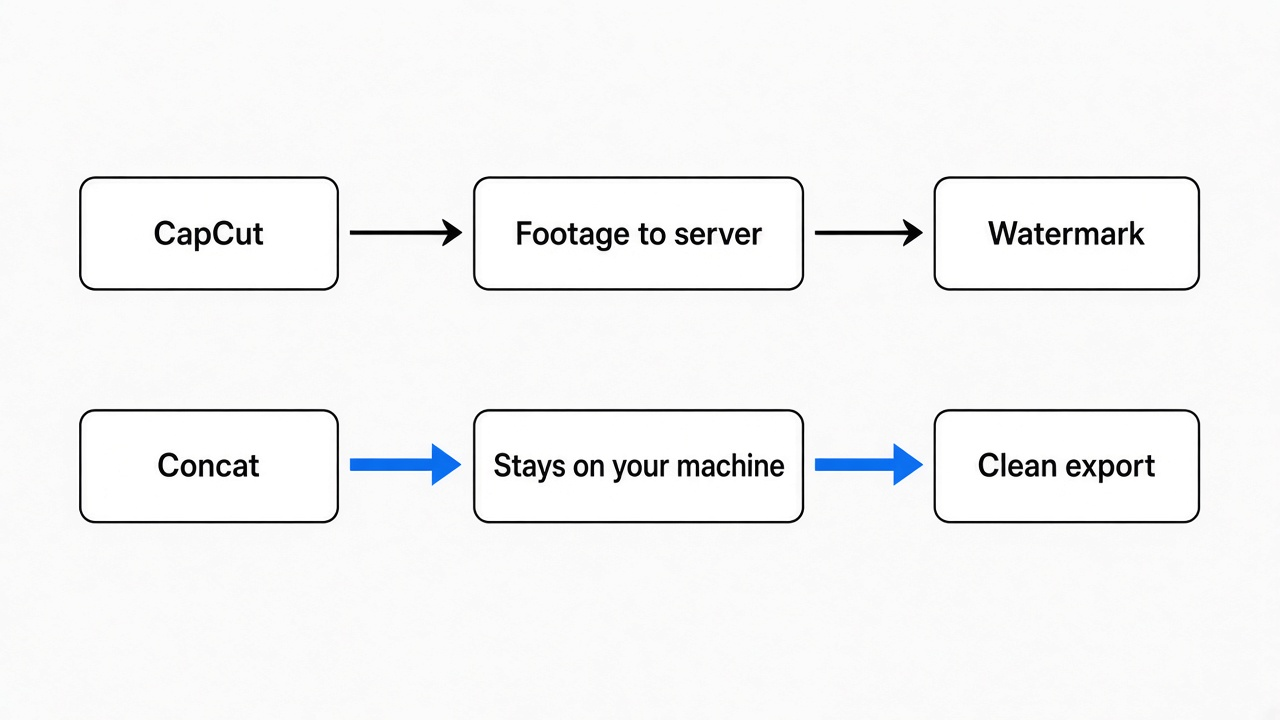
Why do free video editors put watermarks on your video?
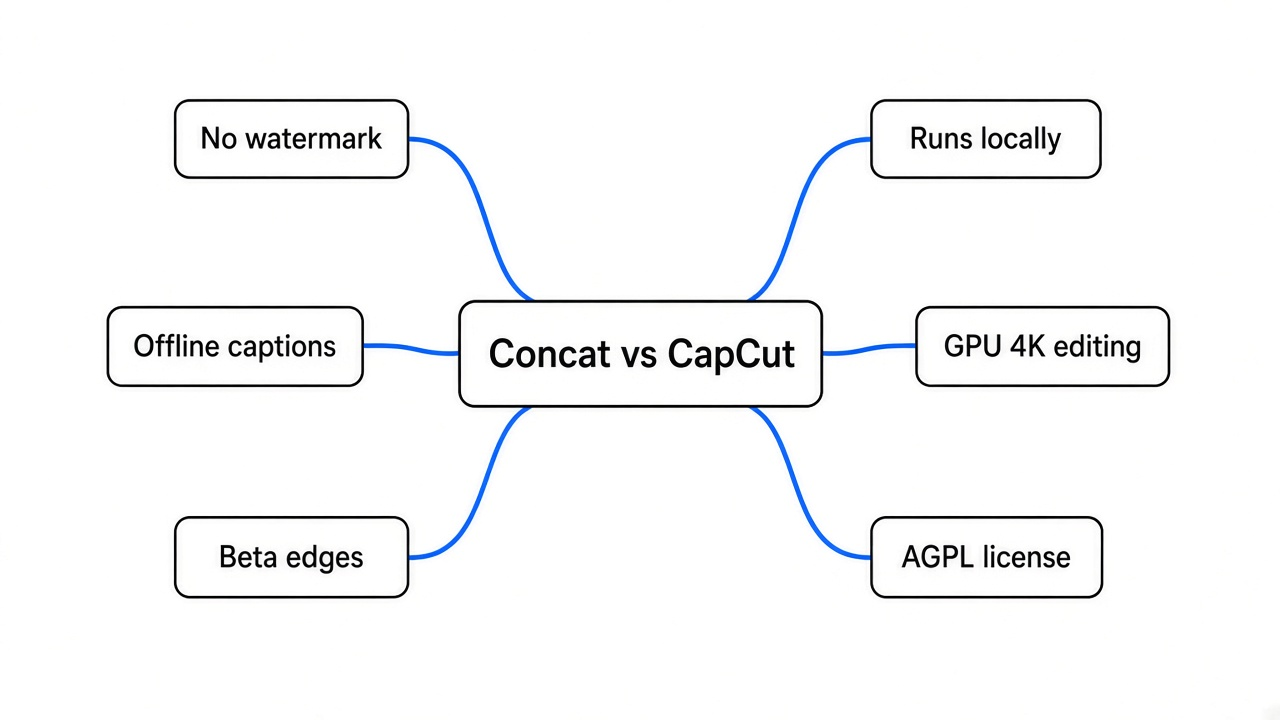
A watermark is a free tool’s price tag, paid in advertising instead of money.
Picture a free sample at a shop with a sticker on it that says where it came from. You get the sample, the shop gets seen. A watermark works the same way. The editor is free to use, and every video you post carries its logo, which pulls in the next batch of users. Removing it is the paid upgrade.
That is the trade with CapCut and most of its free rivals. You do not pay cash, you pay by advertising the tool on every clip, or you pay to make the logo go away.
Open source breaks this trade, and that word matters here, so one quick definition. Open source (software whose full code is public, free to use and change) has no logo to sell, because there is no company that needs you to advertise it. That is why an open source editor can leave your video clean without asking for anything. Concat is one of these.
What is Concat?
Concat is a free video editor that aims to replace CapCut, and it runs entirely on your own computer.
Before the features, the one idea it is built on. Most editors that touch AI, for captions or voices, send your footage to a server to do the work. Concat does the opposite. The work happens on your machine.
Its own privacy note says the program sends nothing about you, your projects, or your media. It reaches the network only when you ask, to check for updates or to download a feature once.
So the base fact is simple. Your footage stays on your disk. Build on that, and a few things follow: it works offline once set up, there is no account to make, and there is no upload wait before you can cut.
It covers the jobs people actually open CapCut for:
- Auto-captions, the subtitles that appear as people talk
- Text-to-speech and voice cloning, a computer voice reading your script
- Background removal, cutting a person out without a green screen
- Multi-track cutting, effects, titles, and keyframe animation
- Export up to 4K, with no watermark
It runs on Windows, macOS, Linux, and Android, and the same project opens on each.
How does it caption and voice video without the internet?
It downloads small AI models once, then runs them on your own hardware.
Here is the chain, one step at a time. An AI model (a trained file that turns one kind of data into another) is what listens to your audio and writes the caption text. Normally that model lives on a company’s server, which is why those features need a connection. Concat instead downloads the model file once, from a screen in Settings, and keeps it on your disk.
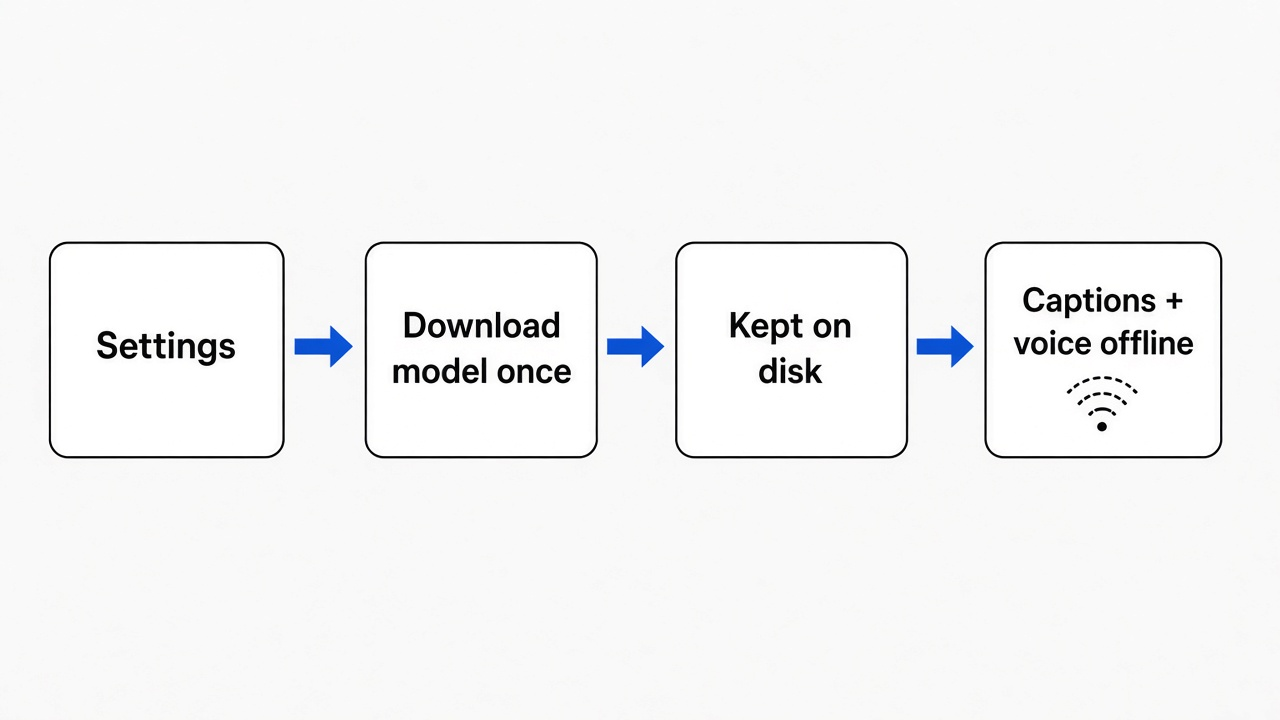
After that, the model runs locally. The tool ships separate parts for speech, transcription (audio turned into text), text-to-speech (text turned into a spoken voice), and voice cleanup. There is also a vision part that cuts people and objects out of the frame. These are real working pieces of the program, not links to an outside service.
The payoff for you: captions and voices keep working on a plane, in a cafe with bad wifi, or on a locked-down work laptop. Download once, use forever.
Is it actually fast, or just free?
It is built on a native engine that uses your graphics card, so 4K editing stays smooth.
Cheap free editors often stutter on large files because they lean on slow, general-purpose code. Concat is written in Rust (a programming language known for speed and safety) and leans on your GPU (the graphics chip that also renders video). The engine makes up the bulk of the project, which tells you where the effort went: the cutting and playback, not the surface.
What this means in practice: scrubbing through 4K footage does not freeze, and effects show live in the preview instead of after a wait. You do not need a top-end machine, but a recent one with a decent graphics card will feel the difference.
What is the catch?
It is beta software under a license that has real strings if you build a business on it.
Nothing this capable is free of trade-offs, and here are the honest ones.
First, it is in beta. The project says so plainly: it works, and it still has edges. For a quick personal clip that is fine. For a client deadline tomorrow, keep your old editor as a backup.
Second, the installers are unsigned, so your system may warn you. On Windows, SmartScreen may block it, and you click More info then Run anyway. On macOS, Gatekeeper may refuse to open it until you clear the quarantine flag with a one-line command. This is normal for small open source apps, but it is a step most people are not used to.
Third, the license. Concat uses the AGPL (a strong open source license that forces anyone who builds on the code and offers it as a service to share their changes). For you editing your own videos, this changes nothing. If you plan to wrap it into a product you sell, read the license first.
Concede the point: a signed, polished, one-click app from a big company is smoother to install. For most people cutting their own videos, the clean export and the zero price settle it anyway.
How do you try it?
Download a build for your system, or build it from the code if you want control.
Two routes in:
- The quick way: grab the ready-made build for your machine from the project’s website or its releases page, install it, and open it. This is what almost everyone should do.
- The hands-on way: build it from source. You need Rust and the FFmpeg (a toolkit that handles video formats) development libraries, then one command compiles the editor. This is for people who want to change the code or run a version straight from source.
Either way, the first run is the moment to open Settings and download the caption and voice models, so those features are ready offline.
Concat will not replace a full professional suite, and it does not try to. It replaces the free editor that keeps nagging you about a watermark. Download it, cut one clip, and see if the clean export is worth the beta edges.
FAQ
Is Concat really free with no hidden cost?
Yes. It is open source, with no account, no subscription, and no watermark. You can read its full code and privacy policy yourself.
Does my video get uploaded anywhere?
No. Editing and the AI features run on your own computer. The project states it sends nothing about you or your media, and only touches the network to fetch updates or a feature when you ask.
Can it add subtitles automatically like CapCut?
Yes. It runs local speech-to-text to generate captions, then lets you style them on the timeline. The model downloads once and works offline after that.
What are the downsides compared to CapCut?
It is beta, so expect some rough edges, and its installers are unsigned, so you may need to click past a system warning the first time.

1 comment