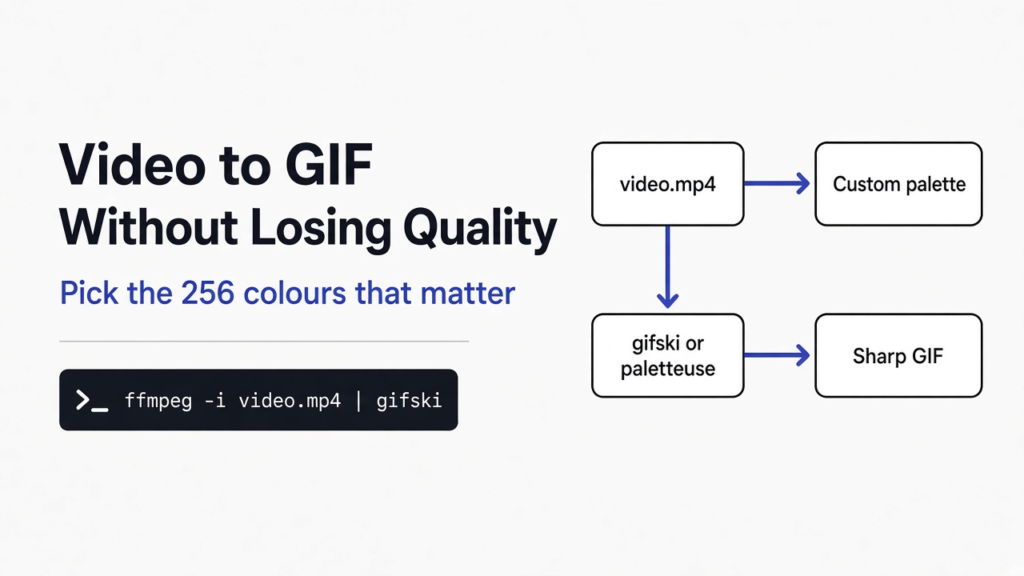
Short answer: Every GIF can hold at most 256 colours per palette, so some loss is built in. To keep it small, build a custom palette for your clip. Use ffmpeg’s palettegen and paletteuse filters for screen recordings and flat graphics. Use gifski for real footage. Then shrink the width and frame rate, which cuts size far more than any encoder setting.
You record a clean 4-second clip, convert it to a GIF, and it comes back speckled. The sky turns into a checkerboard. Skin gets grainy. And the file is somehow still huge.
That is not your fault, and it is not random. It comes from one hard rule inside the GIF format. Once you see that rule, you can choose the right fix in seconds instead of trying random converter sites.
So I tested it. Three short clips, five ways of converting, every result measured. Here is what actually works.
Why do GIFs look worse than the video?
Because a GIF has a box of at most 256 colours, and a video has millions. Every quality problem you have seen comes from squeezing one into the other.
Start with the base. A video is a fast stack of still pictures called frames (single images shown one after another, like a flipbook). Each frame is a grid of pixels (tiny coloured squares). A normal video frame can use any of about 16.7 million colours, because each pixel mixes 256 levels of red, green and blue.
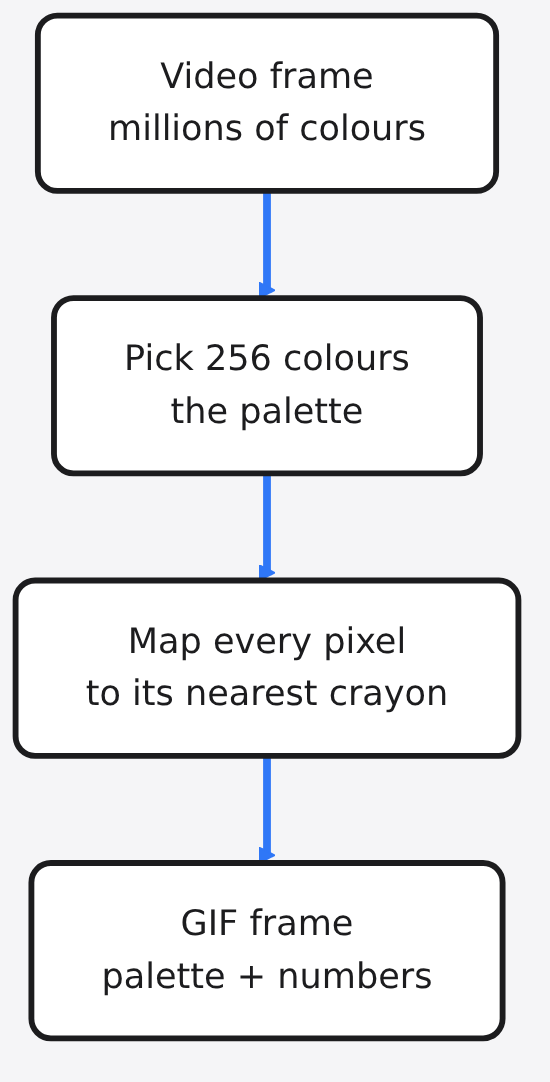
A GIF works differently. It stores a palette (a short list of colours, like a crayon box) for each image. That palette holds at most 256 entries. Each pixel then stores only a number that points to one crayon in the box.
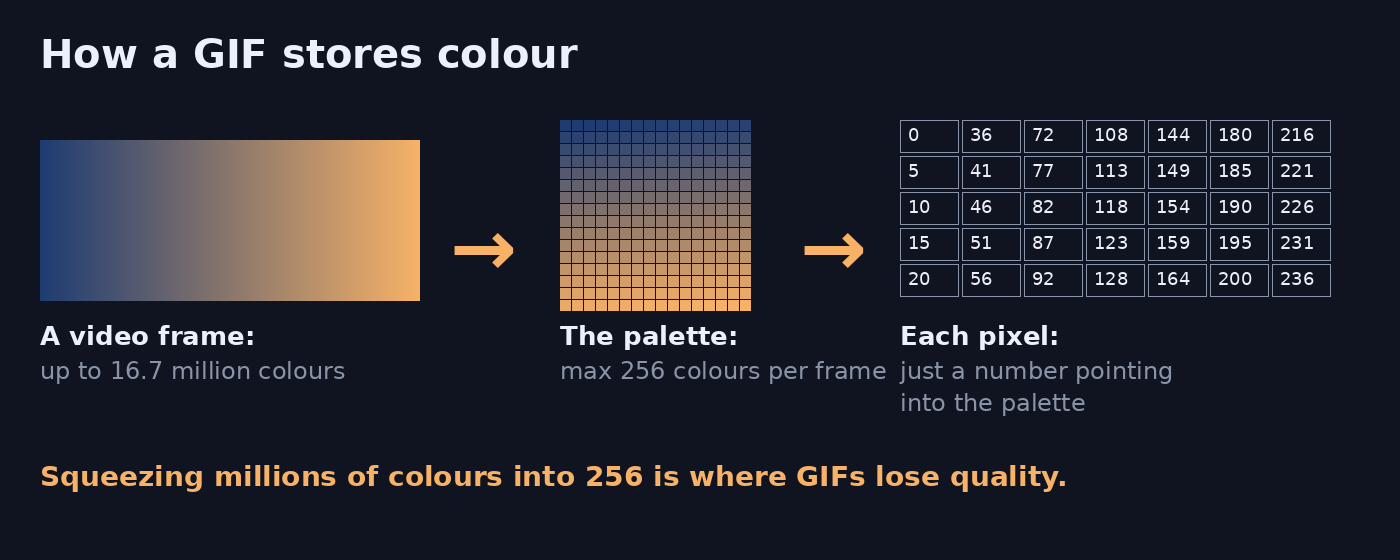
Hold on to this one idea. You only get 256 crayons, so quality depends on which crayons you pick and how you blend them. Every tool and command below is a different answer to those two questions.
What are banding and dithering?
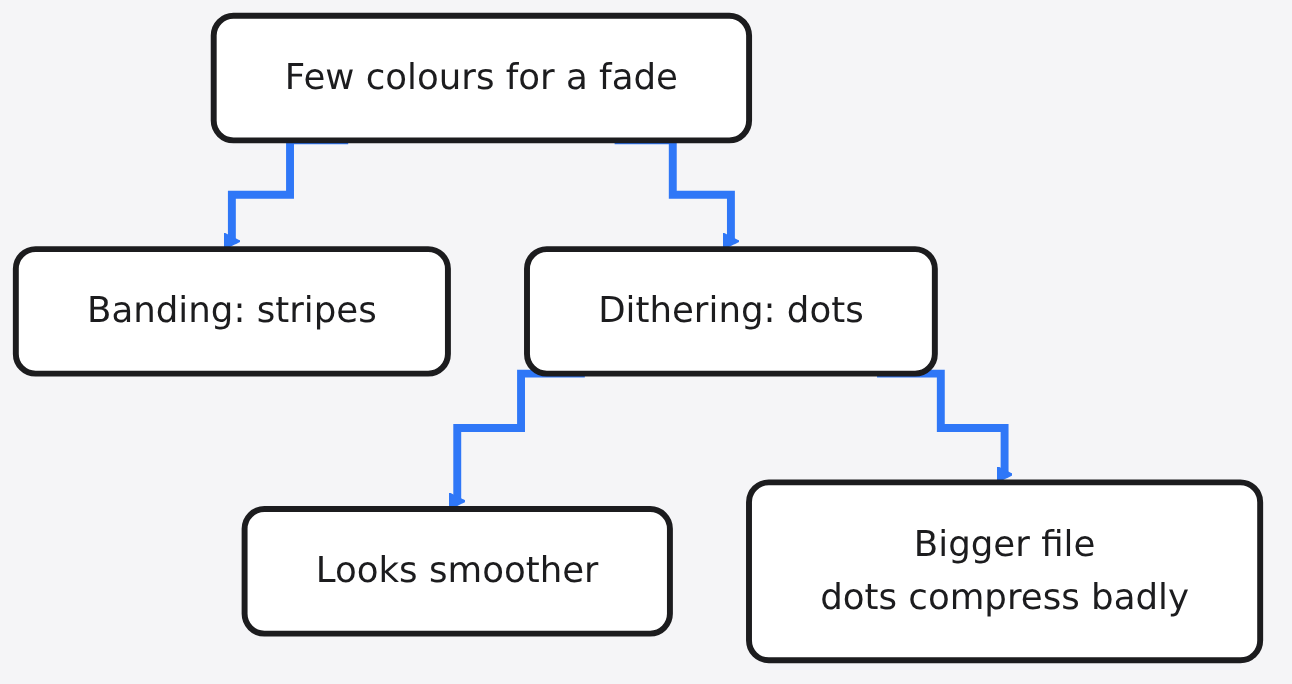
Banding is the stripe problem. Dithering is the dotted fix. Knowing both tells you why your GIF looks grainy or striped.
Picture a sunset sky that fades from blue to orange. With only a few crayons for that fade, each crayon covers a wide strip of sky. You see hard steps instead of a smooth fade. That is banding (visible stripes where colours should blend smoothly).
Dithering (mixing dots of two colours so the eye sees a shade in between) fights back. Newspapers do the same trick with ink dots. Up close it looks speckled; from normal distance it looks smooth.
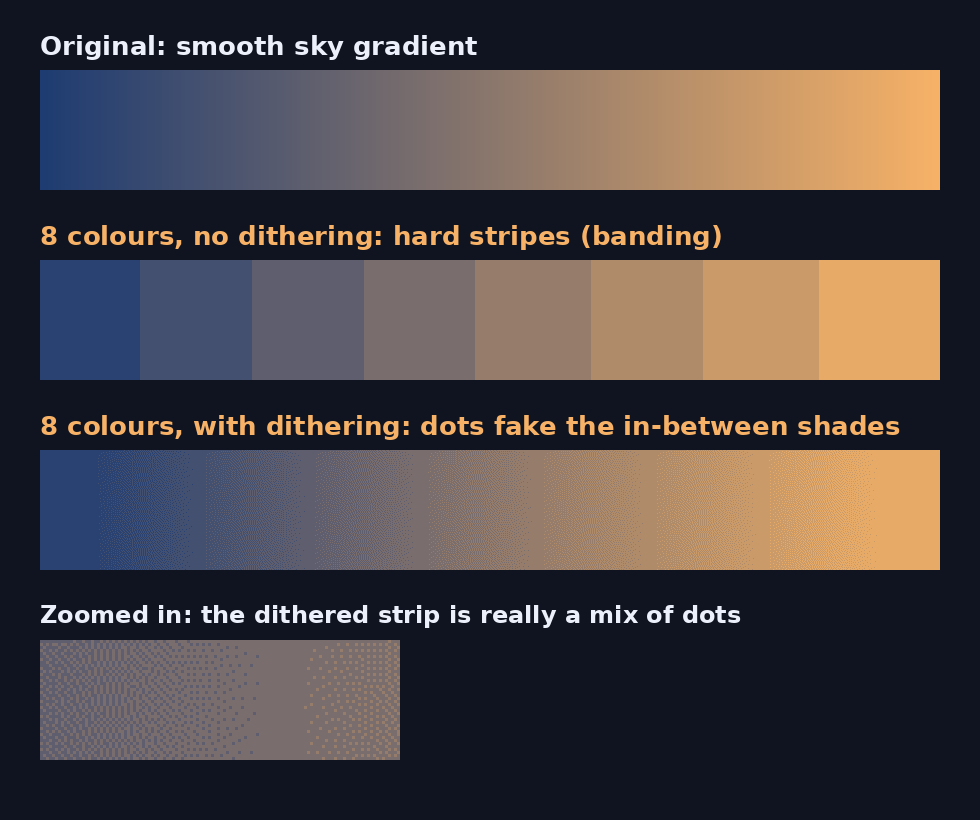
But dithering has a cost. GIF shrinks files with LZW compression (a method that saves space by spotting repeated patterns of numbers). Dots break up those patterns. In my test, turning dithering off made the smooth-gradient GIF 18% smaller. The trade is real: smoother look, bigger file.
Why does the basic ffmpeg command look so bad?
Because it uses one fixed crayon box built for no video in particular. That is why the plain command is fast but often ugly.
ffmpeg is a free command-line tool that converts almost any video or audio format. Most “video to GIF” guides start with this:
ffmpeg -i video.mp4 out.gifHere is what happens inside. ffmpeg converts the video to a fixed 8-bit colour format called bgr8, which splits the bits 3-3-2 across blue, green and red. That gives 256 preset colours spread evenly across all possible colours. Most of them are colours your clip never uses.
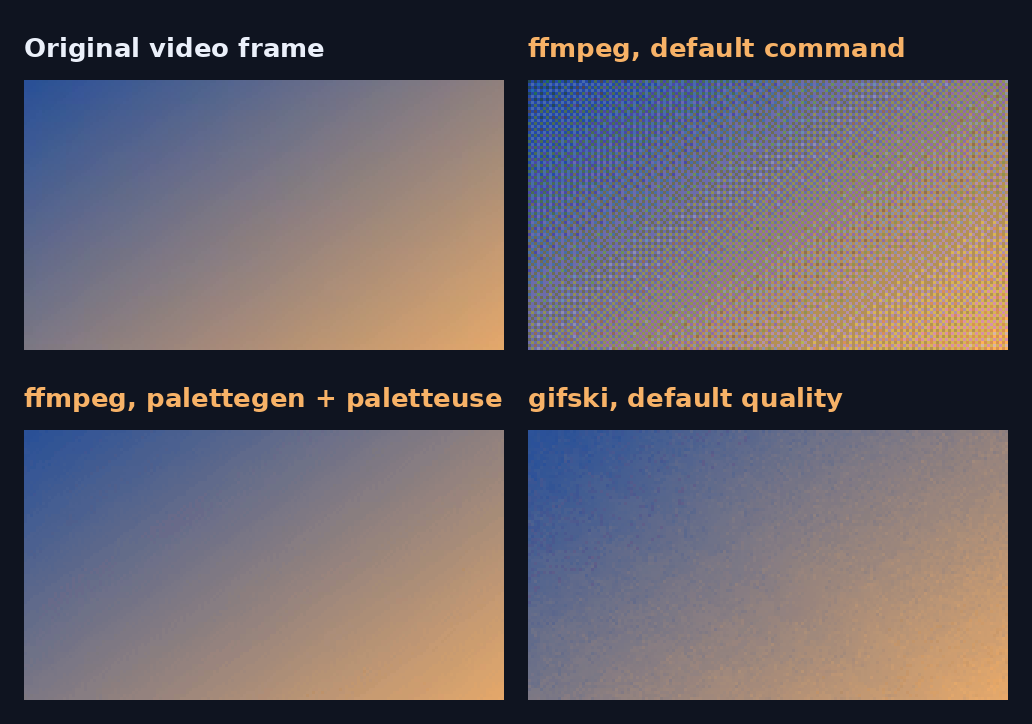
On my smooth gradient clip, the first frame of the default GIF used only 40 distinct colours. The other crayons were wasted on shades that were never in the video. The result is the checkerboard pattern you have probably seen.
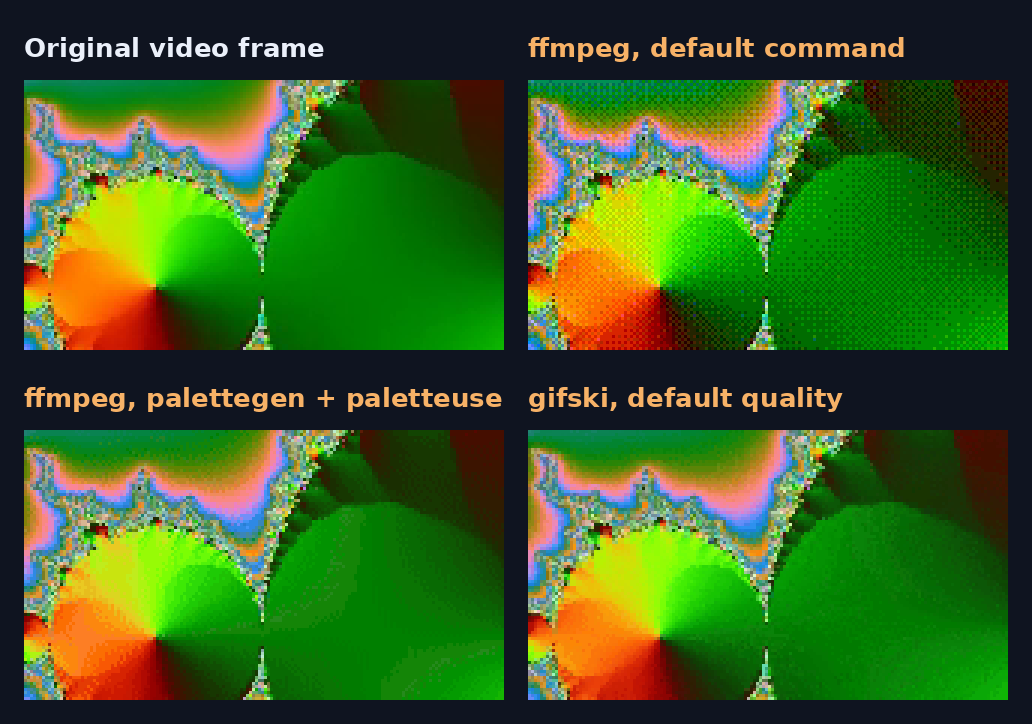
What did the test show?
A custom palette fixes most of the damage, and gifski makes smaller files at the cost of a little grain. Here is the setup, then each result.
I made three 4-second clips at 640 pixels wide and 15 frames per second, which is 60 frames each. One is a smooth gradient (like a sunset sky). One is busy, with thousands of colours (like nature footage). One has flat colours and text (like a screen recording).
Each clip went through four converters: plain ffmpeg, ffmpeg with a custom palette, gifski at its default quality of 90, and gifski at quality 70. To score quality I used SSIM (a score from 0 to 1 that measures how close two images look in structure; 1 means identical), comparing every GIF frame against the original video frame.
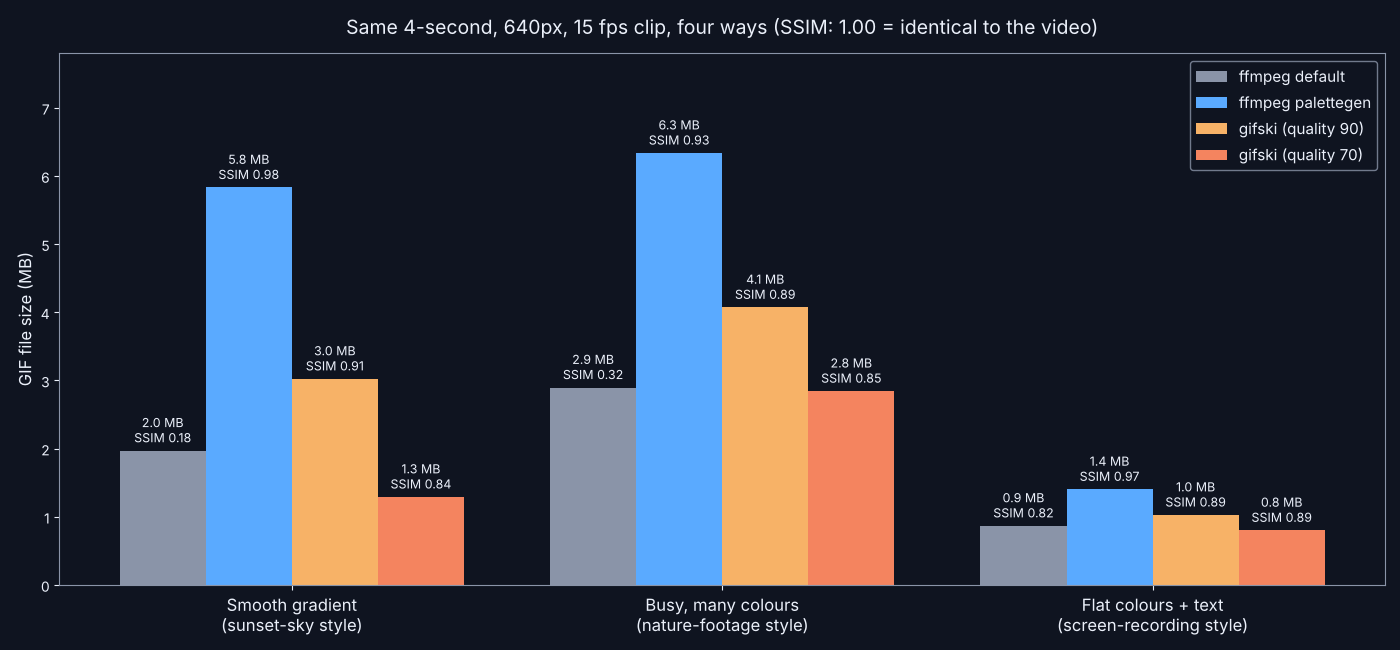
The plain ffmpeg command scored 0.18 on the gradient and 0.32 on the busy clip. That is a badly damaged picture.
The custom-palette ffmpeg command jumped to 0.98 and 0.93. But it also made the biggest files: 5.8 MB and 6.3 MB.
gifski at default quality made files 27% to 48% smaller than the custom-palette ffmpeg command, scoring 0.89 to 0.91. At quality 100 on the busy clip, gifski matched ffmpeg’s 0.93 score and was still 14% smaller.
What does that mean for you? Your eyes, not the score, should break the tie. SSIM punishes fine grain, and gifski adds a light grain that is hard to see at normal size. On the busy clip, ffmpeg’s palette showed hard bands in the greens, while gifski kept the shading smooth.
The catch: these were made-up test clips, not phone footage, and SSIM is one measure, not the final word. Run the same commands on your own clip before you settle.
How do I make a high quality GIF with ffmpeg?
Give ffmpeg two passes: one to study your clip, one to draw it with the right crayons. This is the best free option when you already have ffmpeg.
The trick uses two filters (small processing steps ffmpeg runs on each frame). palettegen looks at the whole clip and picks the best 256 colours for it. paletteuse then redraws every frame with that custom palette, and dithers by default.
ffmpeg -i video.mp4 -vf "fps=12,scale=480:-1:flags=lanczos,split[a][b];[a]palettegen[p];[b][p]paletteuse" out.gifRead it left to right. fps=12 keeps 12 frames per second. scale=480:-1 makes it 480 pixels wide and keeps the shape. lanczos is a sharp resizing method. split copies the video so one copy can build the palette while the other uses it.
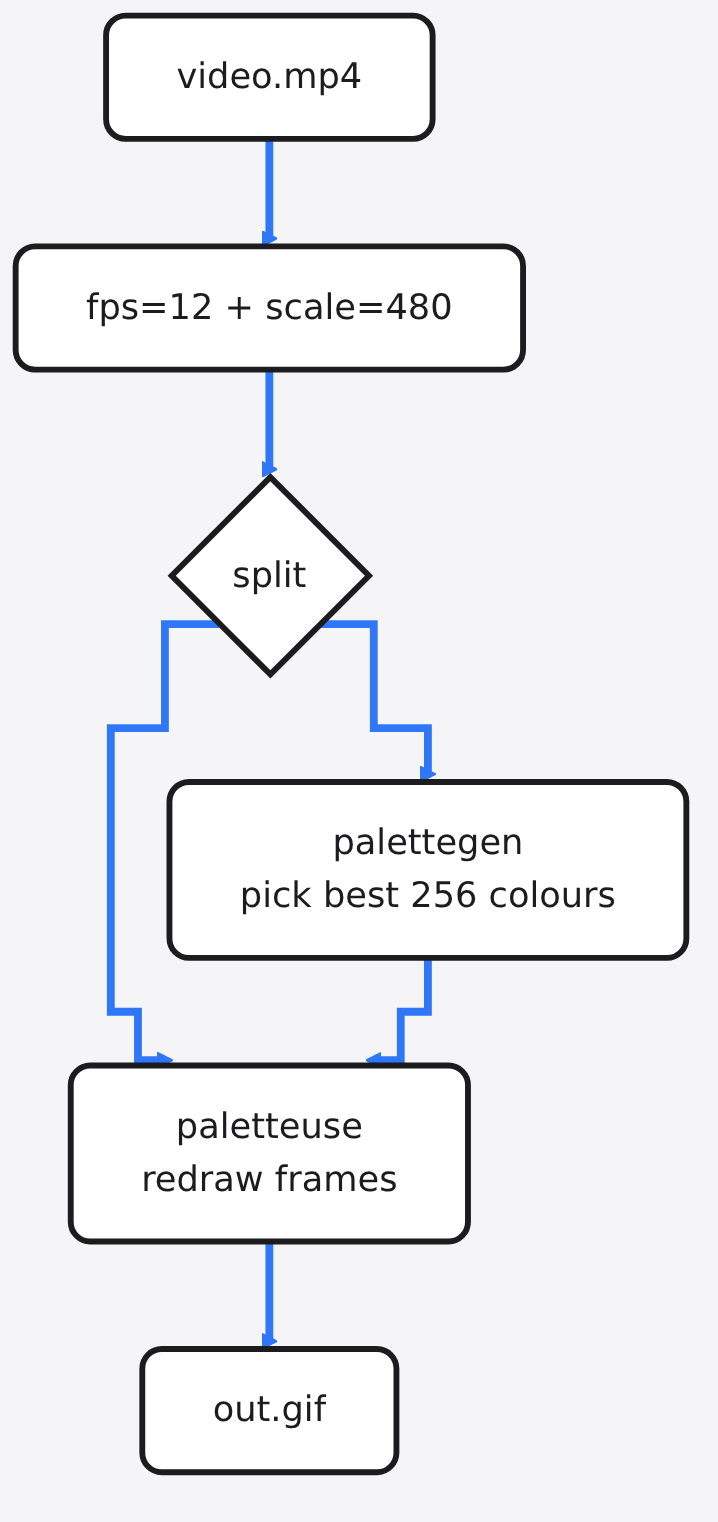
Want to trim first? Add -ss 1 -t 2 before -i to start at second 1 and keep 2 seconds. Shorter is the easiest way to save size.
Two switches worth knowing. paletteuse=dither=none turns dithering off, which shrinks files but brings back banding. palettegen=stats_mode=single with paletteuse=new=1 builds a fresh palette for every frame. In my test, that per-frame palette gave almost the same score as one palette for the whole clip, so it is rarely worth it.
How do I use gifski?
gifski is a free encoder (a program that turns frames into a file) built only for making good GIFs. It is the better pick for real-world footage.
It uses the palette engine from pngquant, a well-known image shrinker. It also uses temporal dithering (spreading the dots across frames, not only within one frame). That lets it go past the 256 limit in a smart way: it can reach thousands of colours per frame by working around the format’s limits.
If you do not use a terminal, gifski has an app for Mac (on the App Store) and a free app for Windows. Drag a video in, move the quality slider, and save.
In a terminal, install it with brew install gifski on a Mac or cargo install gifski if you have Rust. Then pipe the video in through ffmpeg:
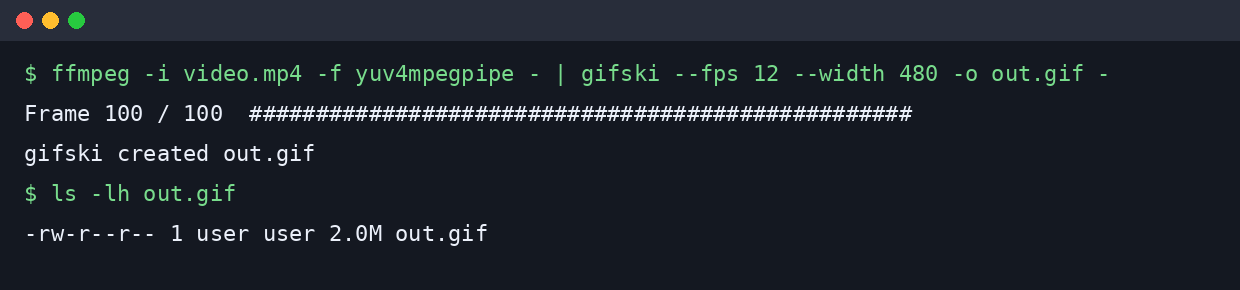
ffmpeg -i video.mp4 -f yuv4mpegpipe - | gifski --fps 12 --width 480 -o out.gif -Here, ffmpeg decodes the video into raw frames and passes them straight to gifski through a pipe (the | that hands one program’s output to the next). --quality runs from 1 to 100 and defaults to 90. Lower it to 70 when size matters more than polish.
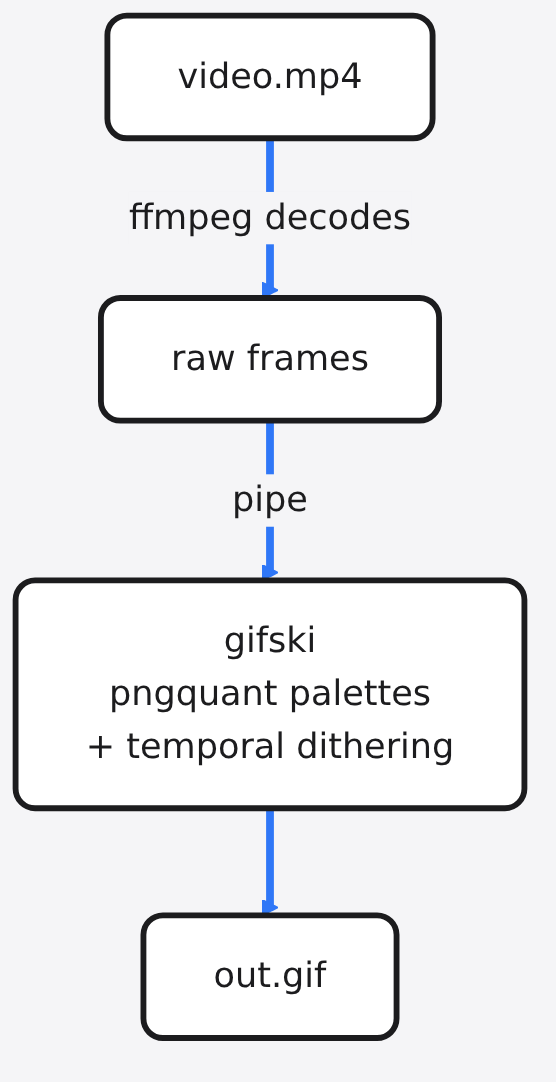
How do I make a GIF smaller without ruining it?
Cut pixels and frames first, and play with quality settings last. Size grows with every pixel in every frame, so that is where the big savings are.
Do the maths. A 640 by 360 frame has 230,400 pixels; 60 frames is about 13.8 million pixels to store. At 480 pixels wide and 10 frames per second, the same clip is about 5.2 million pixels, roughly 62% fewer.
The test matched the maths. On the busy clip, dropping to 480 pixels and 10 frames per second shrank the custom-palette GIF from 6.3 MB to 2.6 MB, 59% smaller, with no change of tool. gifski at the same settings landed at 2.45 MB.
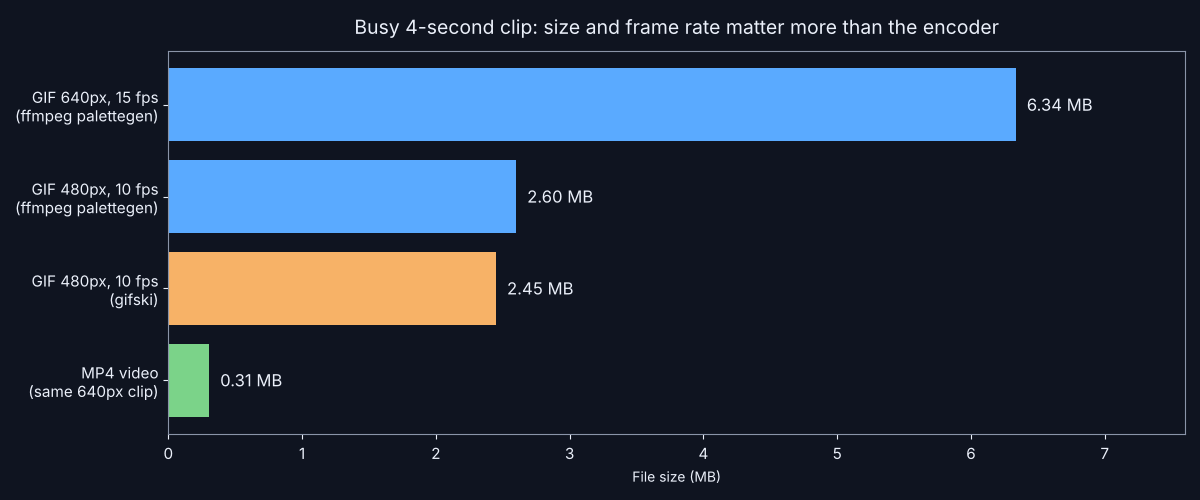
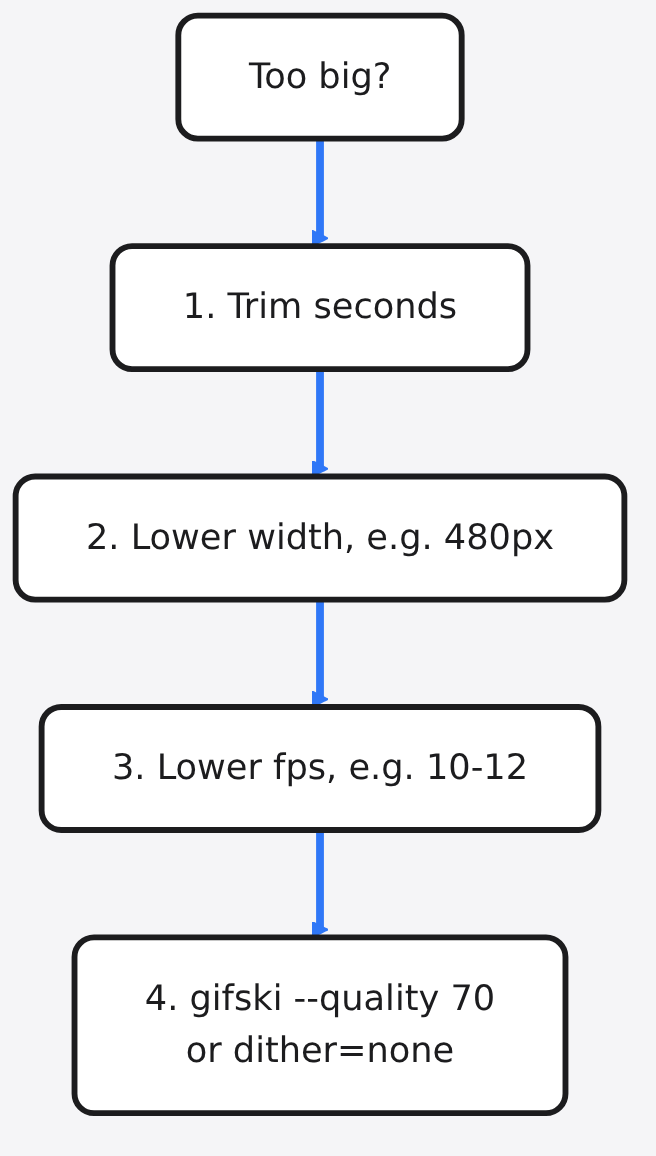
So the order is simple: trim the length, lower the width, lower the frame rate, then pick your encoder. Most screen demos read fine at 10 to 12 frames per second.
Should I even use a GIF?
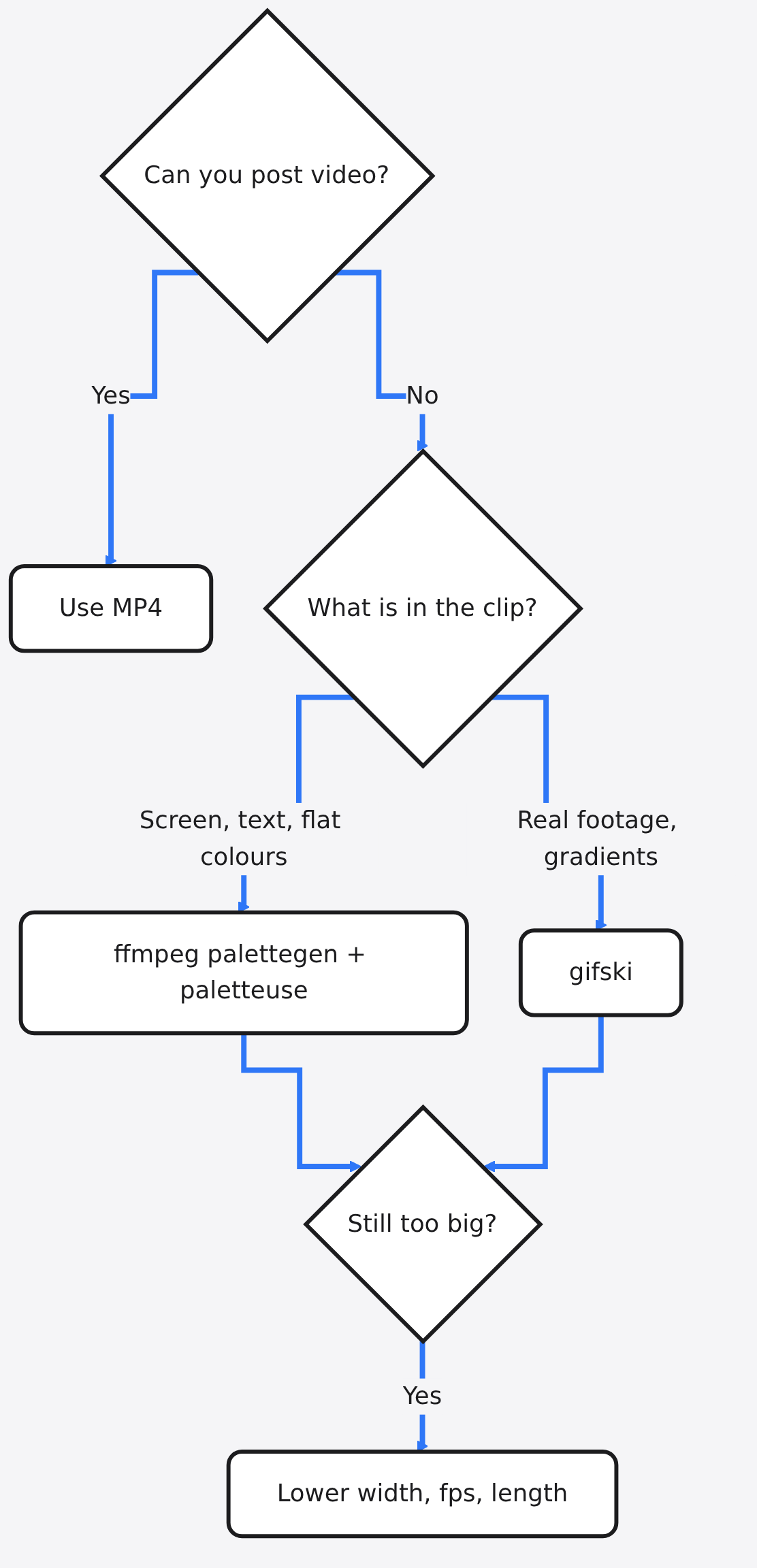
If the place you post accepts video, a short MP4 is far smaller and looks better. A GIF only wins where video is not allowed.
Video formats like MP4 use inter frames (frames stored as changes from their neighbours, not as full pictures). A GIF has no way to describe motion. Each frame, or each changed patch of it, is stored as plain pixels. That is why the gap is so large.
On the busy clip, a plain MP4 at the same 640-pixel size was 0.31 MB. The custom-palette GIF was 6.3 MB, about 20 times bigger, and it still had fewer colours.
There is a fair case for GIF. It plays everywhere an image plays, loops on its own, and needs no player. If that is the job, keep the GIF and use the tips above. If not, send the video.
Which method should I pick?
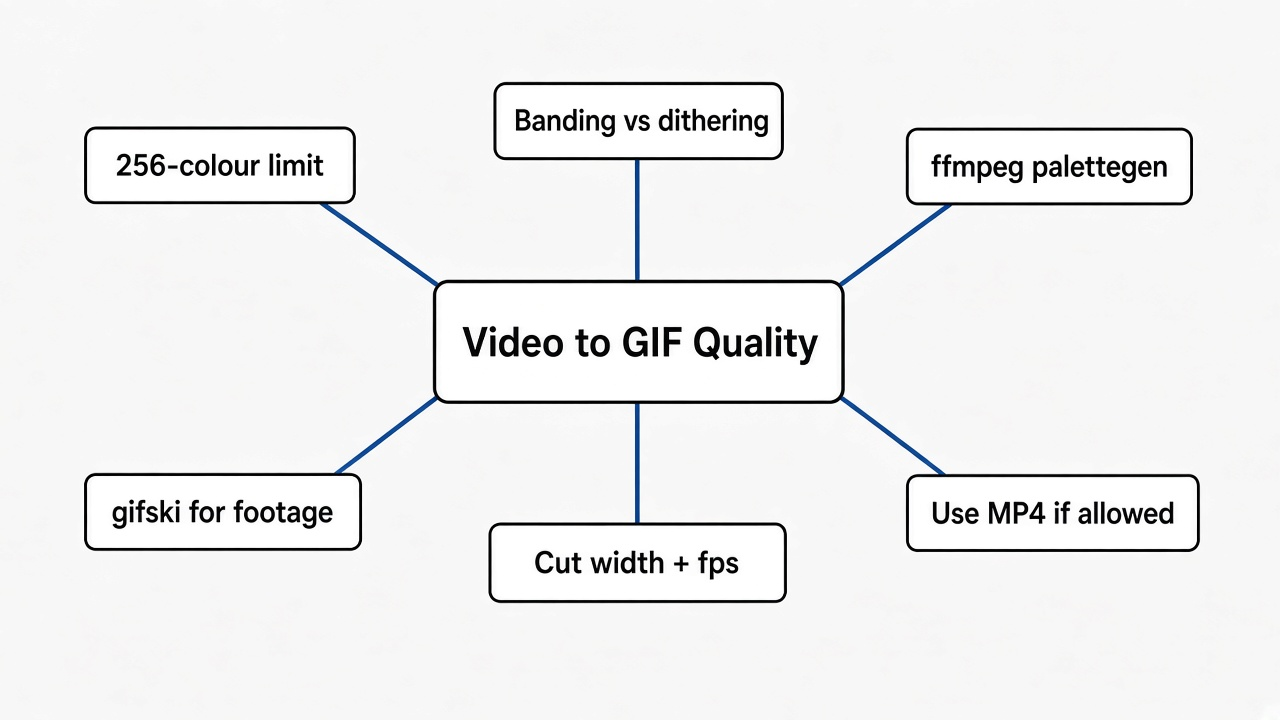
Match the method to what is in your clip. Here is the short version of every test above.
| Your clip | Best pick | Why |
|---|---|---|
| Screen recording, UI, text, flat colours | ffmpeg palettegen + paletteuse | Cleanest edges, scored 0.97 on the text clip |
| Real footage, faces, nature, gradients in motion | gifski, quality 90 | Smoother shading, 36-48% smaller files |
| Must be tiny | gifski, quality 70, 480px, 10 fps | Size drops fast, quality stays usable |
| Posting where video works | MP4 | About 20x smaller in my test |
| Quick and you do not care | Plain ffmpeg | Fast, but often blotchy |
Need to trim the clip first? Here is a free video editor like CapCut with no watermark. For editing a single frame, try a free Photoshop alternative that opens PSD files.
Converting other files too? Keep them off upload sites with how to convert a file without uploading it and the Filee vs CloudConvert test.
You still only get 256 crayons. Now you know how to pick them.
Common questions about Converting Video to GIF
Can a GIF ever have the same quality as the video?
Not exactly, because each GIF palette holds at most 256 colours. A custom palette plus dithering gets close enough that most people cannot tell at normal size.
Why is my GIF so big?
Size grows with width, height, frame count and dithering dots. Cut the length, width and frame rate first; that saves far more than any quality setting.
Is gifski better than ffmpeg for GIFs?
For real footage, gifski usually makes smaller files with smoother shading. For screen recordings and flat colours, ffmpeg with palettegen and paletteuse gave cleaner results.
Is gifski free?
Yes. The command-line tool and the Windows app are free, and the Mac app is on the App Store. The code is open source under the AGPL licence.