
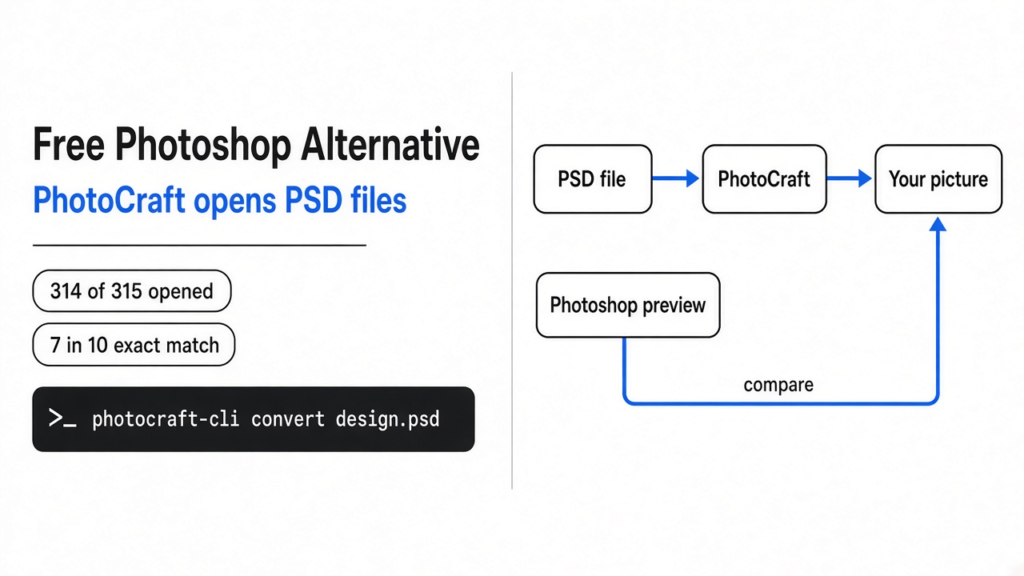
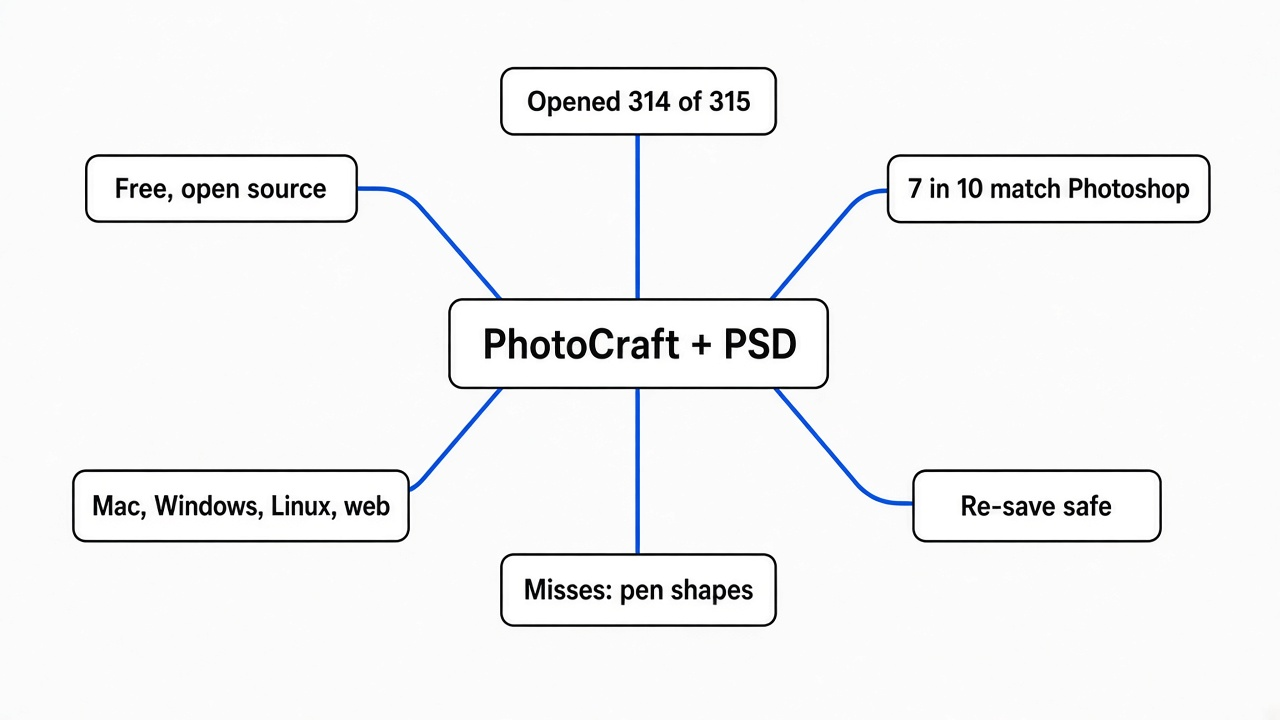
Short answer: yes. PhotoCraft is a free, open source image editor that opens layered PSD files on Mac, Windows, Linux and in the browser. I ran it on 315 real Photoshop test files. It opened 314 of them, but only 7 in 10 looked exactly like Photoshop’s own preview. Good enough to open and tweak files, not yet to bet a client job on.
Here is how it usually starts. Someone sends you a PSD file. You don’t pay for Photoshop. You double-click it, and nothing on your computer knows what to do with it.
That is the real problem behind “free Photoshop alternative”. You don’t need a whole new art studio. You need a free app that can open the file, keep its layers, let you change a few things, and save it back without breaking it.
A new free app called PhotoCraft claims it can do exactly that. So I tested the claim on 315 files. One idea runs through the whole post: opening a file is not the same as drawing it right.
What is a PSD file, and why is it hard to open?
A PSD is a stack of separate layers plus instructions for mixing them, and the mixing is the hard part.
So start with the base fact. A normal photo, like a JPEG, is one flat grid of coloured dots called pixels. Any app can show it.
A PSD (Photoshop’s own file format) is different. It is more like a pile of clear plastic sheets. Each sheet is a layer (one separate part of the picture, such as text, a shadow, or a background). On top of the sheets sit instructions: “make this sheet 50% see-through”, “only show this sheet inside that shape”, “add a glow under this text”.
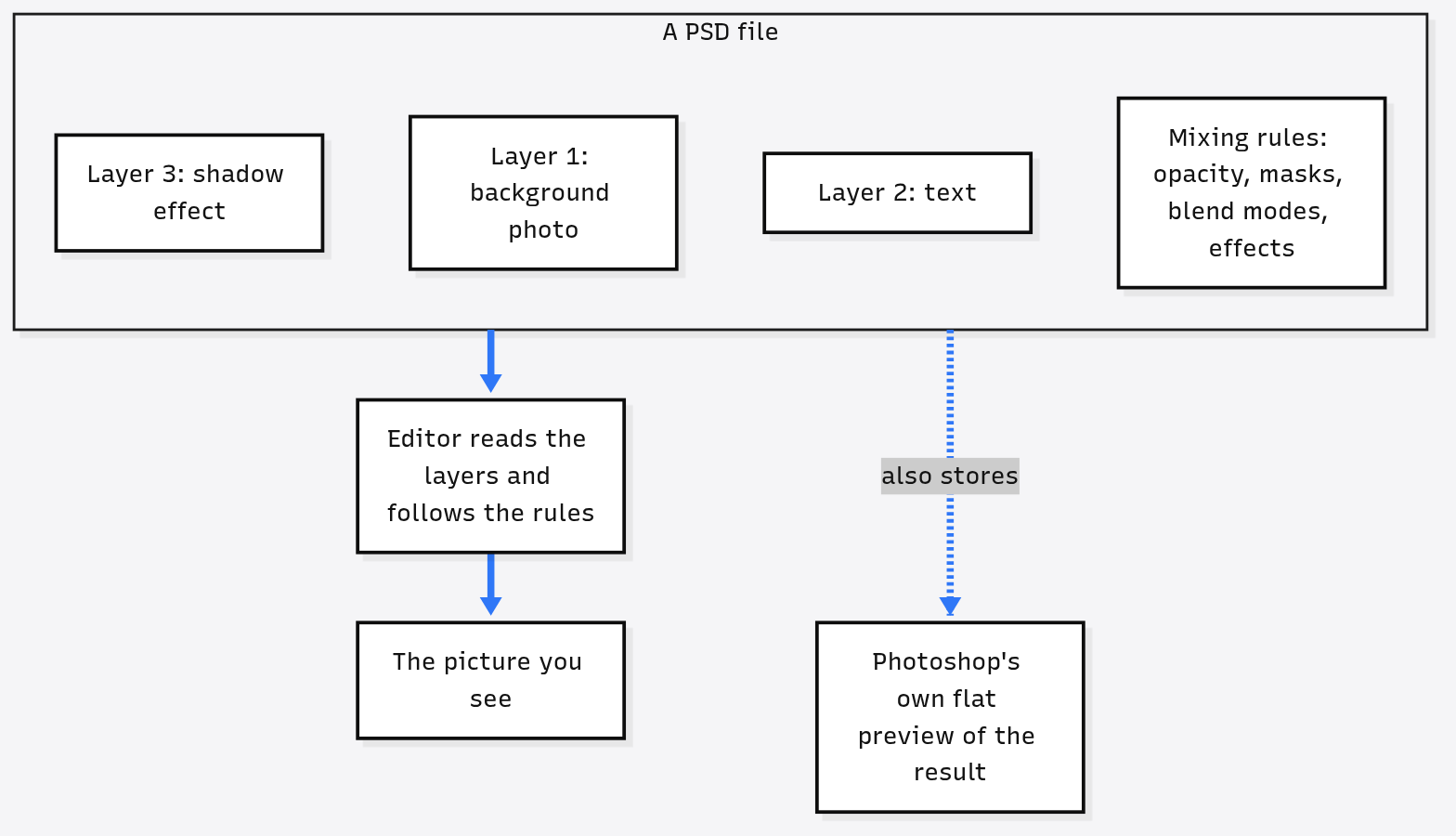
So an app that wants to open a PSD has two jobs. First, read the layers out of the file. Second, mix them exactly the way Photoshop would. The first job is like unpacking a box. The second is like copying a chef’s recipe from a photo of the dish.
That second job is where free apps usually fall over. And it is exactly what I measured.
What is PhotoCraft?
A free, open source editor built to look and work like Photoshop, written from scratch in a language called Rust.
PhotoCraft is an image editor with layers, masks, adjustment layers, layer styles, text, vector shapes and brushes. It runs on macOS, Windows, Linux and FreeBSD, and in a web browser through WebAssembly (a way to run full desktop-style programs inside a browser tab). It is free under the MIT or Apache-2.0 licenses, two permissive licenses that let anyone use, change and share the code.
It is written in Rust (a programming language known for speed and for avoiding many crash bugs). It is also “clean-room”, which needs a quick explanation.
Is it legal to copy Photoshop like this?
The project says it copied how Photoshop behaves, not Adobe’s code. That difference is the whole legal question.
Here is the prerequisite. Software code is protected by copyright, like a book. But the idea of “a layer” or “a drop shadow” is not owned by anyone, and Adobe publishes a public description of the PSD format.
A clean-room build means the team writes everything from public documents and from watching how the original behaves, without looking at its secret code. The project states it is “implemented from public specs and observed behaviour only. No proprietary code, shaders or assets.”
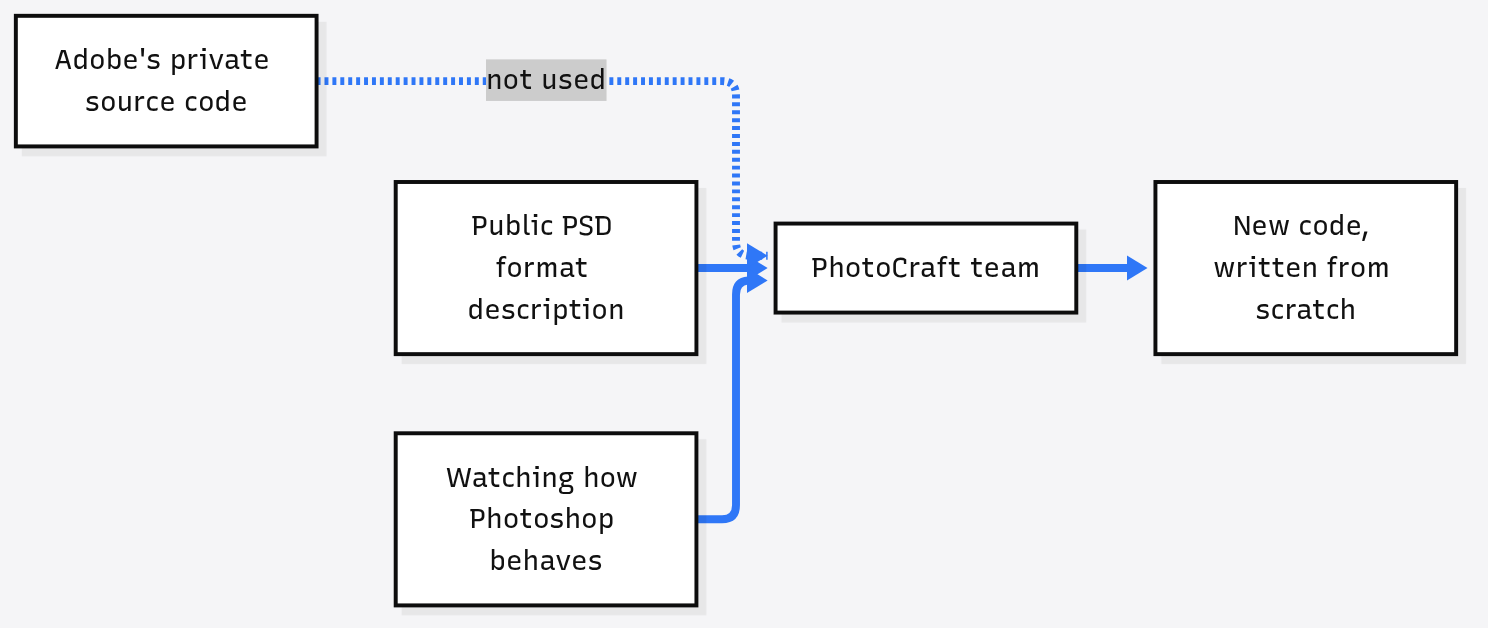
Some people suspect the apps were decompiled (turned from finished program back into readable code) instead. The project says no. It is also built to be worked on by AI coding agents: its main guide file is written for them, and its roadmap tells agents what to pick up next. That explains the speed, and it is why testing matters.
I am not a lawyer, so treat the legal part as the project’s own claim. The useful question for you is simpler: does it actually open your files?
Can PhotoCraft really open PSD files?
Yes, almost all of them. Drawing them exactly like Photoshop is a different story: 7 in 10.
Here is the test, in plain steps. I downloaded the free Linux build, which comes with photocraft-cli (a version you control by typing commands, with no window).
Then I used the public test set from psd-tools, a well-known open source PSD library. It has 315 PSD and PSB files (PSB is the version of PSD for very large images), many made to be tricky on purpose. For every file, my script did four things:
- Open it in PhotoCraft and save the result as a PNG picture.
- Compare that picture with the flat preview Photoshop saved inside the same file.
- Save the file back as a PSD, reopen it, and check it still looked the same.
- Open that re-saved PSD with a second, independent PSD reader.
Then, to compare pictures, I measured the average colour gap per pixel on a 0 to 255 scale. A gap under 1 means your eye cannot see any difference. A gap over 10 is usually visible.
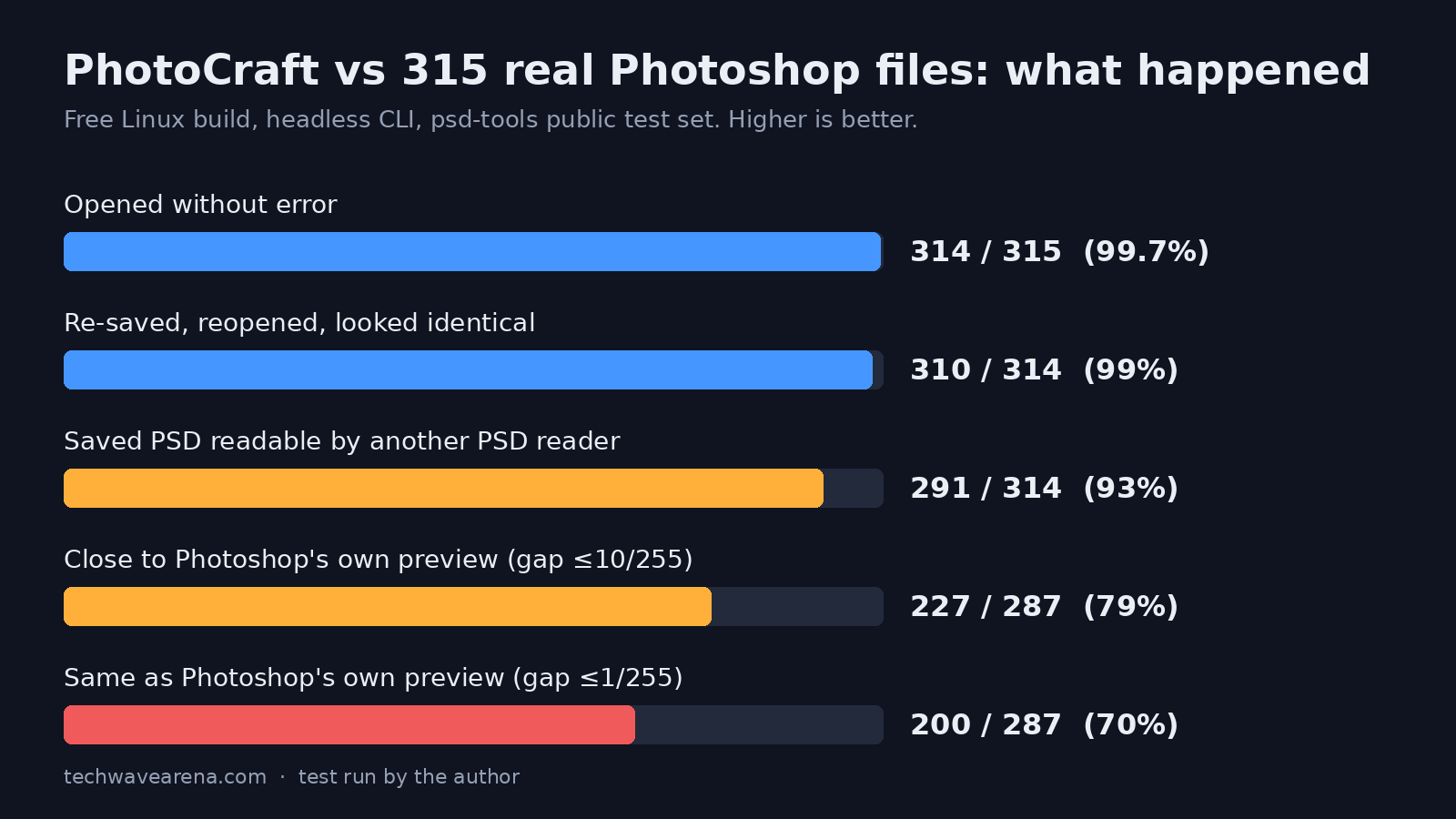
Here is what each line means for you. It opened 314 of 315 files. The one failure was a tiny test file with an odd blend setting on a folder of layers, so opening is basically solved.
Saving and reopening worked on 310 of 314. That means if PhotoCraft can show your file, it will not quietly damage it when you save. Its own test numbers say the same thing.
Another PSD reader could open 291 of the 314 files PhotoCraft saved. So about 1 in 14 saved files may confuse other tools. Keep the original.
Now the main number. Only 287 files had a usable Photoshop preview to compare against. Of those, 200 matched with no visible difference, 227 were close, and 60 looked clearly different.
The whole run, four conversions for each of 315 files, took about a minute on a 2-core cloud machine. Speed is not the problem.
Where does PhotoCraft get it wrong?
Fancy mixing rules: some shapes, knockout effects, certain adjustment layers and unusual colour modes.
Those numbers are easier to trust with pictures. Here are four files from my run, Photoshop’s preview on the left and PhotoCraft on the right.
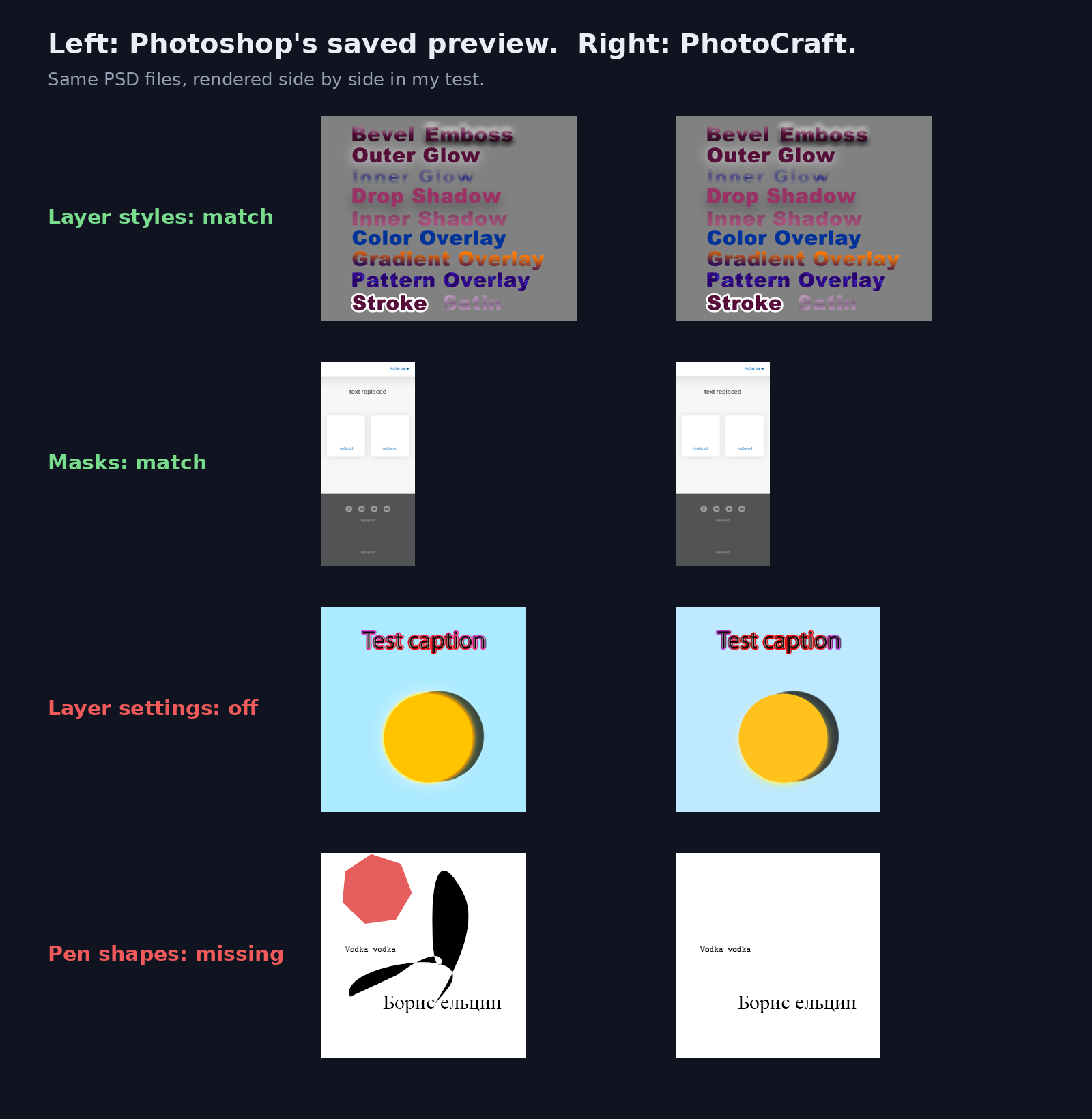
So, the good news first. Layer styles (shadows, glows, outlines) matched well. Masks (a layer that hides parts of another layer, like a stencil) matched too. Those cover a lot of everyday design files.
But look at the last row. Photoshop draws a red shape and a black curve made with the pen tool. PhotoCraft drew the text and skipped both shapes. That is the “opening is not drawing” problem in one picture.
And the misses clustered in a few places. Adjustment layers (layers that change the colours of everything under them, like levels or posterize) were the biggest group. Then knockout transparency (a setting that punches holes through layers below), unusual colour modes, and vector masks (stencils made of shapes instead of pixels).
That matches what the team itself says. Its own roadmap says real Photoshop parity is “still well below 50%”, and puts the share of professionals who could switch for daily work at “roughly 25–35%”. My 7 in 10 rendering result lands close to its own rendering score.
How do you install PhotoCraft?
Download the build for your system from the releases page. On Linux you can also try it without installing anything.
- Open the PhotoCraft releases page.
- Pick your file: a .dmg for Mac, a portable .zip for Windows, or an AppImage, .deb, .rpm, tarball or Flatpak for Linux.
- Open your PSD from the File menu, or pass it straight in when you start the app.
If you want to check a whole folder of PSDs the way I did, the command-line tool does it without any window:
# turn a PSD into a PNG to see how PhotoCraft draws it
photocraft-cli convert design.psd check.png

# print the layer list as JSON
photocraft-cli info design.psdRun the first command on a few of your own files and compare the PNG with how the file looks for you. Two minutes of that tells you more than any review, including this one.
Can AI tools control PhotoCraft?
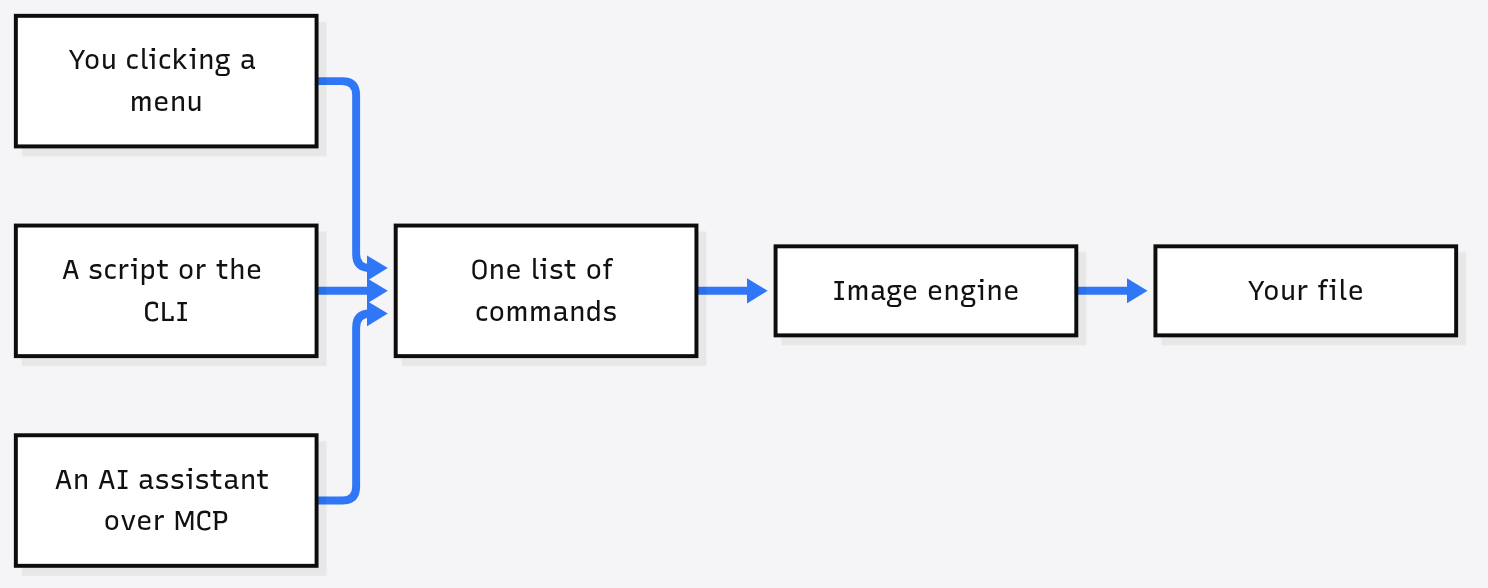
Yes. Every button is also a command, so scripts and AI assistants can drive it through MCP.
Still, most people can skip this part. It mainly explains why the app grew so fast.
Here is how it works. Every menu item, tool and dialog in PhotoCraft runs a named command. My copy listed several hundred of them.
On top of that, the app ships an MCP server (a standard plug that lets AI assistants like Claude use outside tools). So you could ask an AI assistant to “resize every PSD in this folder and export PNGs”, and it can do it through the same commands you click.
Should you use PhotoCraft instead of Photoshop?
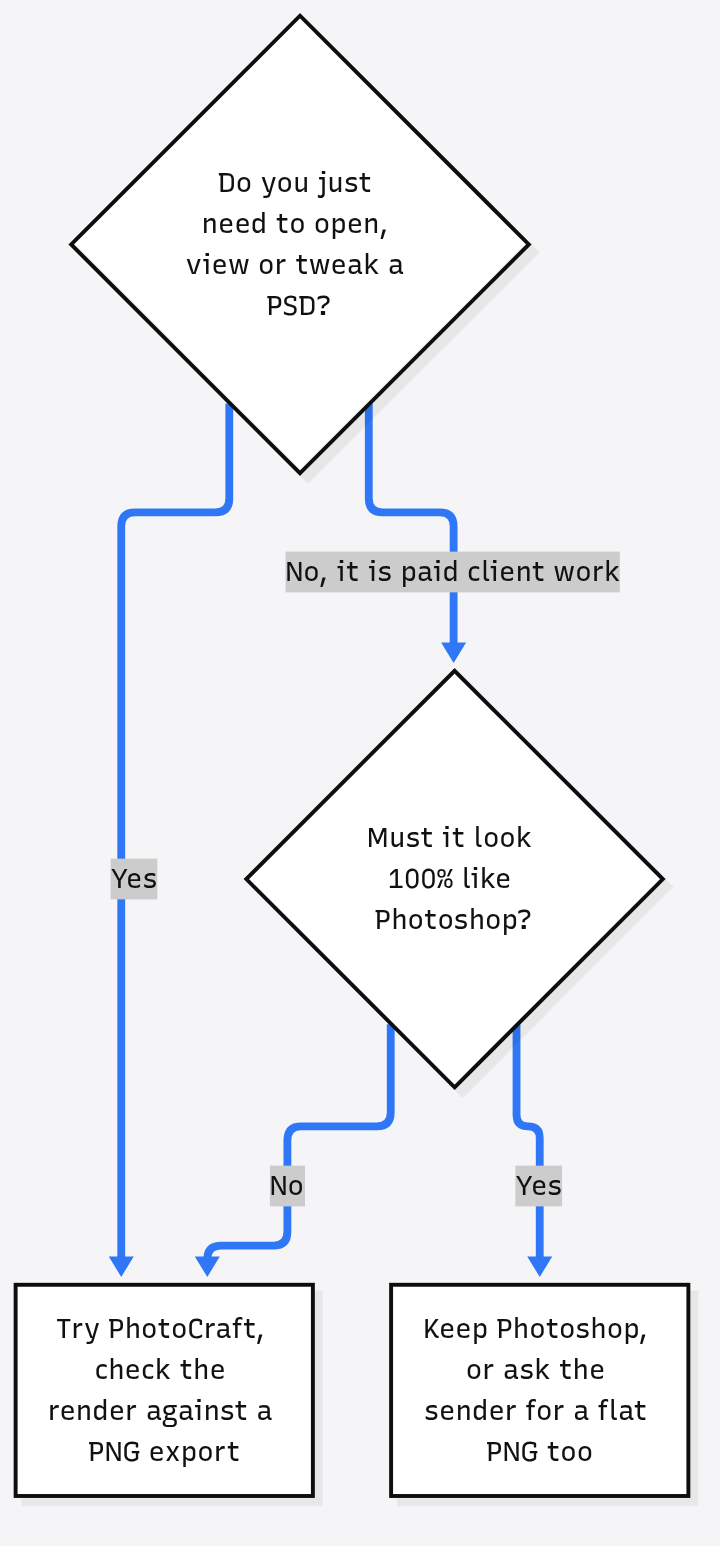
Use it to open, check and lightly edit PSD files for free. Keep Photoshop, or ask for a flat export, when the file must look exactly right.
Still, there are fair reasons to wait. The app is in early alpha by its own label, AI generative features are missing, and real users hit broken basics in the first week. If your income depends on pixel-perfect files from clients, that risk is not worth saving a subscription.
For everyone else, it already solves the original problem. The free choices used to be GIMP (free and open source, but its own way of working) or Photopea (free in the browser, but closed source and paid for by ads). PhotoCraft sits between them: open source like GIMP, and built to work like Photoshop.
I test other free swaps the same way. Try the free IDM alternative for Linux and Mac or the lighter DBeaver alternative. For local AI, see Strata vs Ollama on 12 GB.
It will open your file. Check that it drew it right.
Common questions about PhotoCraft and PSD files
Can I open PSD files for free without Photoshop?
Yes. PhotoCraft opens layered PSD and PSB files for free on Mac, Windows and Linux. In my test it opened 314 of 315 Photoshop test files.
Is PhotoCraft as good as Photoshop?
Not yet. It matched Photoshop’s own preview on about 7 in 10 test files, and its team rates daily professional readiness at roughly 25 to 35 percent.
Is PhotoCraft really free and open source?
Yes. It is dual-licensed under MIT or Apache-2.0, with free builds for macOS, Windows, Linux, FreeBSD and the browser.
Will PhotoCraft damage my PSD when I save it?
Unlikely. Re-saved files reopened and looked the same in 310 of 314 cases, but another PSD reader rejected about 1 in 14, so keep your original.

1 comment