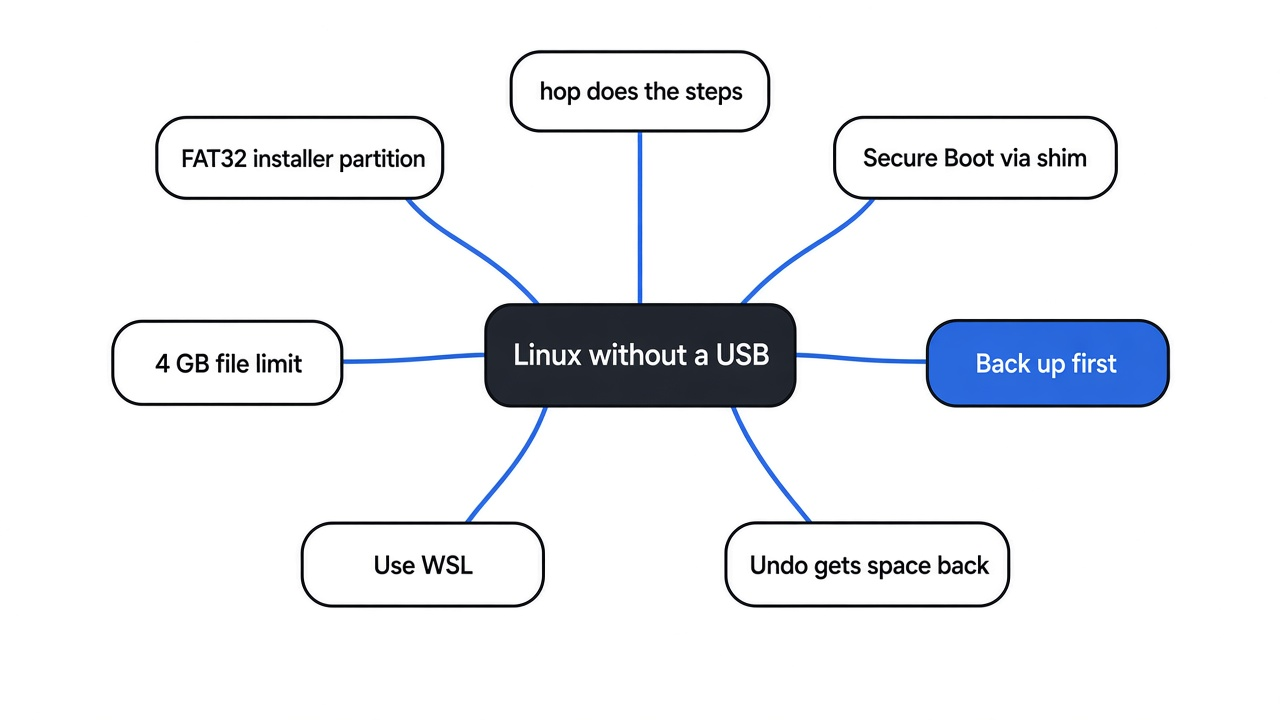
You decide to try Linux. Every guide starts the same way: “First, grab an 8 GB USB stick.” You open the drawer. Charging cables, an old SIM tool, no USB stick. That is the moment most people close the tab.
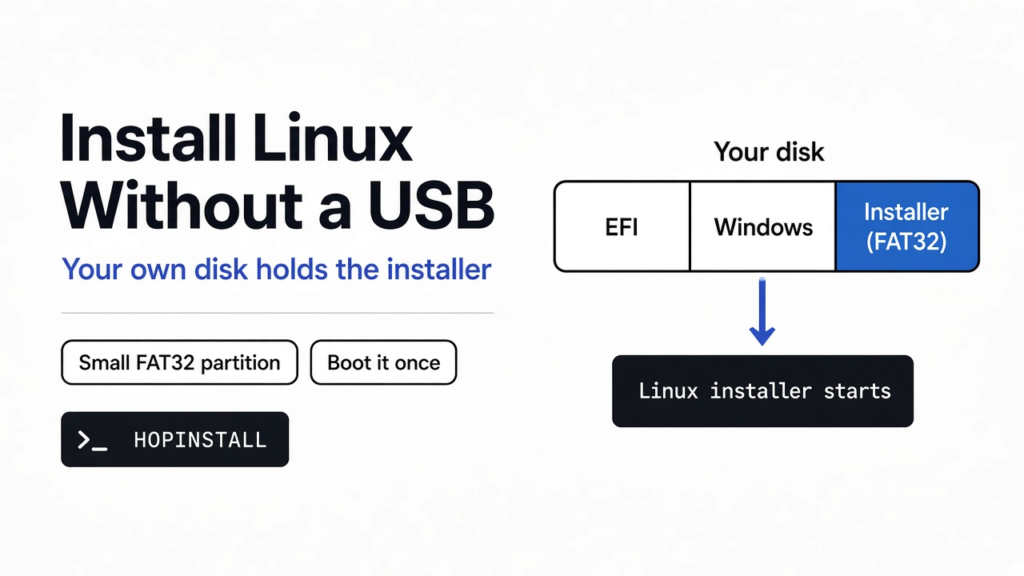
Here is the short answer, before the details. You can install Linux without a USB drive. Copy the installer onto a small spare section of your own disk, then tell the PC to start from it once.
A free, open source Windows app called hop does every step for you. The rest of this post explains why that works, from the ground up, so you understand what is happening to your disk before you click anything.
Checked against hop’s README and architecture notes in November 2026. The boot test further down ran in QEMU with OVMF firmware, Ubuntu’s signed shim 15.8, GRUB 2.12 and Linux kernel 6.8.
That empty drawer is our thread. By the end, you will see that the stick was never the special part.

What does a USB stick actually do during a Linux install?
To see why the stick is optional, start with the simplest fact: a computer can only start a program it can find on a storage device it understands.
When you press the power button, the very first software that runs is not Windows. It is the firmware (a small program stored on a chip on the motherboard, the thing people still call “the BIOS”). Modern PCs use a version called UEFI (Unified Extensible Firmware Interface, the modern replacement for the old BIOS).
Its whole job is to find a starter program on some disk and hand control to it.
UEFI is picky about where it looks. It reads disks formatted as FAT32 (a very old, very simple way of organizing files that almost every device can read). Inside a FAT32 area, it looks for a file in a known folder, such as \EFI\BOOT\BOOTX64.EFI.
So what is a Linux “USB installer” really? It is just a FAT32 drive with the files from the Linux download copied onto it. The firmware sees FAT32, finds the starter file, and runs it. Nothing about the stick being removable matters.
If the stick is just FAT32, where else can those files go?
Now loop one step up. If the firmware only needs “a FAT32 area with the right files,” then any FAT32 area will do, including one carved out of your own internal disk.
That needs one more idea: the partition (a fenced-off section of a disk that behaves like its own separate drive). Your one physical disk is already split into several partitions. Windows’ C: drive is one.
There is also a tiny hidden one called the EFI system partition (the small FAT32 area where every installed system keeps its starter files). Modern disks keep the list of partitions in a GPT (GUID Partition Table, a map at the start of the disk saying where each section begins and ends).
Think of your disk as a bookshelf. The GPT is the label strip. It says which shelves belong to Windows and which hold recovery files. Making a new partition is moving the books on one shelf closer together and putting up a new divider in the gap.
So the “no USB” method is simply this:
- Shrink
C:a little to free some space. - Make a small FAT32 partition in that space and copy the Linux files onto it. This is your built-in “USB stick.”
- Leave the rest of the freed space empty for Linux to move into.
- Tell the firmware to start from the new partition on the next restart.
Before   [ EFI ][ C: Windows                              ][ Recovery ]
After [ EFI ][ C: Windows ][ Installer ][ Linux ][ Recovery ]What does hop do, step by step?
You could do those four steps by hand with Windows Disk Management and a few command line tools. People did, for years, and it is fiddly: one wrong click in a partition tool can hit the wrong drive. hop is a single Windows app that does all four, with checks in between.
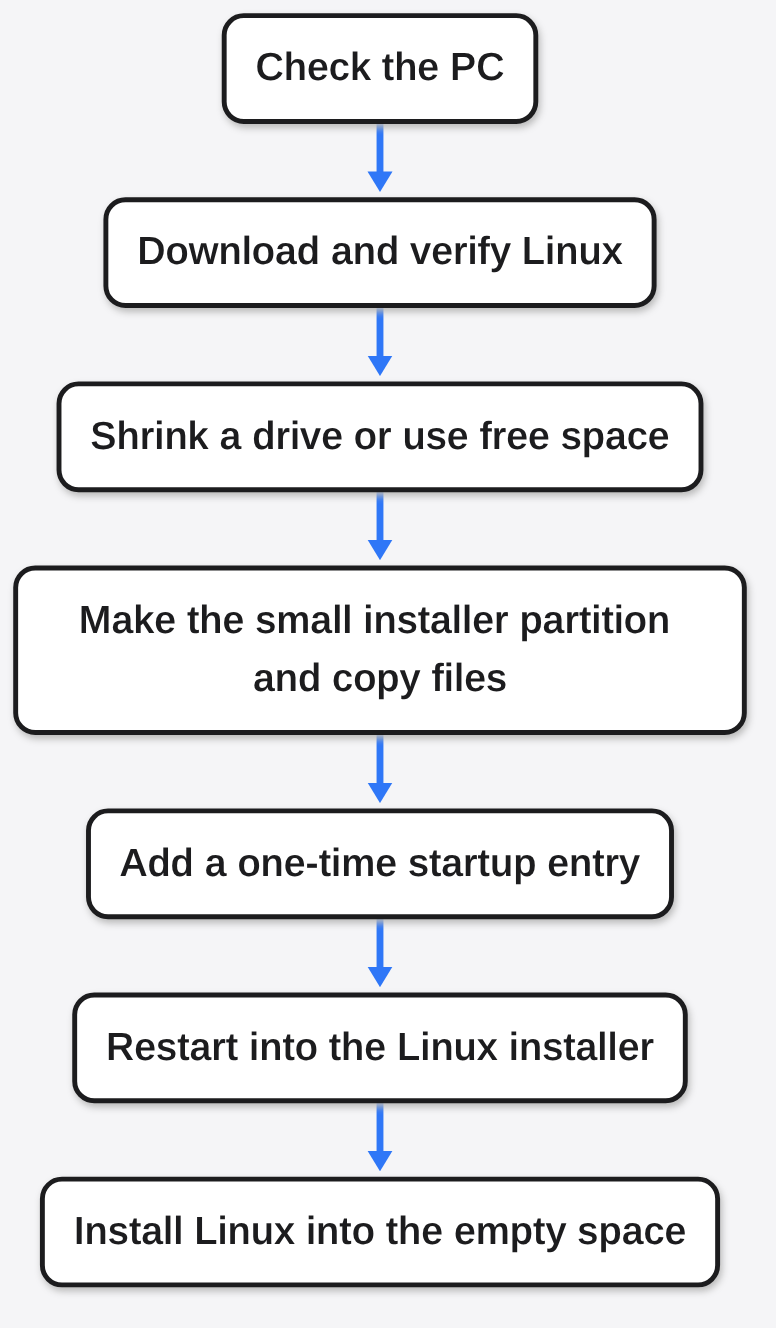
Here is the flow it runs, in order:
- Downloads the Linux system from that project’s official server and checks the file’s checksum (a fingerprint number that proves the download is complete and untouched), where the project publishes one. You can also hand it a Linux file you already downloaded.
- Checks your PC first. Nothing on the disk changes until those checks pass.
- Makes room after the drive you choose, using free space first and shrinking the drive only if it has to.
- Copies the files onto a small FAT32 partition and checks each one.
- Adds a one-time startup entry, so only the next restart goes to the Linux installer. Every restart after that goes back to Windows as normal.
- Restarts. The normal Linux installer opens, and you install into the space hop made.
It also tells you exactly which options to click inside the Linux installer, which is where most beginners get nervous. And if something goes wrong, there is an Undo that gives the space back to the drive it came from.
Will Secure Boot block it?
Before answering, one prerequisite. Secure Boot (a firmware setting that only starts programs carrying a trusted digital signature) is switched on in most Windows PCs. A digital signature is like a tamper-proof wax seal: the firmware checks the seal against a list of trusted keys, mostly from Microsoft, and refuses anything unsealed.
Most big Linux systems ship a tiny starter program called shim (a small loader signed by Microsoft whose only job is to safely start the real Linux boot menu). Shim then starts GRUB (the menu program that loads Linux itself), and GRUB starts the Linux kernel (the core of the operating system).
hop copies that same signed shim into its own folder on the EFI system partition, so the seal stays intact and Secure Boot can stay on for most systems. The exceptions are stated plainly in the project: CachyOS, Arch Linux and Pop!_OS need Secure Boot turned off.

I rebuilt the trick in a virtual PC to check it
Reading how something works is not the same as watching it work. So I rebuilt the core of the trick inside a virtual machine (a pretend computer running as a program, so nothing real can break). Its firmware had Secure Boot on, with Microsoft’s keys loaded.
The fake disk had three partitions: a 100 MB EFI system partition, a 120 MB stand-in for Windows, and an 80 MB FAT32 partition labelled HOPINSTALL holding the installer files. There was no USB device attached at all. On the EFI partition I placed Ubuntu’s signed shim and signed GRUB, plus a three-line note telling GRUB to search every partition for the installer’s marker file, /.disk/info.
Here is what the virtual PC printed when it powered on:
BdsDxe: starting Boot0001 "UEFI Misc Device"
GRUB found the installer partition by searching for /.disk/info
 *Start the Linux installer (hop lab)
=== HOP-LAB: Linux kernel is running, started from the internal disk (no USB) ===
Secure Boot: [    0.000000] secureboot: Secure boot enabled
Disks the kernel can see:
 253        1     102400 vda1
 253        2     122880 vda2
253 3 81920 vda3Three things are proven in those lines. The firmware started the signed loader from the internal disk. GRUB found the installer partition by searching, without being told which partition it was. And Linux started with Secure Boot still enabled. I also compared the Windows stand-in partition before and after: its fingerprint matched exactly, so not a single byte changed.
You can repeat this yourself in about ten minutes on any Linux machine with QEMU (a free virtual machine program) and OVMF (free UEFI firmware for virtual machines). It is a nice way to see the chain with your own eyes before touching a real disk.
Why do some Linux systems not work with this?
This is where FAT32’s age shows. FAT32 cannot hold any single file of 4 GB or larger. That is not a hop rule; it is baked into the format.
I checked the exact edge. On a FAT32 disk image, a file of 4,294,967,295 bytes copied fine. A file one byte bigger, 4,294,967,296 bytes (exactly 4 GB), was refused with “too big.”
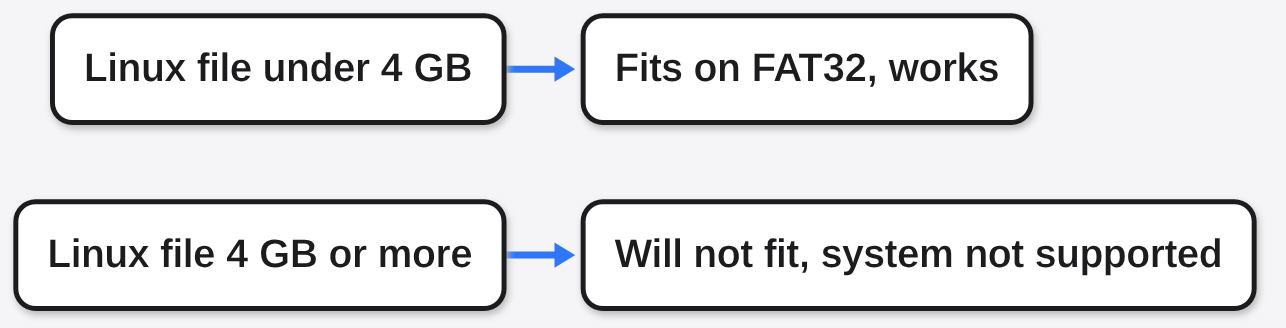
Some Linux downloads pack the whole system into one huge file. Kubuntu and Omarchy are not supported for exactly this reason. A real USB stick formatted as FAT32 has the same problem, which is why those projects use other tricks there.
What is supported: elementary OS, Ubuntu and its flavours (Budgie, Xubuntu, Lubuntu, Cinnamon, Unity, Edubuntu, Studio), Linux Mint, Pop!_OS, Zorin OS, Debian, Fedora Workstation, Ultramarine, CachyOS and Arch Linux. Other Ubuntu-based downloads should work too if you pick the file yourself.
What do I need before I start?
Here is the checklist:
| You need | Why |
|---|---|
| Windows 10 (version 1803 or newer) or Windows 11 | hop is a Windows app and uses tools built into these versions |
| A UEFI PC with a GPT disk | The trick depends on UEFI firmware reading FAT32 partitions. Nearly every PC sold with Windows 10 or 11 qualifies |
| Linux going onto a disk inside the PC | It does not install Linux onto an external USB drive |
| Free disk space for Linux | You choose the amount by dragging a bar. Short on space? Clear junk first with a safe open source CCleaner alternative |
| Administrator access | Changing partitions needs it |
Two practical warnings. First, hop is not code-signed yet (signed with a certificate that tells Windows who made the app), so Windows SmartScreen may warn you. The project’s own instruction is to click More info, then Run anyway.
Second, if your drive uses BitLocker (Windows’ built-in disk encryption), hop pauses it during the change. Save your BitLocker recovery key somewhere off the PC before any disk work. That habit costs one minute and can save a very bad day.
How risky is installing Linux this way?
Let me concede the obvious first: any tool that resizes partitions touches the most important thing on your computer. A power cut in the middle of a resize is bad no matter which tool does it.
Now the other side. hop changes nothing until its checks pass. It records each partition before formatting it. If something fails while making room or copying, it puts everything back. The startup entry is one-time only, so a confused restart just lands you back in Windows. And Undo removes what it made and returns the space.
There is also an honest limit. The project says some paths, like putting Linux on a second internal disk, come from reading the installers’ source code and have not been run on real hardware yet. It is a young app.
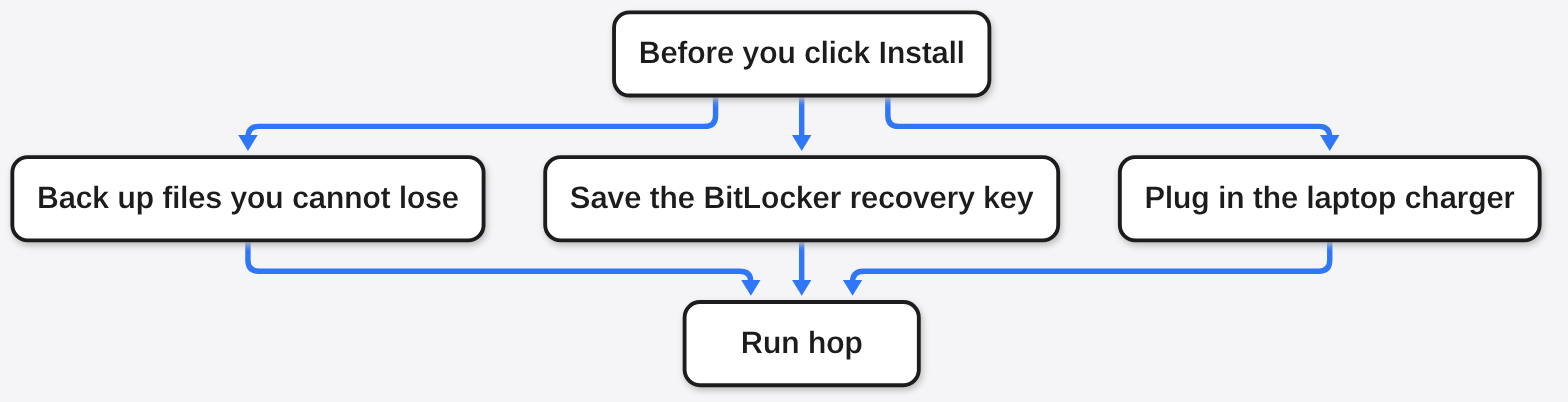
So is it safe enough? My call: on a normal Windows 10 or 11 laptop, onto the same disk as Windows, this is a reasonable way to try Linux. Back up first. That is the same advice you would get for the USB method, since the Linux installer itself is the part that writes Linux to disk either way.
No USB stick for the backup either? Copy the files to another computer over WiFi without installing an app.
Is there a way to try Linux without installing it at all?
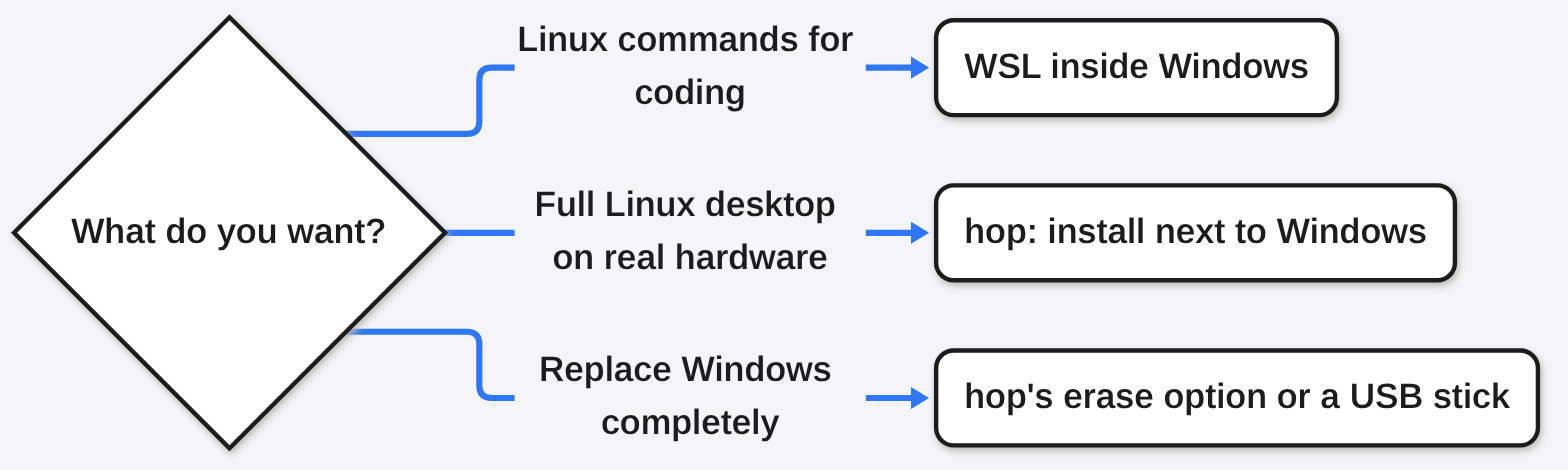
Yes, and for some people it is the better first step. WSL (Windows Subsystem for Linux, a Windows feature that runs a real Linux system inside Windows) gives you a Linux terminal without touching partitions at all. You run one command, wsl --install, in an administrator window, then restart. Microsoft’s WSL install guide has the details.
The catch: WSL is mainly for command line work and development. If you want to see the Linux desktop, test your laptop’s Wi-Fi and battery life on Linux, or eventually leave Windows, you want a real install next to Windows. That is the job hop does. And if you later use Linux for development, know its limits: building an iOS app on Linux shows where one common plan stops.
Can I remove Linux later and get my space back?
Yes. Open hop again and use Undo. It gives the space back to the drive it came from, and it can also remove another Linux system already on that drive. That matters, because a lot of people try Linux once and want a clean way back.
For the opposite move, hop also has an option to replace Windows completely, for Ubuntu, Zorin OS, Debian and Arch. It is kept separate on purpose: it shows a warning, lists every drive that would be erased, and asks you to type ERASE before it continues.
So, back to the empty drawer. The USB stick was only ever a FAT32 box with some files in it. Your disk can hold that box too.
Common questions about installing Linux without a USB
Can I install Linux without a USB or a DVD?
Yes. Copy the Linux installer files onto a small FAT32 partition on your internal disk and start the PC from it once. hop is a free Windows app that does this automatically.
Does installing Linux without a USB delete Windows?
Not by default. hop shrinks a drive to make room and installs Linux next to Windows. Erasing Windows is a separate option that requires typing ERASE.
Do I need to turn off Secure Boot to install Linux this way?
Usually not. Ubuntu, Mint, Fedora, Debian and others start with Secure Boot on. CachyOS, Arch Linux and Pop!_OS need it turned off.
Why does hop not support Kubuntu?
Kubuntu’s download contains a single file larger than 4 GB, and FAT32 cannot store a file that big. The same limit blocks Omarchy.