
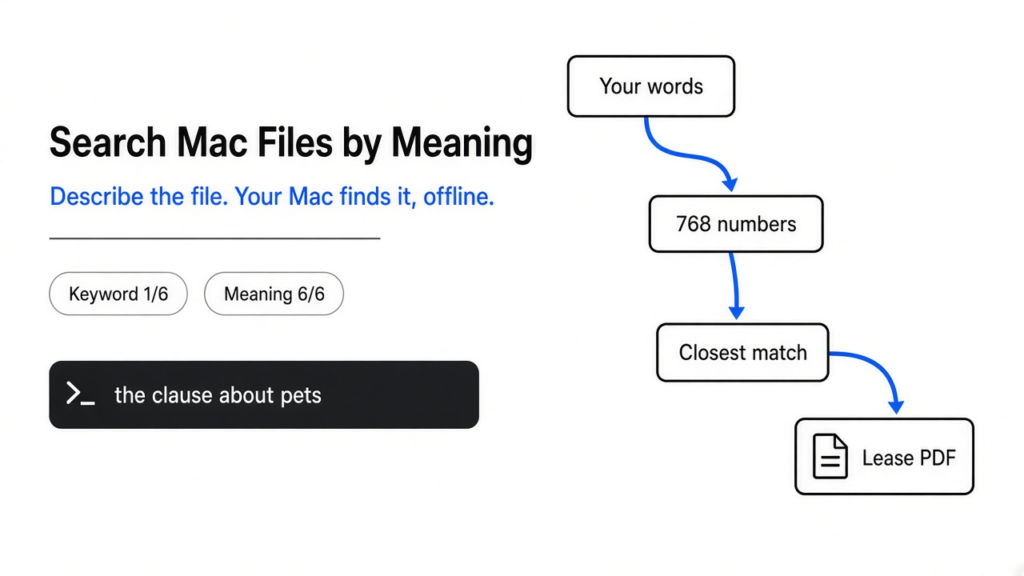
You know the file exists. It is a lease PDF, and somewhere inside it is the line about pets. You press Command and Space, type “pets lease”, and Spotlight shows you nothing useful, because the clause actually says “one cat or one small dog”. Here is how to search files on Mac by content instead.
Short answer: install a free, open source Mac app called DigUp. It reads the folders you pick and turns each file into numbers that capture its meaning. Then it finds files by what you describe, not by the exact words inside them. It runs fully on your Mac, needs an Apple Silicon Mac on macOS 14 or later, and costs nothing.
That gap between the words you remember and the words in the file is the whole story here. Hold on to it, because every section below closes it a little more.
Why can’t Spotlight find a file when I describe it?
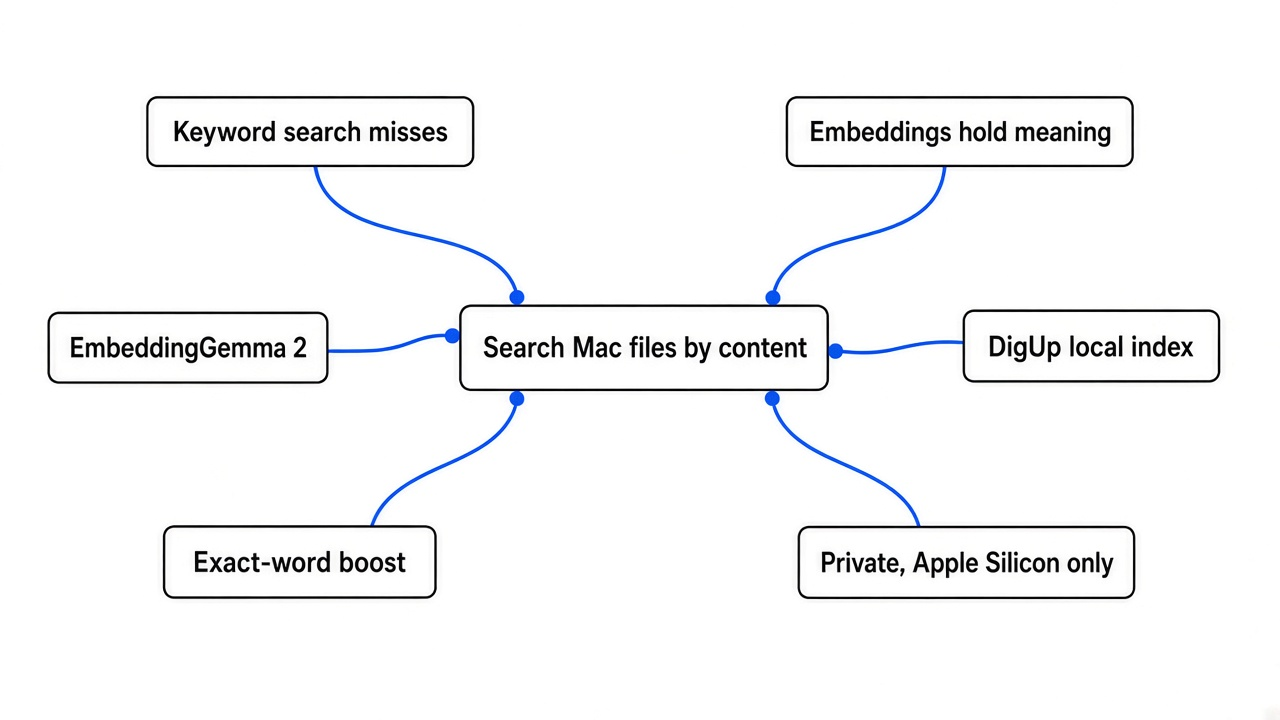
Start with how normal search works. Spotlight, Finder search and grep (the classic command line tool that scans files for text) all do the same basic job: they look for the letters you typed.
That is called keyword search. If the file contains “pets”, a search for “pets” finds it. If the file says “cat or small dog”, the search for “pets” fails, even though any person would call that a pet clause.
So keyword search has one rule: you must guess the author’s exact words. That works for names and invoice numbers. It breaks for anything you remember by meaning, like “the photo of the dog on the beach” or “that error where the payment failed”.
I tested this. I made 8 small files: a lease, trip notes, an invoice, a checkout error log, a Hindi diary entry, a Python helper, a recipe and meeting notes. Then I ran 6 everyday searches over them with plain keyword matching.
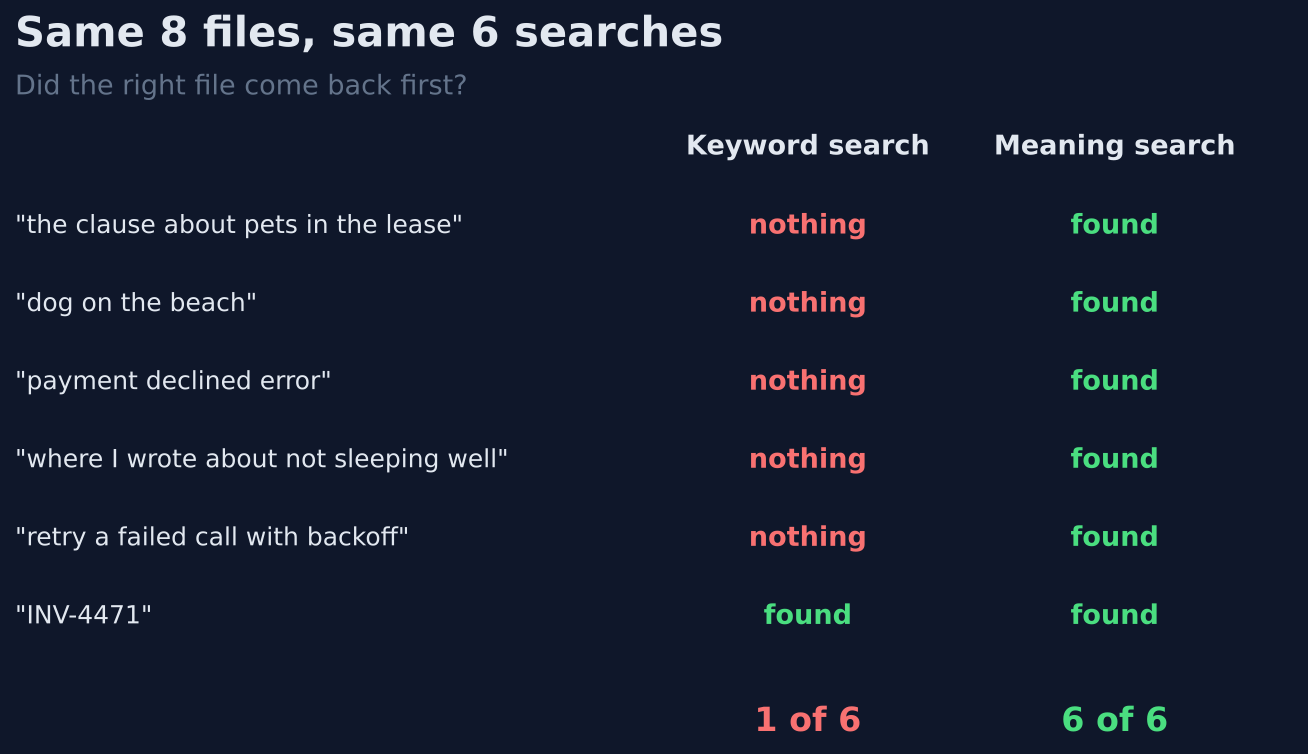
Keyword search found the right file once in 6 tries. The only hit was “INV-4471”, an exact invoice number. Every search phrased the way people actually think came back empty.
What does searching by meaning actually mean?
To search by meaning, the computer first needs a way to hold meaning. Computers are good with numbers, so the trick is to turn meaning into numbers.
So picture giving every word two scores: how money-like it is, and how animal-like it is. “Dog”, “puppy” and “retriever” get similar scores, so they sit close together on a chart. “Invoice”, “bill” and “receipt” cluster somewhere else.
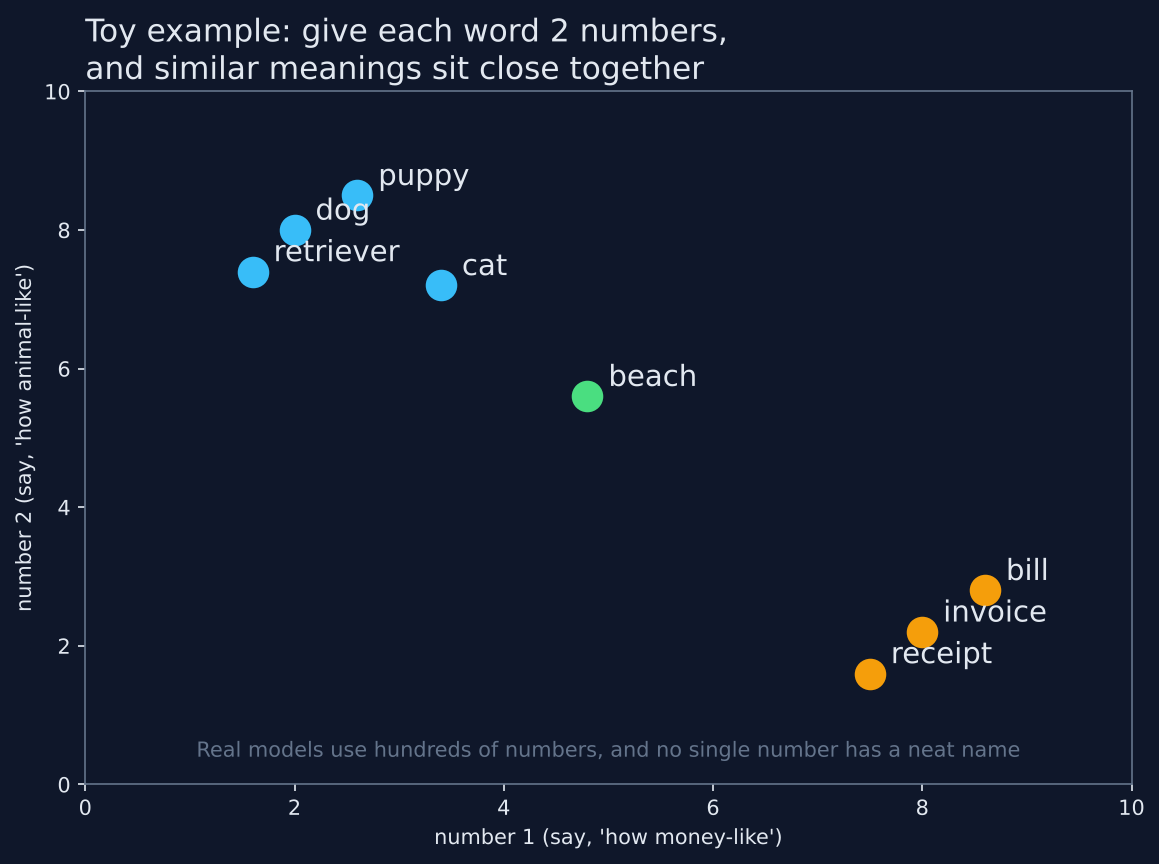
Now the new idea. That list of numbers is called an embedding (a list of numbers that stands for the meaning of a piece of content). Real embeddings use hundreds of numbers instead of two, and no single number has a neat label, but the rule stays the same: similar meaning, nearby numbers.
Search then becomes simple geometry. Turn your search words into an embedding, turn every file into an embedding, and return the files whose numbers sit closest to yours. Closeness is measured with cosine similarity (a score for how much two lists of numbers point the same way; higher means more alike).
Which brings us back to the lease. “The clause about pets” and “one cat or one small dog” use different words, but their embeddings land near each other. That is how meaning search closes the gap keyword search cannot.
What model turns my files into numbers?
The program that produces embeddings is called an embedding model (an AI model trained only to turn content into those meaning-numbers, not to chat). DigUp uses one from Google DeepMind called EmbeddingGemma 2.
Three things make this model a good fit for a laptop app. First, it is multimodal (it understands more than one kind of input): text, code, images, audio and video all go into the same 768-number space.
That shared space matters. A photo of a dog on a beach lands near the words “dog on the beach”. So one search can return a picture, a PDF page and a podcast moment side by side.
Second, it is small. It has 740 million parameters (the internal numbers a model learns during training; more parameters usually means bigger and slower), which is tiny next to chat models and fits on ordinary hardware. Third, it is open under the Apache 2.0 license (a permissive license that allows free personal and commercial use), and it understands more than 100 languages.
That small size also keeps it fast. On a recent MacBook Pro, embedding one image takes well under a fifth of a second on the CPU alone, and roughly a quarter of that on the GPU.
Does meaning search really beat keyword search?
Claims are cheap, so I ran the real model. I loaded EmbeddingGemma 2 on a plain cloud Linux machine with no GPU, embedded the same 8 files, and ran the same 6 searches. Loading took about 6 seconds and embedding all 8 files took half a second.
It put the right file first in all 6 searches. The pet clause search matched the lease with a score of 0.84, while the next closest file scored only 0.57. “Payment declined error” found the log line that says “card was declined by the issuing bank”, with no shared phrase.
Beyond the scores, two results surprised me. The English search “where I wrote about not sleeping well” found the diary entry written entirely in Hindi, because the model maps both languages into the same space. And “retry a failed call with backoff” found my Python function even though it is named call_with_tries and never uses the words “retry” or “backoff”.
Here is the same test drawn as a map. Each dot is a file, each star is a search, and each arrow points to the file the model picked.
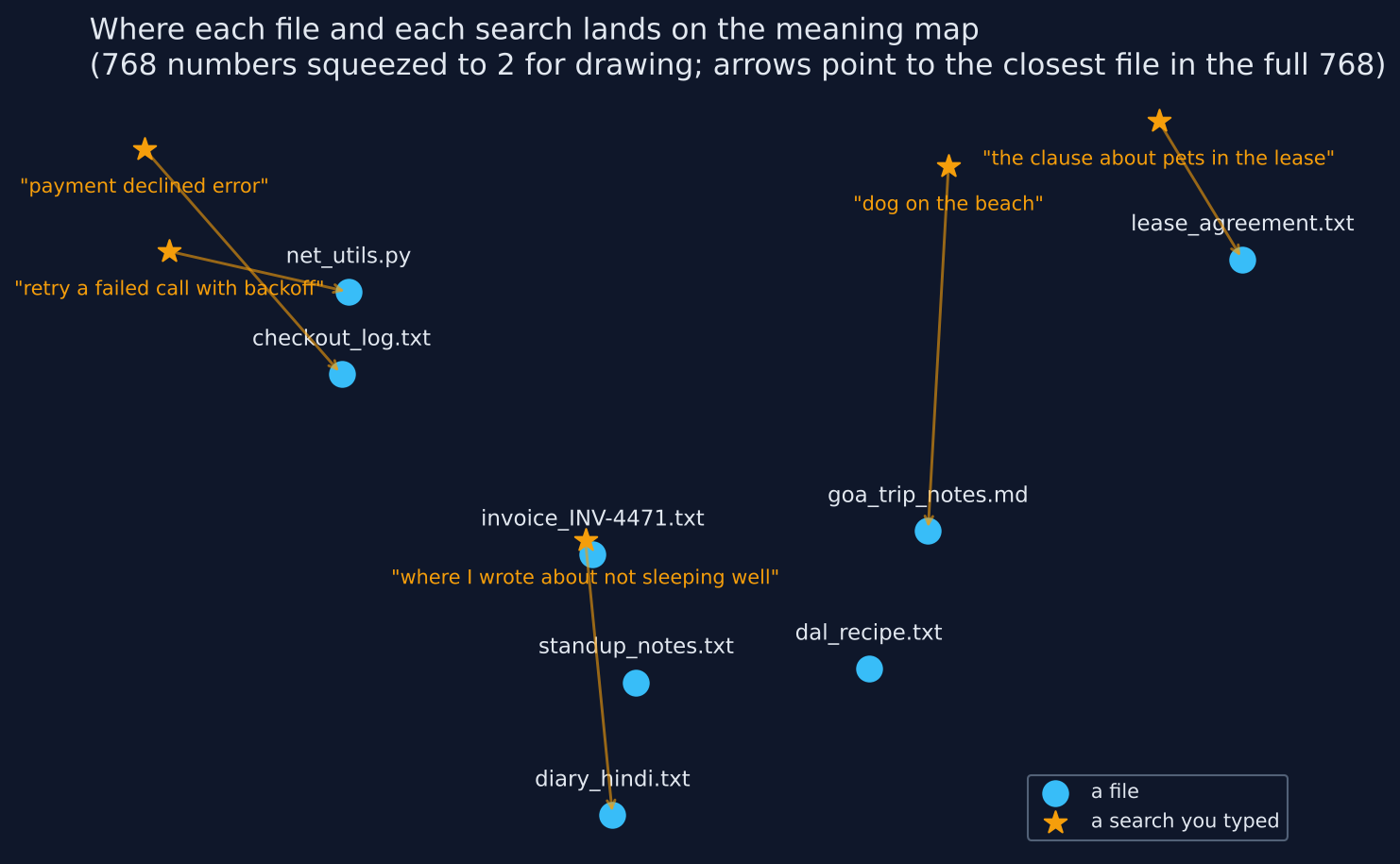
But the map also shows one honest limit. The invoice search worked, but its score (0.74) was barely above the score for an unrelated file. Embeddings capture meaning, not exact codes, so for invoice numbers and error codes, keyword search is still the better tool.
How does DigUp use this on a Mac?
DigUp is the app that wraps all of this into something you press a shortcut for. You pick folders, it reads what is inside, and it keeps an index (a stored lookup table built ahead of time so searches are instant instead of rereading every file).
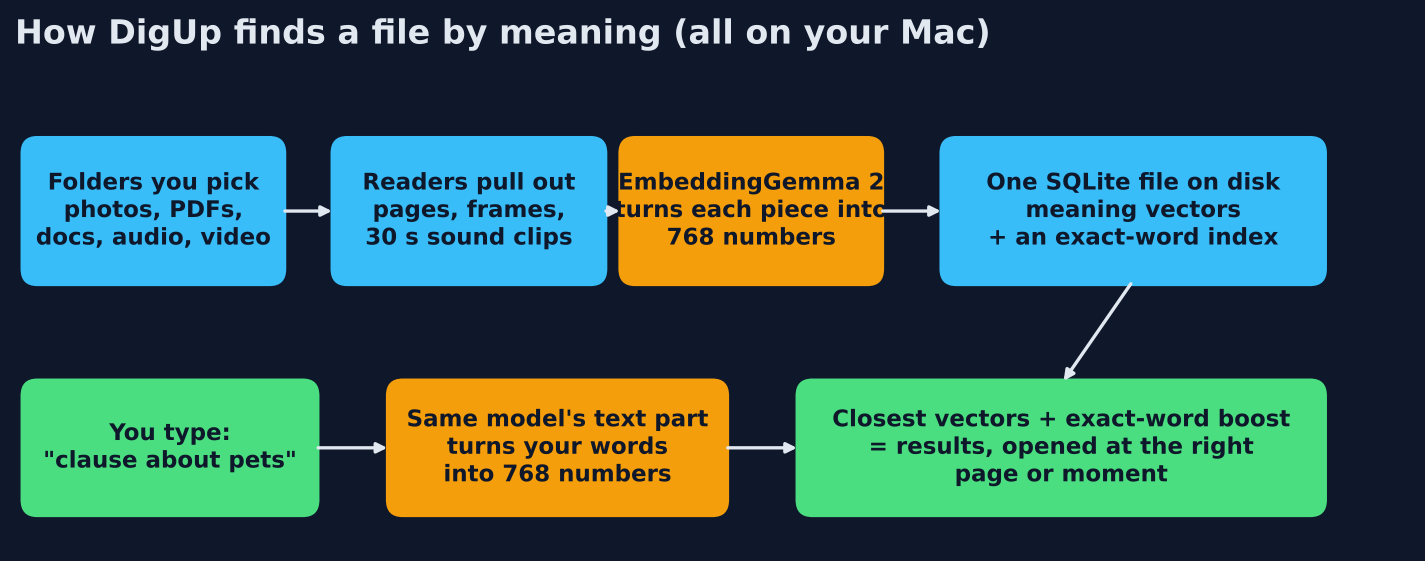
So what happens behind that shortcut? Readers pull pages out of PDFs, frames out of videos and 30-second windows out of audio. EmbeddingGemma 2 turns each piece into 768 numbers using the Mac’s GPU. Everything lands in one SQLite file (a small database stored as a single file on your disk). When you search, the model turns your words into numbers and DigUp returns the closest pieces.
And here is the smart part: it mixes both methods. Every result gets a boost when your exact words also appear, so “INV-4471” and error codes still match as written. That fixes the weak spot my test exposed.
It also opens results at the right spot: a video starts at the moment the zebra appears, a PDF opens at the matching page, and code opens in your editor at the line.
How do I install DigUp and run my first search?
Setup takes about five minutes plus the first indexing pass.
- Download the DMG from the project’s GitHub releases page and drag DigUp into Applications. If you use Homebrew, run the command below instead.
- Open it. It downloads the model once, about 865 MB, while you pick which folders to search.
- Wait for the first pass. A few hundred files take a few minutes; a huge Downloads folder can take an hour. After that, new files become searchable within a second or two.
- Press Shift, Command and Space in any app, and describe what you want.
brew install --cask arahim3/tap/digup
Good first searches: “screenshot of a payment error”, “the clause about pets in the lease”, “photo of a dog on the beach”. To search code, turn on code search in Settings, then start a search with code: and describe what the function does.
Is it private, and what is the catch?
Privacy is the reason to do this locally. Nothing you index leaves your Mac. The app goes online only to download the model once and to check for updates daily, and that check sends nothing about your files and can be switched off. There is no account and no telemetry (background usage data sent to the developer).
But privacy is not the whole picture. The catches are real, so weigh them:
- Apple Silicon only. Intel Macs and macOS versions older than 14 are not supported.
- Disk space. The model alone is 865 MB, plus the index.
- First pass is heavy. Your fans may spin while it reads a big folder the first time.
- Young project. It is a small open source app under the MIT license, so expect rough edges and check the issues page before trusting it with critical work.
- Exact text in screenshots relies on Apple’s text recognition, which covers about 25 languages, and languages written without spaces, like Chinese and Japanese, are not split into words for exact matching.
If you are on Windows or Linux, the method still applies. Any tool that pairs an embedding model with a local index gives you the same kind of search, and the next step is simply finding one built for your system.
When should I still use Spotlight?
Keep Spotlight for what it is good at: opening apps, finding a file by its name, and matching exact strings. It is instant and built in.
Reach for meaning search when you remember what a file is about but not what it says. The two work fine side by side.
Back to that lease. You never had to remember “cat or small dog”. You only had to remember what you were looking for, and that is the gap this whole method was built to close.
Common questions about searching Mac files by content
Can Spotlight search inside files on a Mac?
Yes, Spotlight searches the text inside many documents, but only by matching your exact words. It does not understand that “pets” and “cat or small dog” mean the same thing.
Is there an AI search for Mac files that works offline?
Yes. DigUp runs the EmbeddingGemma 2 model locally on Apple Silicon Macs with macOS 14 or later. After the one-time 865 MB model download, indexing and searching work without sending your files anywhere.
What is an embedding in simple words?
An embedding is a list of numbers that stands for the meaning of a piece of content. Similar meanings get nearby numbers, so a computer can find matches by closeness, measured with cosine similarity.
Can I find a photo on my Mac by describing it?
Yes, with a multimodal tool like DigUp. EmbeddingGemma 2 puts photos and words in the same 768-number space, so typing “dog on the beach” can return the matching photo.
Is meaning search better than keyword search for invoice numbers?
No. In the test, the invoice search worked but barely beat an unrelated file. For exact codes, keyword search is still better, which is why DigUp boosts results that contain your exact words.
3 comments